Add an unsubscribe link in Mail Designer 365

Adding an Unsubscribe Link in Mail Designer 365: Step-by-Step Guide

By Team equinux Preparing your Design for Sending

The unsubscribe link is a key component of every successful - and legally compliant - email campaign. With Mail Designer 365, you can easily add this link to your email templates, allowing unsubscribes to be handled automatically while giving your recipients full control over their data. In this guide, we’ll show you step by step how to correctly add unsubscribe links and explain why they are essential for the success of your email campaigns.

Jump to Section:

Why an Unsubscribe Link is Important

An unsubscribe link is not just legally required—it offers numerous benefits for your email marketing:

  • Reduces spam complaints: Recipients who can easily unsubscribe are less likely to mark your email as spam.
  • Improves sender reputation: Email providers reward clean lists and ensure better deliverability.
  • Enables targeted optimization: In the analytics view, you can see who unsubscribes and adjust your content or email frequency accordingly.
  • Builds trust with your recipients: Transparency and control increase subscriber satisfaction and loyalty.

Adding an Unsubscribe Link in Mail Designer 365

Here’s how to insert an unsubscribe link into your template:

  1. Open your template in Mail Designer 365.
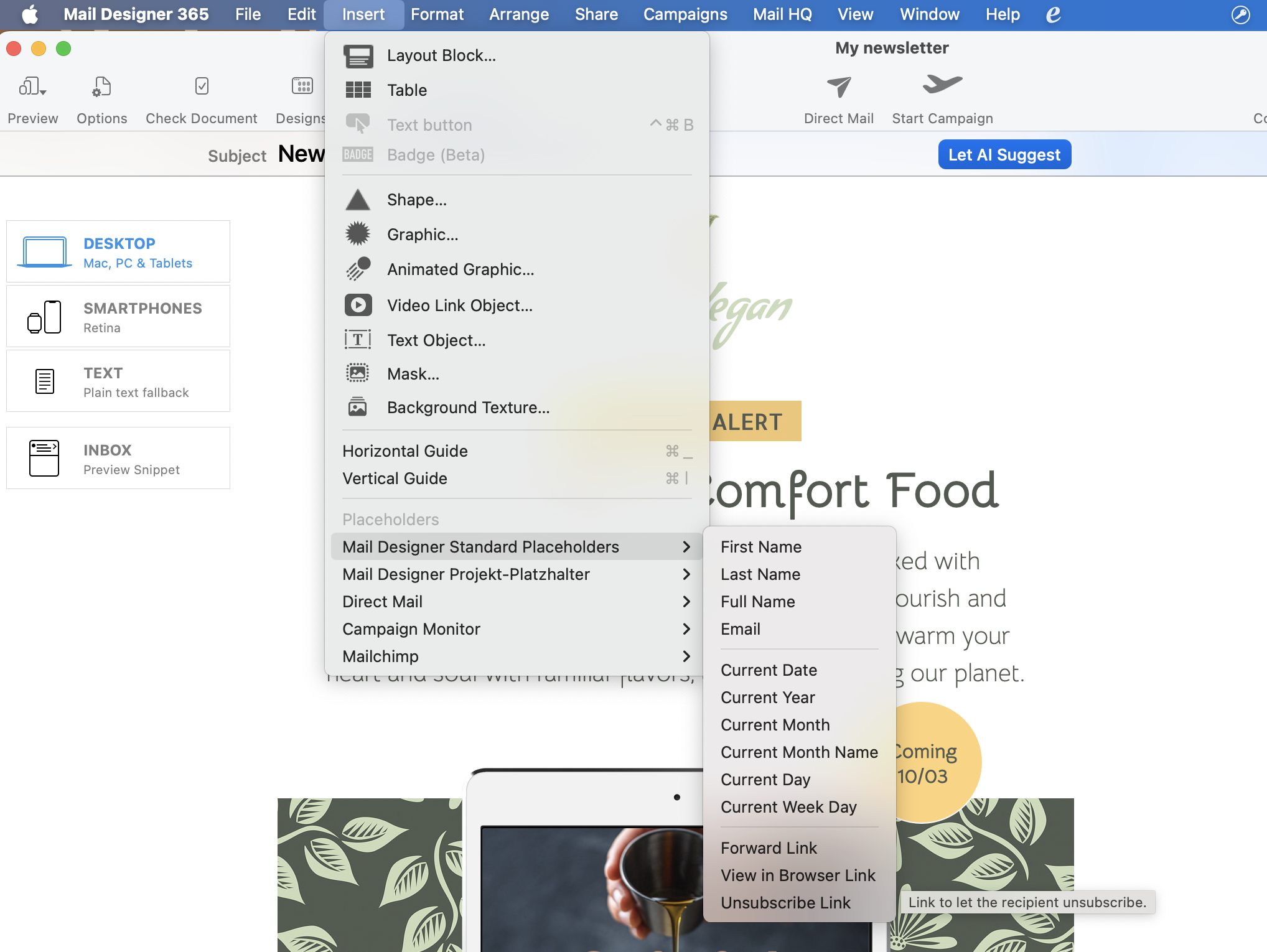
  2. Go to the menu and select Insert > Mail Designer 365 Campaigns.
  3. Choose the Unsubscribe Link placeholder.

Adding an unsubscribe link via the placeholder menu in Mail Designer

Automated Unsubscribes and Reporting

Once the unsubscribe link is added, unsubscribes are handled automatically:

  • The recipient clicks the unsubscribe link, and the system automatically removes them from the mailing list.
  • No manual follow-up is required.
  • In your newsletter overview, you can see how many recipients unsubscribed via the link and view the contacts who unsubscribed.

Conclusion

Unsubscribe links are an essential part of professional email campaigns. They protect your sender reputation, improve email deliverability, and build trust with your recipients. With Mail Designer 365, you can automate this process while keeping track of all important unsubscribe information. This way, you can optimize your email marketing and ensure happy, well-informed subscribers.

Email Placeholders in Mail Designer 365

By Team equinux Preparing your Design for Sending

Email placeholders let you personalize a campaign with contact details such as a recipient’s first name, last name, or email address. Mail Designer 365 replaces each placeholder with the matching value when you send through Mail Designer Delivery, so one design can create a personal message for every contact.

What are email placeholders?

An email placeholder is a special text token connected to a field in your contact list. You place the token where personalized information should appear, and Mail Designer Delivery substitutes the correct value for each recipient during sending. This saves you from creating separate copies of a design and helps keep recurring campaigns consistent.

Use placeholders only for information that is available and maintained in your contacts. Before sending, check that the relevant fields contain clean data and that names use the capitalization you want readers to see. A placeholder cannot correct missing or inaccurate contact details on its own.

This guide covers placeholders used with Mail Designer Delivery. If you export your design to another service, follow the provider-specific workflow instead:

How to insert email placeholders

  1. Open your design and select the text area where the personalized value should appear.
  2. Place the insertion point exactly where you want the contact information to be shown. Include any punctuation or spaces outside the placeholder so the sentence remains readable.
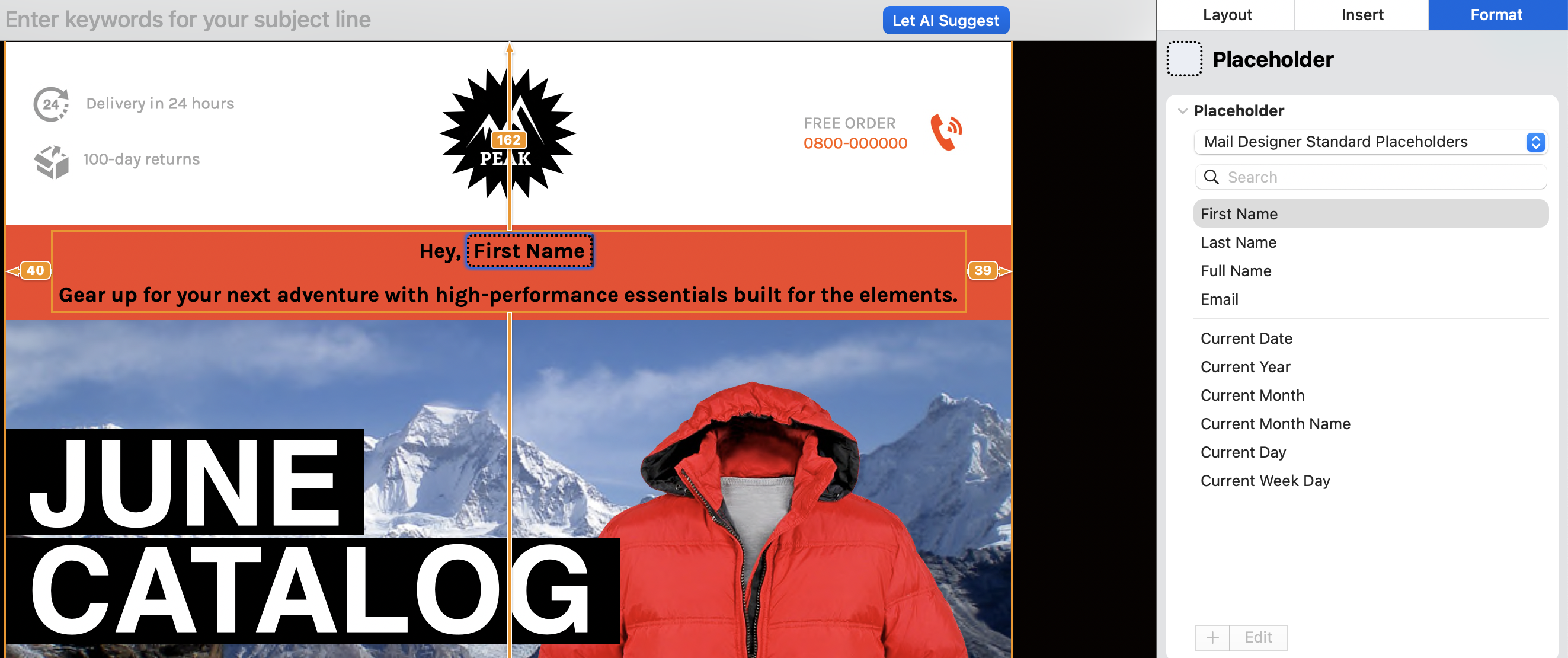
  3. Open Insert in the toolbar and choose Mail Designer Standard Placeholders.
  4. Select the contact field you want to insert, such as a first name or email address.
  5. Review the surrounding sentence and repeat the process for any additional fields.

Insert email placeholders from the Mail Designer Standard Placeholders menu

The placeholder remains visible as a token while you edit the design. After uploading the campaign, Mail Designer Delivery uses the information stored for each contact to replace that token.

Write safe fallback copy

Personalization works best when the sentence still makes sense if a contact field is unavailable. Avoid building an essential instruction around a first name or another optional value. For a greeting, consider whether a neutral opening is preferable for contacts whose profile is incomplete.

Keep formatting around the token simple. Apply the same font, size, color, and line spacing as the surrounding text, then check that a longer name will not create an awkward line break. This is especially important in narrow mobile layouts and buttons.

Preview and test before sending

Before you schedule the campaign, preview both desktop and mobile versions and test with representative contact records. Include one record with a short name, one with a long name, and one that is missing an optional field. Confirm that punctuation, spacing, wrapping, links, and text styles remain correct in every case.

Send a test email to yourself and verify the rendered result in more than one email client when possible. The test should confirm that placeholders are replaced, not displayed as raw tokens, and that the personalized content matches the intended recipient data.

Troubleshooting placeholder problems

If a token appears unchanged in a delivered message, first confirm that the campaign was sent through the workflow that supports that placeholder type. Mailchimp and Campaign Monitor use their own syntax, so Mail Designer Delivery tokens should not be copied into those services without conversion.

If the value is blank or incorrect, review the corresponding contact field and import mapping. Re-upload or refresh the campaign after correcting the data, then send another small test. Also check that the placeholder was inserted from the menu rather than typed manually; a visually similar string may not be recognized as a valid token.

Manage the contact data behind placeholders

Accurate contact records are the foundation of reliable personalization. These guides explain how to create signup forms, add email contacts, and import contacts from Apple Contacts.

Review your fields before every major send, use consistent naming conventions, and test the final campaign with real sample records. That simple validation step helps your email placeholders deliver useful personalization without introducing avoidable greeting or layout errors.

Check Email Grammar and Spelling in Mail Designer 365

By Hans-Peter Preparing your Design for Sending

Check email grammar and spelling before exporting or sending a Mail Designer 365 campaign. The built-in macOS writing tools can review selected text, a specific text layout block, or the document, helping you catch common errors without leaving the design.

Automated checking is a useful first pass, but it does not understand every product name, abbreviation, tone choice, or factual detail. Always complete a separate human proofreading pass after using the spelling and grammar controls.

Check Email Grammar and Spelling

  1. Open the email design and click inside the text area you want to review.
  2. Select a sentence or paragraph when you want to limit the check, or leave the cursor in the text area for a broader review.
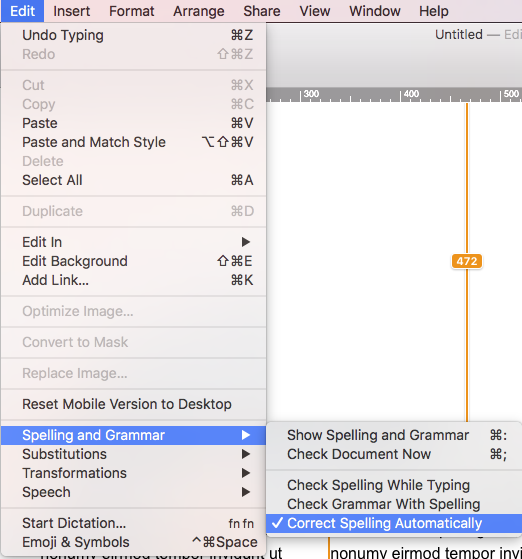
  3. Choose Edit > Spelling and Grammar.
  4. Select the checking option that fits your workflow.
  5. Review each suggestion in context before accepting it.

The exact labels can vary with the installed macOS and Mail Designer version. The important point is to start from editable text; the checker cannot review words that are embedded inside an image.

Edit menu for checking email grammar and spelling in Mail Designer 365

Choose How the Checker Runs

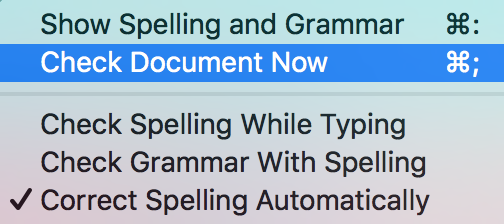
The spelling and grammar menu can offer options such as checking spelling while you type, checking grammar together with spelling, and automatic spelling correction. Enable only the behavior you want. Automatic correction can save time, but it can also alter names, technical terms, discount codes, URLs, or intentional brand wording.

For a deliberate final review, use the command that checks the document now. Work through the campaign section by section and read the surrounding sentence before accepting a change. If the same warning appears repeatedly for a valid brand term, leave the intended spelling consistent rather than changing only some occurrences.

Spelling and grammar options for checking text while typing

Select the Correct Language

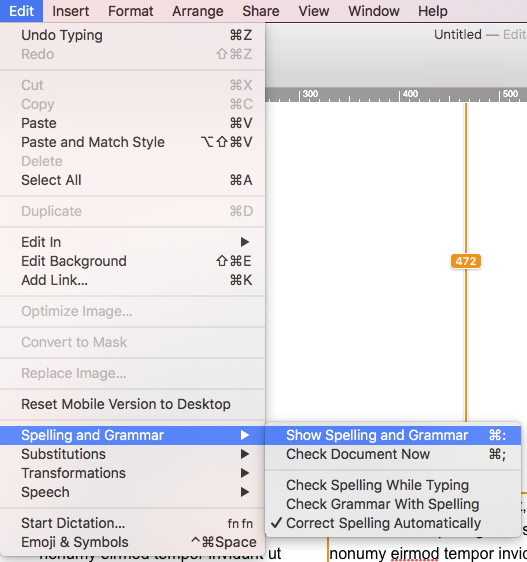
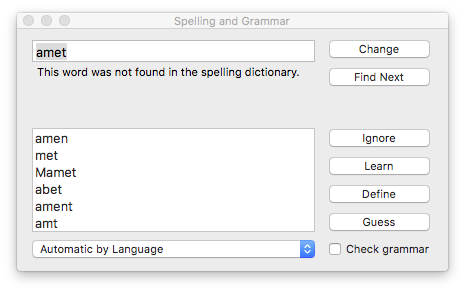
Language selection matters because spelling differs across English variants and other languages. Open Edit > Spelling and Grammar > Show Spelling and Grammar, then use the language menu in the spelling window. Automatic language detection can be helpful, but verify the result when the email contains short sections, product names, or more than one language.

Show Spelling and Grammar command in the Mail Designer Edit menu

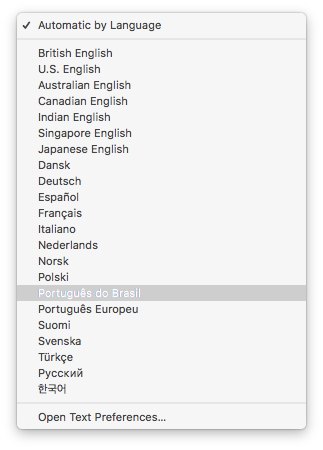
Select the language or regional variant that matches the current text. For a multilingual campaign, review each language section separately. A checker configured for American English may flag valid British spellings, while an English checker will not reliably review a German paragraph.

Automatic by Language menu in the spelling and grammar window

Language list for selecting a spelling dictionary

Proofread Beyond Automatic Suggestions

After you check email grammar, review details a writing tool may miss: recipient-facing dates, prices, discount codes, sender names, contact information, button labels, image text, and the consistency of capitalization. Read the subject line and preview text separately because they may not be part of the editable design body.

  • Read the message once for meaning and once for spelling.
  • Check headings, buttons, captions, and footer text.
  • Confirm names, numbers, dates, and URLs against their source.
  • Review any text visible inside images manually.
  • Send a delivered test and proofread it on desktop and mobile.

Run a Final Revision Pass

Separate correction from rewriting. First resolve obvious spelling and grammar issues, then read the campaign for clarity, tone, and repetition. Ask another reviewer to check high-impact campaigns when possible, because the author may automatically read the intended wording instead of the text that is actually present. Keep the approved source for prices, dates, and legal text open during this pass so factual corrections are not based on memory.

Troubleshoot Missing or Incorrect Suggestions

If no suggestions appear, confirm that the cursor is in editable text and that spelling or grammar checking is enabled. If almost every word is marked, check the selected language. If valid words are changed automatically, turn off automatic correction for the review and undo the incorrect replacements.

A final delivered test remains essential. It shows line wrapping, clipped text, broken characters, and link labels in the message recipients will actually receive, not only in the design editor.

Checking your design for issues

By Preparing your Design for Sending

It's always good to review your email

Mail Designer 365 is continuously scanning your design for issues that can occur. For example, too many animated graphics or other things in your template can affect the experience
of your design.

As soon as Mail Designer 365 finds an issue you will get a notification in the top right corner of the Mail Designer 365 window. The badge shows you how many issues Mail Designer found.

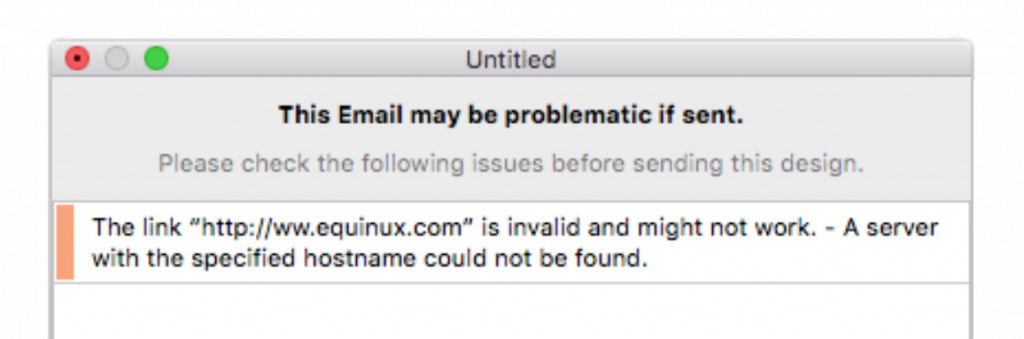
Open the check window, to see the issues Mail Designer 365 found. You will also get a description about the issues found, so you can make the necessary changes.

In the example the link is incorrect and might not work:


How to Save Your Design in Mail Designer 365

By Team equinux Preparing your Design for Sending

How to Save Your Design

Save your design in Mail Designer 365 whenever you want to continue editing later, make the current version available on another device, or share it with your team through TeamCloud. A clear design name and a quick version check help everyone open the correct file before testing or sending an email.

Save a Design for the First Time

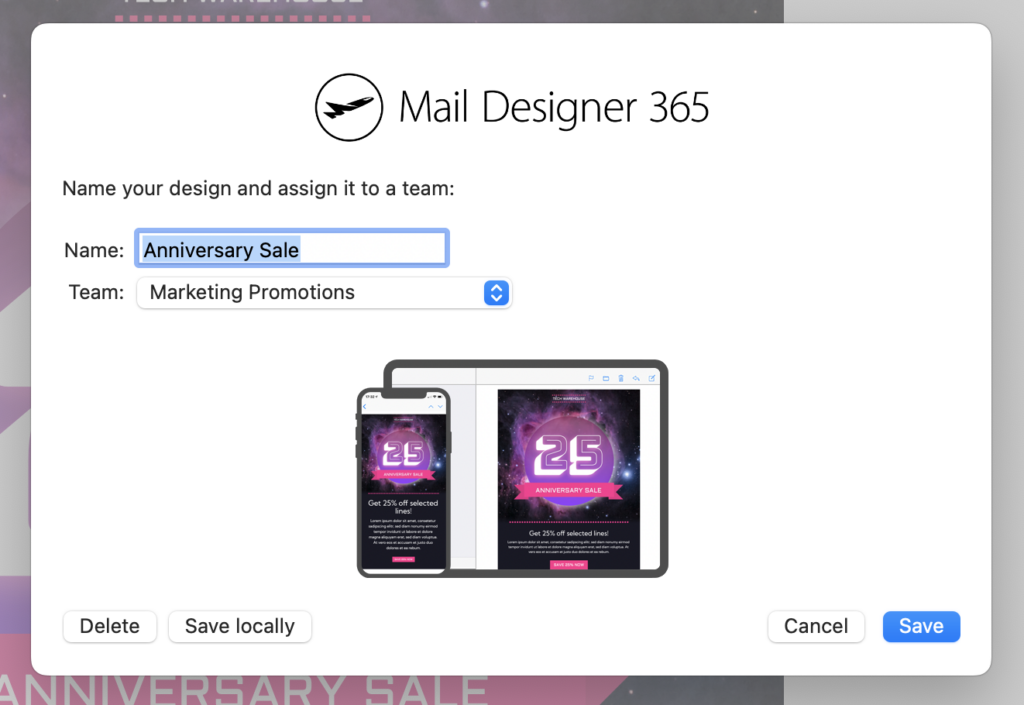
When you save a new email design for the first time, Mail Designer 365 asks you to enter a name. Choose a short, descriptive name that identifies the campaign, audience, or delivery date. If you work in a team, save the design in the appropriate TeamCloud project so authorized team members can find the same version.

Before confirming the save, check that you selected the intended project and that the name is distinct from earlier campaign versions. Consistent names such as “Spring launch – customers – final” are easier to recognize than generic labels.

Name your design and choose its TeamCloud project in Mail Designer 365

Save Your Latest Changes

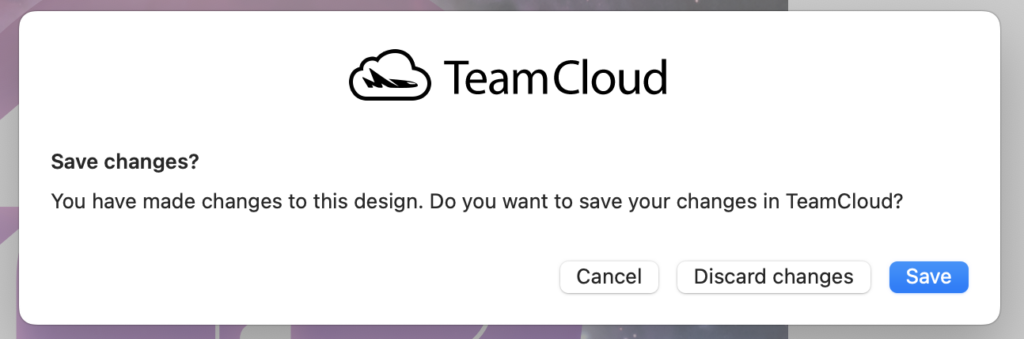
To stop editing, click the close button for the design window. Mail Designer 365 then shows the save dialog when changes still need to be stored. Review the design name and destination, save the current version, and wait for the operation to finish before closing the app or disconnecting from the network.

Save the latest changes before closing a Mail Designer 365 design

If you reopen the design immediately, confirm that the latest text, images, links, and layout changes are present. This quick check is particularly useful before a handoff or scheduled campaign.

Keep TeamCloud and Connected Services Up to Date

Mail Designer 365 uses the current TeamCloud version when a design is shared with connected workflows such as Testmail, Crew Chat, or Delivery Hub. Actions that use one of these services can trigger an upload of the latest design version.

Crew Chat control in the Mail Designer 365 toolbar

Watch the TeamCloud upload indicator after making changes. Allow the upload to complete before another person reviews the design or before you continue on a different device. This reduces the risk of comments, tests, or sends using an earlier version.

TeamCloud upload indicator for a saved Mail Designer 365 design

Verify the Saved Version

Open your design again and inspect the elements that changed most recently. Check the desktop and mobile layouts, image crops, buttons, links, placeholders, and any personalization fields. If several people edit the campaign, agree on one current version before making further changes.

For an important send, use a test email or the relevant review workflow after saving. Saving protects the editable design state; testing confirms that the delivered email still looks and behaves as intended.

Troubleshoot a Design That Did Not Save

If your latest changes are missing, first check the TeamCloud destination and design name to make sure you opened the expected file. Confirm that the app is online, then save again and wait for the upload indicator to finish. Avoid creating several similarly named copies while troubleshooting, because that can make the current version harder to identify.

If a teammate sees an older version, ask them to close and reopen the design after synchronization completes. Keep a clear naming convention for major milestones, and make a deliberate copy only when you need a separate variant rather than another version of the same campaign.

Privacy Settings / Datenschutz-Einstellungen