Blueprints: The easy way to create and share Email Templates for Teams

By Team equinux 1:1 Emails

Introducing Blueprints: An easier way to send 1:1 emails from the Mail Designer app

Frequently sending personalized designs like quotes, invoices, or exposés? Blueprints let you send 1:1 emails over and over again without overwriting the original design. Everything stays intact, ensuring consistency and a smooth workflow for your whole team.

Here's how they work:

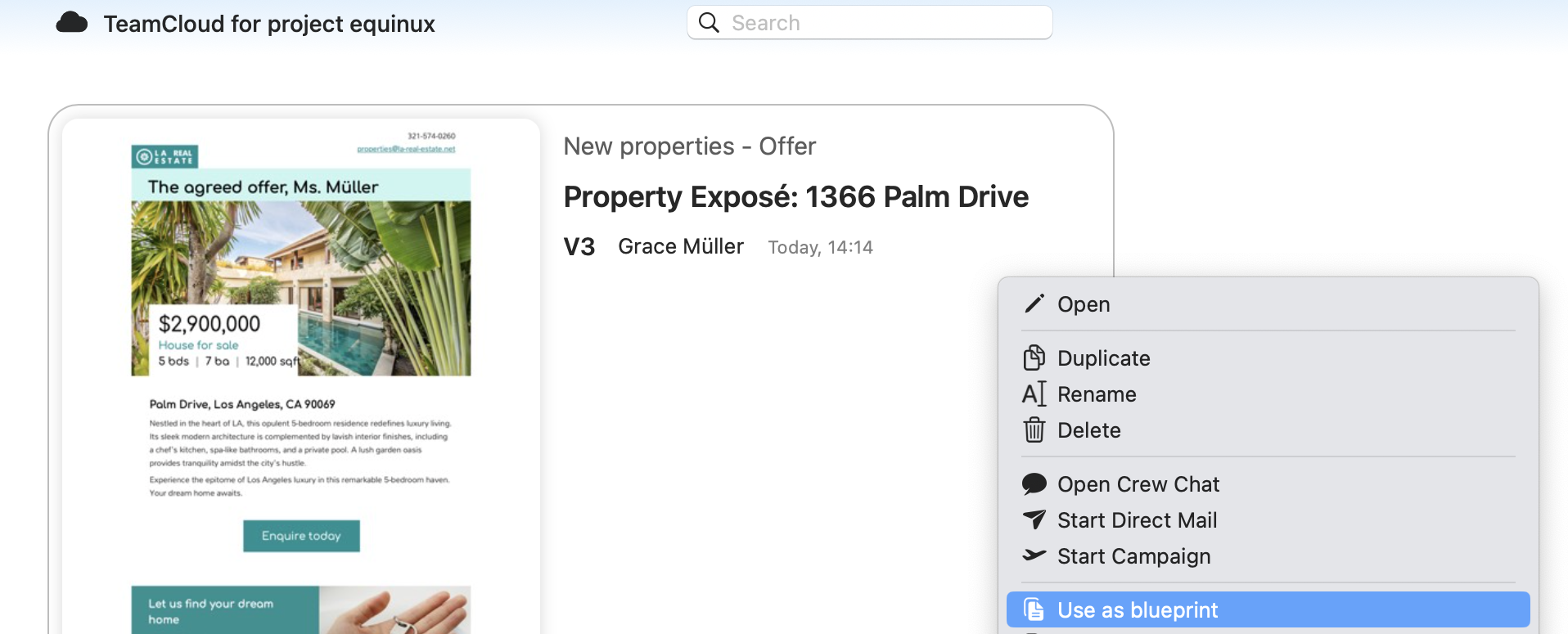
Define any TeamCloud design as a Blueprint (your team will love it: one member creates the Blueprint, and everyone can use it!)

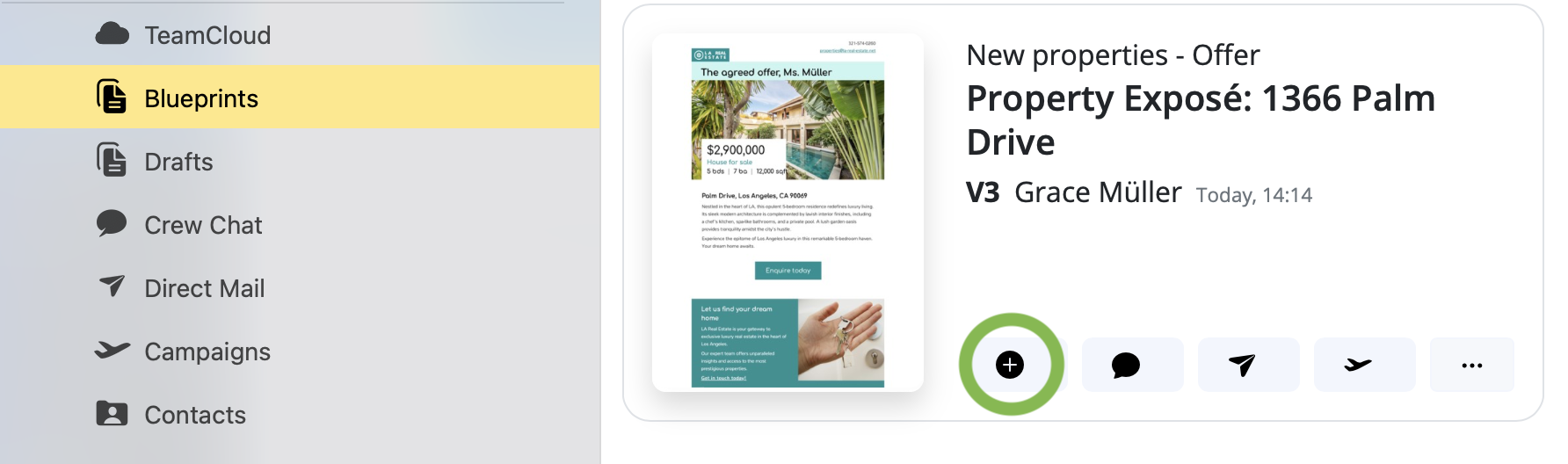
Project Blueprints are saved in their own section in the Mail Designer 365 sidebar. Just click the + to create a new design draft using your Blueprint:

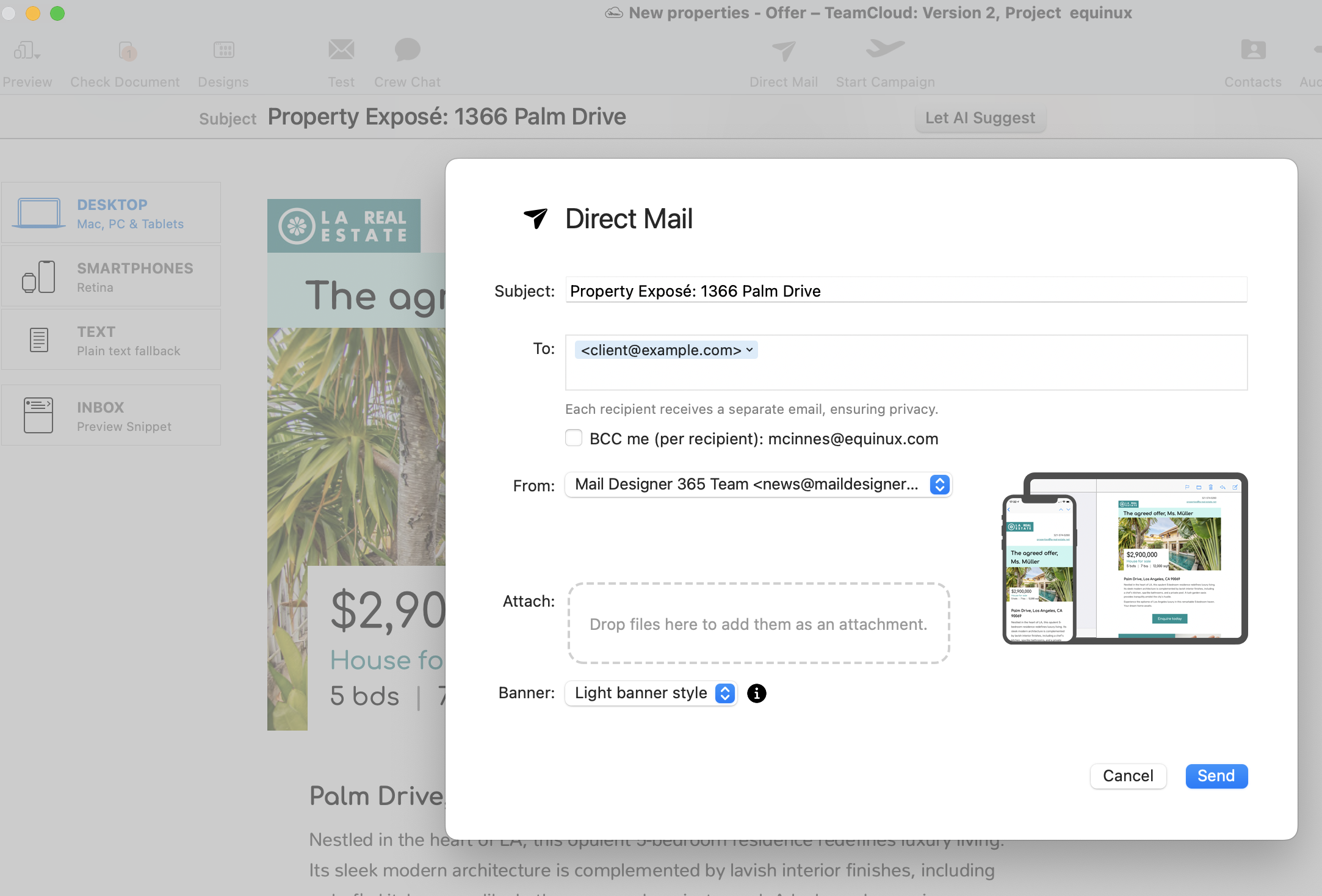
Personalize your message, then hit Direct Mail to send:

A copy of your newly created email will be saved in TeamCloud for future reference.

Need to make changes to the original?

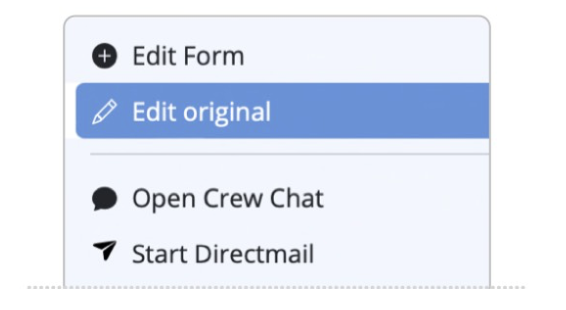
Tweak a Blueprint at any time—update the disclaimer, change the logo, or add new content. Just choose Edit original:

A Quick Tour of Mail Designer 365

Background

Layout Blocks

TextScout

Editing Text

Links and Buttons

Configuring Text Styles

Tables

Image Areas

Images

Using Retina Images with your Design

Graphics and Other Objects

Creative Tools

Advanced Design Techniques

Blend Modes

Optimizing your Template for Mobile

Plain Text

Preview your Design

Feedback and Sharing

Preparing your Design for Sending

Contacts and Audiences

Sending Emails

1:1 Emails

Email Analytics

HTML Export

Other Sharing Options

Sending to Individual Recipients via Direct Mail

By Team equinux 1:1 Emails

Mail Designer 365's Direct Mail feature allows you to send your stunning email creations directly to customers via the Mail Designer 365 app.


To get started, click on Direct Mail in the Mail Designer 365 toolbar:
The latest version of your design will be saved, here you can choose a name and your Team for your design.
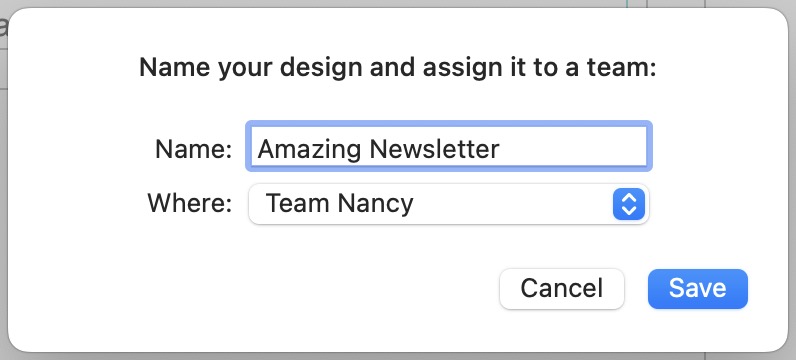
Save Dialogue

Afterwards the Direct Mail Window will open:
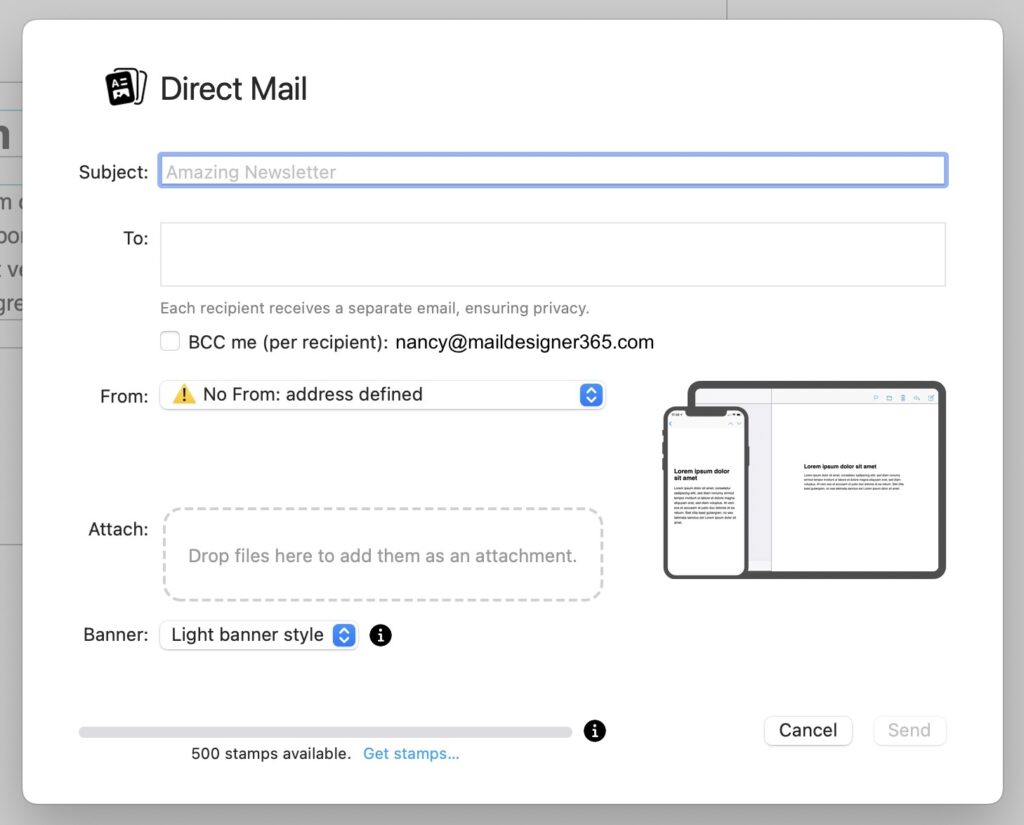
Direct Mail Interface


Subject

First check your email's subject. This is the email subject message that will be displayed in the recipient's inbox

Newsletter Subject

To: Field

In the To: field you can enter your recipient addresses. Either copy paste them from a list, manually type them into the field. Contacts can be separated by: Comma ","; Semicolon ";"; "Enter" or "Tab".

To Field

Each recipient will receive a separate email. Recipients will not see each other.

BCC option

For each Direkt Mail you send, you have the option to BCC yourself. You can use this to keep track of emails send out. Just select the checkmark next to "BCC me". You will receive one email for each recipient delivered to your own inbox.

BCC me

From: Address 

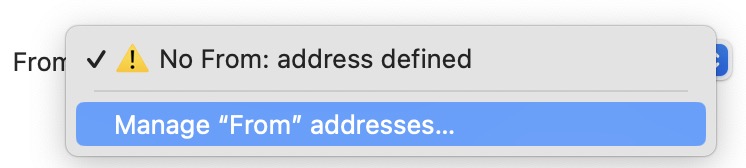
This is the address your email will be sent from. If you have already set up a From Address in your Team, it will show up here.

Once your From: Address is set up, select it in the dropdown menu.

Please note: You need to confirm your email address in order to be able to send your Direct Mail

Attachments

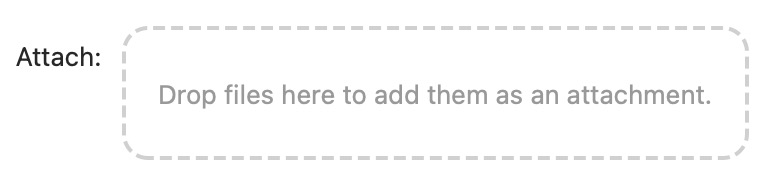
You can add attachments to your Direct Mail by dragging them into the indicated box

There is a limit of three attachments per Direct Mail and the size is limited to 20MB total.
Attachments

Banner

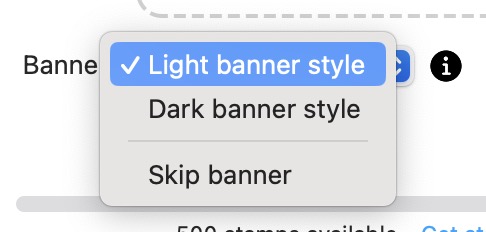
By default your Direct Mail will include a Banner for Mail Designer.Banner

You have the option to select between a light and a dark banner, depending on your design. You also have the option to remove the banner. #

Tip: Including a Banner in your Direct Mail will allow you to save Stamps!
 

Stamps

The stamps bar will show you how many stamps you will need for your Direct Mail and how many stamps you have available.

Stamps Bar


Send your Direct Mail

To send your Direct Mail, press the Send Button and your Mail will be sent.

Not using Mail Designer 365 yet?

Start your 7 day free trial and use your Mac to create stylish email newsletters for your business.
No credit card required
Compatible from macOS 10.13 onwards

A Quick Tour of Mail Designer 365

Background

Layout Blocks

TextScout

Editing Text

Links and Buttons

Configuring Text Styles

Tables

Image Areas

Images

Using Retina Images with your Design

Graphics and Other Objects

Creative Tools

Advanced Design Techniques

Blend Modes

Optimizing your Template for Mobile

Plain Text

Preview your Design

Feedback and Sharing

Preparing your Design for Sending

Contacts and Audiences

Sending Emails

1:1 Emails

Email Analytics

HTML Export

Other Sharing Options

Privacy Settings / Datenschutz-Einstellungen