
Adding Photos in Mail Designer 365
As everyone knows, a picture is worth a thousand words. Adding photos to your design is a great way to grab your readers' attention and immediately let them know what the email is about.
In Mail Designer 365, you can set up direct access to your Mac's Photos library or insert stock images from Unsplash.
Accessing your photos
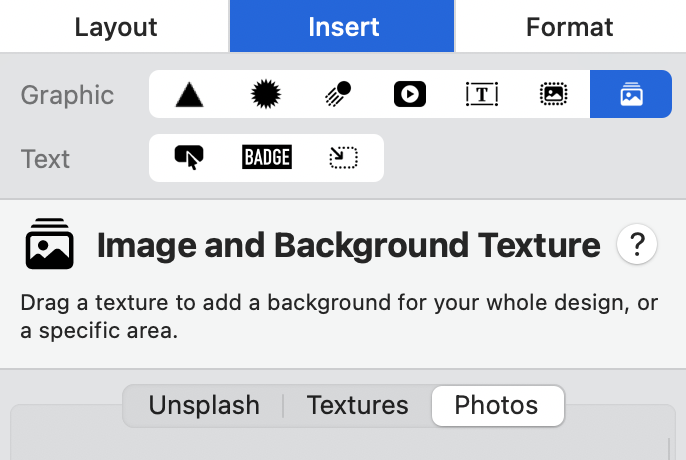
To access your own Photos in Mail Designer 365, go to Insert in the sidebar and choose Image and Background Texture. Then, switch to the Photos tab.
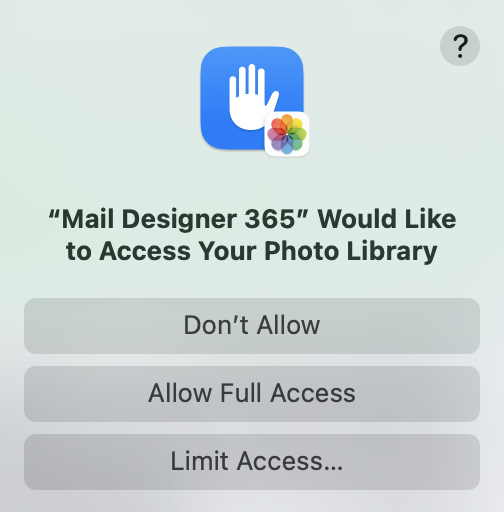
If it's your first time accessing photos, you will be shown this warning from macOS. Select the access you wish to allow in Mail Designer 365.
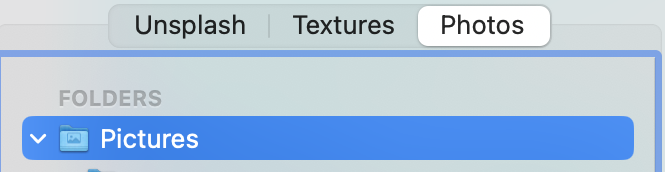
The photos tab gives you quick access to local folders that contain images, i.e. your Pictures folder:
To add an image, just drag it into an image area in your design.
How Can We Help?