
A plain text email template gives recipients a readable version of your message without images, layout styling, or rich formatting. Mail Designer 365 creates a plain text version from the desktop design and lets you edit it separately when the automatically generated text needs adjustment.
Plain text is useful for recipients or email clients that do not display the HTML design. It also provides a simple fallback for devices and viewing preferences where formatted email is unavailable. Keep the message concise, preserve essential links and contact details, and make sure the text still communicates the campaign purpose on its own.
Open the plain text email preview
Open the preview controls and click the watch button to display the plain text version of the current Mail Designer 365 design.
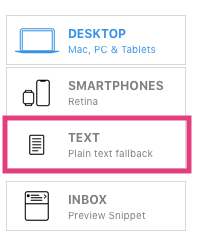
The preview shows the message without rich formatting. Read it from beginning to end before editing. Check whether headings, paragraphs, links, and calls to action appear in a logical order when the visual layout is removed.
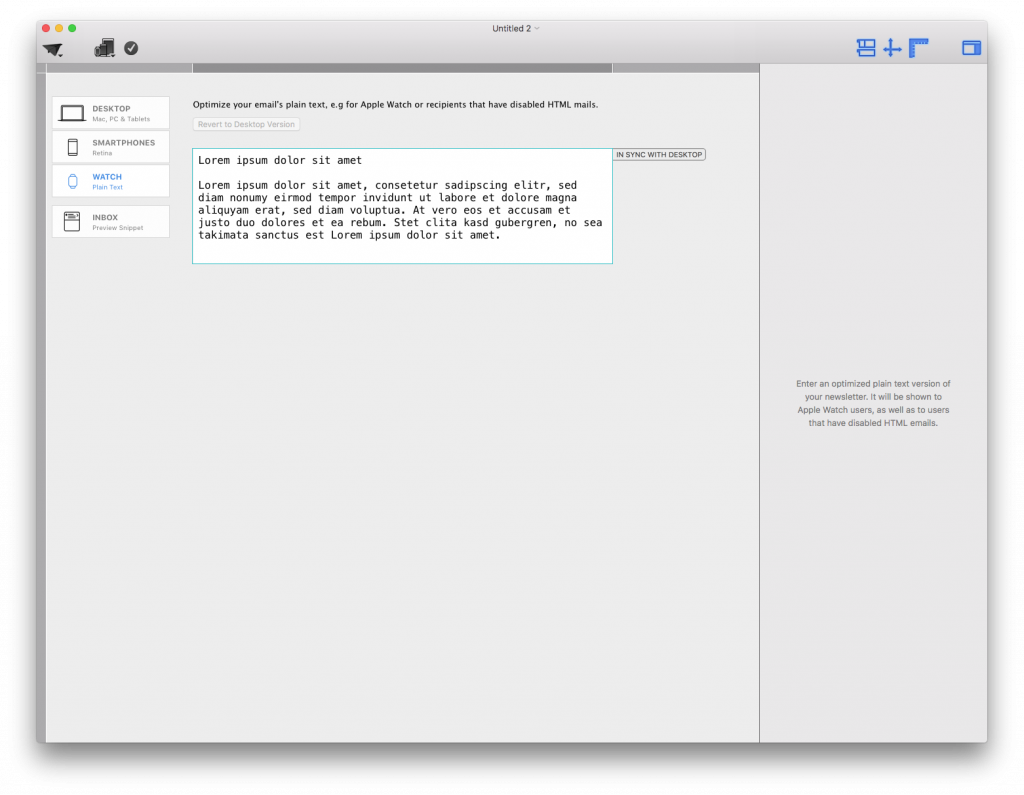
Understand the synced plain text version
At first, the plain text version is automatically synchronized with the desktop design. The label on the right shows IN SYNC WITH DESKTOP. Changes to the source design can therefore be reflected in the generated text while the versions remain connected.
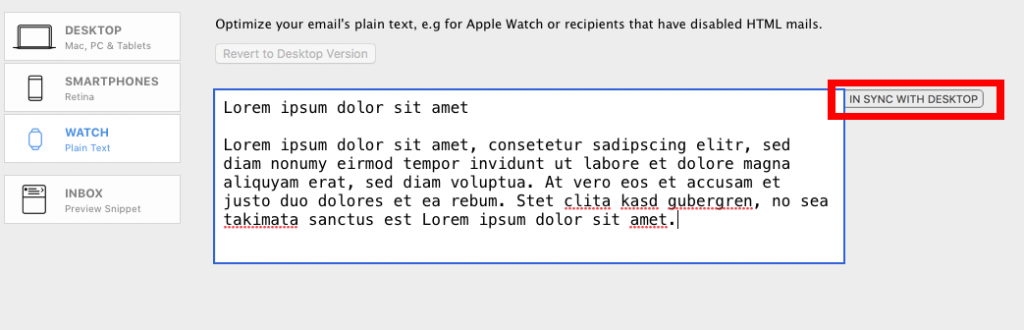
Use the synced version when the generated reading order and wording already work. If you only need to correct the HTML design, make that change first and then inspect the synchronized plain text again.
Detach the plain text version for editing
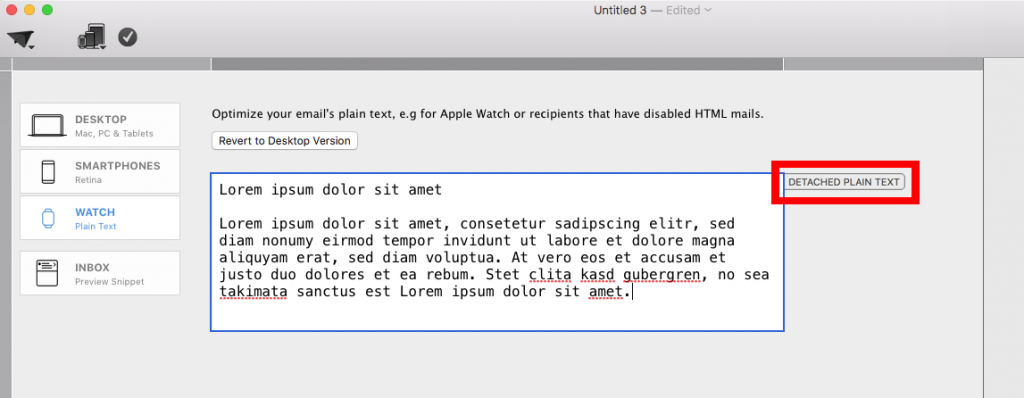
Click inside the plain text box when you need to change the fallback independently. Mail Designer 365 displays a notification explaining that editing will detach the plain text version from the desktop version.
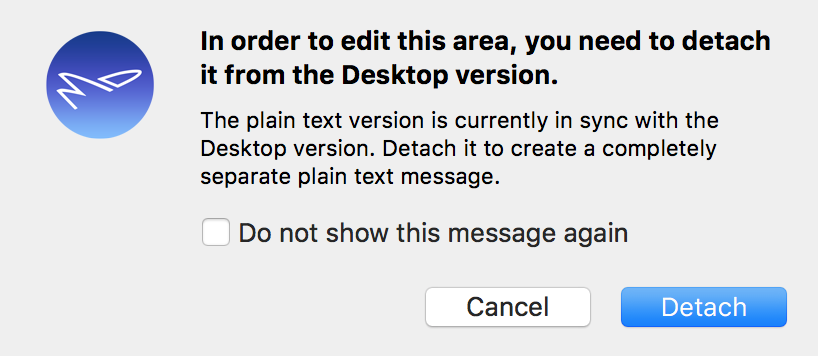
Choose Detach to start editing. The label changes to DETACHED PLAIN TEXT, confirming that this version can now differ from the desktop content.
Edit the plain text email template
Rewrite the text only where necessary. Preserve the main message, sender identity, important dates, contact information, and primary call to action. Because plain text does not provide visual buttons, use clear wording around each destination and keep full web addresses readable.
Use blank lines to separate major sections, but avoid long runs of empty space. Replace image-only information with a short text equivalent, and remove decorative captions that no longer make sense without their image. If an HTML heading becomes ordinary text, consider a simple descriptive line that still establishes the section.
After detaching, future changes to the desktop version may not automatically update the edited plain text. Add the plain text version to your campaign checklist and compare it with the final desktop copy before every send.
Revert to the desktop version when needed
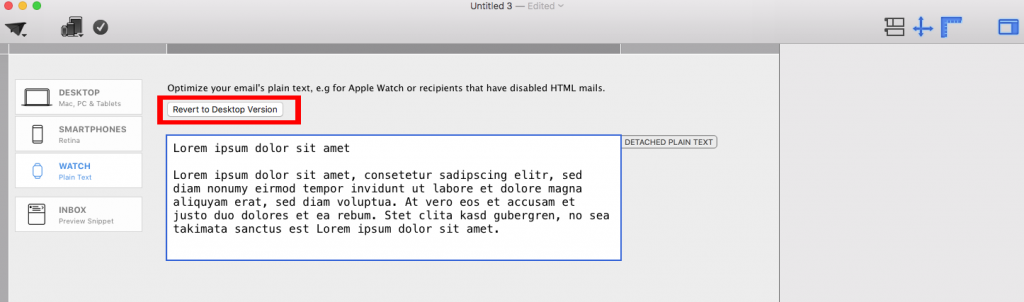
If the custom plain text version is no longer useful, choose Revert to Desktop Version. This returns the fallback to the text generated from the desktop design. Review the result again because your manual plain text changes will no longer be the active version.

Test the plain text version before sending
- Read the complete message without referring to the designed HTML version.
- Confirm that essential information and required legal text are present.
- Check every web address and make sure the destination is public and correct.
- Remove image-dependent instructions such as “click the button below” when no button appears.
- Send a test message and inspect both the HTML and plain text presentations where possible.
For more campaign setup guidance, browse the Mail Designer 365 Knowledge Base.
How Can We Help?