Setting up a fallback font

By Configuring Text Styles

There are some email clients which have difficulties displaying fonts which aren't deemed "email-safe." For this reason, Mail Designer 365 allows you to set up fallback fonts within a text style, so you have complete control over how your design is displayed to readers.

What is a fallback font?
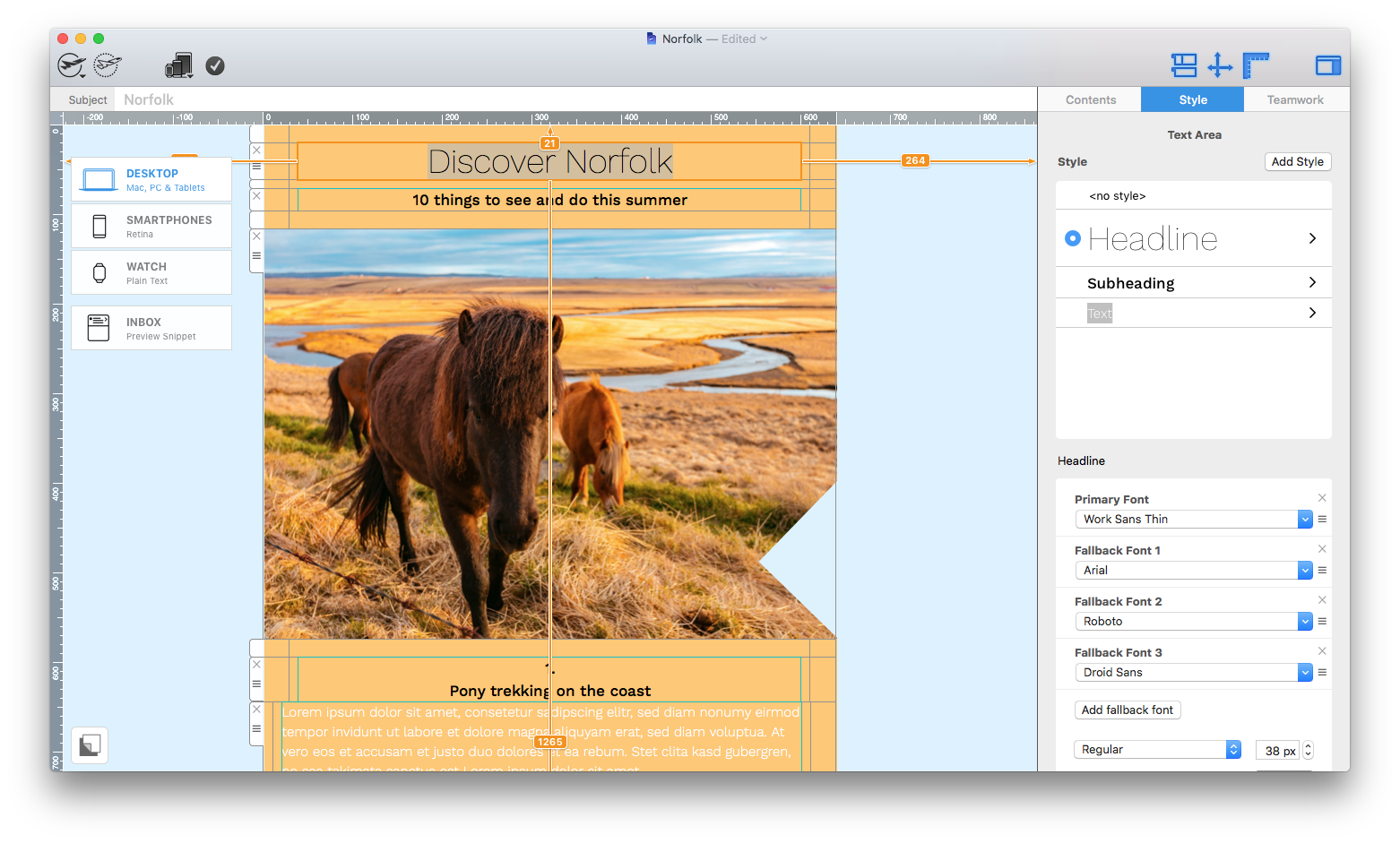
A fallback font is the backup font which is displayed if your chosen font is not available. If your recipient's computer cannot display your first choice font for whatever reason, it will work its way through your list of fallback fonts until it reaches one it can display. In Mail Designer, you can set up multiple fallback fonts within one text style, but all text styles will set up at least one fallback font from our list of email-safe options.

Setting up a fallback font

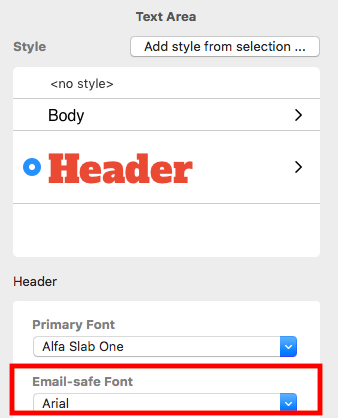
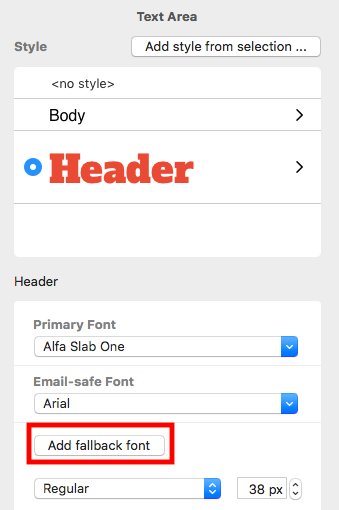
After you have added a text style to your email copy, you will see a box labelled "Email-safe Font" under the "Style" menu.

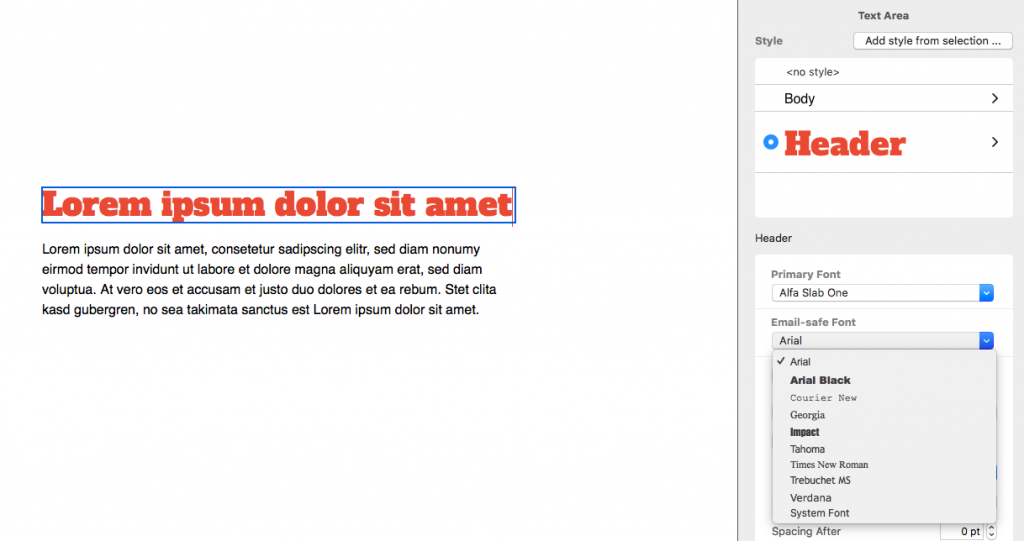
To choose from the selection of email-safe fonts, click the dropdown menu. Your email-safe font will then be displayed if your first choice of font isn't.

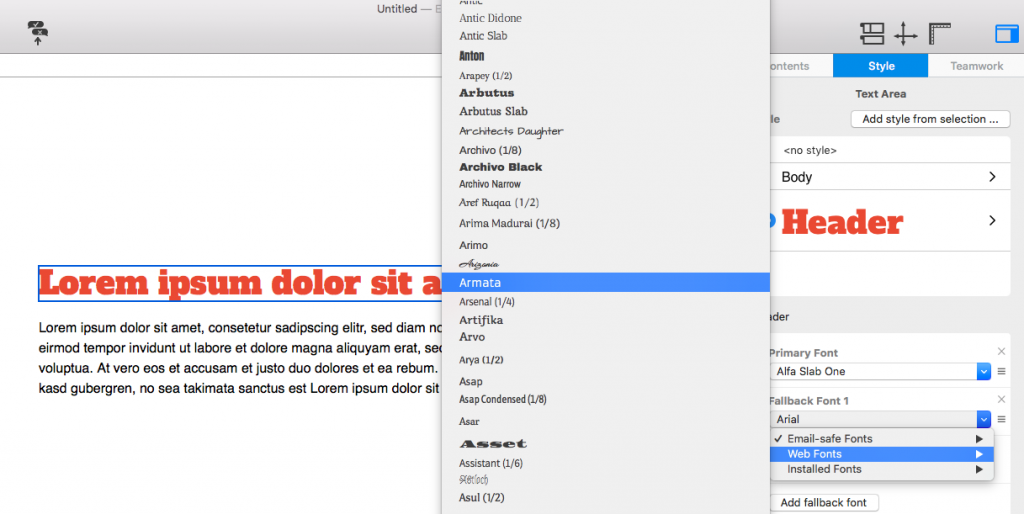
To add an additional fallback font, click on the button.

As long as you already have an email-safe font set up, you can choose any font in Mail Designer 365 as a fallback:

If you wish, you can continue to add fallback fonts to a text style by repeating the last step.

A Quick Tour of Mail Designer 365

Background

Layout Blocks

TextScout

Editing Text

Links and Buttons

Configuring Text Styles

Tables

Image Areas

Images

Using Retina Images with your Design

Graphics and Other Objects

Creative Tools

Advanced Design Techniques

Blend Modes

Optimizing your Template for Mobile

Plain Text

Preview your Design

Feedback and Sharing

Preparing your Design for Sending

Contacts and Audiences

Sending Emails

1:1 Emails

Email Analytics

HTML Export

Other Sharing Options

Creating "mobile only" text styles

By Configuring Text Styles, Optimizing your Template for Mobile

Mobile only styles offer you a simpler way to edit your smartphone content without having to detach your mobile layout blocks from your main design.

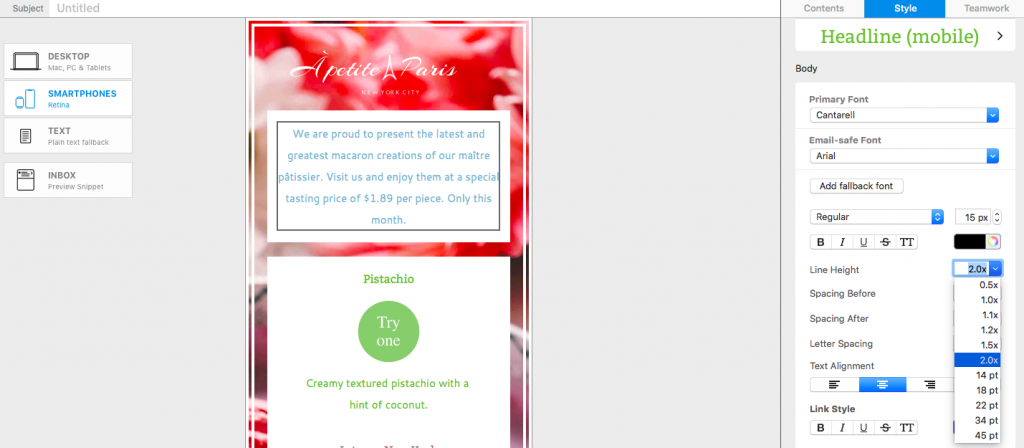
To get started, head to the Smartphone view and make an adjustment to any text block. In this example, we will reduce the line height to save space for mobile users:

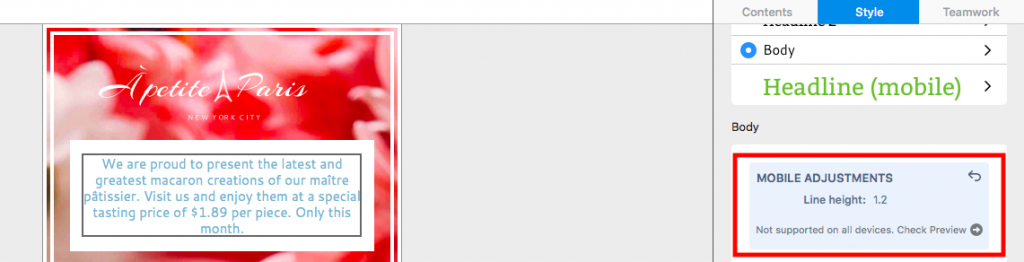
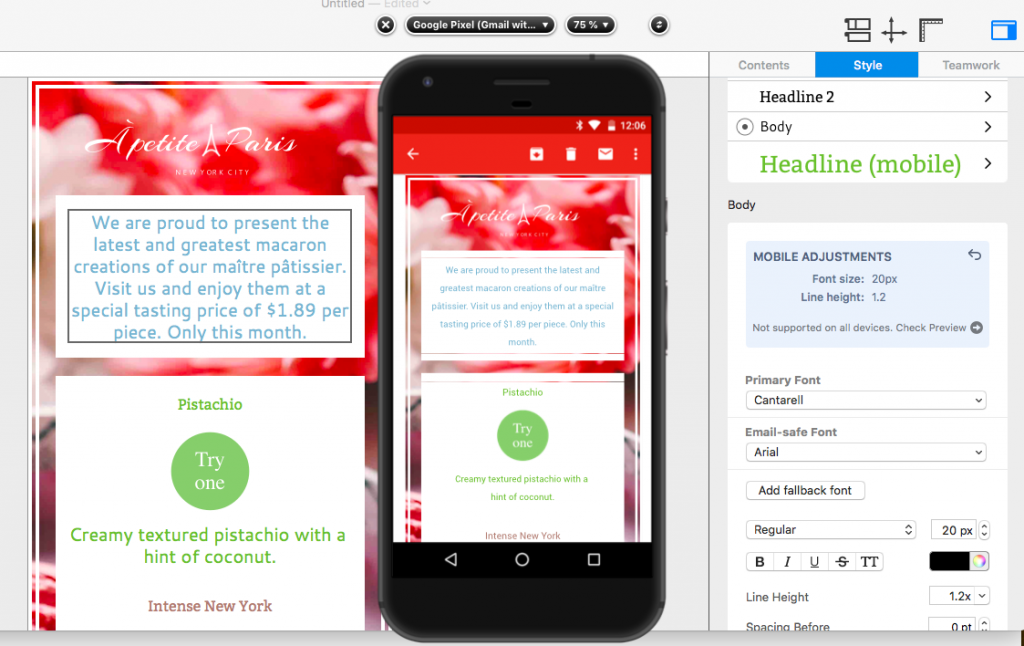
You will now see your mobile only change appear in a blue box in the Style menu:

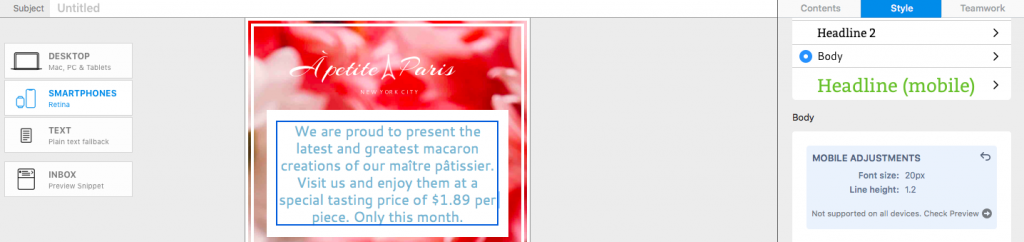
Any further changes you make to this style for mobile will also appear in the blue box:

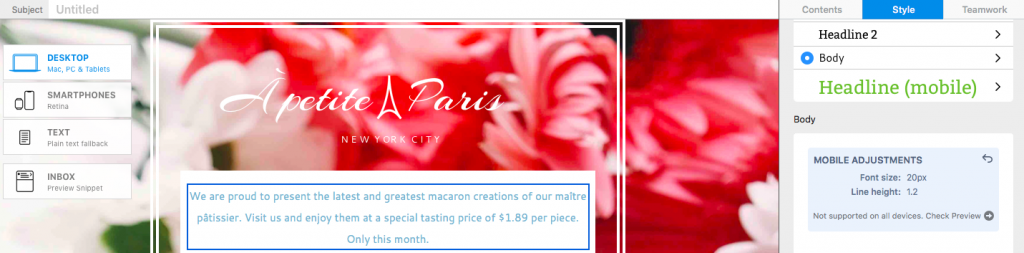
If you head back over to the main Desktop view, you will notice that the blue box is still in the Style menu to remind you, and anyone else collaborating on the design, of the changes you've made.

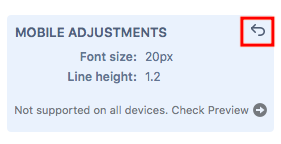
To reset the mobile only changes you can click the undo arrow in the top corner of the blue box. This will default your text style back to the desktop version across both designs.

Important: Mobile Style Adjustments are not supported by non-Gmail addresses in the Gmail mobile app – check your design using the new Gmail (IMAP) preview. You can access this by clicking on "Check Preview", which opens a device preview of the Gmail app:

A Quick Tour of Mail Designer 365

Background

Layout Blocks

TextScout

Editing Text

Links and Buttons

Configuring Text Styles

Tables

Image Areas

Images

Using Retina Images with your Design

Graphics and Other Objects

Creative Tools

Advanced Design Techniques

Blend Modes

Optimizing your Template for Mobile

Plain Text

Preview your Design

Feedback and Sharing

Preparing your Design for Sending

Contacts and Audiences

Sending Emails

1:1 Emails

Email Analytics

HTML Export

Other Sharing Options

Apply Emphasis to a Text Section

By Configuring Text Styles

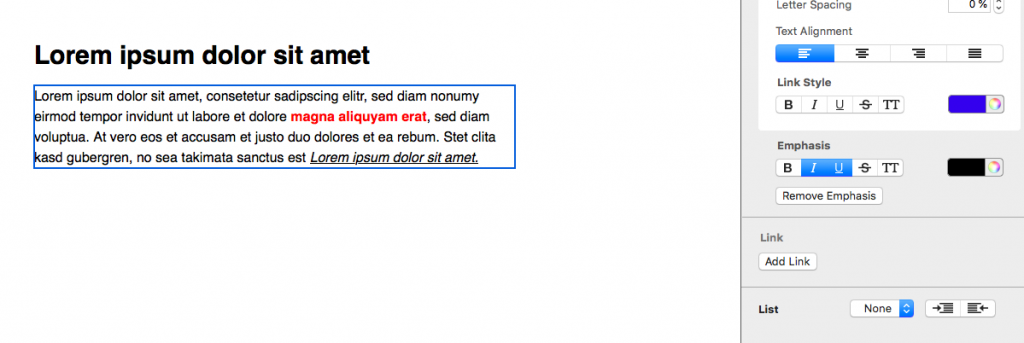
Sometimes, you may want to emphasise a certain word or phrase within a section of text. Examples of this could include italicising phrases, making individual words bold, or changing the color of some words.

If you use the regular text formatting options to change these words/phrases, your format options will be applied to the entire section of text and override your style settings.

Use the "Emphasis" tool to only apply changes to certain parts of your text block.

Add emphasis to text

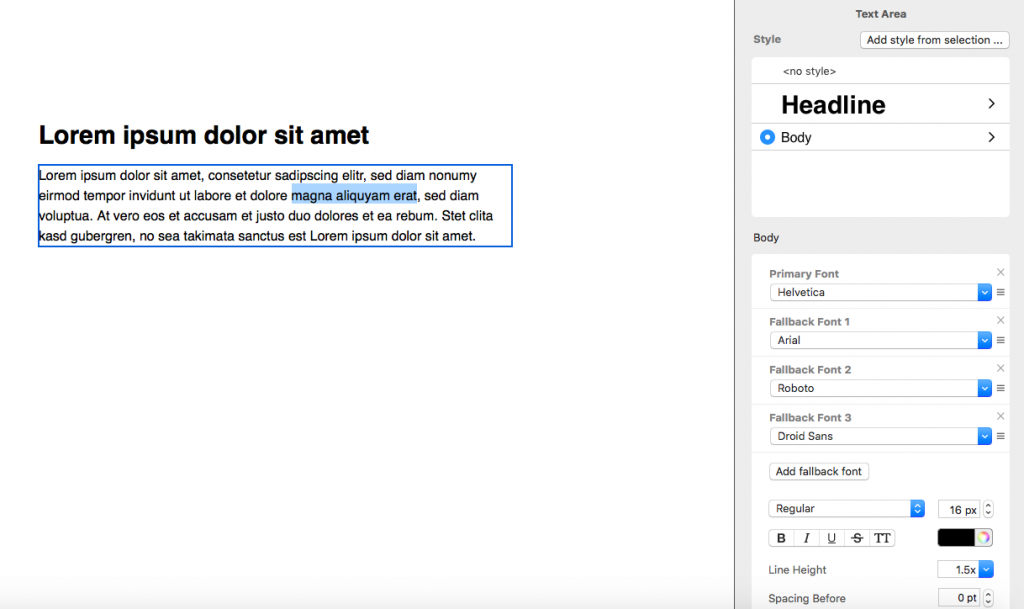
To begin, highlight the word or phrase you want to emphasise. This will open the Style menu in the sidebar.

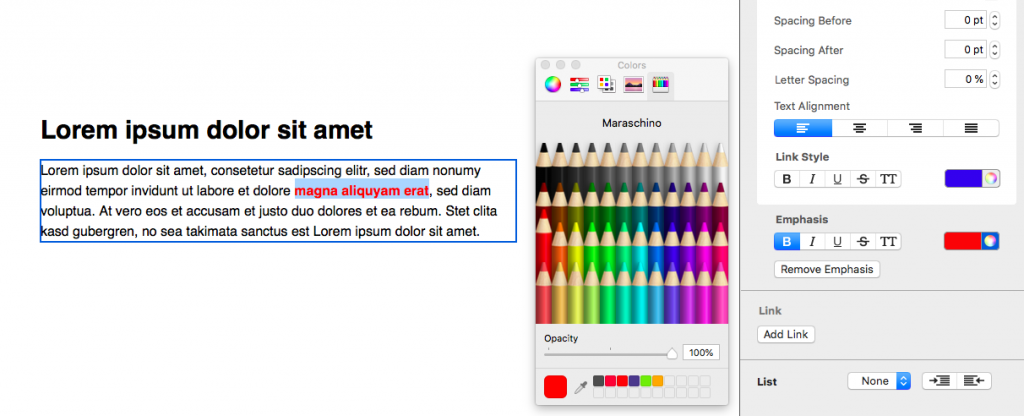
In the Style menu, scroll down to the heading "Emphasis." Here you will find various options for text formatting:

Select your preferred formatting options and they will be applied to the highlighted areas of text only. You can include as many different emphasis options as you like to a section of text.

Removing emphasis from text

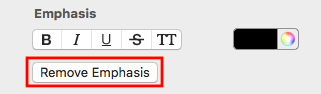
Removing emphasis from text is simple. Click on the section of text where you applied the emphasis and select "Remove emphasis." This will reset the text to your original style settings.

A Quick Tour of Mail Designer 365

Background

Layout Blocks

TextScout

Editing Text

Links and Buttons

Configuring Text Styles

Tables

Image Areas

Images

Using Retina Images with your Design

Graphics and Other Objects

Creative Tools

Advanced Design Techniques

Blend Modes

Optimizing your Template for Mobile

Plain Text

Preview your Design

Feedback and Sharing

Preparing your Design for Sending

Contacts and Audiences

Sending Emails

1:1 Emails

Email Analytics

HTML Export

Other Sharing Options

Adjust letter spacing for text styles

By Configuring Text Styles

In Mail Designer 365, you are able to adjust letter spacing to create and save cool text styles for your email designs.

Adjust letter spacing for text styles

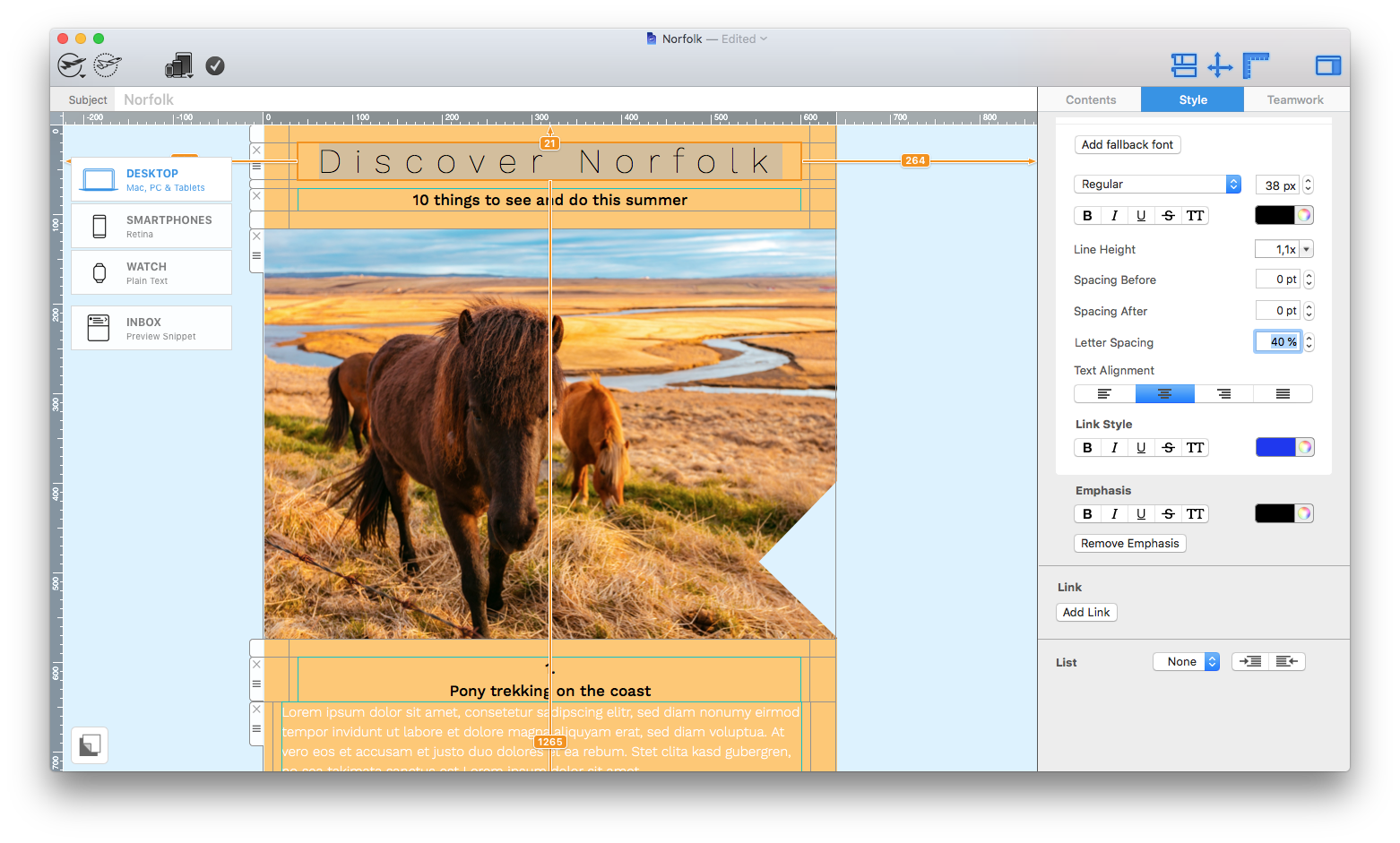
To get started, highlight the text you want to change. Then, open the "Style" tab.

Scroll down to "Letter spacing" here you can enter a precise percent value for how spaced out you want your letters to be. Alternatively, you can use the up and down arrows to test out different amounts of spacing.

Once you're happy, your text style will be automatically saved with these settings for letter spacing.

A Quick Tour of Mail Designer 365

Background

Layout Blocks

TextScout

Editing Text

Links and Buttons

Configuring Text Styles

Tables

Image Areas

Images

Using Retina Images with your Design

Graphics and Other Objects

Creative Tools

Advanced Design Techniques

Blend Modes

Optimizing your Template for Mobile

Plain Text

Preview your Design

Feedback and Sharing

Preparing your Design for Sending

Contacts and Audiences

Sending Emails

1:1 Emails

Email Analytics

HTML Export

Other Sharing Options

Paste text and keep style

By Configuring Text Styles

Paste text and keep style

Any text you paste into Mail Designer 365 from a source other than a different Mail Designer 365document will automatically receive the style of the text area you’re pasting it to.

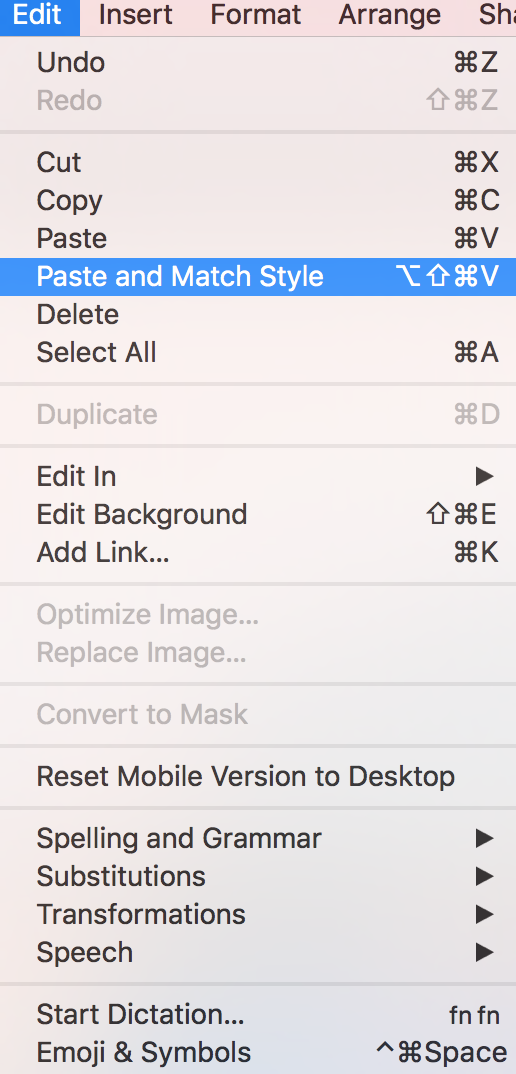
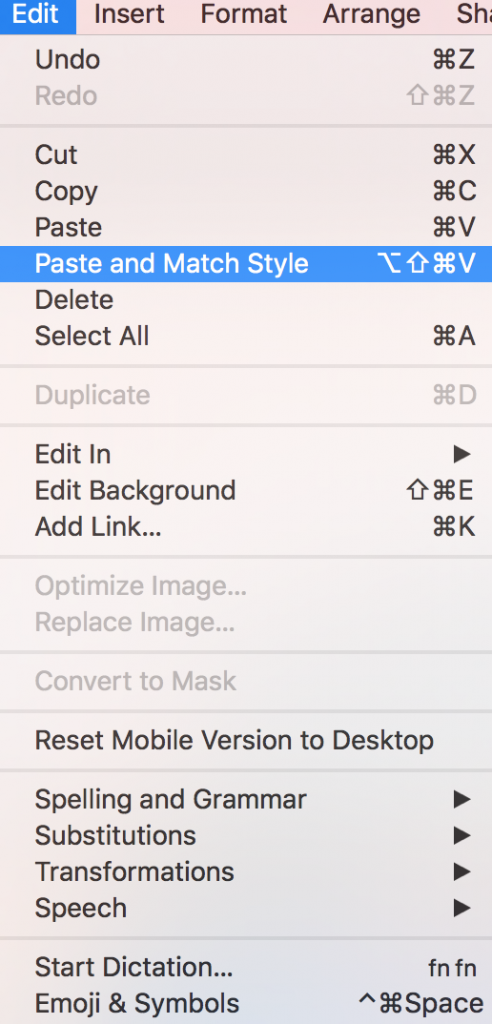
If you would like to preserve your text style, you can use the “Paste and Match Style” command.

To paste and preserve the original style of your text

‣ Copy text that has formatting you want to preserve

‣ Choose "Edit" > "Paste and Match Style" from the menu bar


A Quick Tour of Mail Designer 365

Background

Layout Blocks

TextScout

Editing Text

Links and Buttons

Configuring Text Styles

Tables

Image Areas

Images

Using Retina Images with your Design

Graphics and Other Objects

Creative Tools

Advanced Design Techniques

Blend Modes

Optimizing your Template for Mobile

Plain Text

Preview your Design

Feedback and Sharing

Preparing your Design for Sending

Contacts and Audiences

Sending Emails

1:1 Emails

Email Analytics

HTML Export

Other Sharing Options

Using Text Styles

By jstawska Configuring Text Styles

Why use text styles?

Text styles help ensure your email text stays consistent throughout your design. They make editing faster and more streamlined and help prevent compatibility issues after sending your email template.

Within a text style, you can define a primary font and an email-safe fallback font. The fallback font is displayed if the primary font is unavailable to your recipient.

Accessing text styles

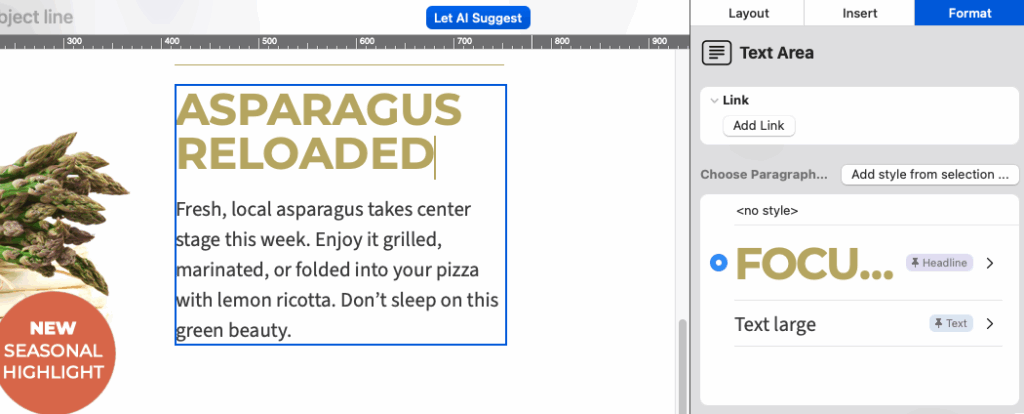
To access text styles, select text from a text area to open the Format section of the sidebar. Here you can see any existing text styles your team has created and add new ones if needed.

access text styles in the format sidebar menu

Access text styles in the sidebar under Format

Default text styles

All Mail Designer designs include predefined default styles for your headline and body text. When you add a new layout block, the default style will automatically be applied.

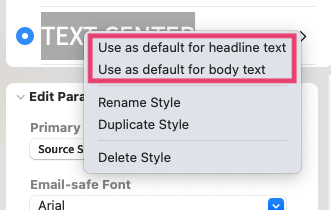
To change the default text style for your document:

  • Go to the styles list and click the arrow next to the style you want to set as default.
  • Select Use as default for....
changing a default text style for a Mail Designer 365 email template

Update the default style for your newsletter

Switching between text styles

Click into the paragraph you want to edit, then select a different style from the sidebar. This will apply the chosen style to the entire paragraph.

Adding additional text styles

If you need more than the default Headline and Body styles:

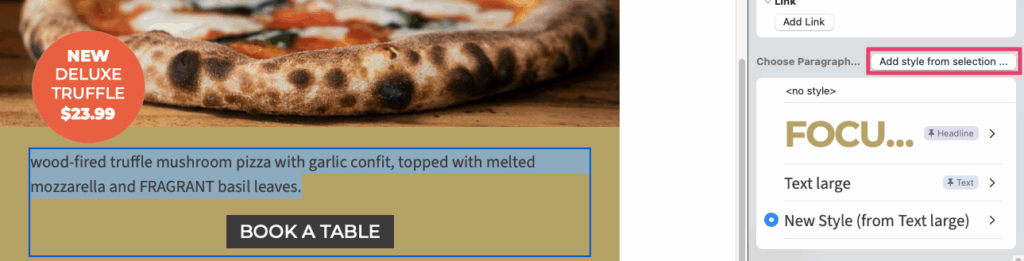
  1. Highlight the text you want to create a style from
  2. Click Add style from selection in the sidebar:

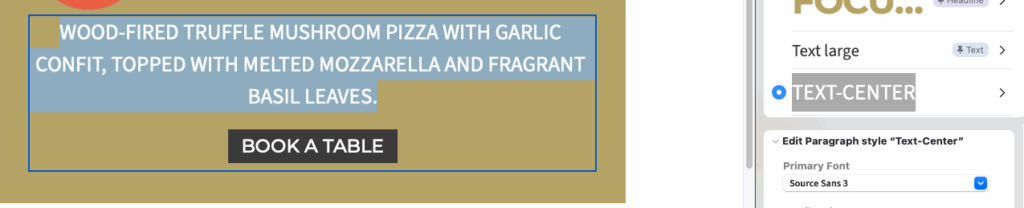
  3. Enter a name for your new style so it’s easy to find in the style menu
  4. Choose the font and adjust other formatting options such as color or font size in the sidebar

Updating text styles

When you edit a text style, the changes will apply everywhere that style is used in your design.

For minor changes to specific words or sentences within a paragraph, use the Emphasis tool. This allows you to adjust only a section of text without creating a new style.

A Quick Tour of Mail Designer 365

Background

Layout Blocks

TextScout

Editing Text

Links and Buttons

Configuring Text Styles

Tables

Image Areas

Images

Using Retina Images with your Design

Graphics and Other Objects

Creative Tools

Advanced Design Techniques

Blend Modes

Optimizing your Template for Mobile

Plain Text

Preview your Design

Feedback and Sharing

Preparing your Design for Sending

Contacts and Audiences

Sending Emails

1:1 Emails

Email Analytics

HTML Export

Other Sharing Options

Privacy Settings / Datenschutz-Einstellungen