
How to Save Your Design
Save your design in Mail Designer 365 whenever you want to continue editing later, make the current version available on another device, or share it with your team through TeamCloud. A clear design name and a quick version check help everyone open the correct file before testing or sending an email.
Save a Design for the First Time
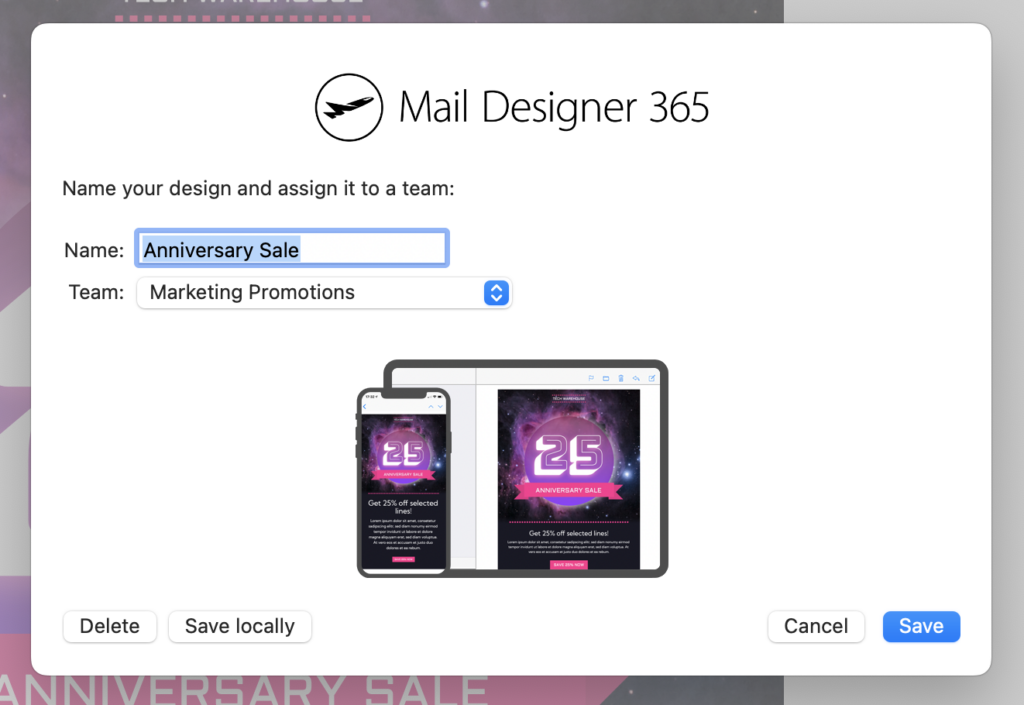
When you save a new email design for the first time, Mail Designer 365 asks you to enter a name. Choose a short, descriptive name that identifies the campaign, audience, or delivery date. If you work in a team, save the design in the appropriate TeamCloud project so authorized team members can find the same version.
Before confirming the save, check that you selected the intended project and that the name is distinct from earlier campaign versions. Consistent names such as “Spring launch – customers – final” are easier to recognize than generic labels.
Save Your Latest Changes
To stop editing, click the close button for the design window. Mail Designer 365 then shows the save dialog when changes still need to be stored. Review the design name and destination, save the current version, and wait for the operation to finish before closing the app or disconnecting from the network.
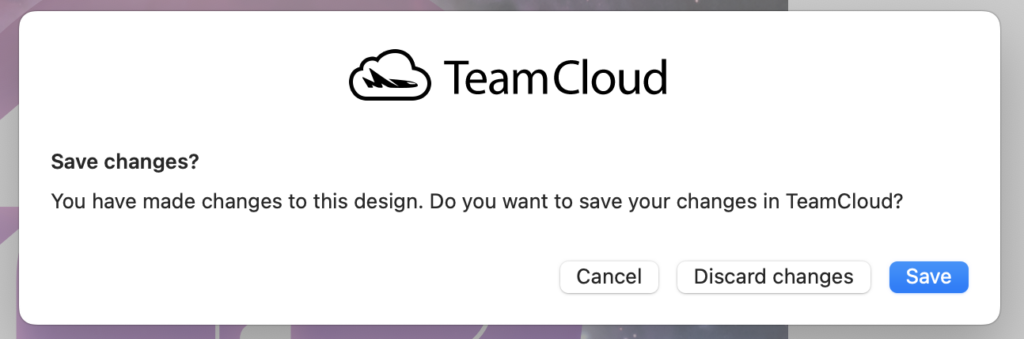
If you reopen the design immediately, confirm that the latest text, images, links, and layout changes are present. This quick check is particularly useful before a handoff or scheduled campaign.
Keep TeamCloud and Connected Services Up to Date
Mail Designer 365 uses the current TeamCloud version when a design is shared with connected workflows such as Testmail, Crew Chat, or Delivery Hub. Actions that use one of these services can trigger an upload of the latest design version.
Watch the TeamCloud upload indicator after making changes. Allow the upload to complete before another person reviews the design or before you continue on a different device. This reduces the risk of comments, tests, or sends using an earlier version.
Verify the Saved Version
Open your design again and inspect the elements that changed most recently. Check the desktop and mobile layouts, image crops, buttons, links, placeholders, and any personalization fields. If several people edit the campaign, agree on one current version before making further changes.
For an important send, use a test email or the relevant review workflow after saving. Saving protects the editable design state; testing confirms that the delivered email still looks and behaves as intended.
Troubleshoot a Design That Did Not Save
If your latest changes are missing, first check the TeamCloud destination and design name to make sure you opened the expected file. Confirm that the app is online, then save again and wait for the upload indicator to finish. Avoid creating several similarly named copies while troubleshooting, because that can make the current version harder to identify.
If a teammate sees an older version, ask them to close and reopen the design after synchronization completes. Keep a clear naming convention for major milestones, and make a deliberate copy only when you need a separate variant rather than another version of the same campaign.
How Can We Help?