
To import Campaign Monitor contacts into Mail Designer 365 Campaigns, connect your account with its API key and select the lists you want to move. Mail Designer 365 combines flawless HTML email design with easy to use sending tools and tailor-made audiences based on smart and adaptive attributes.

Delivery Hub makes it super straightforward for you to import your existing contacts directly from Campaign Monitor so you can get started right away. All you need is your Campaign Monitor API key!
Where to get my Campaign Monitor API key
Your API key connects your Campaign Monitor account to Mail Designer 365 Campaigns; giving you access to your email contacts ready to start using with Delivery Hub.
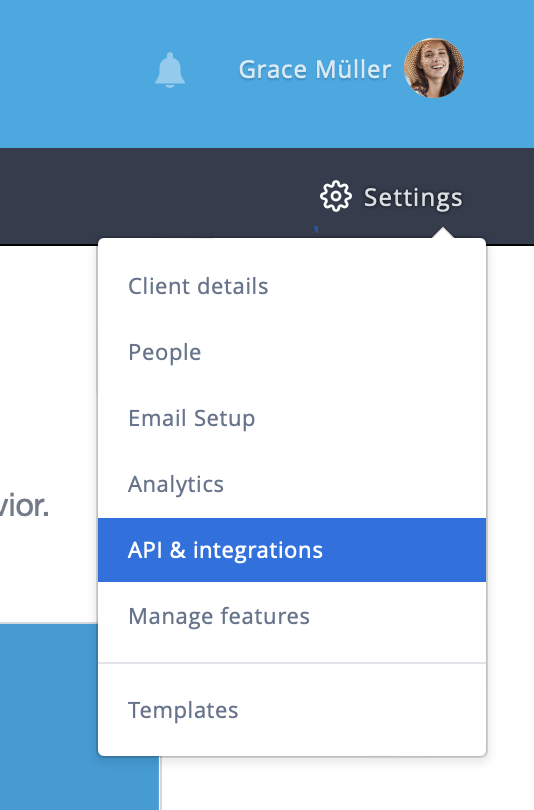
To find your API key, log in to your Campaign Monitor account and go to Settings > API & integrations:
Then, scroll to API Key. Click on Show API key to reveal your unique key to connect Campaign Monitor with Mail Designer 365:
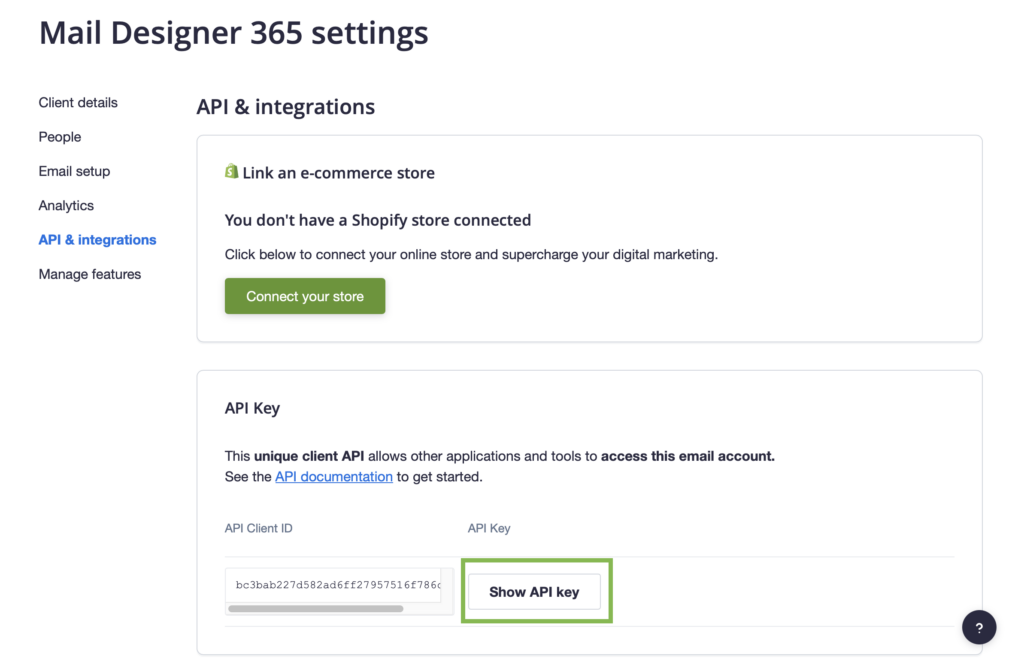
Copy the key to your clipboard, as you will need it in the next step to import your contacts.
How to Import Campaign Monitor Contacts
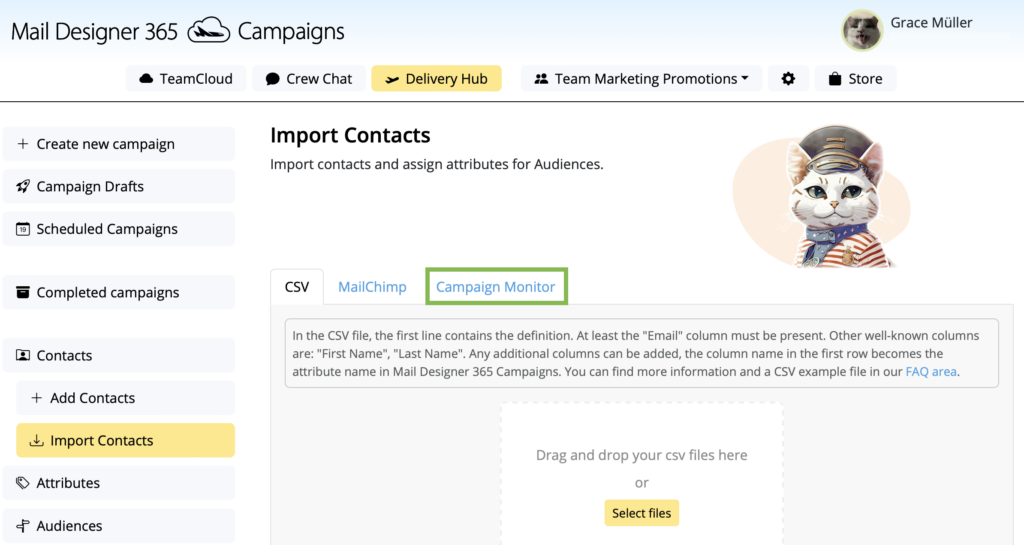
- Log in to my.maildesigner365.com and go to Delivery Hub > Import Contacts
- Switch to the Campaign Monitor tab in the Import view:
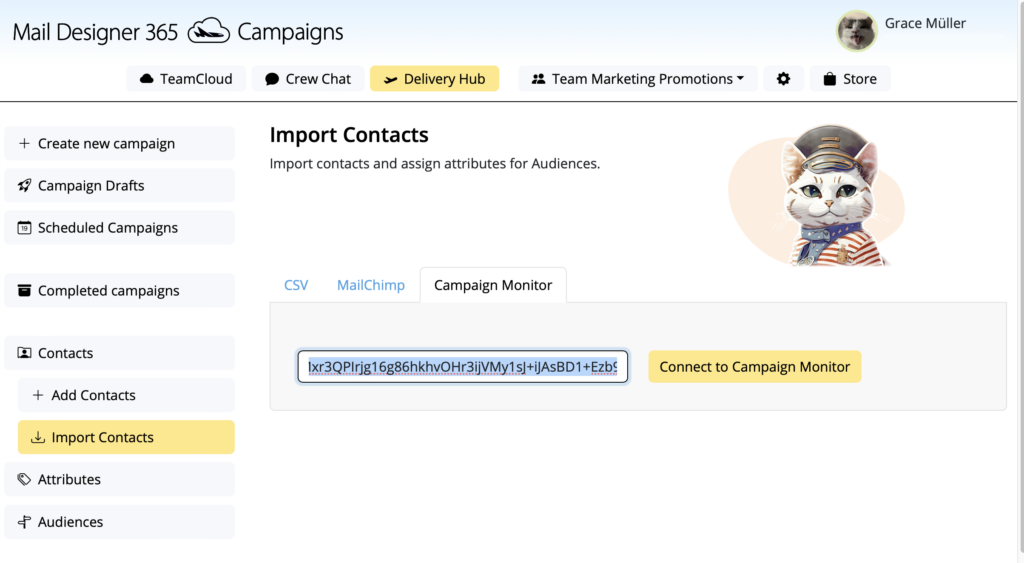
- Now, paste the API key you copied in the previous step and click Connect to Campaign Monitor:
- Mail Designer 365 will automatically detect all of your existing Campaign Monitor lists and display them to you. Select the list(s) you wish to import, then click Import to proceed:
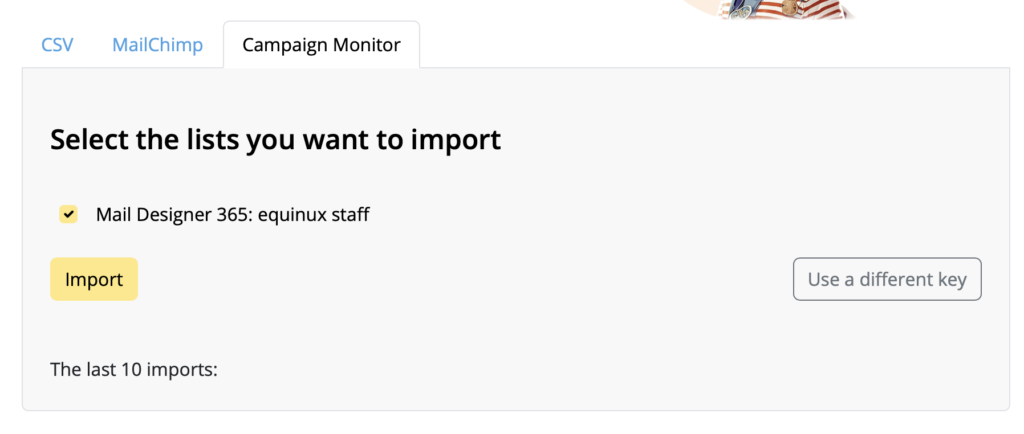
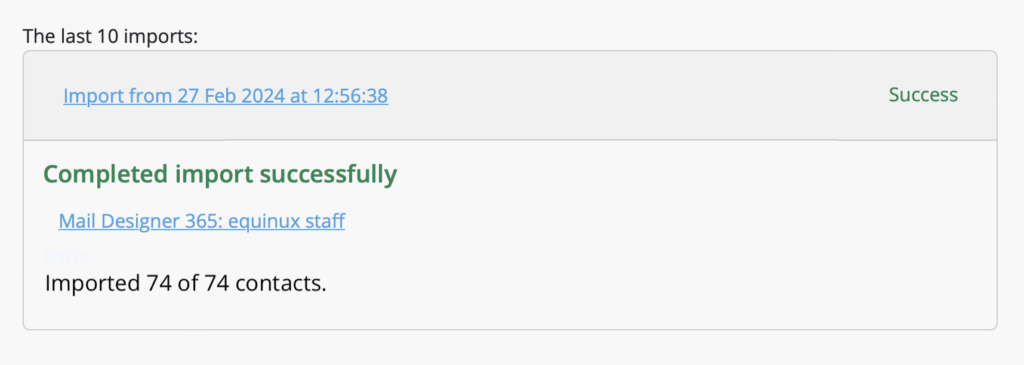
- Once your import is complete, you will be shown a success message, meaning you're ready to start sending to your contacts in Mail Designer 365 Delivery Hub! Mail Designer 365 Campaigns will save the name of the list with the contact, so you can access this later.
Tip: If your Campaign Monitor list has over 200 contacts, you will need to upgrade to a Mail Designer 365 Campaigns plan that supports this number of contacts.
How Can We Help?