
Inviting team members to give feedback on designs helps you collect comments in one shared Crew Chat discussion. After uploading an email design, select the people who should review it, notify them, and use their comments to guide the next revision. A focused email design feedback process is easier when every reviewer sees the same uploaded version.
Upload the design before inviting reviewers
Open the design you want to discuss and upload it to Crew Chat. Check that the uploaded version is the one you want the team to review. If you make major changes later, explain that a newer version is available so comments are not applied to an outdated layout.
Select Crew Chat participants
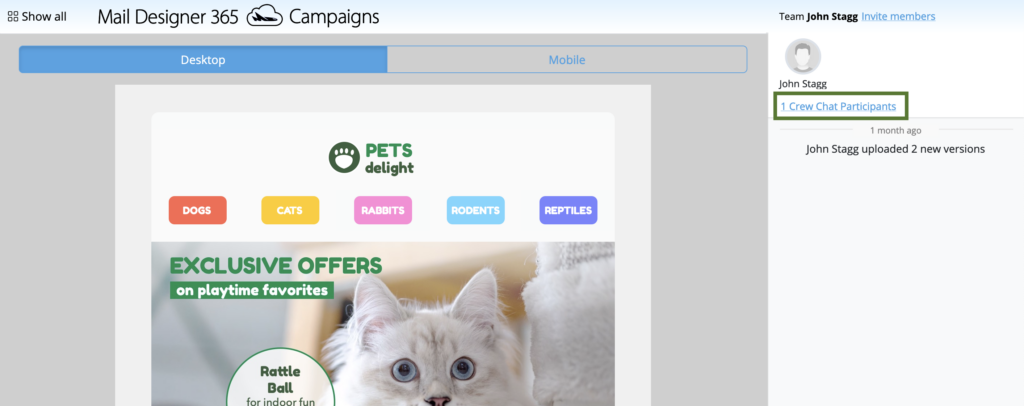
To notify an existing team member about the design, choose Crew Chat Participants in the top-right corner of the Crew Chat window.
The participant list shows the current team members who can be included in the discussion. Select the checkbox next to each person who should review this design. Invite only the relevant reviewers so notifications remain useful and the discussion stays focused.
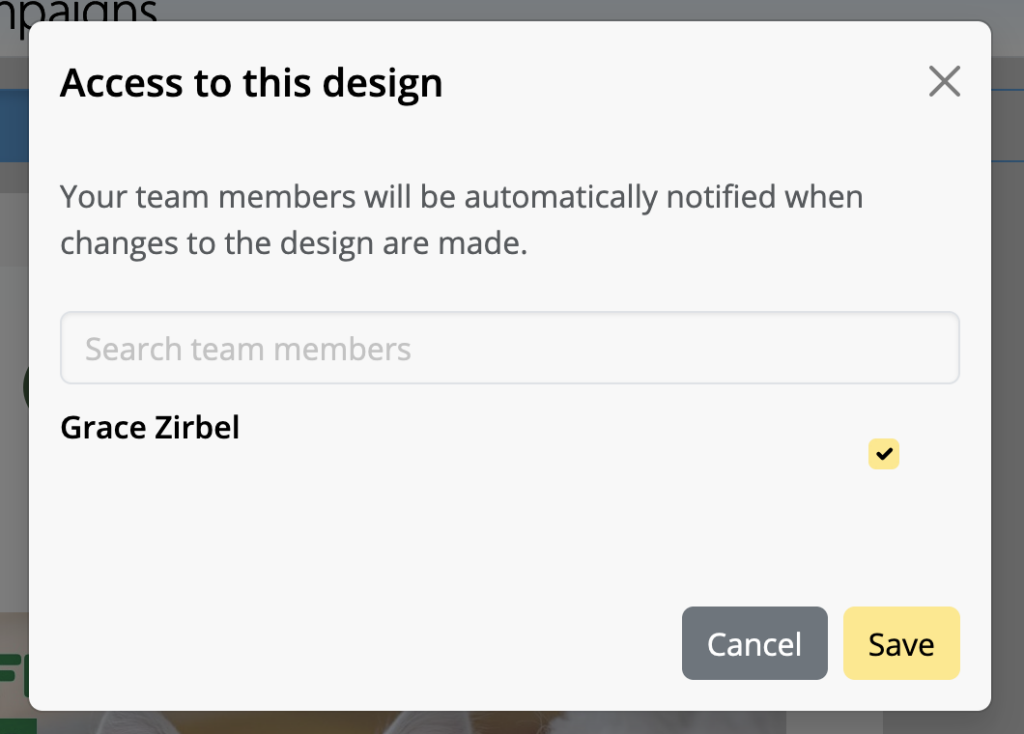
Click Save after choosing the participants. The selected team members are then associated with the Crew Chat discussion for the uploaded design.
Understand the reviewer notification
Selected participants receive an email notification about the newly uploaded design. The message gives them a route to the shared feedback discussion, where they can review the design and add comments.
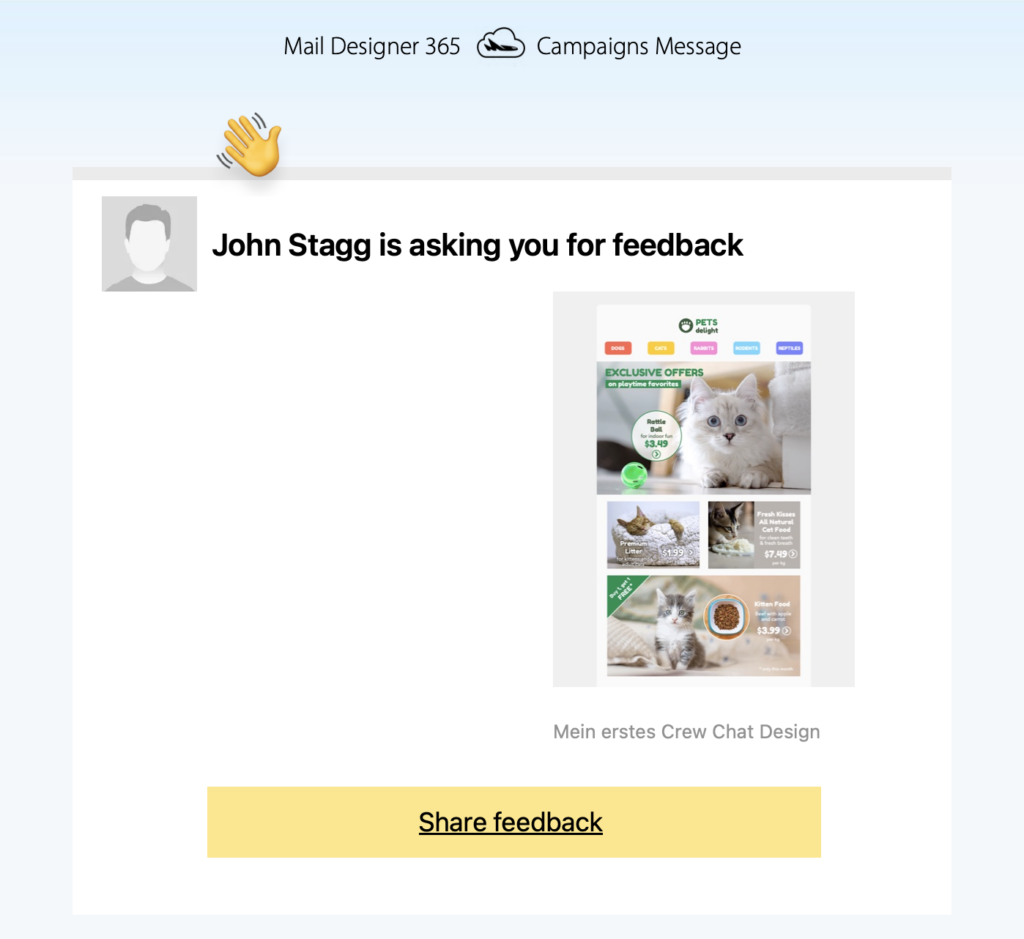
Before relying on the notification, confirm that each participant uses the correct work email address. If a reviewer does not see the message, ask them to check filtered or junk folders and confirm that they are already part of the intended team.
Invite a new team member
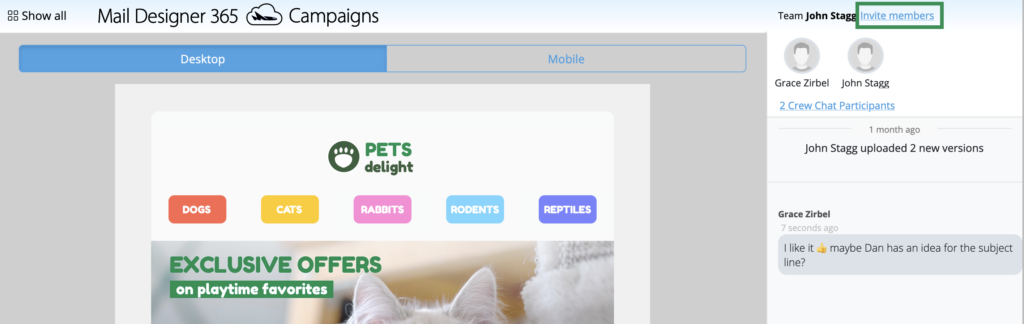
If the reviewer is not yet listed, choose Invite members. Use this option to add the person to the team before expecting them to participate in the design discussion.
Enter the team member’s email address in the field provided and select Invite. Review the address before sending because an incorrect address prevents the intended person from receiving the invitation.
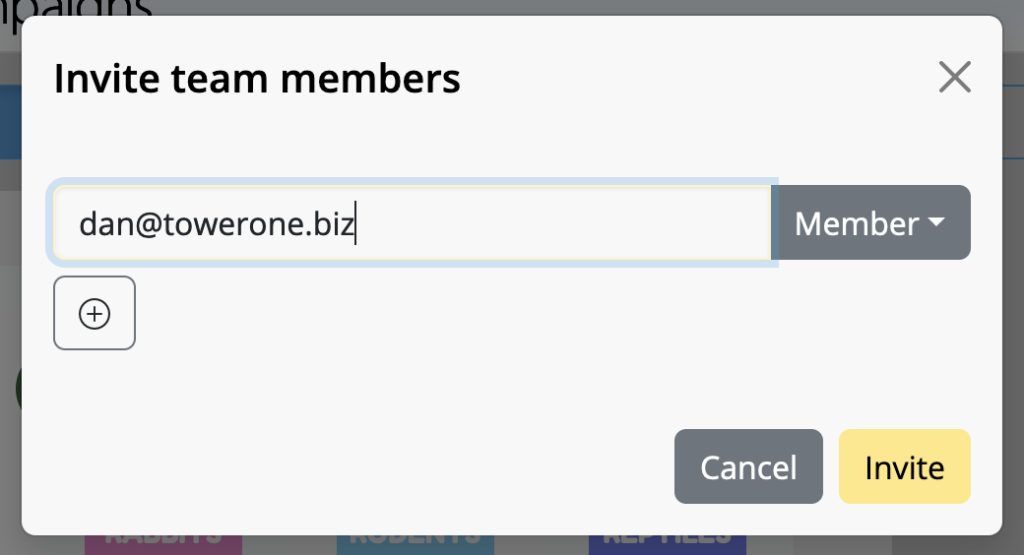
After the new member accepts the invitation and appears in the team, return to the design’s participant list and make sure they are included in the relevant discussion.
Make email design feedback actionable
Give reviewers a clear goal before requesting comments. For example, ask one person to check the wording and links, another to review brand consistency, and another to inspect the smartphone layout. Specific requests reduce duplicate comments and make decisions easier.
When commenting, refer to a visible element or section rather than writing only “change this.” A useful comment explains the problem, the desired result, and whether it blocks approval. Resolve contradictory suggestions before editing the design so one change does not undo another reviewer’s requirement.
Review comments before the next version
Collect the feedback, decide which changes belong in the next revision, and keep the discussion connected to the correct uploaded design. After making updates, preview the desktop and mobile layouts, test important links, and upload the revised version when it is ready for another review.
For broader team setup, see how to set up a team in Mail Designer 365. A consistent team structure makes inviting team members to give feedback on designs quicker for future campaigns.
How Can We Help?