
Link format controls in Mail Designer 365 let you change link color, emphasis, capitalization, and styling so links stand out consistently in your email design. This guide shows how to format all links or adjust one individual link.
How to Format Link Styles
To get started, highlight the text which you want to link and add the link address under "Add link" in the "Style" menu.
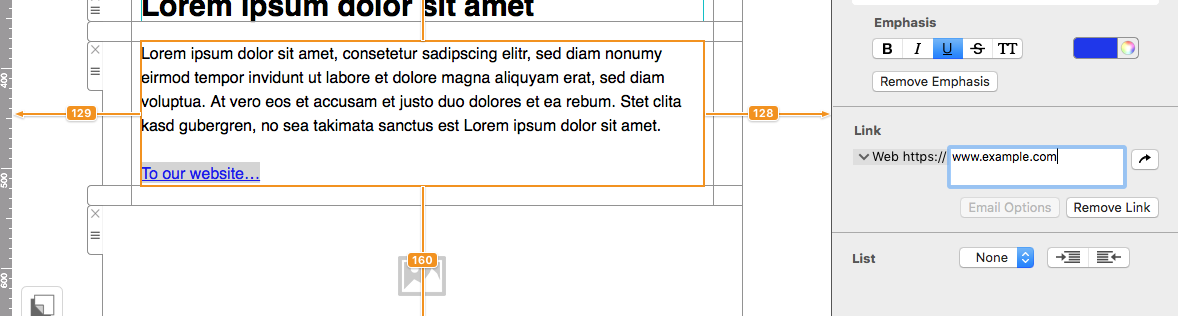
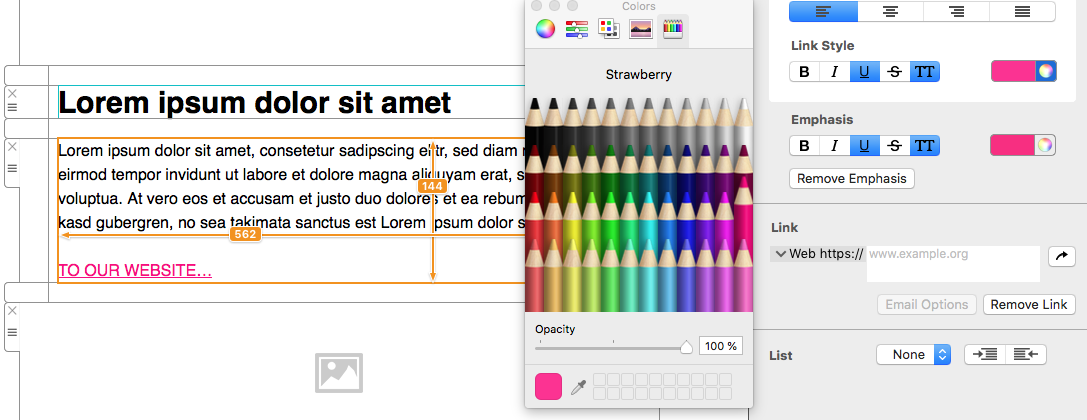
You will now see a standard, blue link. To format this link, scroll to "Link style" in the "Style" menu. Here you can format the color and the style (e.g. bold, italic, all caps) of your link.
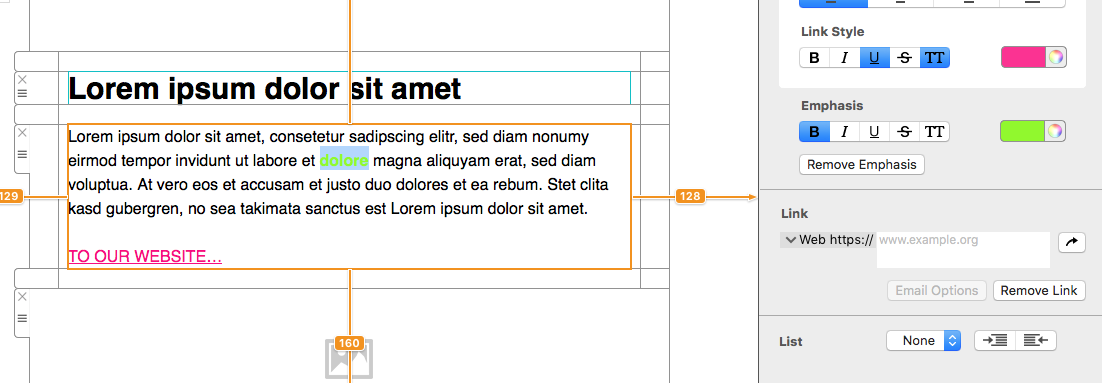
To just change the style of one particular link, highlight the link and go to "Emphasis" in the "Style" menu, where you can then change the style and color.
How Can We Help?