
Adding and removing layout blocks in Mail Designer 365
Adding and removing layout blocks lets you change the structure of an email design without rebuilding the entire message. A layout block is a section that can contain text, images, buttons, spacers, or combinations of these elements. You can insert a new block wherever the design needs another section and remove a block that is no longer required.
This guide covers the basic workflow in Mail Designer 365, including how to open the layout block library, place a block accurately, remove one safely, and check the mobile version before sending.
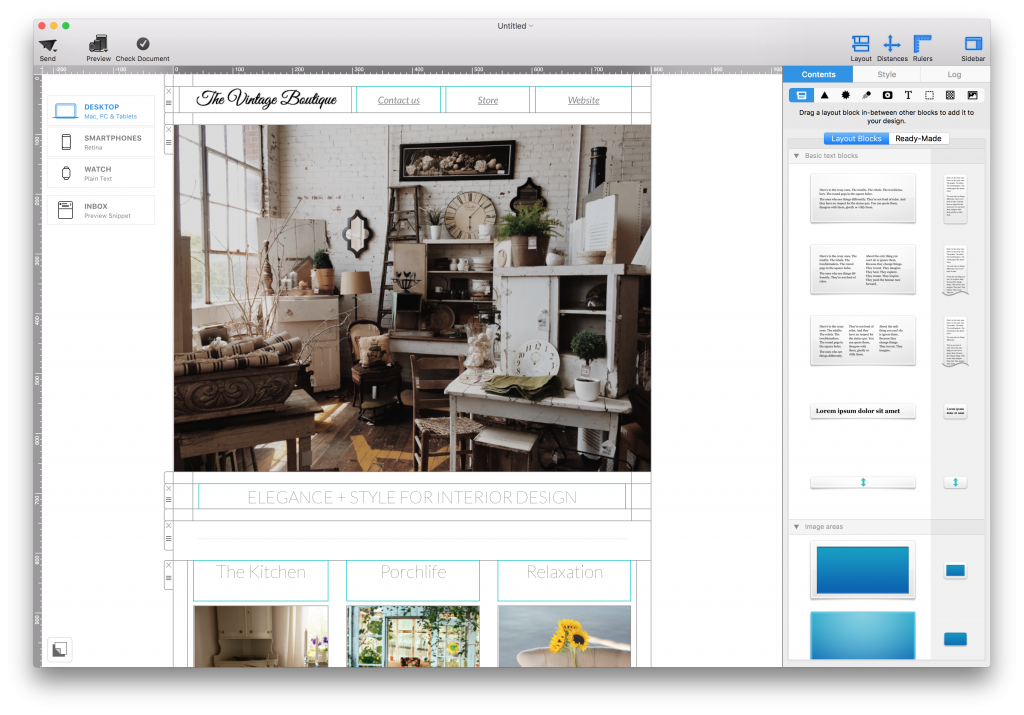
Open the Contents panel
- Open the email design you want to edit.
- Click Contents in the toolbar to open the Contents panel.
- Select Layout Blocks to view the available structures.
- Review the previews and choose a block that fits the content you want to add.
The Contents panel includes the reusable design elements available for the document. Layout block previews show their column structure and help you decide whether you need a full-width area, several columns, or a combination of image and text regions.
Add a layout block to the email
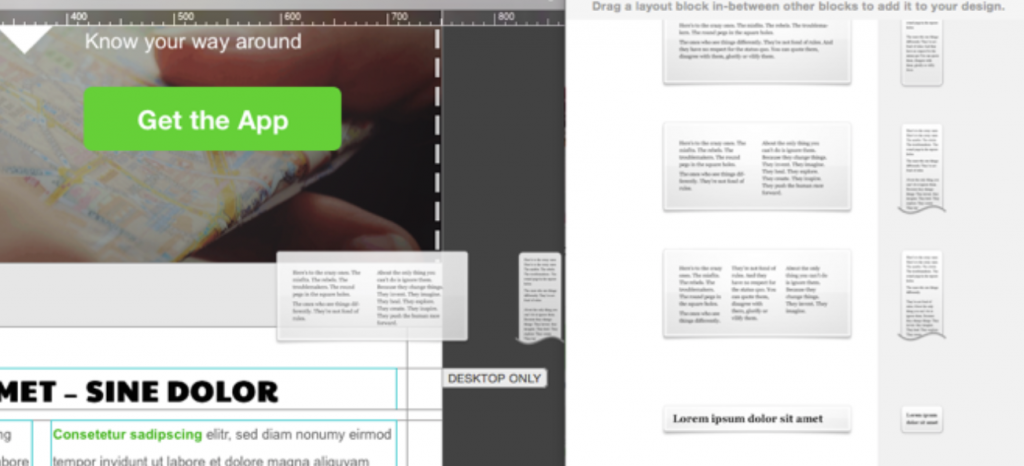
Drag the chosen layout block from the panel into the design. As you move the pointer, the existing sections make room and a placement indicator shows where the new block will be inserted. Release the mouse only when the indicator appears at the intended position.
If the block lands in the wrong location, undo the action and drag it again. Positioning the structure before filling it with content is usually faster than moving several finished elements later.
Fill and adjust the new block
After inserting the block, add text, images, buttons, or other content to its areas. Keep each section focused on one part of the message. For example, use one block for the introduction, another for a product feature, and a final block for the call to action.
Check spacing and alignment after adding content. A block preview represents the structure, but the final height depends on the amount of text and the proportions of the images you add. Use the mobile version to confirm that columns stack in the intended order and that important content remains easy to scan.
Remove a layout block
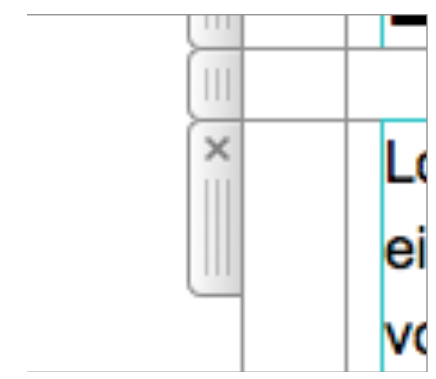
Select the block you no longer need and locate its handle. Click the x icon on that handle to delete the complete block. Removing a layout block also removes the elements inside it, so confirm that the section does not contain content you still need.
If you remove the wrong block, use Undo immediately. For more substantial changes, save a copy of the design before deleting several sections. This gives you a safe reference if you later need an image, text passage, or button from the previous version.
Reorder blocks and refine the structure
You can use the same drag-and-drop approach to refine the flow of the email. Keep related sections together, place the primary message near the beginning, and make the main call to action easy to find. When a layout feels too crowded, adding a simpler block can be more effective than forcing extra content into an existing section.
For guidance on adjusting an existing structure specifically for smaller screens, see modifying a layout block for the mobile version.
Check the design before sending
- Preview both desktop and mobile versions.
- Confirm that blocks appear in the correct order.
- Check that no text or images were removed accidentally.
- Verify spacing between sections and the alignment of buttons.
- Send a test email and review it in the email clients important to your audience.
A final test is especially important after adding and removing layout blocks because structural changes can affect the reading order and spacing of the complete design. Save the document once both versions look correct.
How Can We Help?