
Enable Retina images for email newsletters on desktop
Retina images for email newsletters help photos, logos, and graphics look sharp on high-density screens. These displays use more physical pixels to show the same design area, so a standard-resolution image can appear soft even when its dimensions are correct. Mail Designer 365 can prepare high-resolution image assets for the desktop and mobile versions of a design while keeping their intended display size.
This guide explains how to enable the desktop Retina setting, how to prepare suitable source files, and when file size should take priority over additional sharpness.
Turn on Retina images for the desktop version
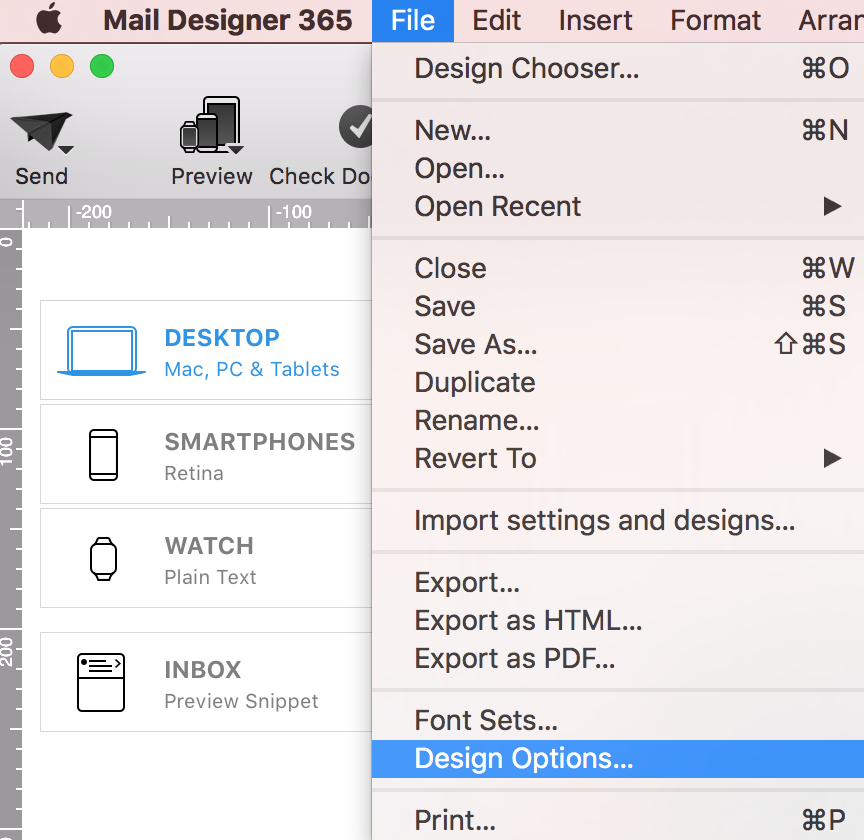
Open your email design in Mail Designer 365. From the menu bar, choose File > Design Options…. The Design Options window contains separate controls for the desktop and mobile versions of the design. Select the checkbox for Retina images in the desktop version, then close the window to return to your layout.
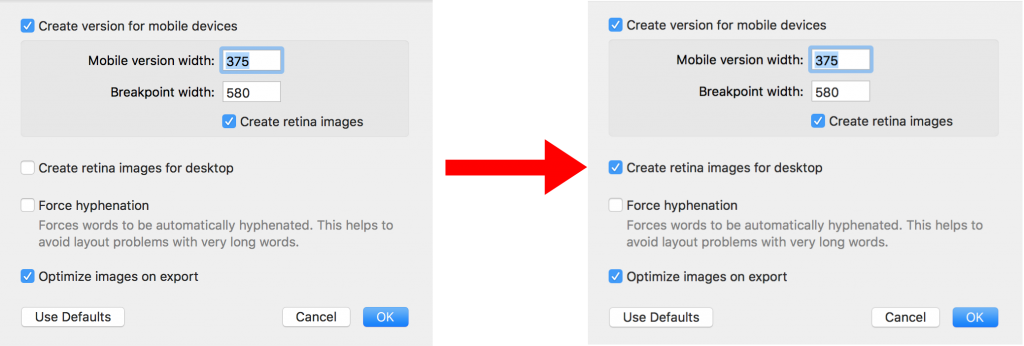
When the option is enabled, Mail Designer 365 can use higher-resolution versions of images in the exported or sent email. The image still occupies the same visual space in the layout; the extra pixels improve detail on compatible screens. Clear the checkbox if you do not want the desktop version to prepare high-resolution assets.
Prepare images at the right resolution
A Retina source image should normally contain about twice as many pixels as its intended display dimensions. For example, an image displayed at 300 by 200 pixels can use a source file around 600 by 400 pixels. Mail Designer 365 displays it at the designed size while high-density screens can use the additional image detail.
Start with a clean source file rather than enlarging a small image. Upscaling cannot recreate missing detail and can produce a larger file that still looks blurry. Logos and illustrations benefit from crisp source artwork, while photographs should be exported at an appropriate quality before being added to the design.
Balance sharpness and email download size
High-resolution email images contain more pixel data and can increase the total download size of a campaign. That matters for recipients on slower connections and for image-heavy newsletters. Use Retina support where the visual benefit is clear, especially for logos, product shots, screenshots, and detailed graphics. Decorative backgrounds or very small images may not need the same treatment.
- Crop images before importing them so unused pixels are not included.
- Use JPEG for photographs and PNG when transparency or very crisp edges are required.
- Avoid placing important text inside raster images when live HTML text would work.
- Preview both desktop and mobile versions after replacing an image.
- Send a test email to check quality and loading behavior in real inboxes.
Check the result before sending
Open the preview in Mail Designer 365 and inspect important images at normal size. Also verify that the design still works when images are initially blocked by an email client. Useful alt text should explain the purpose of each meaningful image. Then send a test message to a high-density display and, if possible, compare it with a standard display.
If the newsletter becomes too large, optimize the source images or disable Retina preparation for the desktop version. You can also review the image optimisation tool guide for ways to reduce image payload. The best result is a campaign that remains sharp without making recipients wait unnecessarily.
Retina image checklist
Before sending, confirm that the desktop Retina option matches your plan, source files have enough real resolution, image dimensions suit the layout, alt text is descriptive, and a test email has been reviewed. Following this checklist makes Retina images for email newsletters predictable across modern desktop and mobile screens.
How Can We Help?