
Why use text styles?
Text styles help ensure your email text stays consistent throughout your design. They make editing faster and more streamlined and help prevent compatibility issues after sending your email template.
Within a text style, you can define a primary font and an email-safe fallback font. The fallback font is displayed if the primary font is unavailable to your recipient.
Accessing text styles
To access text styles, select text from a text area to open the Format section of the sidebar. Here you can see any existing text styles your team has created and add new ones if needed.
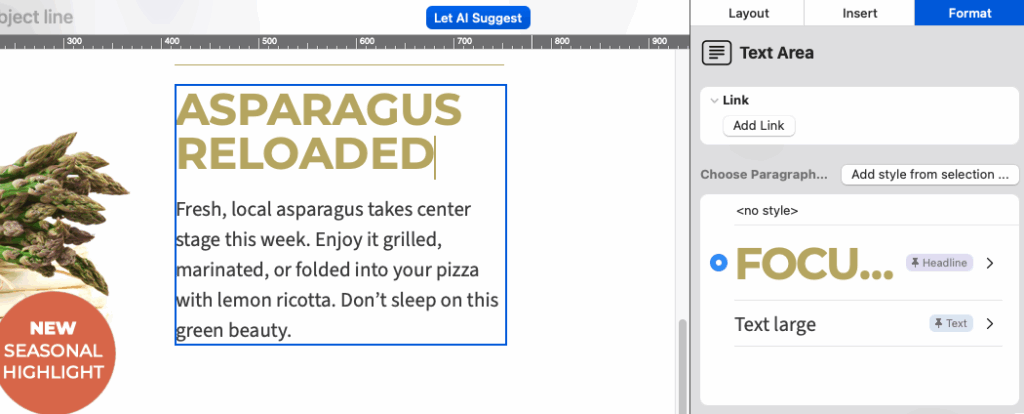
Access text styles in the sidebar under Format
Default text styles
All Mail Designer designs include predefined default styles for your headline and body text. When you add a new layout block, the default style will automatically be applied.
To change the default text style for your document:
- Go to the styles list and click the arrow next to the style you want to set as default.
- Select Use as default for....
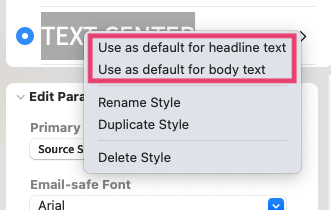
Update the default style for your newsletter
Switching between text styles
Click into the paragraph you want to edit, then select a different style from the sidebar. This will apply the chosen style to the entire paragraph.
Adding additional text styles
If you need more than the default Headline and Body styles:
- Highlight the text you want to create a style from
- Click Add style from selection in the sidebar:
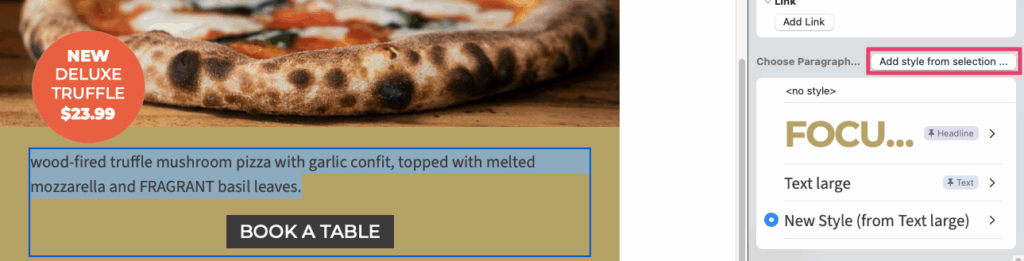
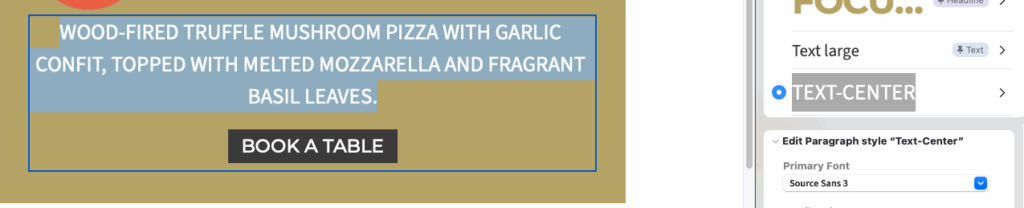
- Enter a name for your new style so it’s easy to find in the style menu
- Choose the font and adjust other formatting options such as color or font size in the sidebar
Updating text styles
When you edit a text style, the changes will apply everywhere that style is used in your design.
For minor changes to specific words or sentences within a paragraph, use the Emphasis tool. This allows you to adjust only a section of text without creating a new style.
How Can We Help?
- Eye Catcher Design: 3 Ideas for Email Campaigns
- Email Blending: 3 Ways to Use Blend Modes
- Aligning different objects
- Combining design elements
- How to Add Email Contacts to Mail Designer 365
- Assigning Placeholders to your Contacts in Mail Designer Campaigns
- Email Audience Segmentation: Delivery Hub Case Study