
Check email grammar and spelling before exporting or sending a Mail Designer 365 campaign. The built-in macOS writing tools can review selected text, a specific text layout block, or the document, helping you catch common errors without leaving the design.
Automated checking is a useful first pass, but it does not understand every product name, abbreviation, tone choice, or factual detail. Always complete a separate human proofreading pass after using the spelling and grammar controls.
Check Email Grammar and Spelling
- Open the email design and click inside the text area you want to review.
- Select a sentence or paragraph when you want to limit the check, or leave the cursor in the text area for a broader review.
- Choose Edit > Spelling and Grammar.
- Select the checking option that fits your workflow.
- Review each suggestion in context before accepting it.
The exact labels can vary with the installed macOS and Mail Designer version. The important point is to start from editable text; the checker cannot review words that are embedded inside an image.
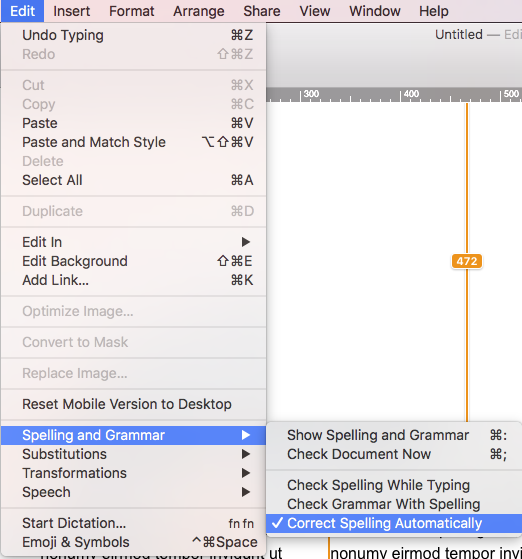
Choose How the Checker Runs
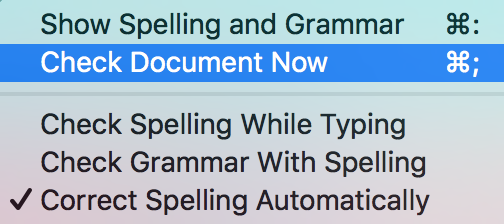
The spelling and grammar menu can offer options such as checking spelling while you type, checking grammar together with spelling, and automatic spelling correction. Enable only the behavior you want. Automatic correction can save time, but it can also alter names, technical terms, discount codes, URLs, or intentional brand wording.
For a deliberate final review, use the command that checks the document now. Work through the campaign section by section and read the surrounding sentence before accepting a change. If the same warning appears repeatedly for a valid brand term, leave the intended spelling consistent rather than changing only some occurrences.
Select the Correct Language
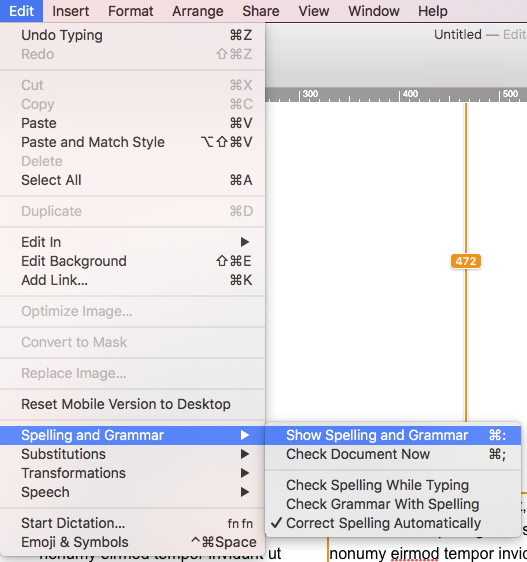
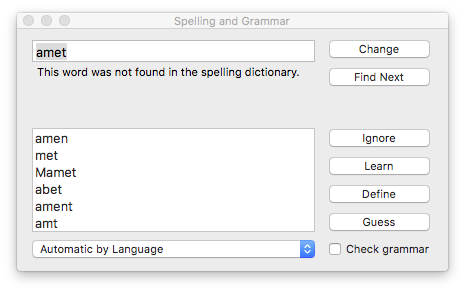
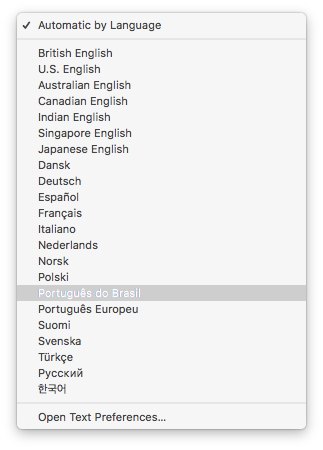
Language selection matters because spelling differs across English variants and other languages. Open Edit > Spelling and Grammar > Show Spelling and Grammar, then use the language menu in the spelling window. Automatic language detection can be helpful, but verify the result when the email contains short sections, product names, or more than one language.
Select the language or regional variant that matches the current text. For a multilingual campaign, review each language section separately. A checker configured for American English may flag valid British spellings, while an English checker will not reliably review a German paragraph.
Proofread Beyond Automatic Suggestions
After you check email grammar, review details a writing tool may miss: recipient-facing dates, prices, discount codes, sender names, contact information, button labels, image text, and the consistency of capitalization. Read the subject line and preview text separately because they may not be part of the editable design body.
- Read the message once for meaning and once for spelling.
- Check headings, buttons, captions, and footer text.
- Confirm names, numbers, dates, and URLs against their source.
- Review any text visible inside images manually.
- Send a delivered test and proofread it on desktop and mobile.
Run a Final Revision Pass
Separate correction from rewriting. First resolve obvious spelling and grammar issues, then read the campaign for clarity, tone, and repetition. Ask another reviewer to check high-impact campaigns when possible, because the author may automatically read the intended wording instead of the text that is actually present. Keep the approved source for prices, dates, and legal text open during this pass so factual corrections are not based on memory.
Troubleshoot Missing or Incorrect Suggestions
If no suggestions appear, confirm that the cursor is in editable text and that spelling or grammar checking is enabled. If almost every word is marked, check the selected language. If valid words are changed automatically, turn off automatic correction for the review and undo the incorrect replacements.
A final delivered test remains essential. It shows line wrapping, clipped text, broken characters, and link labels in the message recipients will actually receive, not only in the design editor.
How Can We Help?