
How to Use Special Characters in Email
Special characters in email can help structure short text, show currencies, add arrows, or provide a compact visual cue. Mail Designer 365 uses the macOS Emoji & Symbols viewer, so you can insert a character directly into a text object without converting it to an image.
Use symbols selectively. They should support the meaning of the message rather than replace important instructions. Because inboxes, operating systems, and fonts can display some Unicode characters differently, always send a test email before publishing a campaign.
Open Emoji & Symbols on Your Mac
- Click inside a text object in your Mail Designer 365 design.
- Place the insertion point where the symbol should appear.
- From the macOS menu bar, choose Edit > Emoji & Symbols.
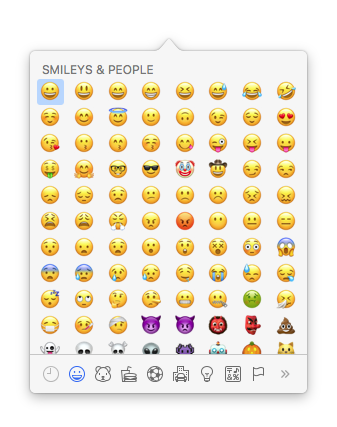
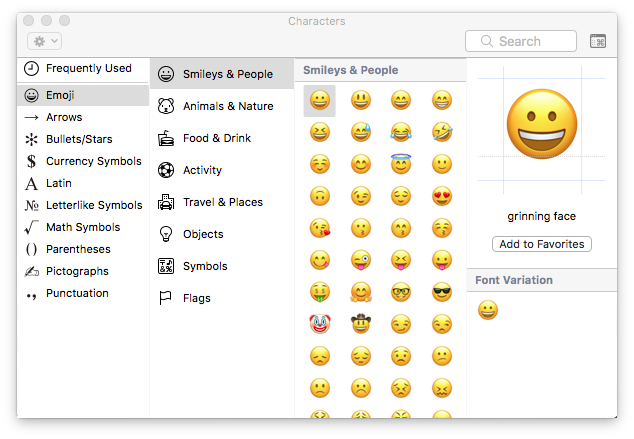
- Browse or search for the character you need.
- Select the character and click Insert, or double-click it in the viewer.
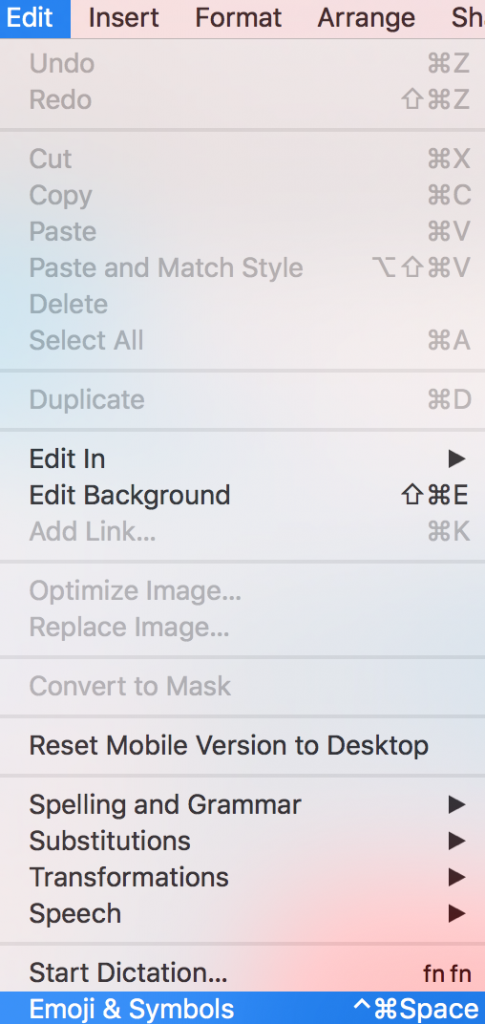
The character becomes part of the editable text. You can reposition it, remove it, or apply suitable text formatting. If the chosen font does not include that character, macOS may display it with a fallback font, which can look slightly different from the surrounding copy.
Choose the Right Type of Character
Emoji
Emoji can add tone to a short announcement or seasonal message. Keep the surrounding wording clear, since the artwork and meaning of an emoji may vary between platforms.
Arrows
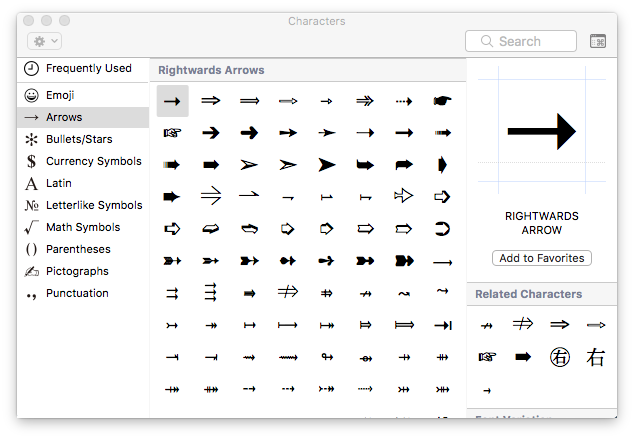
Arrows can point toward a nearby instruction or create a compact directional cue. Do not rely on an arrow alone for navigation; pair it with descriptive link or button text.
Bullets and Stars
Bullet and star characters can separate short benefits or highlight a brief note. For longer lists, use the editor’s list formatting so spacing and structure remain consistent.
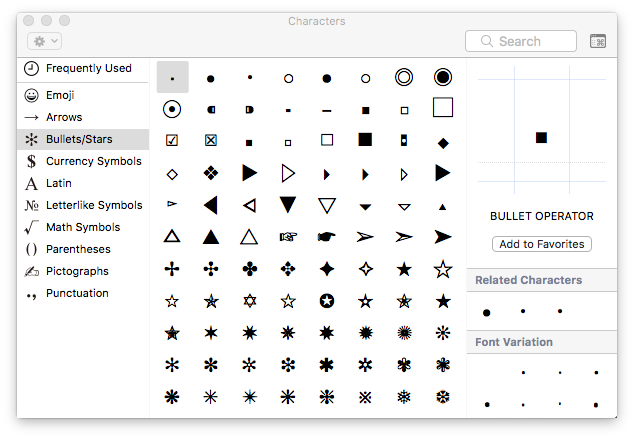
Currency Symbols
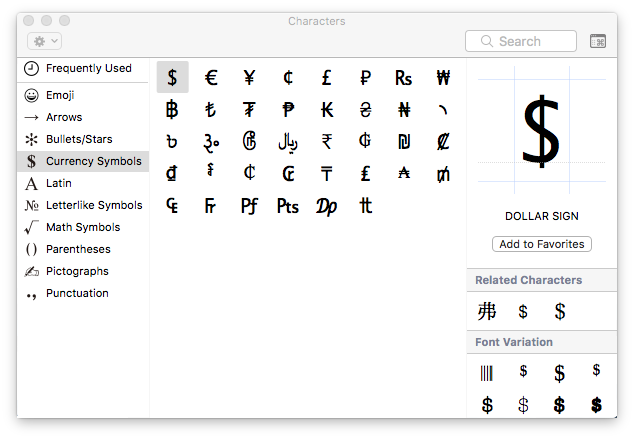
Currency symbols are useful next to prices, but the currency should remain unambiguous for the recipient. Include an ISO currency code such as USD or EUR when the audience could otherwise misinterpret the amount.
Letters and Letterlike Symbols
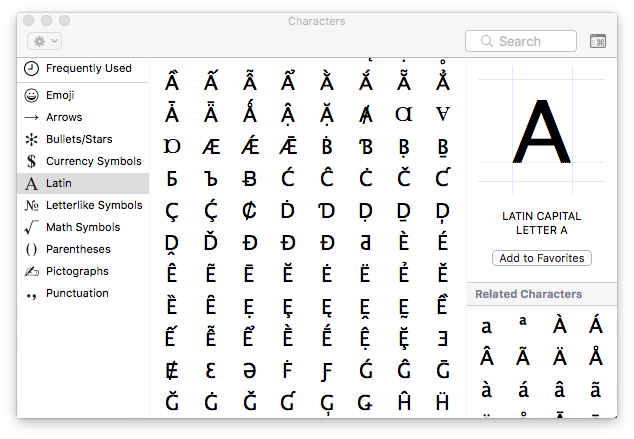
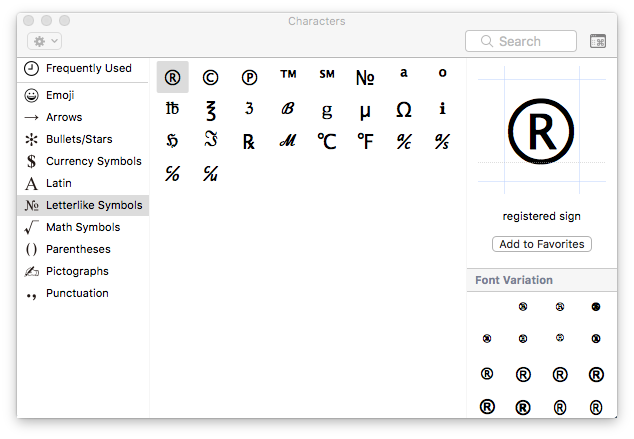
The Latin and letterlike categories include accented letters and specialist characters. Insert the actual character needed for the language or notation, then confirm that it remains legible in the selected font.
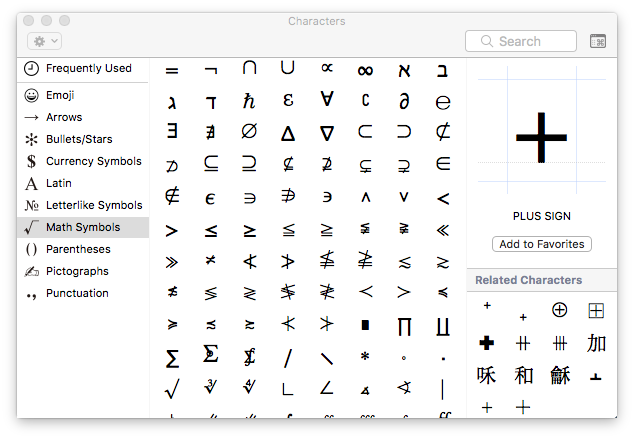
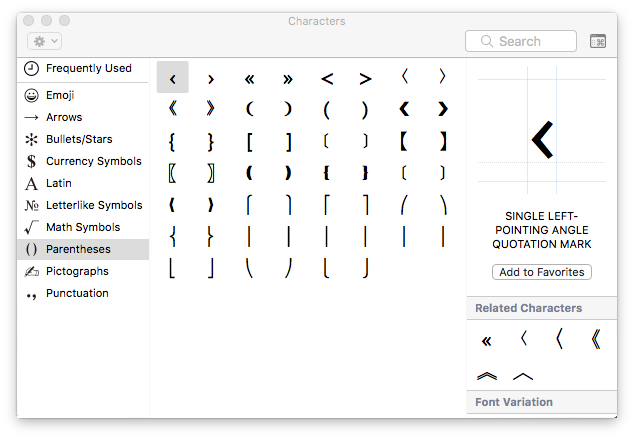
Mathematical Symbols and Parentheses
Use mathematical symbols only when they accurately express the relationship in the text. Parentheses and related marks can support compact labels, but ordinary punctuation is often clearer for general campaign copy.
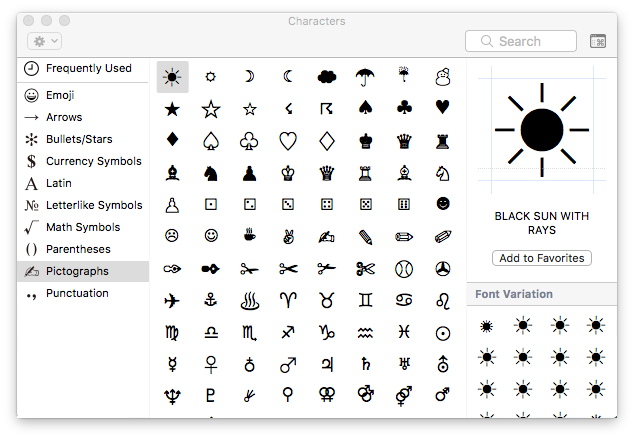
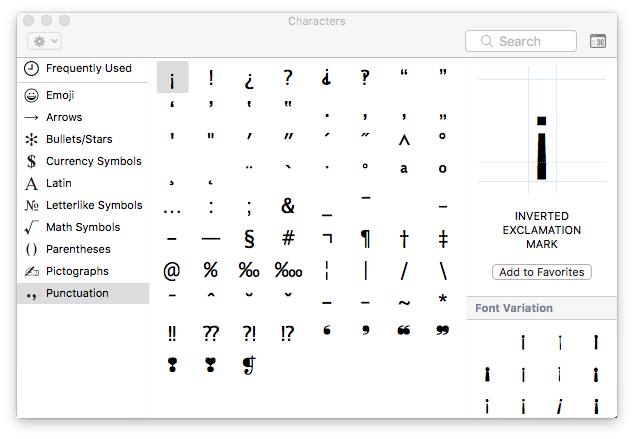
Pictographs and Punctuation
Pictographs provide simple visual cues, while the punctuation category includes marks that may not appear on the standard keyboard. Prefer familiar characters when the meaning needs to be understood immediately.
Use Symbols in Call-to-Action Buttons
A short symbol can accompany a button label—for example, an arrow beside “View details.” Keep the written label intact so recipients do not have to interpret an icon to understand the action. Check that the symbol is vertically aligned and does not crowd the text at mobile width.
Test Special Characters Before Sending
- Preview the desktop and mobile versions of the email.
- Send a test to more than one inbox when the character is important.
- Check that the symbol is visible, correctly positioned, and not replaced by an empty square.
- Confirm that surrounding links, buttons, prices, and instructions still make sense without the symbol.
- Replace an uncommon character with plain text when rendering is inconsistent.
Well-chosen special characters in email can improve scanning and add personality, but readable wording and a successful test should always take priority.
How Can We Help?