
Add your own logos and signatures to the Mail Designer 365 image library when you want approved brand assets available while building email designs. Keeping a dedicated source folder makes it easier to reuse the correct logo, company image, or signature without searching through unrelated files for every campaign.
Prepare your own logos and signatures
Before adding the folder, review the files and keep only current, approved versions. Use clear filenames that identify the brand, color treatment, language, or intended background. Remove outdated logos and duplicate exports so team members do not accidentally choose the wrong asset.
- Use a logo file with enough resolution for the size shown in the email.
- Keep transparent backgrounds only when they are intentional and display correctly on light and dark sections.
- Crop unnecessary empty space around a scanned signature.
- Store signatures only when their use is approved and appropriate for the sender.
- Keep a text sender name and contact details in the email instead of relying on an image alone.
Add the asset folder to Mail Designer 365
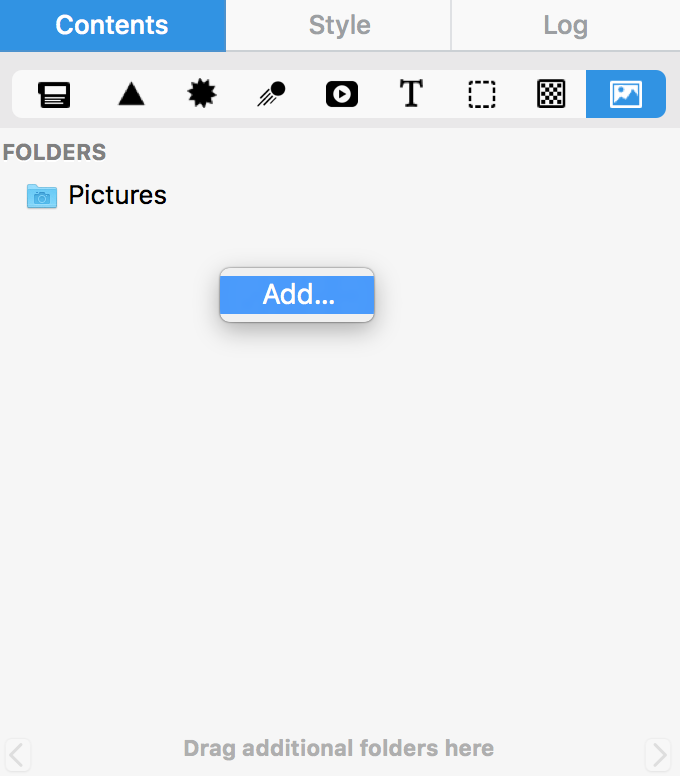
- Open the Photos area in the Contents section.
- Right-click below the predefined folders.
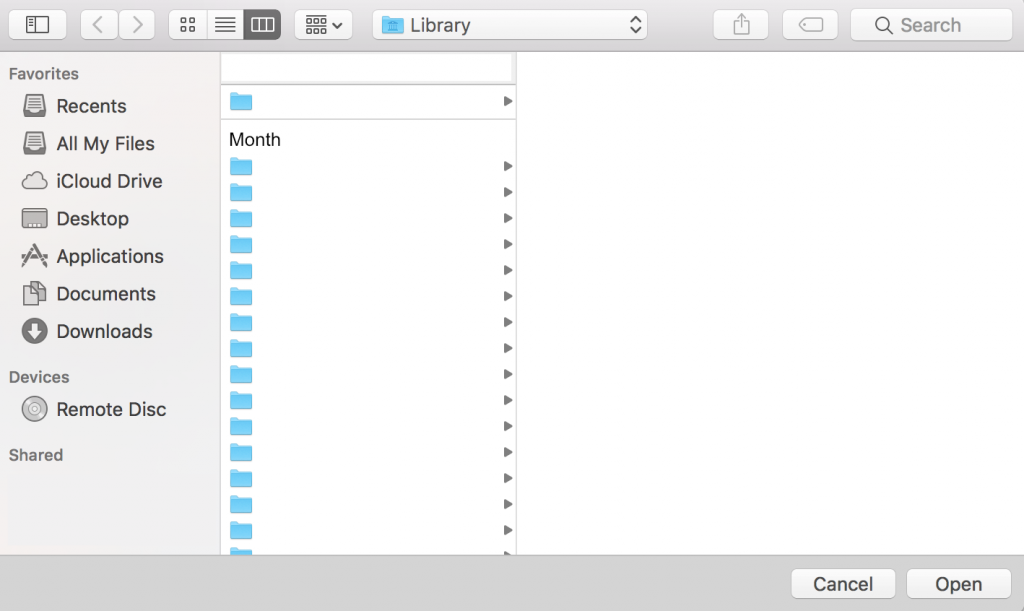
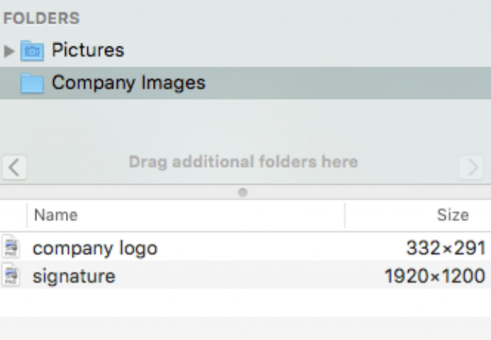
- Choose the folder that contains the logos, signatures, or company images you want to make available.
- Confirm that the folder appears in the list and open it to review the imported assets.
- Drag the selected asset into the appropriate image area in the email design.
Use brand assets consistently
Place the logo where it supports recognition without competing with the main message. Keep its proportions intact and use the same approved version across related campaigns. When a signature is part of a personal message, size it so it feels supportive rather than decorative and include the sender’s typed name and role nearby.
Do not put essential legal, contact, or offer information only inside a logo or signature image. Live text remains available when images are blocked and is easier for recipients using assistive technology. Add concise alternative text to a meaningful company logo. For a decorative signature image accompanied by the same typed name, use alternative text carefully to avoid repeating identical information unnecessarily.
Check the result before sending
- Preview the email at desktop and mobile widths.
- Confirm that the logo is sharp and not stretched or cropped.
- Check the asset against both light and dark background areas used in the design.
- Verify that a signature belongs to the intended sender and campaign.
- Send a delivered test and confirm the image loads in the received message.
- Check that important sender and company information is still understandable with images disabled.
Troubleshoot missing or incorrect assets
If a folder does not show the expected image, confirm that the source file is inside the selected folder and that you added the correct location. If a logo looks blurry, return to the approved source and use an export suited to the displayed size rather than enlarging a small image. If the wrong version appears, remove it from the design, choose the correct file from the library, and send another test.
Review the source folder periodically. Archive superseded assets outside the active folder and keep a simple naming convention so the current logo and signature variants remain obvious. This reduces accidental brand inconsistencies across future email designs.
Plan for team use
When several people create campaigns, agree on which asset folder is authoritative and who updates it. Document the preferred logo for light and dark backgrounds, the minimum readable size, and whether signature images are allowed for every sender or only for specific personal messages. A short approval process prevents older files from reappearing after a rebrand.
How Can We Help?