
How to Add a Video Placeholder to an Email
A video placeholder gives recipients a visual preview that links to a video hosted on the web. Mail Designer 365 does not embed a playable video stream inside the message. Instead, it adds a linked preview object, which is more compatible with the way common email clients display campaign content.
Use a public video URL that recipients are allowed to open. YouTube links can automatically supply the video’s existing thumbnail; other destinations may require you to review or provide the preview image yourself.
Insert the Video Link Object
- Open the email design in Mail Designer 365.
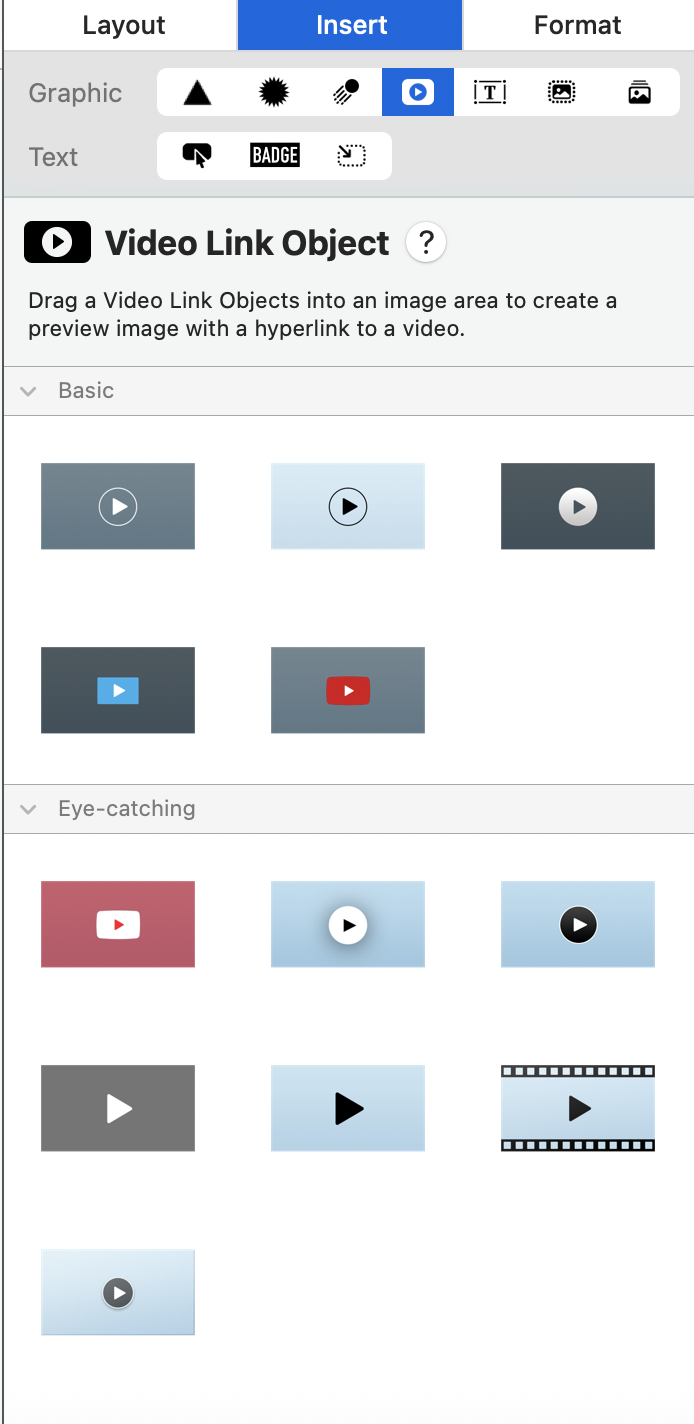
- Choose Insert and locate the video placeholder section.
- Select a Video Link Object and drag it into an image area.
- Position and size the object so the preview remains clear at desktop and mobile widths.
The surrounding text should explain why the video is relevant. A short heading and one sentence of context usually work better than relying on the thumbnail alone.
Add the Public Video URL
Select the video object and enter the full public URL, including https://. For example, paste the normal public YouTube page URL rather than a private editing or account-management address. The link must be reachable without access to your local Mac.
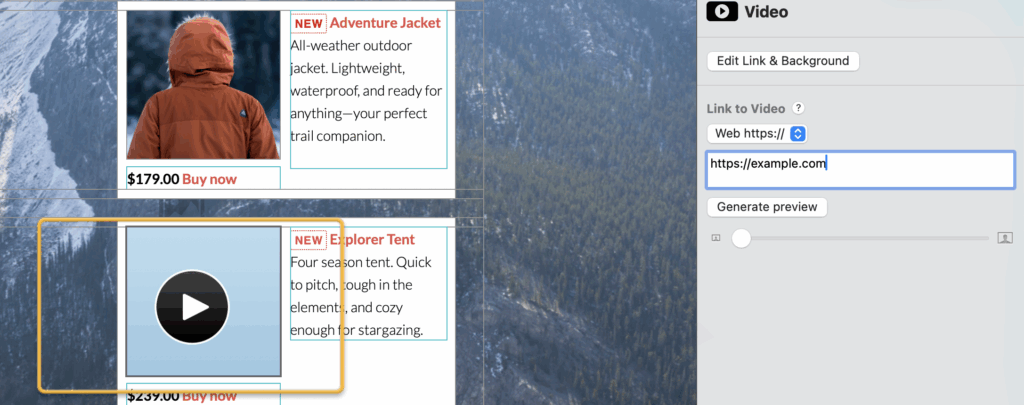
After adding the address, check that the video placeholder points to the intended destination. If the URL is incomplete, private, or mistyped, recipients may see the preview but reach an error page after clicking it.
Review the Video Thumbnail
For a supported YouTube video, Mail Designer 365 can generate a preview using the thumbnail already associated with the video. Make sure the thumbnail is recognizable at the displayed size and does not contain essential text that becomes unreadable on a phone.
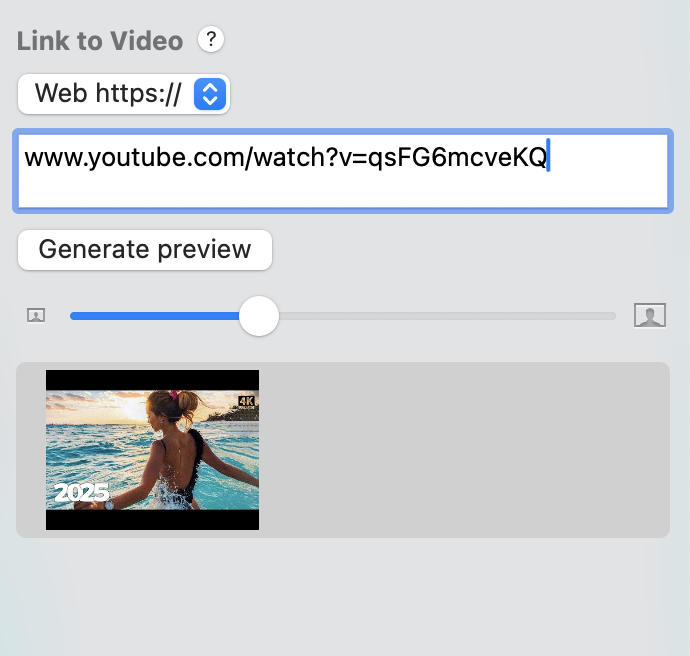
The preview should look clickable without making a false promise that the video plays directly inside every inbox. Supporting copy such as “Watch the tutorial” or “View the product demo” helps describe the action. Alternative text should also identify the purpose of the linked image for recipients who do not see images.
Test the Video Placeholder Before Sending
- Preview both desktop and mobile versions of the email.
- Send a test campaign to an actual inbox.
- Click the thumbnail and confirm that the correct public video opens.
- Check the landing page without being signed in, when practical.
- Verify that the thumbnail, label, and surrounding copy remain readable when images are scaled.
- Repeat the test after changing the URL or thumbnail.
Troubleshoot Common Video Link Problems
The Thumbnail Does Not Appear
Confirm that the video URL is public and correctly formatted. If the hosting platform does not provide a usable thumbnail, use an appropriate preview image and keep the video link attached to it.
The Link Opens the Wrong Video
Select the object, replace the saved URL, and send another test. Do not assume the editor preview alone proves that the final destination is correct.
The Preview Is Hard to Read on Mobile
Review the mobile layout, allow enough space around the object, and avoid placing long text inside the thumbnail. Keep the descriptive label in editable email text where it can reflow more reliably.
A well-prepared video placeholder combines a relevant preview, an accurate public link, clear supporting copy, and a successful click test from the delivered email.
How Can We Help?