
Some email clients cannot display a chosen typeface. A fallback font gives each text style a reliable alternative, helping your Mail Designer 365 email remain readable when the preferred font is unavailable.
What is a fallback font?
A fallback font is a backup typeface used when the preferred font is unavailable. The receiving device checks the font stack in order and displays the first available option. In Mail Designer 365, a text style can contain multiple fallbacks and includes at least one email-safe option.
Setting up a fallback font
After you have added a text style to your email copy, you will see a box labelled "Email-safe Font" under the "Style" menu.
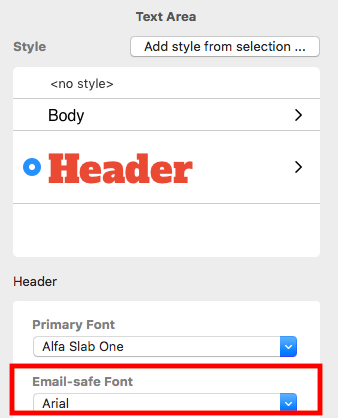
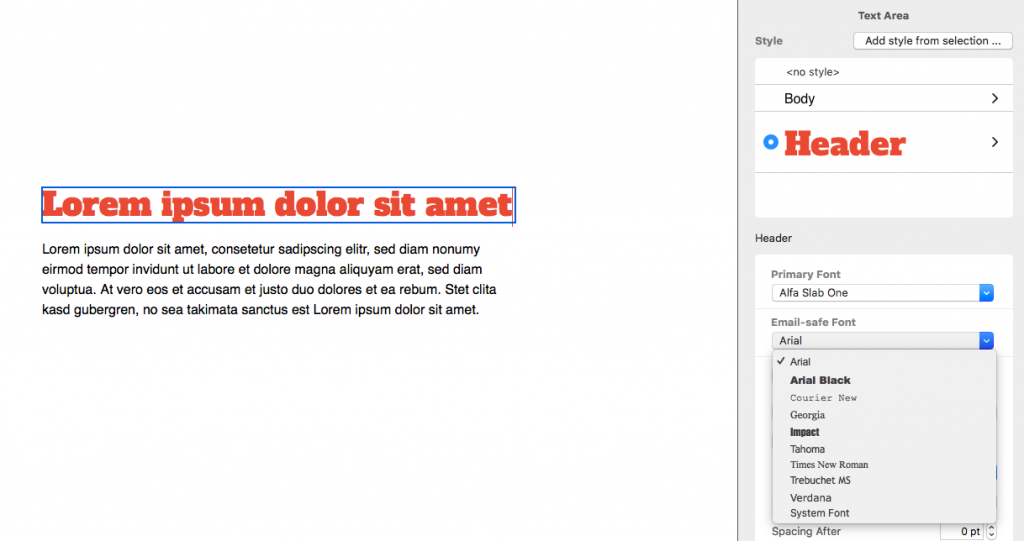
To choose from the selection of email-safe fonts, click the dropdown menu. Your email-safe font will then be displayed if your first choice of font isn't.
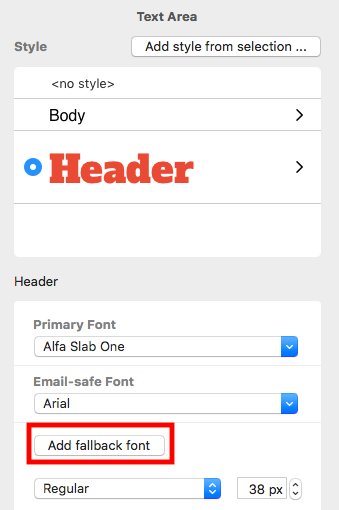
To add another fallback font, click the add button next to the font list.
As long as you already have an email-safe font set up, you can choose any font in Mail Designer 365 as a fallback:
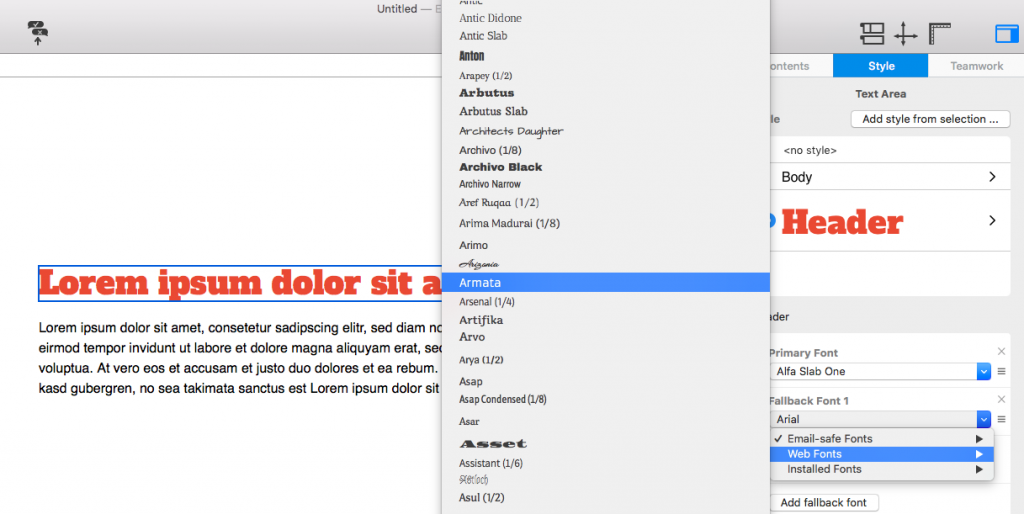
Repeat the last step if the text style needs another fallback. Keep the stack short and place the most visually similar reliable option first.
Test the fallback-font result
Send the design to representative desktop and mobile inboxes, then compare line breaks, button labels, headings, and text wrapping. A replacement font can be wider or taller than the preferred typeface, so confirm that important text remains visible and that buttons do not wrap. Also review contrast using the W3C contrast guidance, because readable typography still needs sufficient contrast.
Fallback font checklist
- Choose an email-safe option that is visually close to the preferred font.
- Apply the stack consistently to every related text style.
- Check headings, body text, links, and buttons at narrow widths.
- Send inbox tests before distributing the final campaign.
How Can We Help?