
Hex color values let you apply consistent brand colors to shapes, backgrounds, text, buttons, and other supported elements in Mail Designer 365. A hex value records an RGB color in a compact format such as #3D4DBB, making it easier to reuse the same approved color across several email designs.
How to use hex color values in Mail Designer 365
- Select the object you want to color, such as a shape or supported design element.
- Open the relevant color control under the Style area.
- In the macOS color panel, switch to the Color Sliders view.
- Select RGB Sliders from the available color models.
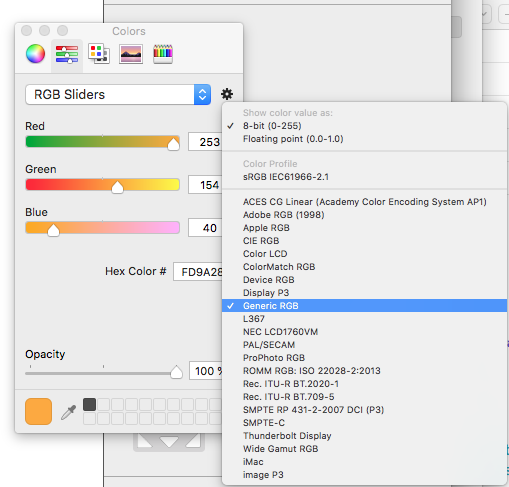
- Open the settings menu, choose 8-Bit (0–255), and select the appropriate RGB profile. Generic RGB is a practical choice for many email-design workflows.
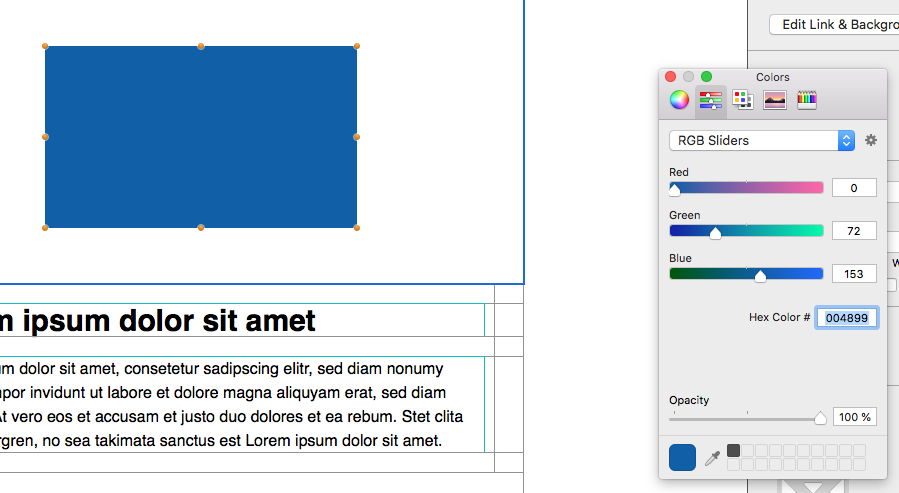
- Enter the approved hex code in the hexadecimal color field and confirm the result in the design.
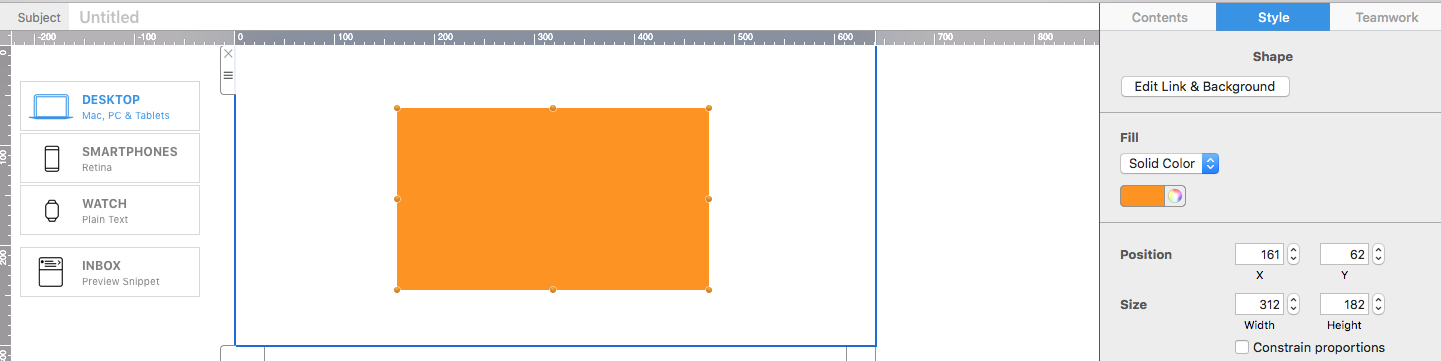
The exact labels and appearance of the macOS color panel can vary by system version, but the workflow is the same: open the sliders, choose RGB, and enter the hexadecimal value.
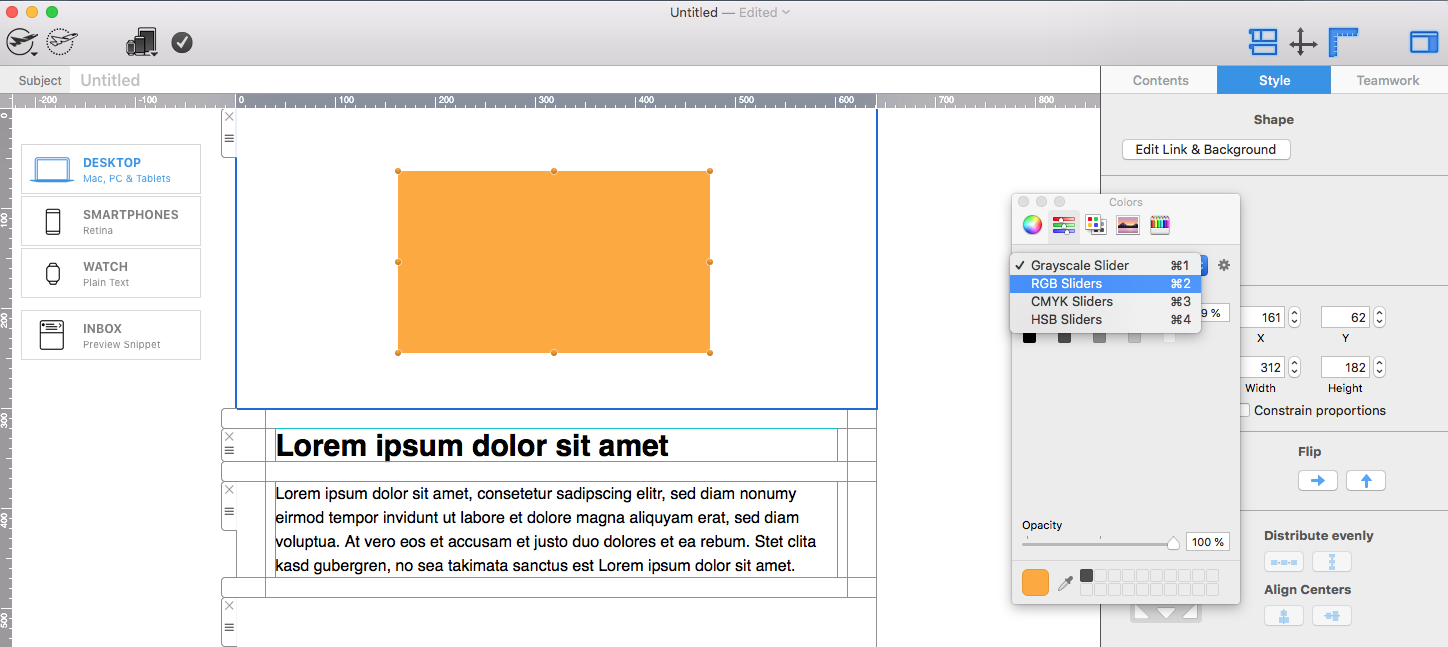
Choose the RGB value format and profile
Use the settings control in the color panel to choose the 8-Bit (0–255) value format. This matches the common way RGB colors are described with three channel values between 0 and 255. Select the profile used by your design workflow; Generic RGB is a useful default when no different approved profile has been specified.
Enter the hex value exactly as supplied by your brand guide. Hex codes use six characters representing red, green, and blue. For example, the pairs in #3D4DBB correspond to those three channels. Uppercase and lowercase letters describe the same value, but a consistent style makes shared documentation easier to review.
Build a reusable email color system
Keep a short list of approved hex color values for primary text, secondary text, backgrounds, accents, links, and buttons. Record the intended use beside each value instead of keeping an unlabeled collection of codes. This reduces accidental substitutions and helps different team members produce consistent campaigns.
Use a limited palette. A primary brand color, one accent, neutral backgrounds, and readable text colors are usually more effective than many competing shades. Reserve the strongest accent for important actions so recipients can understand the visual hierarchy quickly.
Check color contrast and accessibility
A correct brand hex code is not automatically suitable for every background. Check the contrast between text and its background, including buttons and linked text. Do not communicate meaning through color alone; pair warning, status, or availability colors with clear words or icons that have appropriate text alternatives.
Preview the design in light and dark inbox themes where possible. Some inboxes can alter surrounding colors, so verify that text, borders, and buttons remain distinguishable. Also check the email with images disabled because essential labels and calls to action should remain readable as live content.
Test hex colors before sending
- Compare the entered value with the approved brand specification.
- Check every object that should use the same color.
- Preview desktop and mobile layouts at realistic brightness.
- Test text and button contrast against each background.
- Send proofs to common inboxes and review dark mode.
Troubleshooting custom colors
- The hex field is not visible: switch the macOS color panel to Color Sliders and select RGB Sliders.
- The result looks different: verify the six-character code, 8-Bit format, and selected RGB profile.
- The wrong object changes: select the intended shape, text, background, or button before opening its color control.
- The color is hard to read: choose an approved higher-contrast pairing rather than forcing the same value onto every background.
- Team designs are inconsistent: maintain one documented palette with names, values, and permitted uses.
Use this workflow when you need to apply an approved brand color inside Mail Designer 365. For HTML/CSS color coding or creating a complete brand guide, follow the documentation for those separate workflows.
How Can We Help?