
Image cropping in Mail Designer 365 gives you precise creative control over how photos fit inside image areas in your email design.
Image Cropping in Mail Designer 365
To begin, drag an image into an image area within your design.
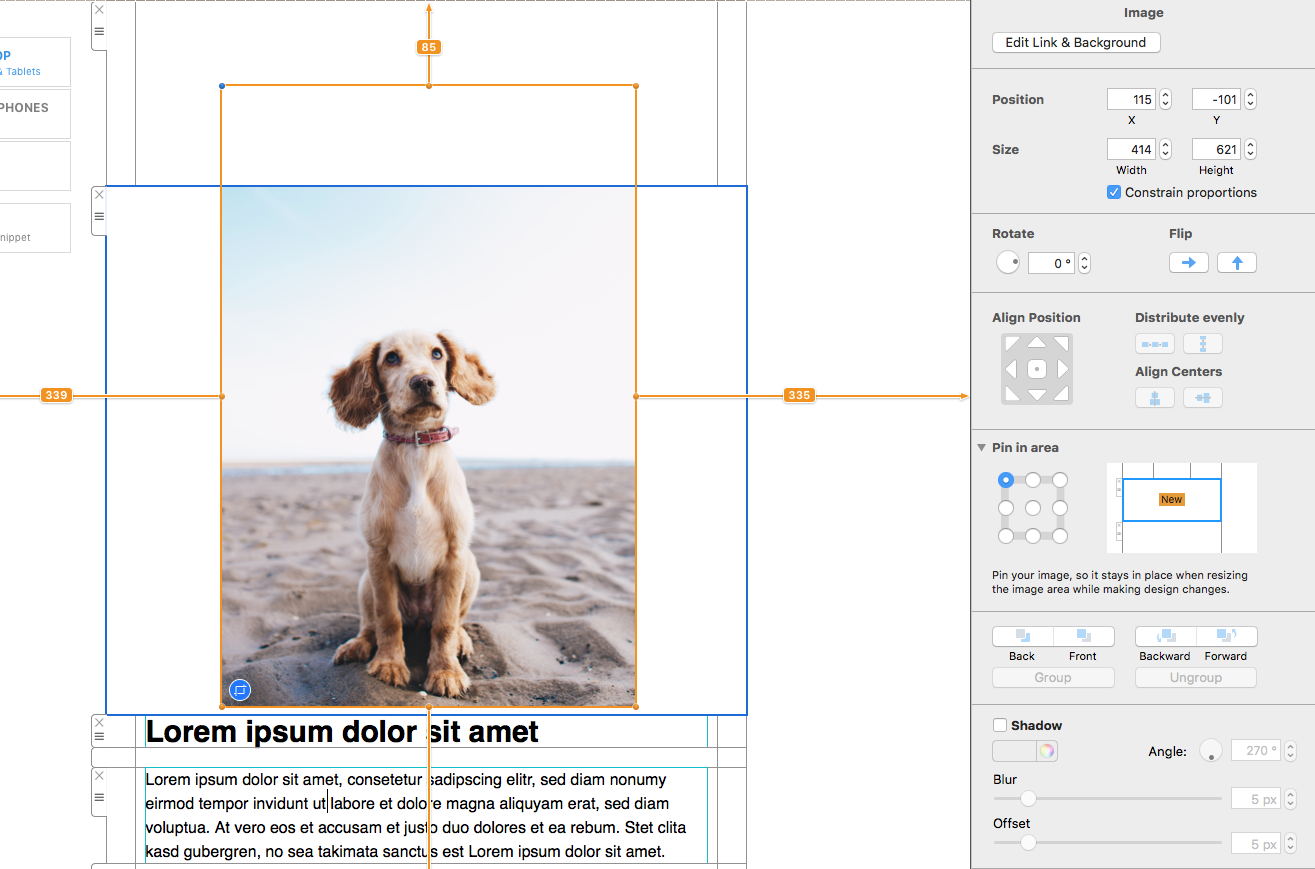
Click on the image and then click on the blue crop icon in the bottom left corner.
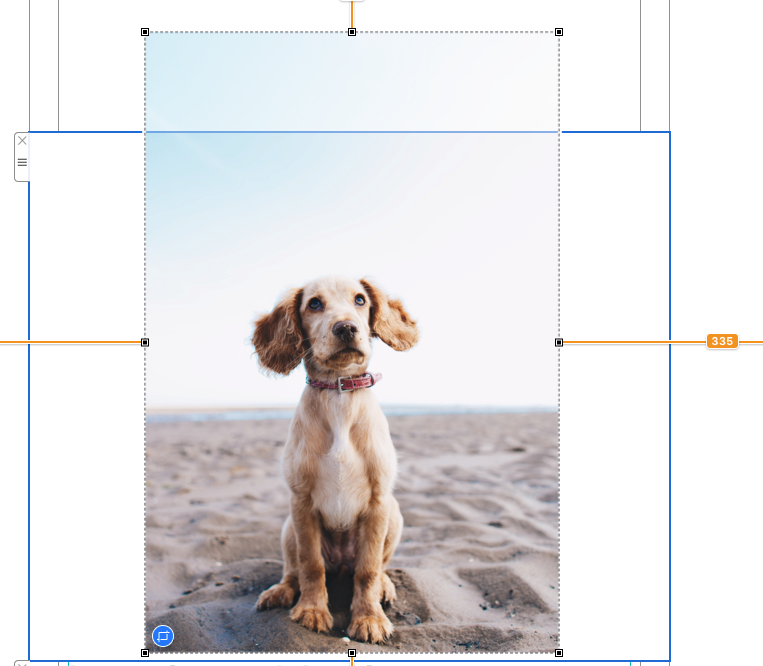
Drag the corners of the image to crop into your desired size.
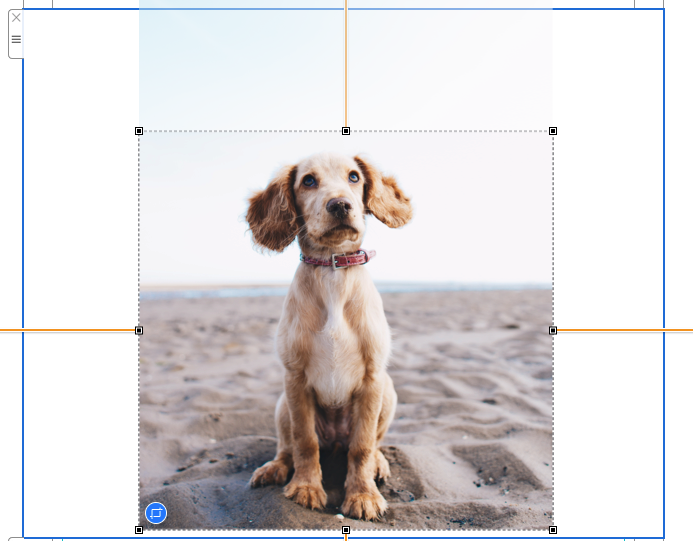
You can then reposition and resize the image to your liking.
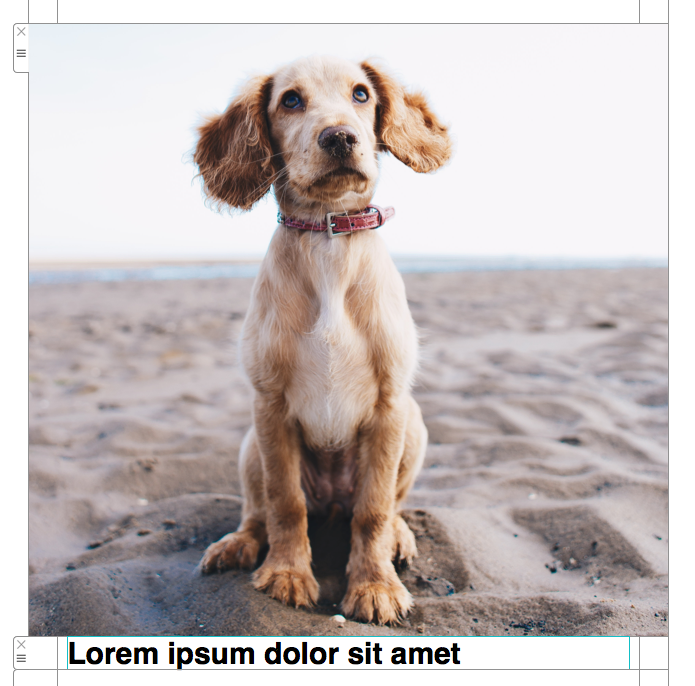
Don't worry if you change your mind about the crop. Simply click on the blue crop icon again and drag to undo your changes.
Want to resize an image instead? Check out our guide on how to resize an image in Mail Designer.
How Can We Help?