
How to Use Unsplash Images in Mail Designer 365
Unsplash images are available directly inside Mail Designer 365, making it easier to find photography while working on an email design. You can browse a curated selection, search by subject, drag a photo into an image area, or use it as a section background.
Choose imagery that supports the message and leaves enough contrast for nearby text. Before using any photo in a campaign, review its source information and the current usage terms that apply to it; do not assume every possible use is unrestricted.
Open the Unsplash Image Library
From a Selected Image Area
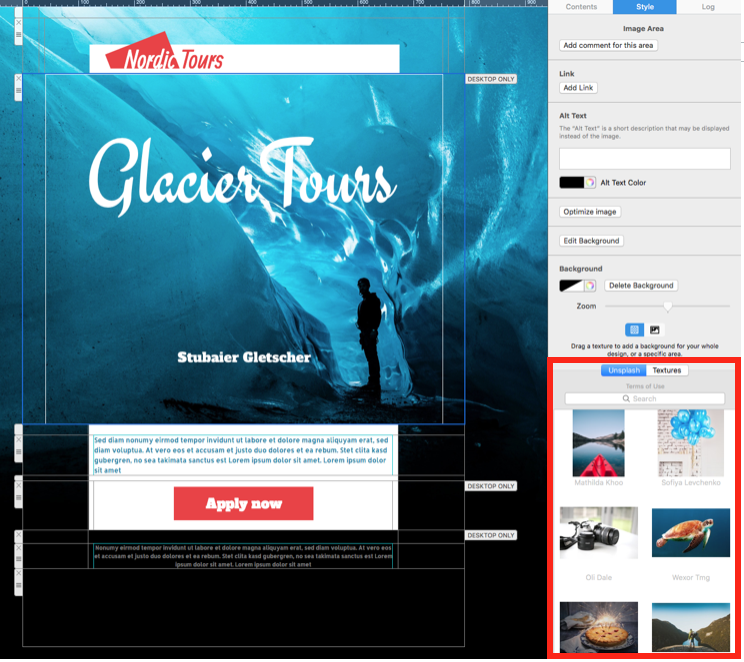
Click an image area in the email design. The Style sidebar displays the available image controls and a curated Unsplash collection. This route is useful when you already know which part of the layout needs a replacement image.
From the Contents Panel
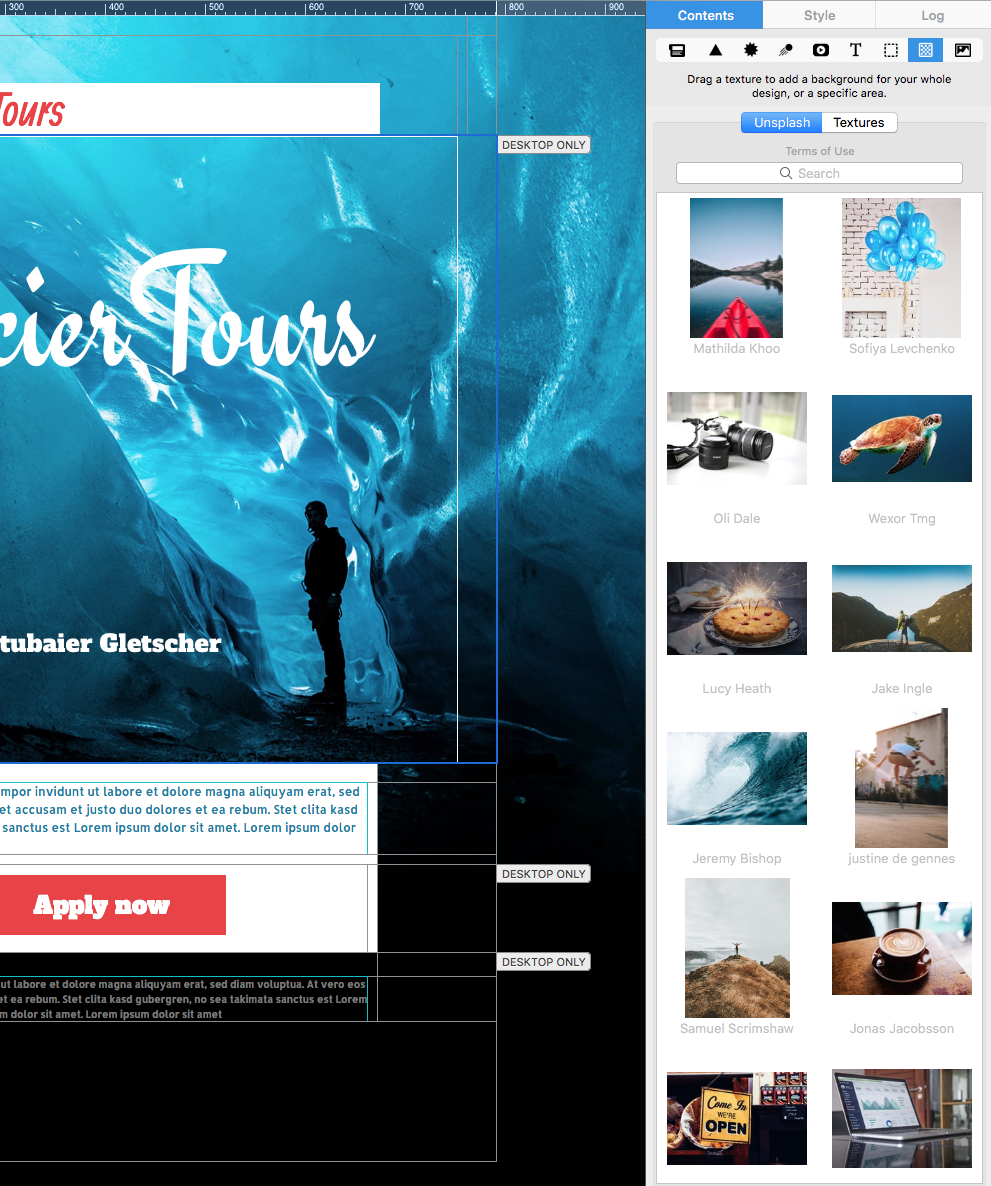
Open the Contents panel and select the Backgrounds tab to browse the integrated collection. This gives you another starting point when you are exploring visual ideas before choosing a specific image area.
Search Unsplash Images by Keyword
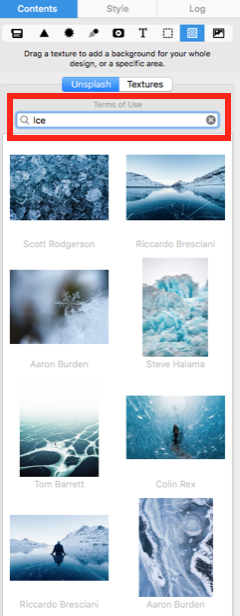
Use the search field to enter a concrete subject, location, object, or mood, then press Return. Specific terms generally make it easier to find a photo that matches the campaign. In the example below, the search term is “Ice.” Try related phrases when the first result set is too broad.
Evaluate more than appearance alone. Check whether the composition leaves space for the intended layout, whether the focal point remains visible on mobile, and whether the colors provide sufficient contrast with buttons or editable text placed nearby.
Insert an Unsplash Image into an Image Area
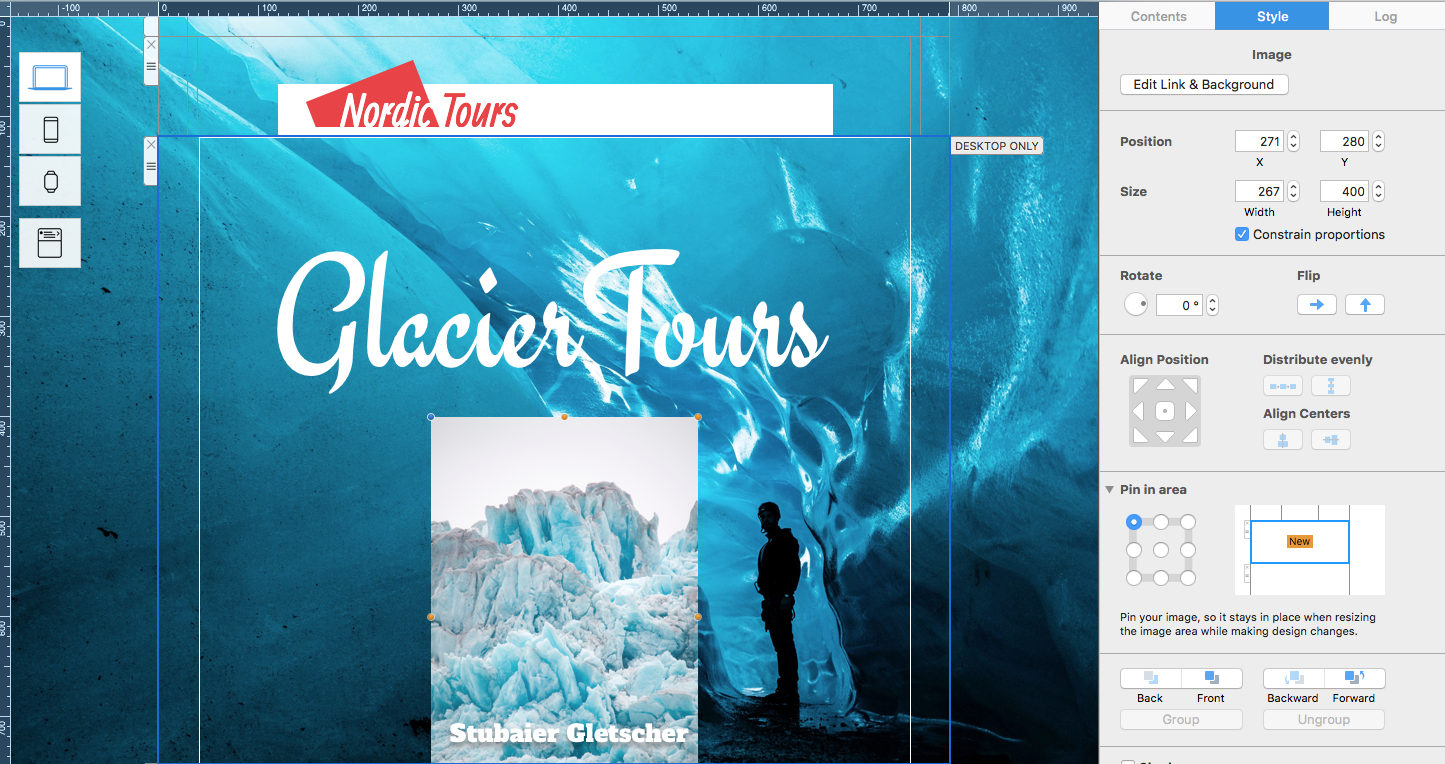
Drag the selected photo from the library into an image area. Reposition or resize it so the important subject stays inside the visible crop. Preview the desktop and mobile versions separately because differently shaped image areas can reveal different parts of the same photo.
Add concise alternative text that describes the meaningful content or purpose of the image. When the photo is decorative and conveys no information, follow the appropriate decorative-image treatment instead of repeating nearby copy.
Use an Unsplash Image as a Background
To create a photo background, drag the chosen image into a background area in the design. Keep editable headings, paragraphs, and buttons in their own content elements rather than baking essential campaign text into the photo.
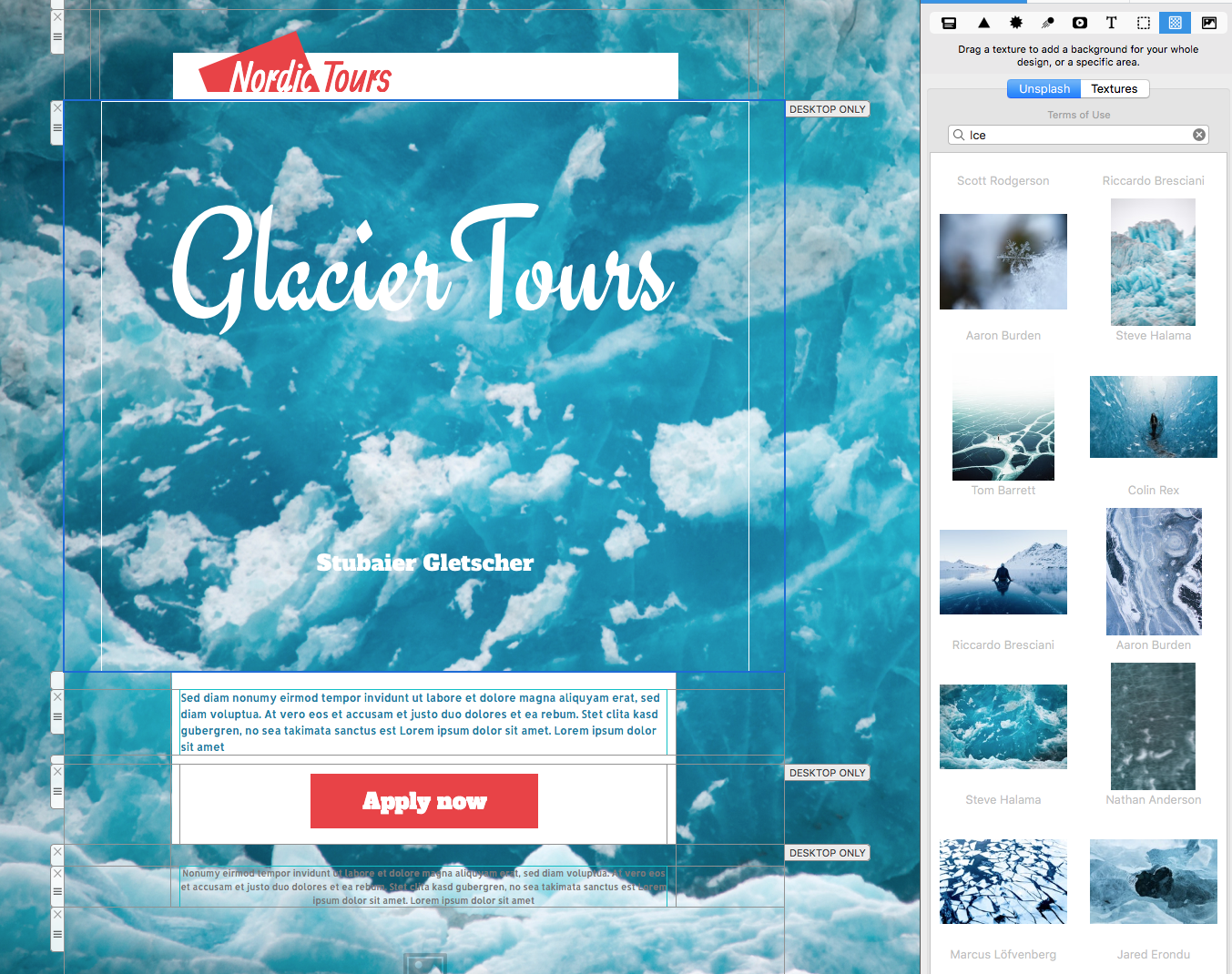
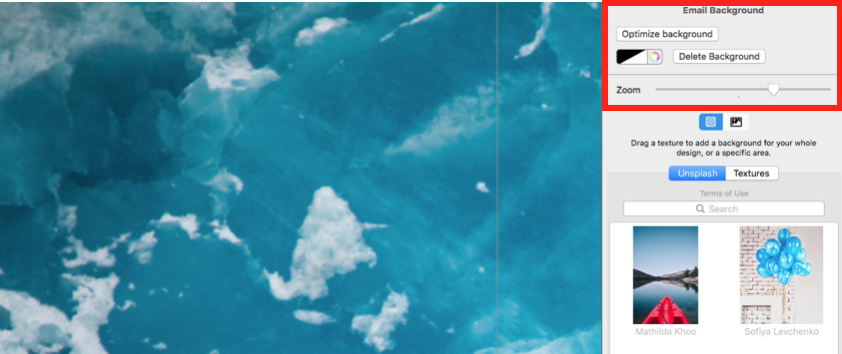
Double-click the background area to adjust the crop or zoom. Keep faces, products, and other focal points away from edges that may be cropped at narrower widths. If text overlays the image, check legibility throughout the supported layout sizes.
Check the Image Before Sending
- Preview the image in desktop and mobile layouts.
- Confirm that the crop keeps the subject visible.
- Check alternative text for meaningful image areas.
- Make sure overlaid text and buttons remain readable.
- Review the image source and applicable current usage terms.
- Send a test email and confirm the image loads in the received message.
Troubleshoot Unsplash Image Issues
If search results are too broad, use a more specific phrase or try a related term. If the crop looks wrong, double-click the area and reposition the image rather than stretching it. If text is difficult to read, choose a calmer image, move the text, or increase the visual separation between foreground content and the photo.
Using Unsplash images successfully means choosing an appropriate photo, fitting it to both layouts, preserving readable content, and verifying the result in a delivered test email.
How Can We Help?