
Deleting saved custom layout blocks
Saved custom layout blocks make repeated email sections faster to reuse, but older versions can clutter the content library or cause teammates to select outdated branding. When an Instant Block is no longer needed, remove it from My Instant Blocks so the reusable collection stays clear and current.
This guide explains how to locate a stored block, move it to the Trash, and check that you removed the correct reusable item. Deleting the saved library item does not automatically remove copies that have already been placed in email designs.
Check the block before deleting it
Open any design that still uses the block if you need to preserve its text, images, or structure. Confirm that a newer replacement exists when the old block contains a standard header, footer, legal section, or call to action. If other team members use the same collection, tell them which saved block is being retired.
Look closely at the preview and identify the block by its layout and content. Similar previews can make several versions difficult to distinguish, especially when only a link or small text detail has changed.
Open the Contents panel
- Open Mail Designer 365 and a design document.
- Select the Contents tab.
- Click the layout blocks icon to open the reusable block library.

Go to Ready-Made and My Instant Blocks
Choose Ready-Made in the layout block panel. This section contains the standard block categories and the My Instant Blocks collection where your custom blocks are stored.

Scroll through My Instant Blocks until you find the item you want to remove. Compare the preview with the block you identified earlier before continuing.
Open the block menu
Right-click the saved custom layout block. A contextual menu appears with the available actions. If the menu does not open, make sure you clicked the stored block in My Instant Blocks rather than a block already placed in the email design.
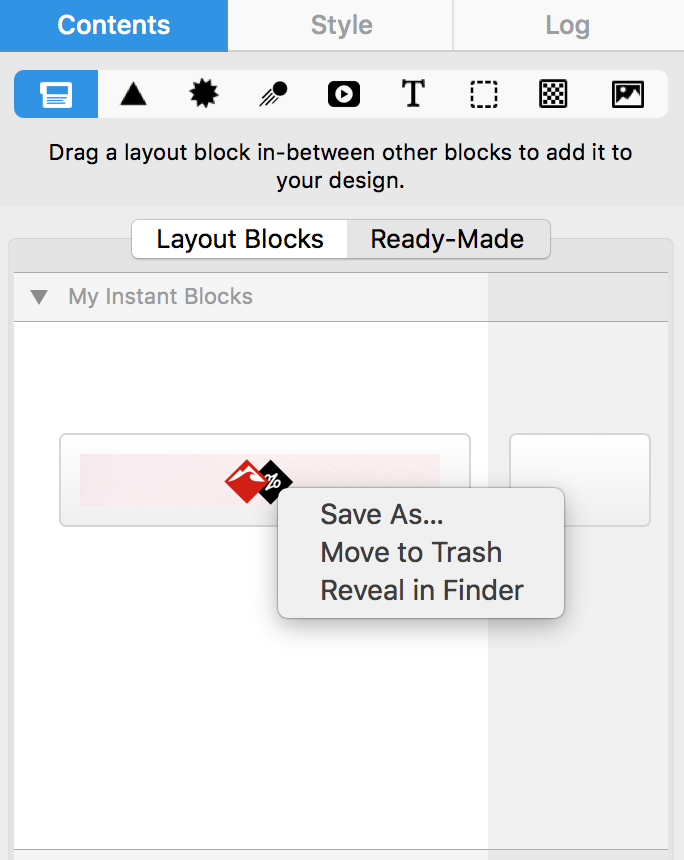
Move the Instant Block to Trash
Select Move to Trash. This removes the reusable block from the active My Instant Blocks collection. Use this command only after checking the preview, because the stored block may contain a version you still need for another campaign.
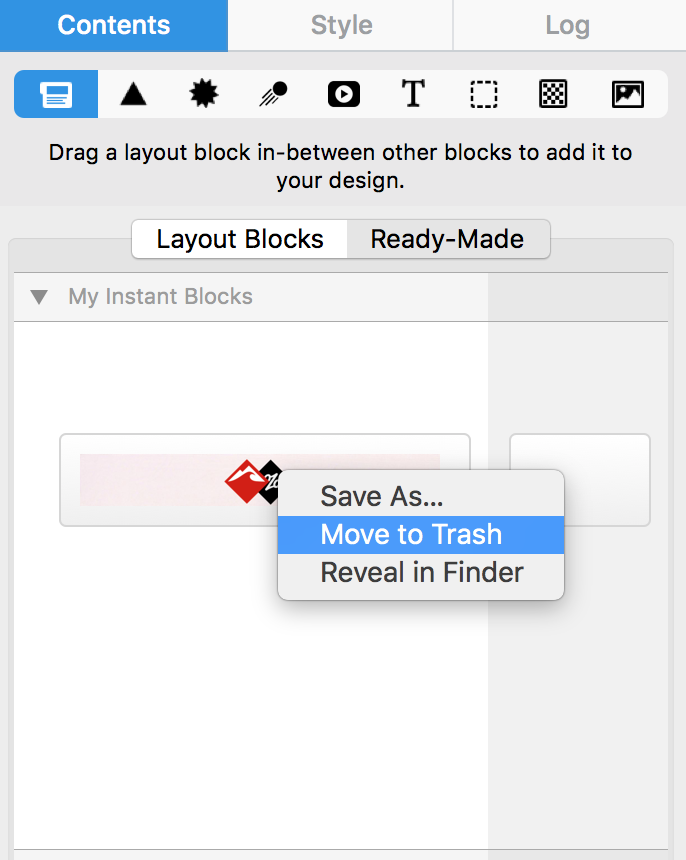
Understand what the deletion changes
Moving a saved block to Trash affects the reusable library item. Copies already inserted into existing email designs remain part of those documents, so you can continue editing or sending them. The action also does not update older designs to use a replacement block automatically.
If you deleted the block because branding or legal text changed, review active designs separately. Replace outdated content in each campaign before the next send.
Use alternatives when you still need the structure
When only the text, links, or images are outdated, consider creating and testing a replacement before deleting the previous block. You can insert the old block into a temporary design, update its contents, and save the revised section as a new Instant Block.
For the creation workflow, see saving custom layout blocks.
Verify the reusable library
- Return to My Instant Blocks and confirm the unwanted item is gone.
- Check that the intended replacement is still available.
- Open an existing design and confirm placed copies were not removed.
- Review shared campaign instructions so teammates use the current block.
A concise, well-maintained collection makes saved custom layout blocks easier to identify and reduces the chance of reusing outdated content in a new email campaign.
How Can We Help?