
How to Highlight Text in an Email
To highlight text in an email without changing an entire text block, select the specific word or phrase and use Mail Designer 365’s Emphasis controls. You can apply bold, italic, color, and other supported text formatting only to the selected characters while preserving the main style of the surrounding paragraph.
Use emphasis for information that genuinely deserves extra attention, such as a deadline, price, short benefit, or important qualification. Applying several competing styles to every sentence makes the message harder to scan.
Select the Word or Phrase
- Open the email design and click inside the relevant text object.
- Drag across the exact word or phrase you want to emphasize.
- Confirm that only the intended characters are selected.
- Keep the selection active while opening the Style controls.
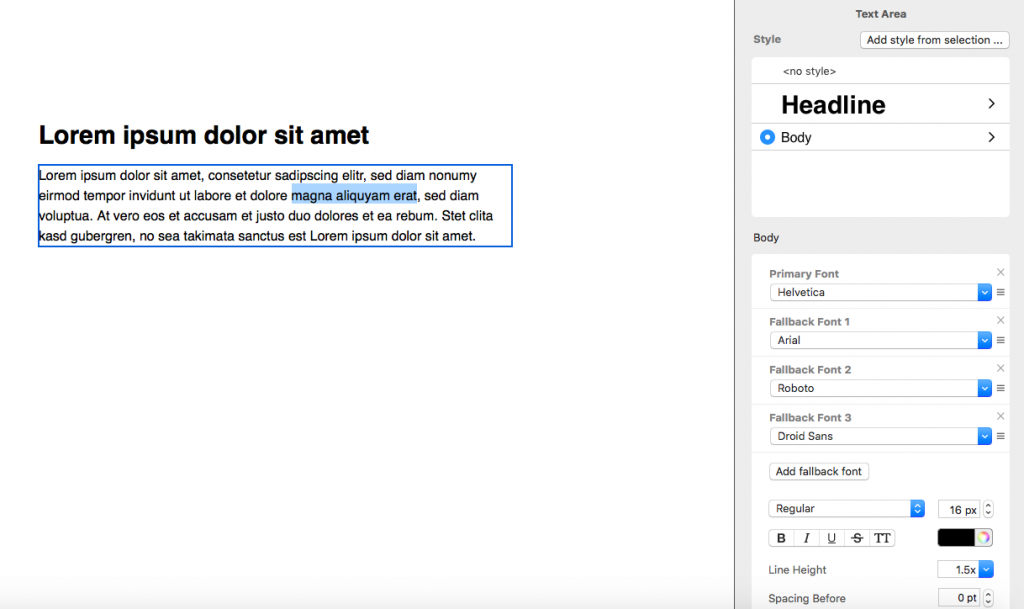
Selecting a specific range is important. The standard text-object style controls can affect the full object, whereas Emphasis is intended for a smaller selection inside that object.
Apply Emphasis Formatting
With the text selected, locate Emphasis in the Style sidebar. Choose only the formatting needed for the message. For example, bold can add weight, italic can distinguish a short phrase, and a carefully chosen color can draw attention while remaining consistent with the campaign design.
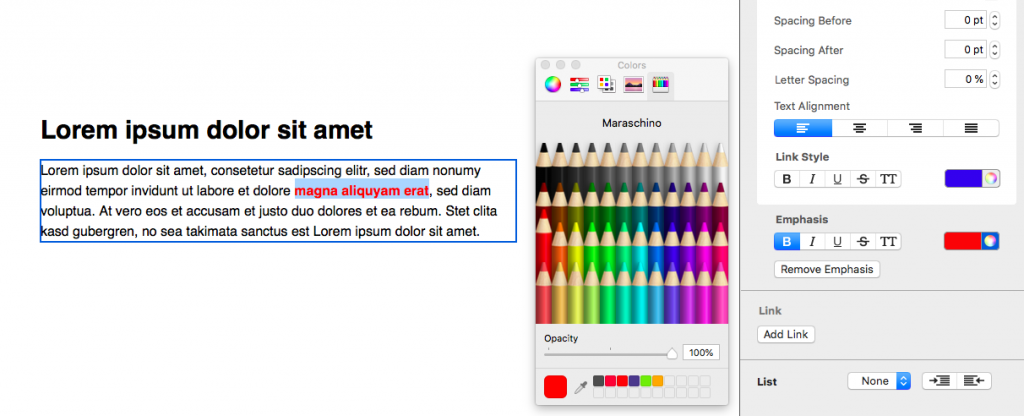
The selected formatting is applied to the highlighted range rather than the whole paragraph. You may emphasize more than one range in a text object, but keep the overall hierarchy predictable. If every phrase looks different, recipients will not know which element is most important.
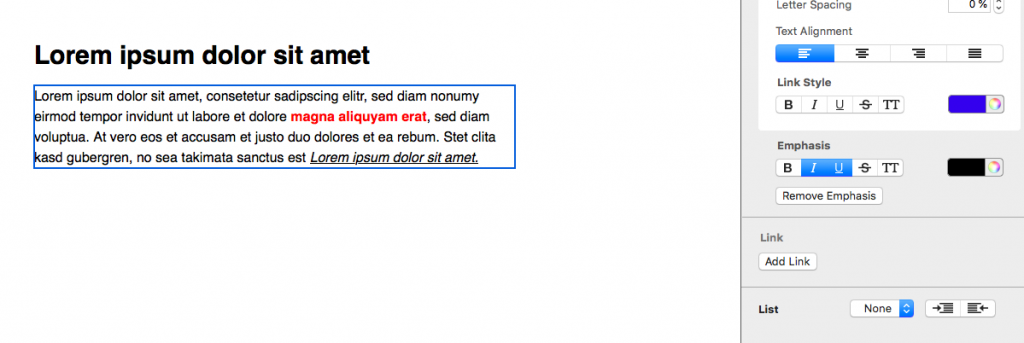
Choose an Accessible Emphasis Style
- Do not rely on color alone: combine color with clear wording or another visual distinction when the information is important.
- Keep contrast readable: check emphasized text against its background.
- Avoid very small italic text: readability matters more than decorative variation.
- Preserve link clarity: do not make ordinary emphasized words look like clickable links.
- Use a consistent hierarchy: the same type of information should receive similar treatment throughout the email.
Keep Emphasis Separate from Link Styling
Emphasis changes the appearance of selected words; it does not create a destination. When the text should be clickable, create or edit the link and follow the separate text-link formatting guide. This keeps visual emphasis and interactive behavior clear.
Remove Emphasis from Text
To restore the original style, click the emphasized text, select the relevant range, and choose Remove emphasis. The selected text returns to the underlying style settings for that text object.
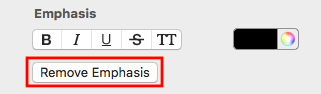
If only part of the formatting is wrong, select the affected range carefully before removing or replacing it. Review adjacent spaces and punctuation so the transition back to the base style looks intentional.
Test Highlighted Email Text
- Preview the desktop and mobile layouts.
- Check that emphasized words remain readable at both widths.
- Confirm that line wrapping does not separate a highlighted phrase awkwardly.
- Make sure emphasized text cannot be confused with a link or button.
- Send a test email and review the received message, not only the editor.
Common Emphasis Problems
The Whole Text Block Changes
Undo the change, select only the intended characters, and use the Emphasis section rather than a control that applies to the complete text object.
The Highlight Is Too Strong
Reduce the number of simultaneous changes. Bold or color alone may be sufficient; combining bold, italic, underline, and a bright color can overwhelm the surrounding message.
The Text Looks Different on Mobile
Review line breaks and spacing in the mobile layout. Shorten the phrase or adjust the text object if the emphasis creates an awkward wrap.
Effective emphasis helps recipients find one important point quickly. Select a precise range, apply a restrained style, and verify the result in a delivered test email.
How Can We Help?