
You can add an animated GIF in HTML email designs with Mail Designer 365 by choosing a built-in animated graphic or importing your own GIF into the Custom content folder. This guide explains both workflows and the checks to make before sending.
Add a built-in animated graphic
- Open the email design you want to edit in Mail Designer 365.
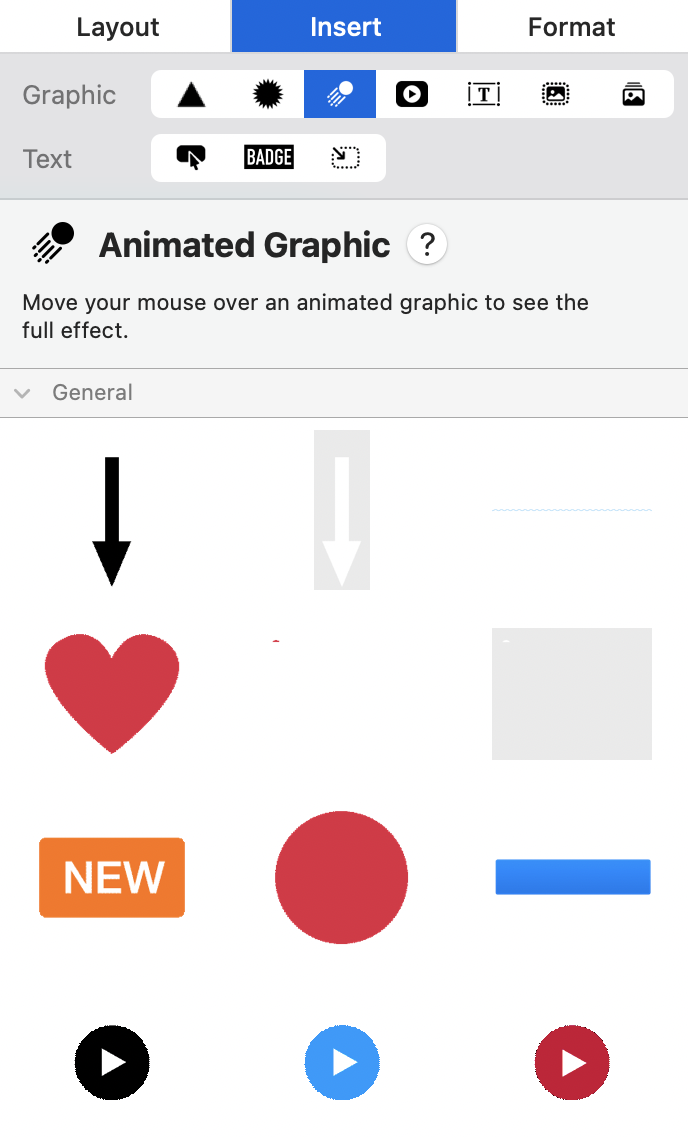
- Select the Insert area in the sidebar and browse the Animated Graphic subsections.
- Hover over a graphic to preview its movement before adding it.
- Drag the chosen animated graphic into an image area in a layout block.
Mail Designer 365 includes a selection of animated graphics that you can reuse in different designs. Choose an animation that supports the message instead of distracting from the headline or call to action.
Add a custom animated GIF
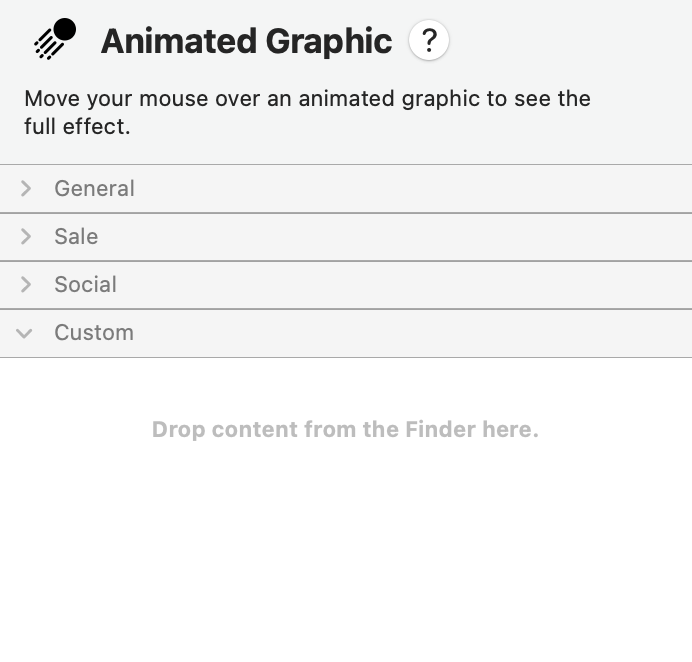
If you already have a GIF, drag it into the Custom content folder. The imported asset remains available for future designs, so use a clear filename that helps your team identify the approved version. Then drag the GIF from the Custom folder into an image area in a layout block.
Only one animation can be placed in each image area. To use another animation, add another image layout block and place the second asset there. Multiple moving elements can compete for attention, so keep the hierarchy clear.
Prepare an animated GIF for HTML email
Optimize the asset before importing it. Crop unused space, use only the frames needed to communicate the idea, and keep the dimensions appropriate for the image area. A large or long animation can increase message weight and take longer to load on a mobile connection.
Make the first frame useful on its own. Some inboxes or user settings may show only a static frame, and recipients can also have images disabled. The first frame should therefore contain the essential product, offer, or visual cue rather than an empty transition.
Use animation accessibly
Do not place essential instructions, prices, dates, or discount codes only inside the animation. Repeat the important information as live text in the email. Add concise alternative text that describes the purpose of the image. Avoid rapid flashing, intense strobing, or movement that makes nearby copy difficult to read.
If the GIF demonstrates a sequence, provide a short text summary or a link to an accessible web page with the same information. Use animation to support the content, not as the only way to understand it.
Good uses for animated graphics
- Draw attention to a single sale or limited-time offer.
- Show a short product feature or before-and-after state.
- Demonstrate a simple step while keeping written instructions nearby.
- Add restrained seasonal movement to a hero image.
- Guide attention toward the primary call to action.
Test the animation before sending
Send a proof and open it in the desktop and mobile inboxes your audience commonly uses. Confirm that the GIF loads, loops as expected, scales correctly, and does not push other content out of position. Check the first frame, alternative text, dark-mode appearance, links, and overall message size.
Also view the proof with images disabled. The subject line, live copy, and call to action should still explain the campaign. If the animation is slow or dominates the email, reduce its dimensions or frame count and test again.
Troubleshooting animated GIFs
- The GIF is static: confirm that the source file is an animated GIF and test the first frame as a fallback.
- The asset cannot be reused: import it into the Custom content folder rather than placing a temporary file only once.
- The image is cropped: check the image area proportions and adjust the source dimensions.
- The message loads slowly: shorten the animation, remove unnecessary frames, or reduce its dimensions.
- You need another GIF: add a separate image layout block because each image area supports one animation.
Use this workflow when adding an animated GIF in HTML email with Mail Designer 365. For Mailchimp-specific GIF steps, broader animation strategy, video email, or static-image editing, use the dedicated guide for that task.
How Can We Help?