
Edit the inner background of your design in Mail Designer 365 to control the color behind the email’s layout blocks. The inner background is different from the outer page background, so selecting the correct area lets you update the central design surface without changing everything around it.
Select the inner background of your design
Click an empty part of the design background inside the email canvas. Mail Designer 365 opens the inner background controls for the selected area. Avoid clicking a text area, image, table, or layout block, because that opens the controls for the individual element instead.
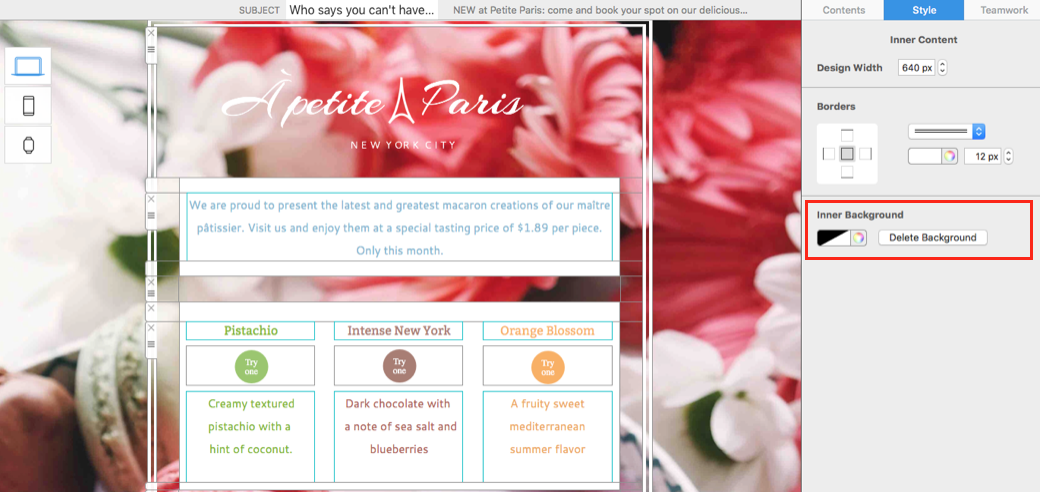
If the wrong controls appear, click outside the selected content element and try another empty section of the inner design surface.
Change the inner background color
Open the color chooser and select the shade you want to apply. The chosen color is applied across the complete inner background of your design, behind the layout blocks and content sections.
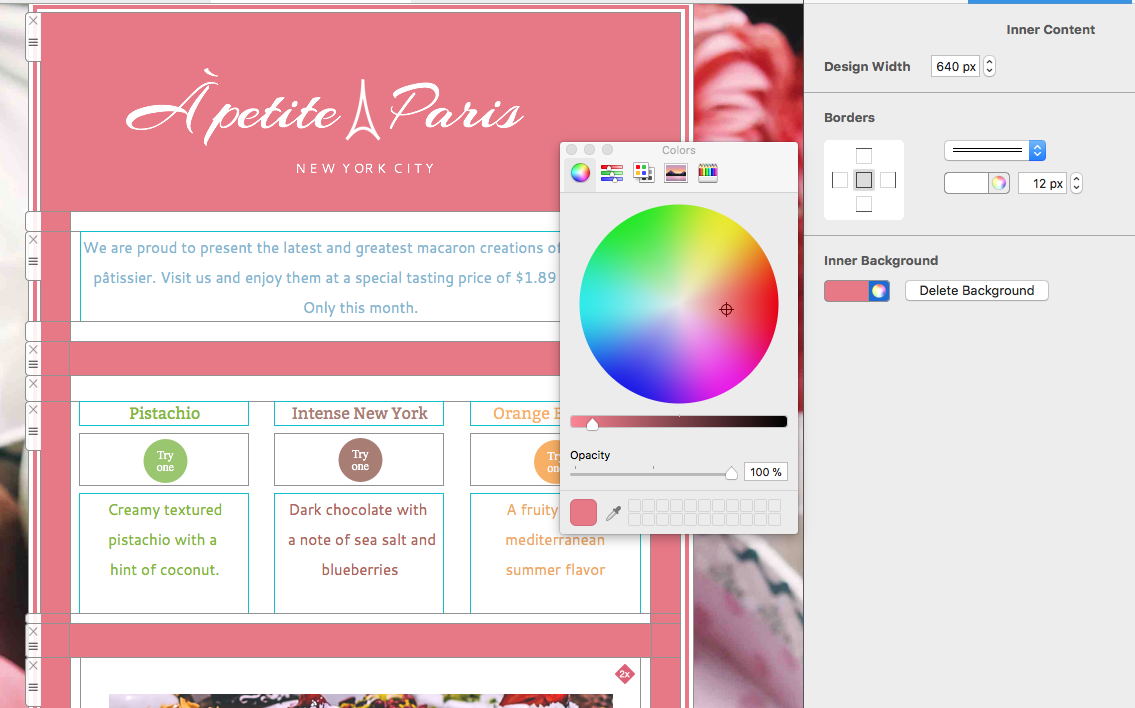
Use a color that supports the campaign hierarchy and remains consistent with the brand palette. A neutral inner background often helps photographs, headings, and buttons stand out, while a strong color can create a more immersive section if all foreground content remains readable.
Check contrast with every content block
Review text, links, buttons, tables, and transparent images after changing the color. A background that works behind one block may reduce contrast in another. Pay particular attention to light text, subtle borders, logos with transparent areas, and image edges that were prepared for a different background.
Do not rely on color alone to separate important information. Headings, spacing, borders, and clear labels should preserve the structure even when an email client adjusts colors or uses dark mode.
Delete the inner background for transparency
Choose Delete background when you want to remove the current inner background and create a transparent effect. This allows the outer background or another underlying design treatment to show through where the layout permits it.
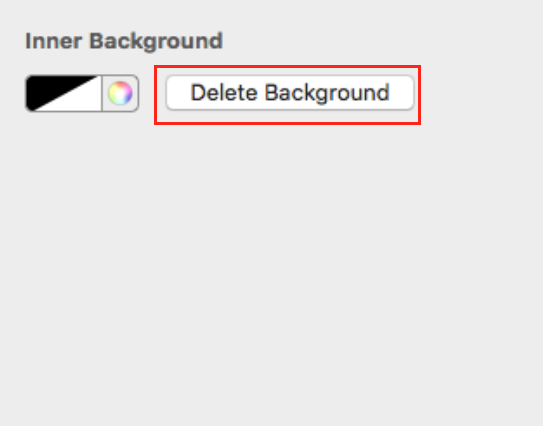
After deleting the background, inspect the full design immediately. Transparent areas can reveal an outer color or image that reduces readability. Undo the change if the result is not suitable, or assign a new inner background color.
Coordinate inner and outer backgrounds
The inner design surface and the outer email background can work together to frame the message. Use the guide to choosing an email background when you also need to change the area outside the central design.
A small contrast between inner and outer backgrounds can define the email body without a heavy frame. For a more explicit edge, see how to create a border for your design.
Preview desktop and mobile layouts
Open both previews after editing the inner background of your design. Confirm that the color or transparency extends through the intended sections, does not create unexpected gaps, and keeps all foreground elements readable at narrower widths.
Send a test email and review it in desktop and mobile email clients. Check background rendering, text and link contrast, transparent image edges, table borders, and buttons. Some clients handle backgrounds differently, so a delivered test is more reliable than the canvas alone.
Troubleshoot inner background changes
If only one section changes, you may have selected a layout block or content area rather than the complete inner background. Undo the step, click an empty part of the design surface, and confirm that the inner background controls are active.
If the new color appears uneven, inspect individual layout blocks for their own background settings. If deleting the background makes content difficult to read, restore a solid color or adjust the outer background first. Finish by checking the inner background of your design in the complete campaign so colors, spacing, images, and calls to action work together consistently.
How Can We Help?