The Apple AI Summarise feature on macOS and iOS is changing how people consume email. For email marketers and designers, this is more than a trend or tech curiosity, it’s a clear signal that email design and copywriting need to work harder to get noticed.
Email is still a powerful marketing channel, but the rules are constantly evolving. AI email summarisation tools reward clarity, structure, and readability and penalise clutter and visual-only content. Understanding this shift is critical for email marketers.
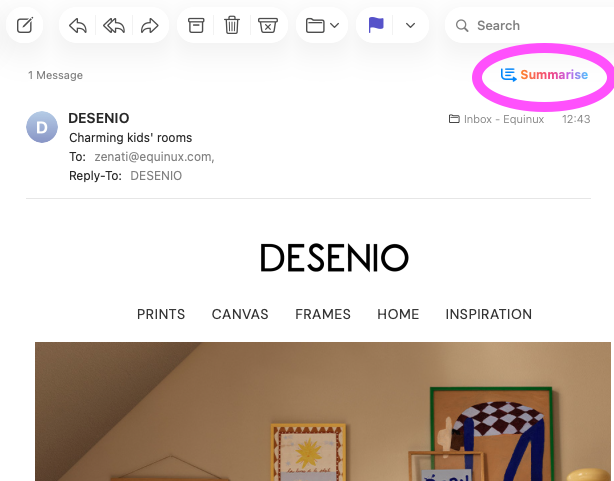
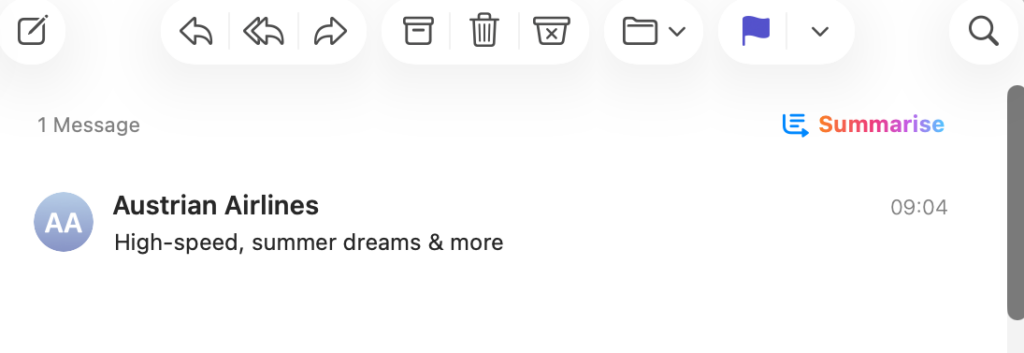
Apple AI Summarise is an Apple Intelligence feature that automatically condenses emails into short, digestible overviews. Instead of reading an entire message, users now just need to click – or tap on iOS – to see a brief summary highlighting the most important points:
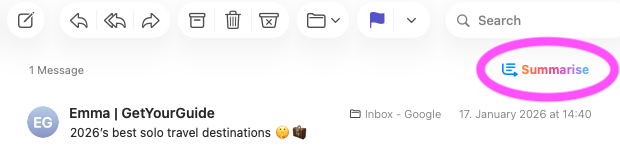
Users can click the Summarise icon to get a brief summary of the email
Why it matters for email marketing:
In short, Apple AI Summarise makes your email design and copy more important than ever.
At present, two major email clients are leading the charge when it comes to AI Summarise features:
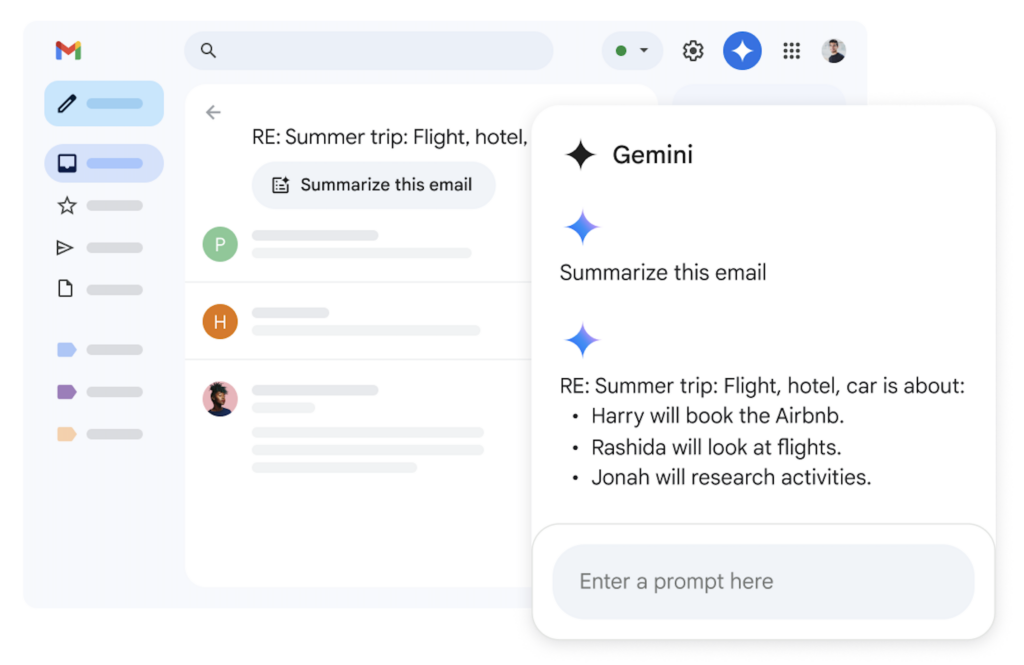
Other clients, including Yahoo and Canary Mail are exploring similar features, but Apple Mail and Gmail represent the largest user base and the clearest implementation.
The AI email summary works as the new email preview. If the reader isn't drawn in by what they see there, the chances of them scrolling down to the main design are low. This means many recipients may never view the whole email.
What this means for you? The summary needs to be effective in order to accurately convey your message and convince readers to scroll down and click your CTA (call-to-action.)
In order for AI summaries to be accurate and engaging to the recipient, email marketers and designers need to optimise email structure and readability.
Here are 5 useful tips on how to successfully create emails for AI:
Benefit-driven messaging works really well here. Try and make your “why it matters” obvious in the first paragraph so that the summary picks it up right away.
Images are great to add visual flair but now it's more important than ever to use real text for everything that matters. Headlines, subheadings, and prices should all be actual text, not baked into images.
Example 1: This email promotion by character.com is image heavy, and as a result, Apple's AI Summarise isn't able to include the hero hook or any of the offer prices in its summary:
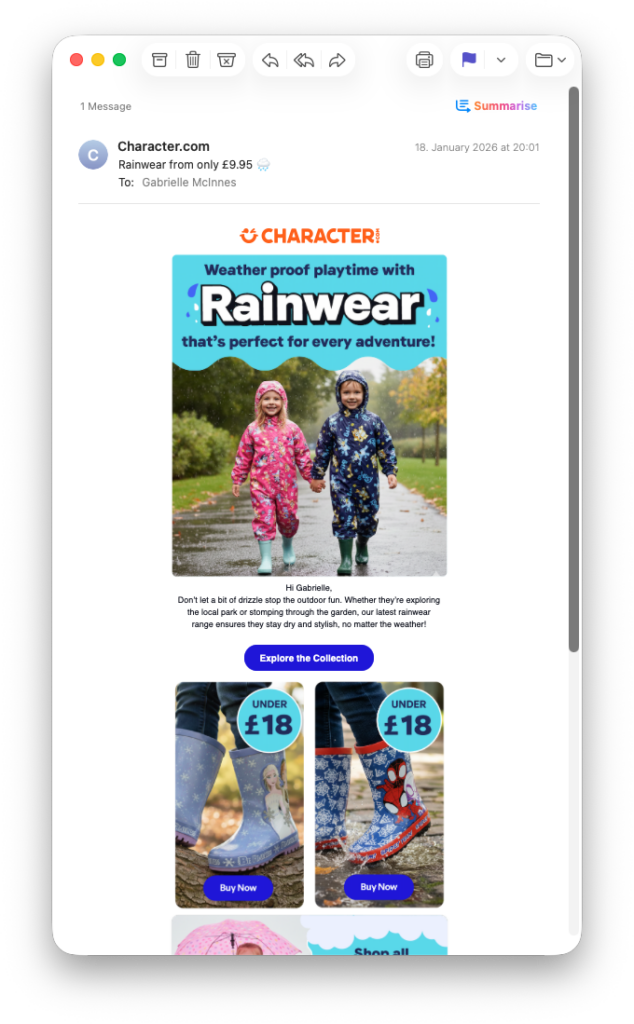
Image-heavy emails don't work well with Apple AI Summarise

Example 2: In contrast, this email from Thornton's uses real text for the main part of the email - including the offer code. Because of this, the Apple AI Summarise was able to include the code directly in the summary, giving recipients an extra opportunity to redeem even if they don't scroll all the way down.
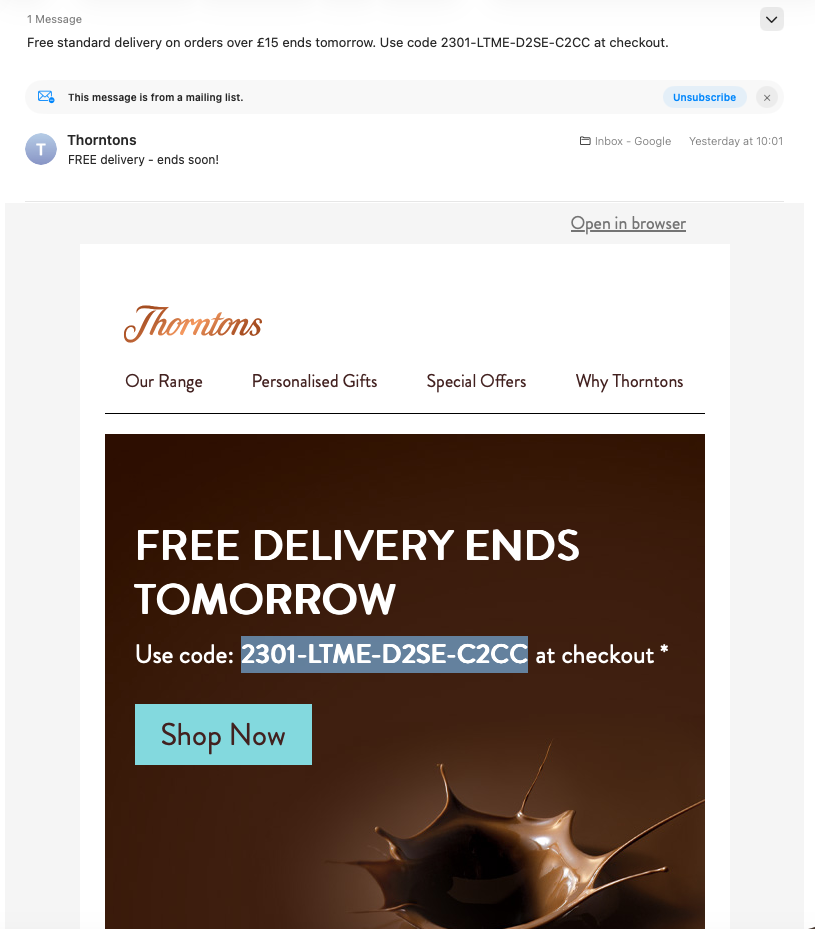
This summary works much better due to the use of real text in the design
On a similar note, it's also advisable to use text buttons for your email's CTAs. This has always been a best practice to avoid rendering issues but now also helps ensure that AI can include your core call-to-action in its summary.
To add a text button in Mail Designer 365, simply highlight your chosen text and go to Insert > Text Button in the app menu. You can then choose from a wide range of pre-defined styles or create your own:
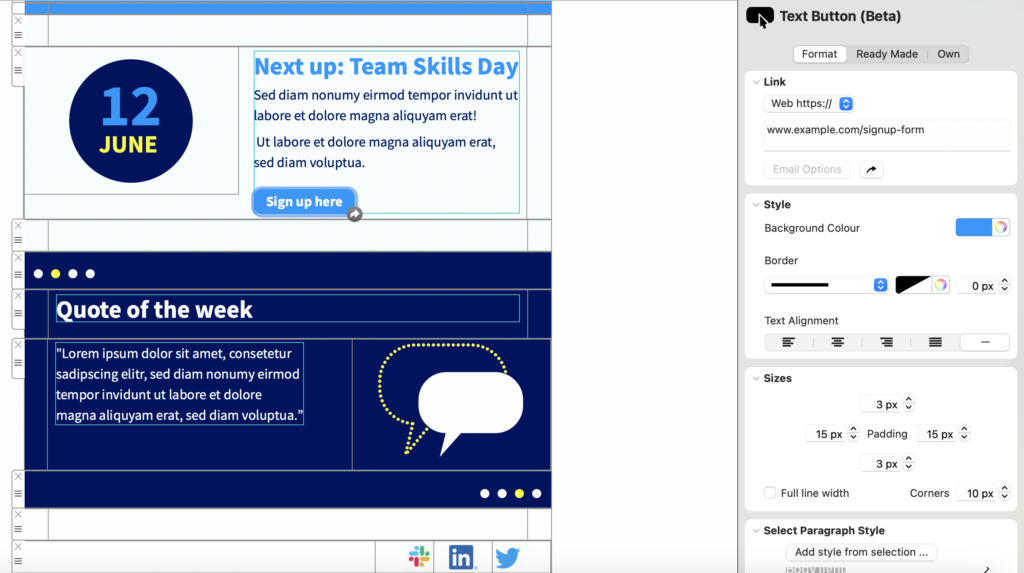
Apple AI Summarise can interpret text buttons much easier than images
Use headings, subheadings, and body text consistently to guide readers and AI summarisation on the most important aspects of your campaign.
Mail Designer 365 supports default text styles for all email designs: new layout blocks will automatically be assigned headline or body text which ensures consistency and a clear hierarchy within your email.
This is not only an accessibility best practice, but also important for AI summarisation. If you are using images in your design, including an alt text is a way to tell the AI technology exactly what the image shows, whether it's a special offer, new product or important news. Forgoing the alt text means important visual elements of your newsletter may not be included in the summary.
AI summarise in clients like Apple Mail and Gmail isn’t a threat. In fact, it’s a useful signal to focus on clarity, hierarchy, and readability even more than before. Emails that are structured, concise, and scannable perform better for both AI and human readers.
Looking for a design tool for AI friendly emails? Mail Designer makes it easy to include best practices for AI in your email designs without compromising on style or branding.
Email design for dark mode can seem like a jungle. With macOS, iOS, and many popular email clients now supporting system-wide dark mode, your newsletters can appear differently depending on your recipient’s settings.
In this guide, we’ll explore how to design emails that look great in dark mode, avoid common pitfalls, and use Mail Designer 365 to create emails that stay consistent across clients.
Unfortunately, there's no universal way that email clients deal with dark mode, but knowing the behavior of each client helps you anticipate how your design will render.
At the time of writing, the most popular email clients handle dark mode in the following ways:
| Client | Typical Dark Mode Behavior | Notes |
|---|---|---|
| Apple Mail (macOS & iOS) | Partial or no color change; supports CSS overrides | Backgrounds and text may invert depending on images and HTML/CSS |
| Gmail (Web/Desktop) | No color change | Email appears the same regardless of dark UI mode |
| Gmail (Mobile) | Partial or full color inversion | Backgrounds and text can be inverted; limited support for CSS overrides |
| Outlook (Windows Desktop) | Often full color inversion | Backgrounds and text can invert; images mostly preserved |
| Outlook (Web/Mac/Mobile) | Partial inversion | Backgrounds and text may invert; behavior varies by platform |
| Yahoo Mail | Full inversion | Light backgrounds become dark, text colors change accordingly |
| AOL / Legacy Clients | No change | Email appears the same as in light mode |
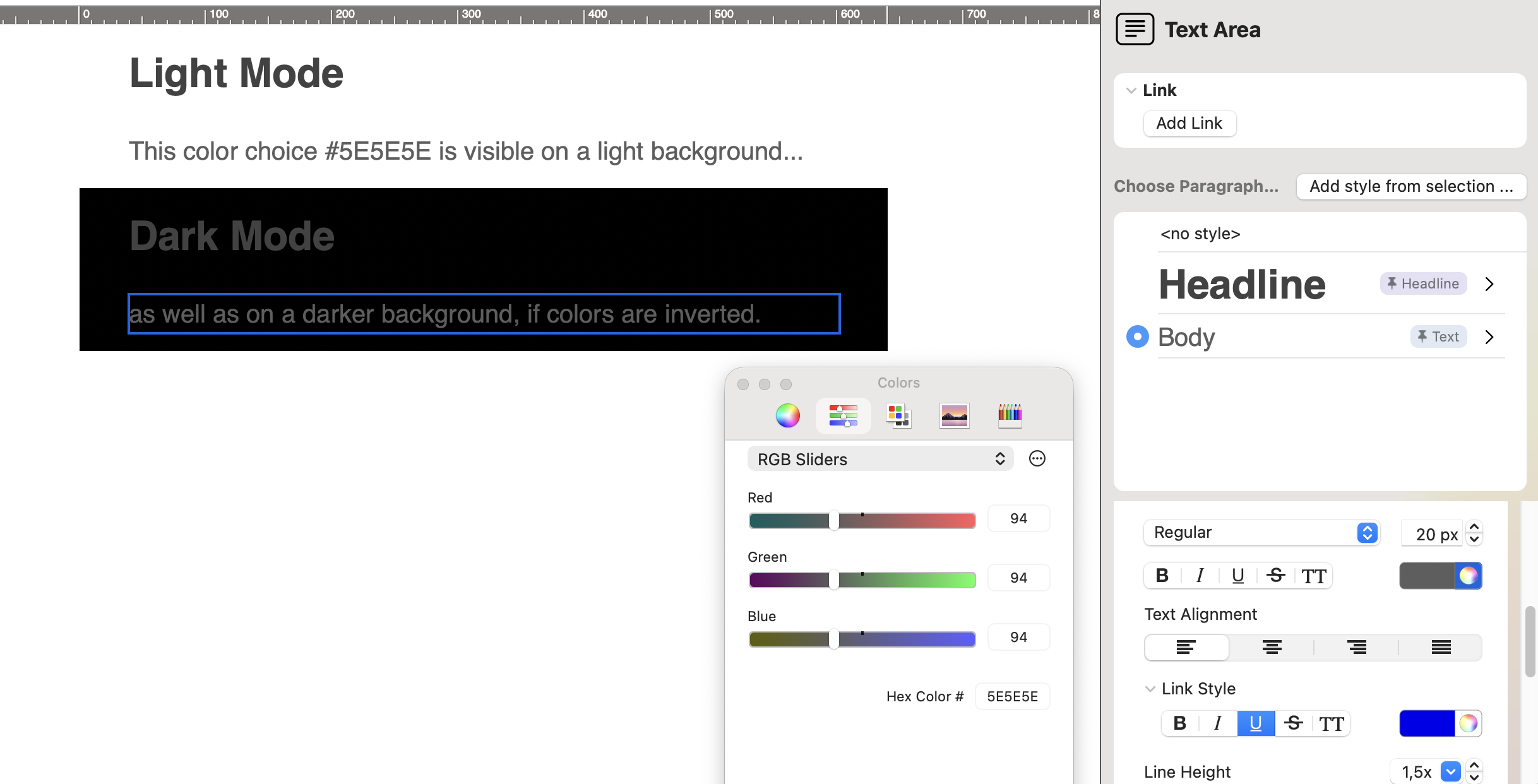
When emails are displayed in dark mode, text colors can invert or shift automatically, which may reduce contrast and make your message harder to read. Light text on light backgrounds or dark text on dark backgrounds can appear unintentionally.
Some email clients invert colors in images or treat transparent areas differently, which can distort logos or design elements. Images with white or light-colored backgrounds may appear dark, and partially transparent graphics can render inconsistently.
Background colors can shift unexpectedly in dark mode, sometimes making sections too dark or washing out lighter colors. This affects overall layout and the visual balance of your email.
Buttons and other interactive elements may lose contrast when colors invert, reducing click-through rates. Dark text on a dark button or light text on a light button can become unreadable.
If you're wondering how best to handle email design for dark mode, these best-practice tips provide a good basis:
When colors are inverted, it can lead to rendering issues in dark mode. For this reason, it's advisable to choose colors that work in both light and dark modes to maintain readability and brand consistency.
Not all high-contrast combinations are safe. For example, pure black (#000000) text on a pure white (#FFFFFF) background, or the reverse, can create harsh visual contrast that strains the eyes and may invert unpredictably in some email clients. Instead, use slightly softer tones, such as dark gray (#111111) on off-white (#F9F9F9), or near-white (#FAFAFA) on very dark gray (#111111). These combinations maintain readability, look pleasant on all devices, and invert more gracefully in dark mode.
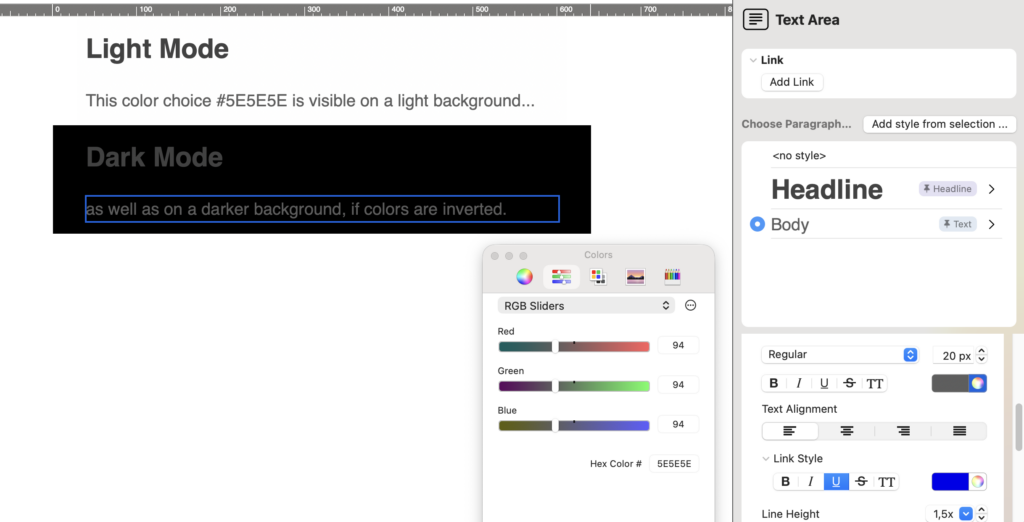
Do:
Don’t:
Avoid overly complex gradients, textures, or background patterns that invert poorly; simple designs translate better across clients.
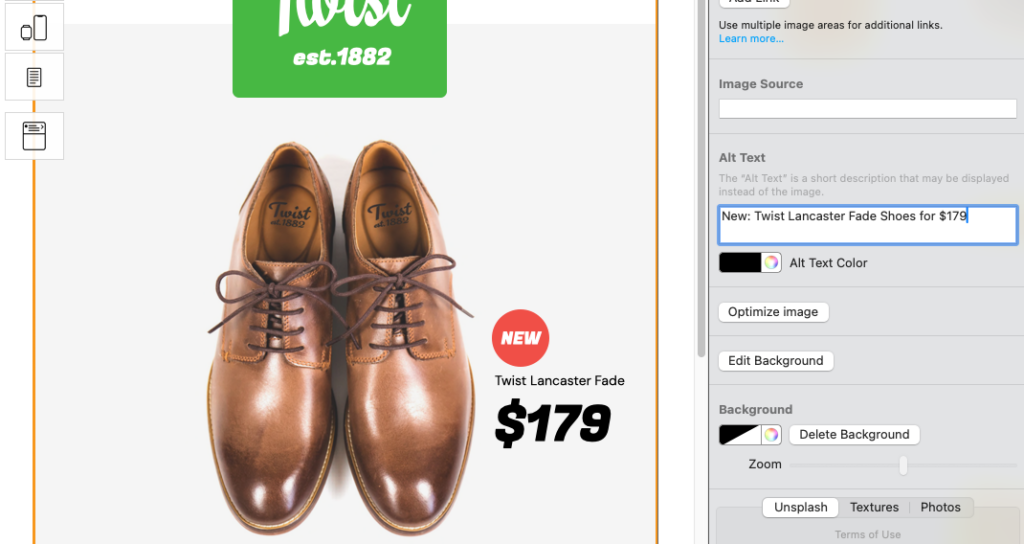
As well as being important for accessibility, alt text also works as an additional security net for ensuring your email renders effectively. Adding descriptive alt text means your message remains understandable even if images are altered or blocked in dark mode. For example:
Use Mail Designer's alt text interface to easily add descriptive alt text for your newsletter images and ensure compatibility for dark mode.
Provide a fallback so recipients can see your design as intended if dark mode alters the email. This is the ultimate backup plan for your emails, especially if you aren't sure which email clients your recipients are using.
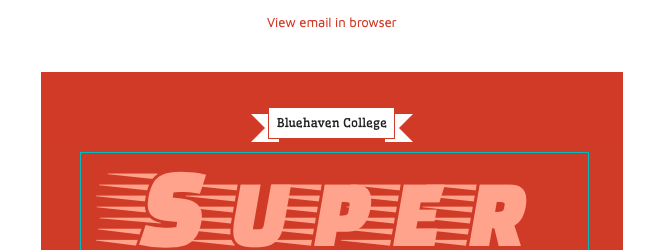
Including a view in browser link is a good backup plan for dark mode
To add a view in browser link to your template, check out this HTML export guide.
Mail designer 365 Testmail is a great dress rehearsal before sending out the real campaign to your audience so you can preview how your email renders in real inboxes on desktop and mobile before sending. More about Testmail →
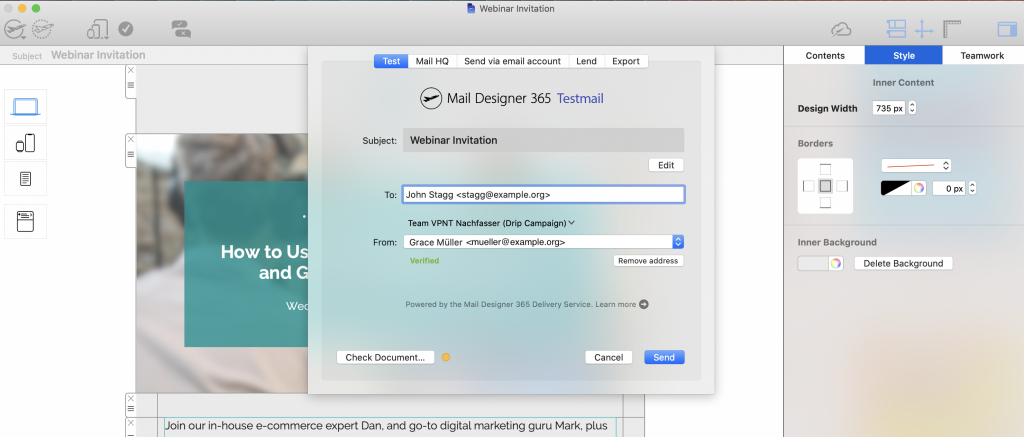
Send a test version of your email via the Mail Designer 365 Testmail service
You can also preview your emails in multiple clients using tools like Litmus or Email on Acid to catch dark mode issues before sending.
If you know a large segment of your audience is using a particular email client, you can use client-specific tweaks and testing methods to ensure widespread compatibility.
Email design for dark mode is now a daily consideration for email designers. By using Mail Designer 365 features, following high-contrast design rules, and testing across clients, your newsletters can look polished and professional no matter what mode your readers are using.
Pre-filling an email address in a URL is a simple but powerful technique for improving user experience and increasing conversions. In this guide, we’ll show you how to include the email parameter in a URL, and how to pass email placeholders from your email builder for highly-personalised email campaigns.
Pre-filling an email address means automatically inserting an email into a form field when they land on a page. This is usually done by adding a query parameter to a URL, such as ?email=example@email.com.
When the page loads, the form reads this parameter and populates the email field for the user, removing friction and saving time.
Every additional field a user has to type is a chance for them to abandon the page. Pre-filling an email address removes one small but meaningful hurdle.
Typing on mobile devices is slower and more error-prone. Automatically inserting the email address makes sign-ups and requests much smoother on smaller screens.
Passing the email address directly from your email campaign ensures the address is entered exactly as intended, avoiding misspellings or formatting issues.
This technique works especially well when linking from newsletters, onboarding emails, webinar invitations, or gated content pages where the user is already known.
Suggestion: Building signup forms in Mail Designer 365 →
At its simplest, a pre-filled email URL looks like this:
https://www.example.com/signup?email=example@email.com
The email parameter is read by the landing page and mapped to the email input field. Most modern form builders and marketing tools support this behavior out of the box.
So far, so good.
However, when sending campaigns to large groups, you won't be able to manually personalise each link. Instead, you need a placeholder that gets replaced for each recipient when you hit send.
Email placeholders allow you to dynamically insert recipient data, such as email addresses, into links. When the campaign is sent, each recipient receives a personalized URL.
The exact placeholder syntax depends on your email builder. In Mail Designer 365, placeholders are handled directly inside the editor and automatically populated during sending.
Here is a step-by-step walkthrough showing how to insert an email placeholder into a URL using Mail Designer 365. This ensures each recipient’s email address is passed correctly to your landing page.
We will use one of our recent campaigns as an example.


Switching your email account to Microsoft 365 can sometimes cause unexpected issues, especially when sending emails via SMTP through third-party apps like Mail Designer 365. Many users report that after the migration, their newsletters or other outgoing emails fail to send, even though login credentials remain correct. This article explains why this happens and provides you with a straightforward fix to help get you back on track.
Many Microsoft 365 plans no longer provide traditional SMTP access in the way third-party apps expect. In some cases, SMTP is completely blocked, or it requires complex OAuth2 authentication. The classic login method, using just a username and password for SMTP, IMAP, or POP3, is often disabled by default after migration. This means that even if your app password is correct, third-party apps may fail to authenticate with Microsoft’s servers.
Mail Designer 365's SMTP send feature relies on a working SMTP connection to send emails. If your SMTP connection is blocked or requires a protocol the app doesn’t support, the login to the mail server will fail, and sending emails will not work. Users often encounter error messages indicating authentication failures, which can be confusing if email credentials work in other apps like Apple Mail or Outlook.
If SMTP sending is no longer available with your Microsoft 365 account, Mail Designer 365 offers a built-in sending service that avoids these limitations altogether.
Mail Designer 365 provides two integrated sending options:
Both options allow you to send emails without relying on your email provider’s SMTP access, making sending more reliable and easier to maintain as provider requirements continue to change.

With Mail Designer 365 Direct Mail, you can send professional HTML emails directly from your Mac without relying on SMTP
Good to know: All Mail Designer 365 design plans include a base sending allowance, so you can get started right away and send up to 20 Direct Mails a month, at no additional cost.

By using Mail Designer 365’s sending service, you can continue sending professional emails and newsletters with confidence, even as email platforms evolve and restrict traditional SMTP access.
Looking for 2026 email ideas? Planning campaigns around key dates helps your business stay relevant, engage your audience, and increase conversions throughout the year. To make your 2026 email strategy easier, we’ve compiled 12 must-know marketing dates, including holidays, global celebrations, and unique pop culture events that can inspire creative campaigns.
Start the year by showing your appreciation to customers. Whether it’s a thank-you email, a loyalty reward, or a special offer, this day is perfect for building goodwill and strengthening relationships early in the year.

Mail Designer 365 Thank You Offer Email Template
The Lunar New Year is celebrated across Asia and globally, making it a fantastic opportunity to send culturally relevant greetings or promotions. Bright visuals and festive messaging can help your campaigns stand out and resonate with diverse audiences.

Mail Designer 365 email template for Lunar New Year
Earth Hour is a global movement for sustainability, encouraging everyone to switch off lights for an hour. Align your brand with eco-friendly initiatives, share tips for reducing energy use, or highlight your company’s sustainability efforts in your emails.
Although not an obvious choice for 2026 email ideas, music fans all around the world celebrate Record Store Day. This makes it a great opportunity for campaigns centered on culture, creativity, or limited-edition product releases. Promote exclusive offers, playlists, or behind-the-scenes content to engage your audience.

World Record Store Day is a fun and quirky campaign idea for music lovers
Leverage this fun pop culture moment for playful and engaging campaigns. Email content could include themed promotions, interactive quizzes, or social media tie-ins. It’s a simple way to connect with fans and inject some humor into your marketing.
Pride Month celebrates diversity, inclusion, and equality. Showcase your support with campaigns highlighting LGBTQ+ initiatives, employee stories, or curated product collections. Authenticity is key, so make sure your messaging is inclusive and meaningful.
Emojis are a universal language in digital communication. Use World Emoji Day to create fun, lighthearted campaigns with creative visuals, playful copy, and interactive content to boost engagement and click-throughs.
Recognize the achievements and rights of women on Women’s Equality Day. This is a perfect addition to your 2026 email ideas list. Highlight women leaders in your company, promote initiatives for gender equality, or run campaigns that empower your audience.
Prost! 🍻 The world’s largest beer festival kicks off in Munich, Germany. Embrace Oktoberfest themes for promotions, events, or themed product launches. Highlight community, fun, and celebration to engage audiences during this festive period.
Promote wellbeing and support your community by raising awareness around mental health. Share tips, resources, or charitable campaigns in your emails. Showing genuine care can build trust and resonate with your audience.
Originating in China, Singles’ Day has grown into one of the biggest shopping days in the world. As 2026 email ideas go, this one is a must-have for any marketer. Offer exclusive deals, flash sales, or gift guides to capitalize on this massive e-commerce opportunity.

Singles Day is just one day. Make this clear in your campaign to help generate a sense of urgency.
Mark the start of the festive season in Europe with early holiday campaigns. Previews, special offers, or themed storytelling can help you warm up your audience ahead of Christmas promotions.

Celebrate St. Nicholas Day in the run up to Christmas.
These are just 12 email ideas for 2026 and provide a framework for creative, timely email campaigns that keep your audience engaged all year. Plan your visuals, copy, and offers around these events to make 2026 your most successful marketing year yet.
Hungry for more design inspiration? Check out all our Design Ideas for seasonal, sales, events and more!
With Google's latest announcement that DKIM is becoming mandatory for mass email senders from 2024 onwards, many email marketers are wondering how to prepare.
The good news: DKIM setup does not have to be complicated. This guide walks you through DKIM setup for your email domain so you can improve deliverability and continue sending authentic, spam compliant email campaigns in the new year and beyond.
Thunderbird is a popular free email client used by individuals and small businesses around the world. One of the most common questions users ask is whether it’s possible to create and send an HTML email Thunderbird. The short answer is yes — Thunderbird does allow you to use HTML templates. However, once you start designing and sending more professional messages, you’ll quickly run into limitations that make the process frustrating and time-consuming.
Yes — Thunderbird does support HTML emails. You can import a custom template or even write your own code directly inside the editor. For users who just want to test a simple HTML email Thunderbird workflow, this can work fine. At first glance, it looks like Thunderbird could handle newsletters or business updates by using HTML templates. If you want to try it out yourself, follow our step-by-step guide on how to export HTML emails from Mail Designer 365.

In Thunderbird, you can choose the HTML option from the Insert menu to add custom code to your email.

Thunderbird allows you to paste custom HTML code into your message — but editing and formatting remain limited.
When sending out business communications, appearance and reliability matter. Using HTML email in Thunderbird may work for simple messages, but the limitations can cause real problems:

The same HTML email sent with Thunderbird (left) shows formatting issues and requires image attachments, while Mail Designer 365 (right) delivers a clean, professional result.

With Mail Designer 365 Direct Mail, you can send professional HTML emails directly from your Mac — without broken layouts, missing images, or large attachments.
Creating and sending HTML email Thunderbird is technically possible, but the experience is far from smooth. From broken layouts to constant image reconnecting, Thunderbird’s limitations make it difficult to achieve a professional result.
If your goal is to send emails that look polished, work reliably across devices, and provide insights into performance, Thunderbird will quickly feel restrictive.
That’s where Mail Designer 365 comes in. With powerful design tools and the integrated Direct Mail function, you can create beautiful HTML emails and send them directly — without the headaches.
Try Mail Designer 365 today and experience a better way to design and send professional emails.