Winter Email Offer Template: 7 Helpful Campaign Checks
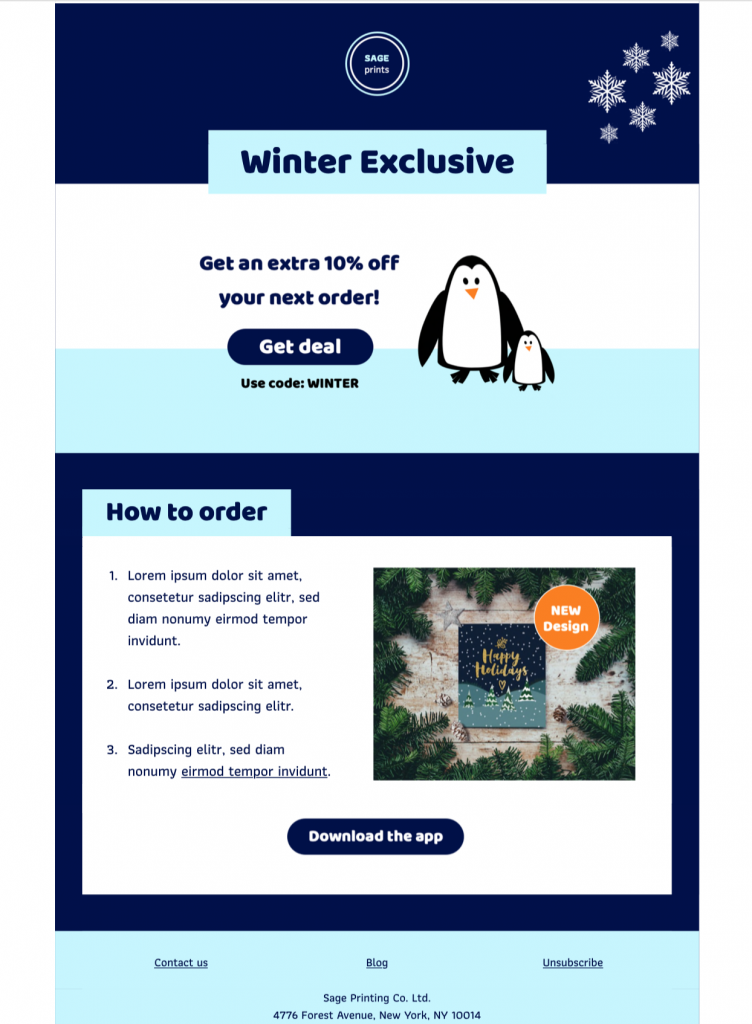
This winter email offer template gives retailers, hospitality teams, local services, and subscription brands a cheerful winter setting for a time-sensitive promotion. Customize the penguin artwork, offer details, and call to action in Mail Designer 365, then verify each customer-facing condition before sending.


Already a Mail Designer 365 user? Open the Design Idea here.
1. Define the winter offer and its audience
Decide whether the campaign is for loyal customers, local subscribers, recent buyers, or a broader seasonal list. Name the product, service, package, or subscription benefit clearly. A winter email offer template works best when readers can identify the value and the next step without interpreting vague promotional language.
State whether the incentive is a percentage discount, fixed saving, complimentary item, bundle, upgrade, or limited allocation. If different segments receive different terms, prepare separate approved versions instead of adding several competing offers to one email.
2. Verify dates, prices, limits, and exclusions
Check the start and end time, time zone, currency, minimum spend, redemption limit, eligible products, delivery region, and customer exclusions against the live offer. Put essential conditions near the call to action and link to maintained terms when more detail is required.
Avoid unsupported urgency. Use “while supplies last” only when inventory really controls availability, and do not imply that an annual winter promotion ends sooner than its published terms. Confirm any promo code character by character and test it in the checkout flow.
3. Customize the visible winter design
The penguin illustration, cool blue background, rounded message panel, and prominent offer area create a friendly seasonal mood. In Mail Designer 365, adapt the colors to your brand, replace the sample offer, and keep enough quiet space around the main message and button. Preserve a clear reading path from the winter greeting to the benefit, conditions, and action.
Use live text for dates, prices, codes, and important conditions so last-minute corrections remain practical. Keep decorative imagery secondary to the commercial message, and make sure the campaign still makes sense when images are blocked.
4. Check live text, contrast, and image alternatives
Review the winter email’s small type and button labels against the W3C guidance for text contrast. Do not place essential copy inside the penguin artwork. Add concise alternatives for meaningful images, leave decorative images with empty alternatives when appropriate, and avoid repeating nearby text word for word.
Zoom the desktop and mobile layouts to confirm that disclaimers remain readable. A clear winter email offer template should communicate the benefit, expiry, and next action even to readers using high zoom, a screen reader, or an image-blocking inbox.
5. Pair the subject line and preview text
Write a subject line that identifies the winter benefit without hiding a major condition. Use preview text to add the expiry, product category, audience qualification, or delivery detail rather than repeating the subject. Compare both lines with the landing page and checkout so the promise remains consistent.
Send internal winter email tests to review truncation on mobile and desktop inboxes. Remove placeholder codes, unsupported claims, and duplicated phrases before approving the campaign.
6. Test the winter email offer template on mobile and in inboxes
Check the mobile reading order, button size, link spacing, line breaks, image scaling, and footer. Test the campaign with representative inboxes used by your audience, including a version with images disabled. Confirm that the key offer and call to action appear early enough without crowding the winter artwork.
Proofread live text in both layouts and verify that personalization has a sensible fallback. If a long legal note becomes difficult to scan, keep the essential condition in the email and link to a maintained terms page.
7. Verify links, tracking, checkout, and the reusable master
Test every product, terms, preference, unsubscribe, and call-to-action link. Confirm campaign parameters, analytics events, redirects, stock status, prices, promo codes, and the final checkout state. The landing page should repeat the same offer, dates, and exclusions that appear in the email.
After approval, save a clean Mail Designer 365 master with named text and image areas. Duplicate that master for each audience or future winter promotion, then update and re-test all time-sensitive details before sending. This keeps the design consistent without carrying expired terms into the next campaign.
Works with: