Mail Designer 365 Blog

Was ist neu in der Mail App unter macOS 13 Ventura?

By Team equinux Mail Designer 365 Blog, Mail Designer 365 Blog, Mail Designer 365 Blog
Apple hat vor Kurzem seine brandneue macOS 13 Version Ventura angekündigt, und diese bringt im kommenden Herbst einige spannende, neue Features auf den Mac. Mit dabei sind auch neue Funktionen für die native Mail Applikation.

Nach der Einführung der Mail Privacy Protection für den Mac hat Apple dieses Jahr unter macOS Ventura noch mehr Änderungen in der Mail App vorgenommen. Die neuen Mail-Features sollen die E-Mail-Produktivität enorm steigern und auch bei der Vermeidung potentieller E-Mail-Fails helfen – solange du schnell genug bist!

Mehr Informationen zu den neuen Mail-Features unter macOS 13 Ventura findest du unten.

Read More

NEU: Mail Designer 365 Version 2.8 mit saisonalen Templates und Sales-Grafiken

By Team equinux Mail Designer 365 Blog, Mail Designer 365 Blog
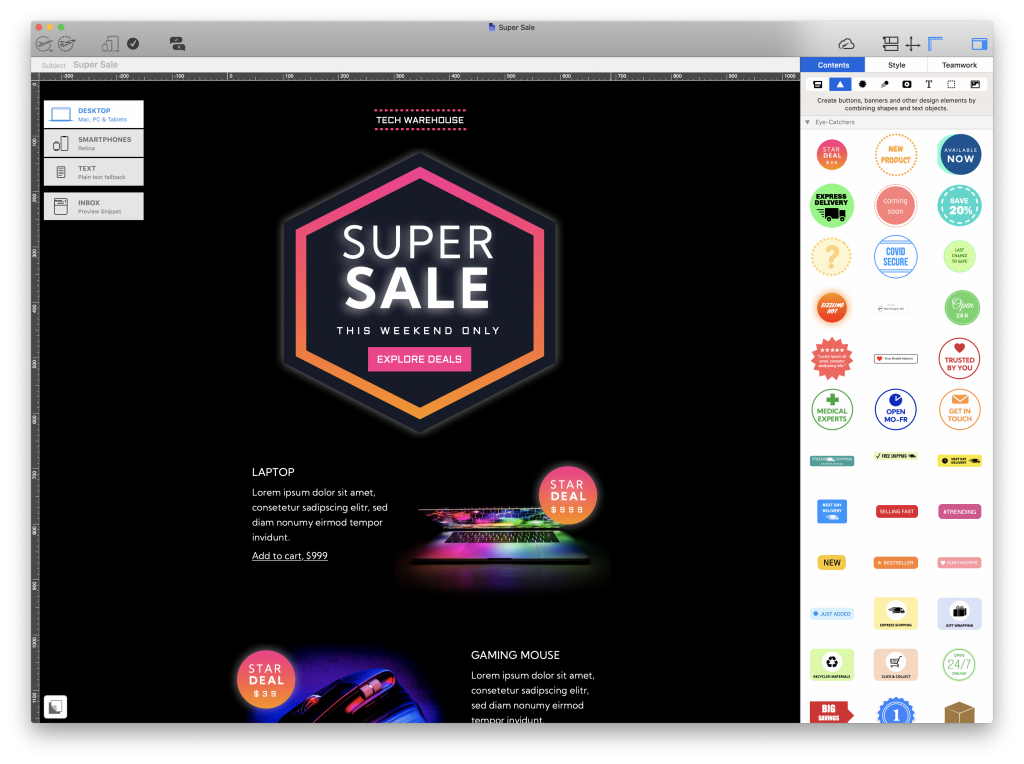
Der November ist da, was bedeutet, dass es wieder an der Zeit ist, dich auf die vorweihnachtliche Verkaufssaison vorzubereiten! Um dir dabei zu helfen, bringt die aktuellste Mail Designer 365 Version eine spannende Kollektion brandneuer saisonaler Sales-Templates sowie neue Grafiken und wichtige Optimierungen für macOS Monterey mit.

Alles, was in Version 2.8 neu ist, erfährst du in unserem detaillierten Update-Guide ...
Read More

Alles, was du über E-Mails unter macOS Monterey wissen musst – Mail Privacy und mehr

By Team equinux Mail Designer 365 Blog, Mail Designer 365 Blog
Gestern Abend wurde macOS Monterey offiziell released. Das neue Betriebssystem bringt einige wichtigen Änderungen mit sich, die für E-Mail-Marketer besonders wichtig sind.

Die aktuellste Mail Designer 365 Version bietet dir volle Kompatibilität mit macOS 12 und auch mit den neuen MacBooks mit M1 Pro und M1 Max Chips, damit du wie gewohnt weiterhin wunderschöne HTML-E-Mails auf deinem Mac gestalten kannst.
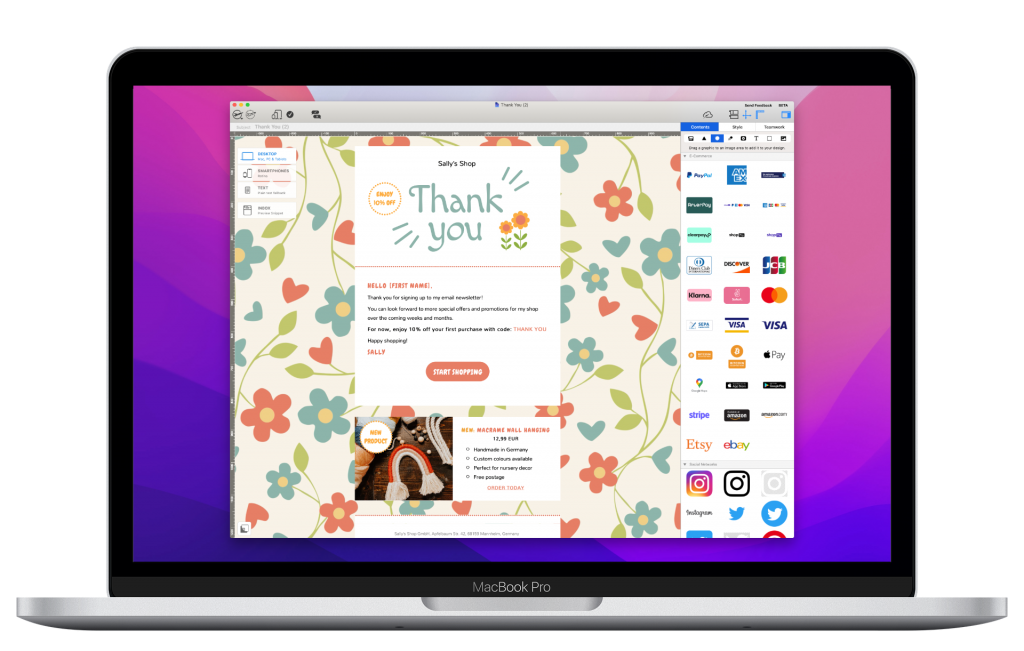
mail designer 365 on macOS Monterey

Mail Designer 365 ist kompatibel mit macOS Monterey

Eine Übersicht der wichtigsten Änderungen in macOS Monterey fassen wir in diesem Beitrag für dich zusammen. Unterdessen kannst du auch hier schon mal auf die aktuellste Mail Designer 365 Version updaten.

Read More

Neu: Die Mail Designer 365 Version 2.7 ist da – das sind die neuesten Features

By Team equinux Mail Designer 365 Blog, Mail Designer 365 Blog
Pünktlich zum Start in den Herbst haben wir ein brandneues Mail Designer 365 Update für dich! Um dich und deine Subscriber auf den Herbst vorzubereiten, bringt diese Version neue saisonale Designideen mit, sowie nützliche iPadOS 15 und iOS 15 Vorschaugeräte und wichtige Kompatibilitäts-Aktualisierungen für das kommende macOS Monterey Update.

In unserem Update-Guide findest du alles, was in der Version 2.7 neu ist ...

new halloween email templates in Mail Designer 365 Read More

Das Mail Designer 365 Sommer-Update ist da – das ist neu in der Version 2.5

By Team equinux Mail Designer 365 Blog, Mail Designer 365 Blog
Endlich ist er da, der Sommer! Die Temperaturen steigen und wir haben ein heißes Mail Designer 365 Update für dich! Die Version 2.5 ist vollgepackt mit neuen, bunten Ressourcen für den Sommer und die kommende Back-to-School-Zeit.

In unserem Update-Guide erfährst du, was in Mail Designer 365 2.5 neu ist und wie du die aktuellste Version ab sofort herunterladen kannst.
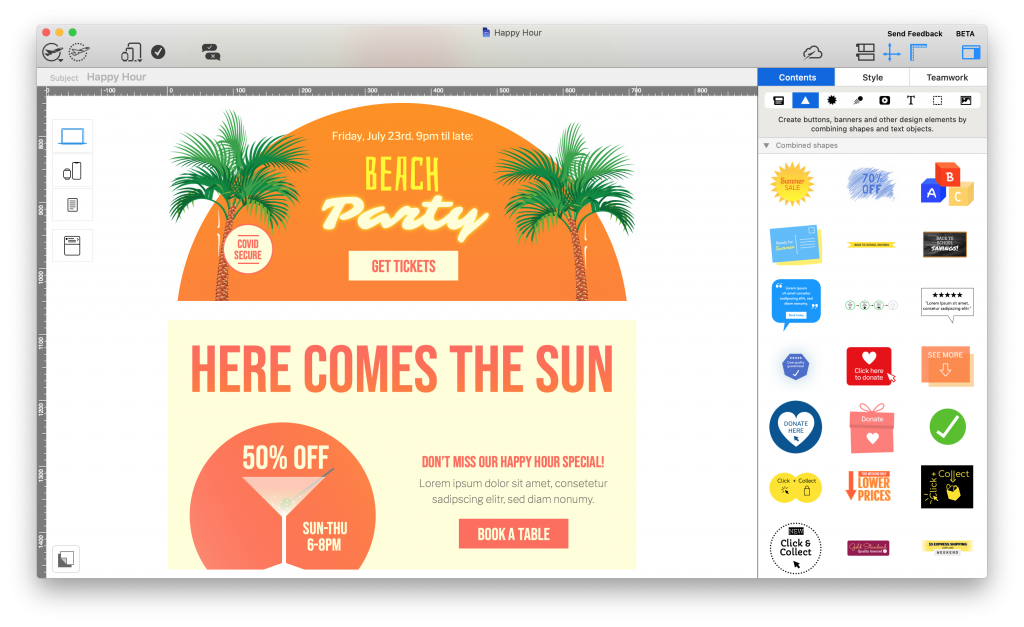
mail designer 365 2.5 - the summer update

Read More

mail privacy protection settings in macOS Monterey

Was ist Mail Privacy Protection und was bedeutet das für deine E-Mail-Strategie?

By Team equinux Mail Designer 365 Blog, Mail Designer 365 Blog
Eine Woche nach der Apple WWDC21 ist insbesondere bei der E-Mail-Marketing-Community ein Begriff zum großen Gesprächsthema geworden: "Mail Privacy Protection" ist eine neue Datenschutz-Funktion, die dieses Jahr in Apple Mail auf iOS 15, iPadOS 15 und macOS Monterey erscheint.

Als marktführender E-Mail-Client sind jegliche Änderungen in Apple Mail sicher von großer Bedeutung für deine E-Mail-Strategie. Heute sehen wir uns Apples E-Mail-Datenschutz im Detail an und erklären dir, was diese neue Funktion für deine Newsletter und Mailings bedeuten könnte und was du beachten solltest.


Read More

export as a png via the app menu

PNG Export, Preflight-Checks and More: Mail Designer 365 5.4

By Team equinux Mail Designer 365 Blog, What’s new

The latest Mail Designer 365 version focuses on giving you more flexibility with your designs and a smoother workflow on the latest macOS. Here is a look at what’s new in Mail Designer 365.

New: Direct PNG Export

This update brings a handy PNG export option to Mail Designer 365, allowing you to export either the mobile or desktop version of your email designs directly as high-resolution PNG files.

This is a game-changer for anyone looking to repurpose their email layouts for:

  • Social media posts (Instagram, LinkedIn, etc.)
  • Website banners and blog headers
  • High-quality printouts for internal meetings

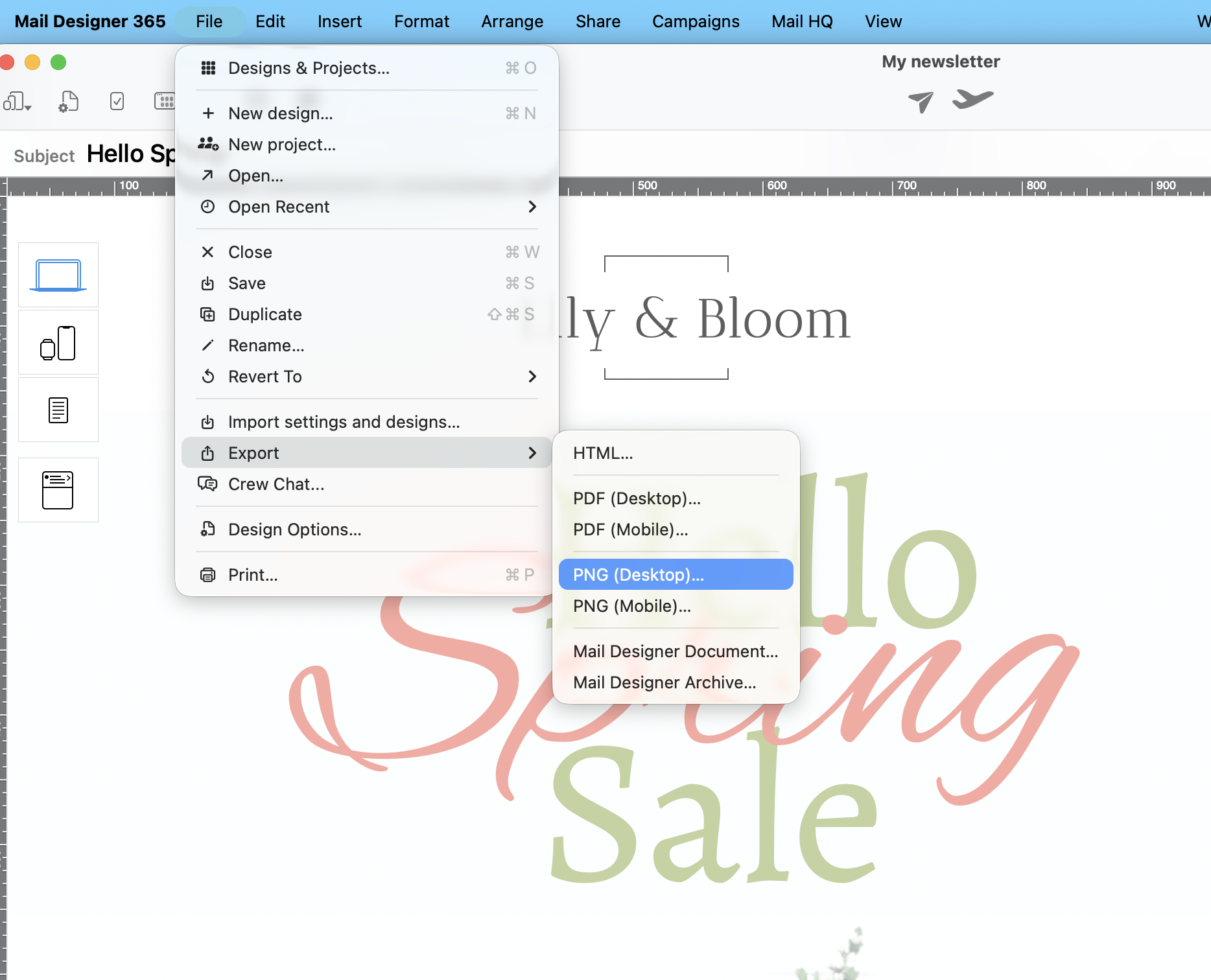
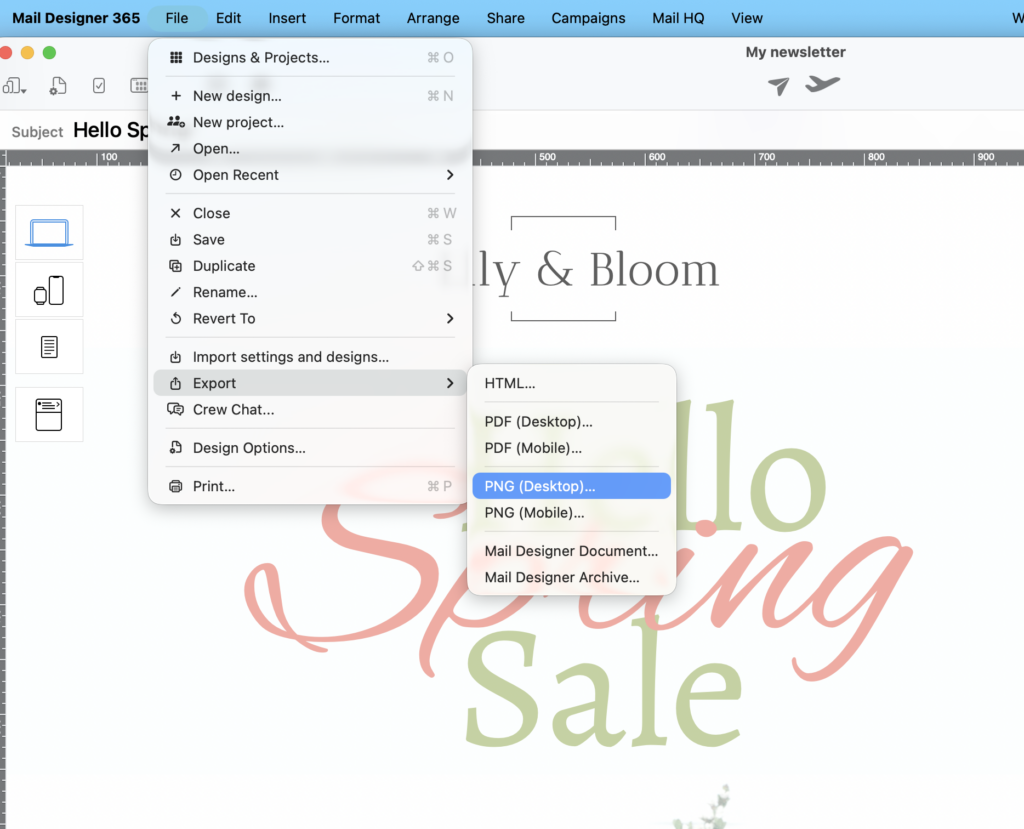
Find it under File > Export > PNG:

export as a png via the app menu

Select File > Export to export as a PNG

Exporting your designs for socials and more: Read the full guide →

Improved: Better Design Intelligence

The Preflight Check tool is your copilot for successful email design. Before you hit send, the Preflight Check will run, making sure you've covered all bases.
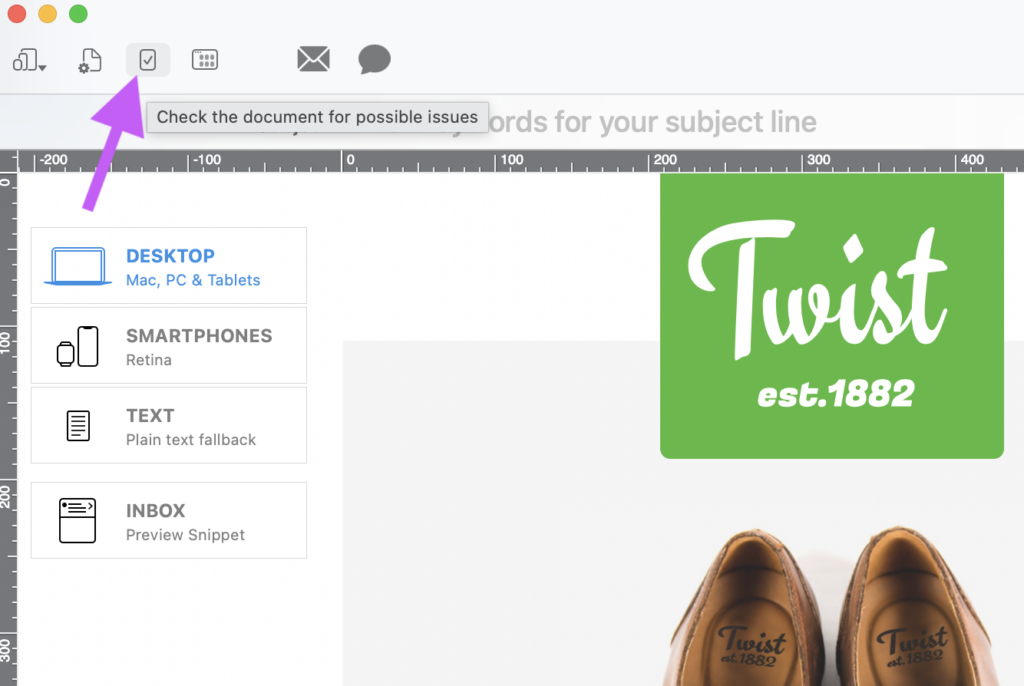
Preflight Check icon in Mail Designer

Click the check icon in the App toolbar to open the Preflight Check

This update brings two useful updates to the Preflight Check to give you even more peace of mind before sending:
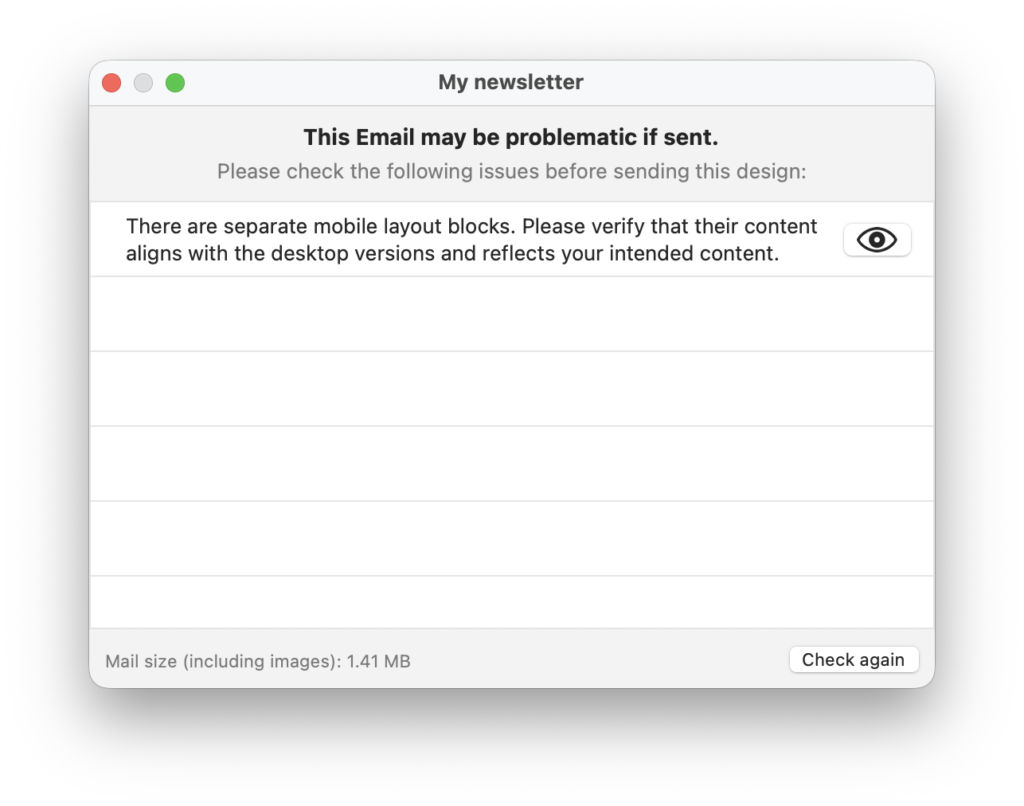
  1. Smarter Preflight for Mobile: Our Preflight Check now automatically alerts you if there are "detached" layout blocks in your mobile view. This ensures your responsive design stays perfectly aligned on every smartphone:

    The Preflight Check provides a hint if you have separate mobile and desktop blocks
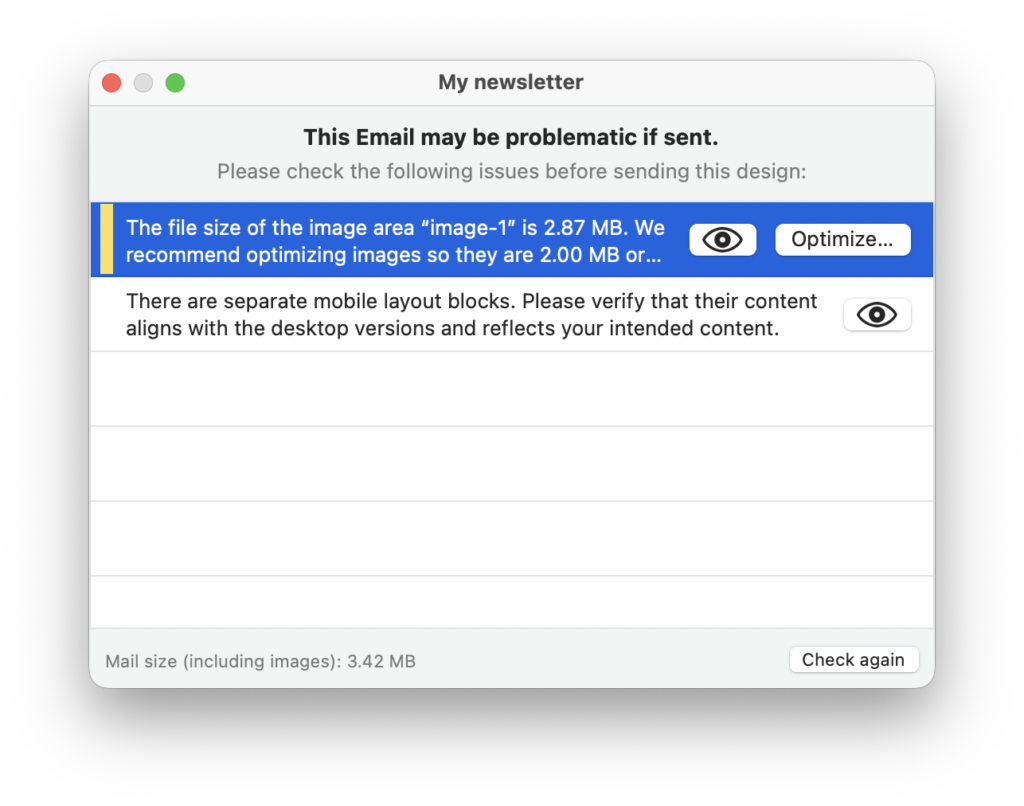
  2. Instant Image Optimization: If your email contains large images, Preflight Check now offers a direct shortcut to the image optimization tool, so you can crunch those kilobytes in one click:

Fixed: Further Improvements in this Version

As well as the new features added in this version, we’ve also been working hard under the hood to ensure Mail Designer is running smoothly:

  • macOS 26 Tahoe Support: We fixed an issue where some images couldn't be imported via Drag & Drop on the newest macOS version. Drag away!
  • Reliable Alt-Texts: Updates to image Alt-Texts are now saved instantly and reliably, ensuring your emails remain accessible.
  • Perfect Spacing: We’ve corrected a bug that caused incorrect margins in some exported designs. Your final result will now match your editor view pixel-for-pixel.
  • Team Organization: The sorting order of Team Documents now stays exactly as you left it, even after refreshing the list.

As always, this update includes general stability improvements and small bug fixes to keep your creative process as smooth as possible.

Ready to try the new PNG export? Head to the App Store or use the in-app update tool to download the latest version of Mail Designer 365 today.

Start using Mail Designer 365 5.4 today

This is a completely free update for all existing Mail Designer 365 customers. To start using version 5.4, simply open the app and go to Mail Designer 365 > Check for updates.

Tip: Activate automatic updates in your app preferences to make sure you never miss a new version of Mail Designer 365:

Check your update settings to receive automatic updates

export as a png via the app menu

PNG Export, Preflight-Checks and More: Mail Designer 365 5.4

By Team equinux Unkategorisiert

The latest Mail Designer 365 version focuses on giving you more flexibility with your designs and a smoother workflow on the latest macOS. Here is a look at what’s new in Mail Designer 365.

New: Direct PNG Export

This update brings a handy PNG export option to Mail Designer 365, allowing you to export either the mobile or desktop version of your email designs directly as high-resolution PNG files.

This is a game-changer for anyone looking to repurpose their email layouts for:

  • Social media posts (Instagram, LinkedIn, etc.)
  • Website banners and blog headers
  • High-quality printouts for internal meetings

Find it under File > Export > PNG:

export as a png via the app menu

Select File > Export to export as a PNG

Exporting your designs for socials and more: Read the full guide →

Improved: Better Design Intelligence

The Preflight Check tool is your copilot for successful email design. Before you hit send, the Preflight Check will run, making sure you've covered all bases.

Preflight Check icon in Mail Designer

Click the check icon in the App toolbar to open the Preflight Check

This update brings two useful updates to the Preflight Check to give you even more peace of mind before sending:

  1. Smarter Preflight for Mobile: Our Preflight Check now automatically alerts you if there are "detached" layout blocks in your mobile view. This ensures your responsive design stays perfectly aligned on every smartphone:

    The Preflight Check provides a hint if you have separate mobile and desktop blocks
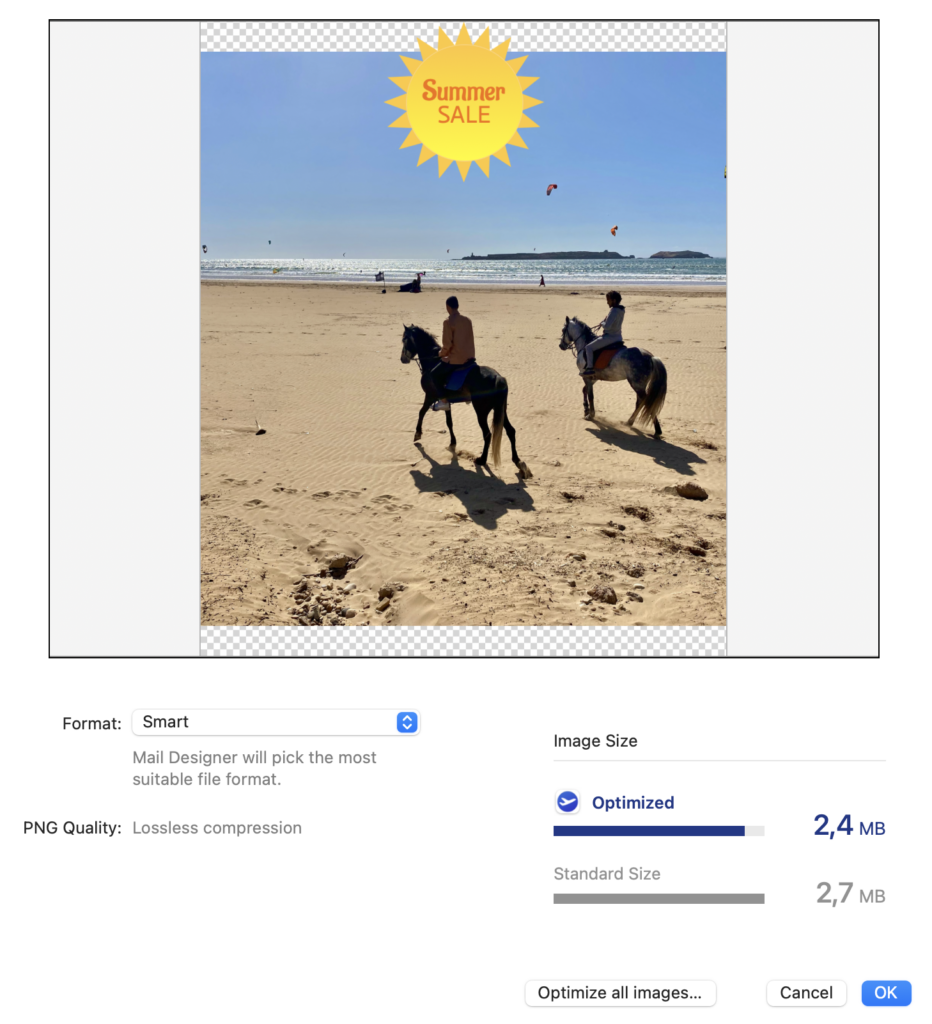
  2. Instant Image Optimization: If your email contains large images, Preflight Check now offers a direct shortcut to the image optimization tool, so you can crunch those kilobytes in one click:

Fixed: Further Improvements in this Version

As well as the new features added in this version, we’ve also been working hard under the hood to ensure Mail Designer is running smoothly:

  • macOS 26 Tahoe Support: We fixed an issue where some images couldn't be imported via Drag & Drop on the newest macOS version. Drag away!
  • Reliable Alt-Texts: Updates to image Alt-Texts are now saved instantly and reliably, ensuring your emails remain accessible.
  • Perfect Spacing: We’ve corrected a bug that caused incorrect margins in some exported designs. Your final result will now match your editor view pixel-for-pixel.
  • Team Organization: The sorting order of Team Documents now stays exactly as you left it, even after refreshing the list.

As always, this update includes general stability improvements and small bug fixes to keep your creative process as smooth as possible.

Ready to try the new PNG export? Head to the App Store or use the in-app update tool to download the latest version of Mail Designer 365 today.

Start using Mail Designer 365 5.4 today

This is a completely free update for all existing Mail Designer 365 customers. To start using version 5.4, simply open the app and go to Mail Designer 365 > Check for updates.
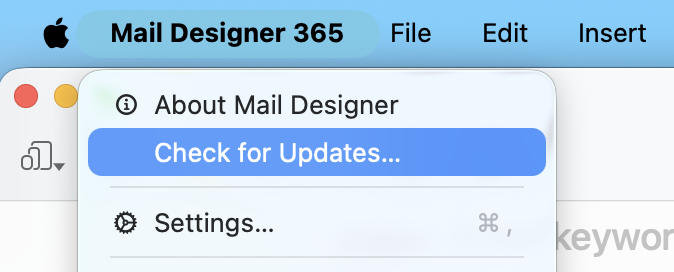
Tip: Activate automatic updates in your app preferences to make sure you never miss a new version of Mail Designer 365:
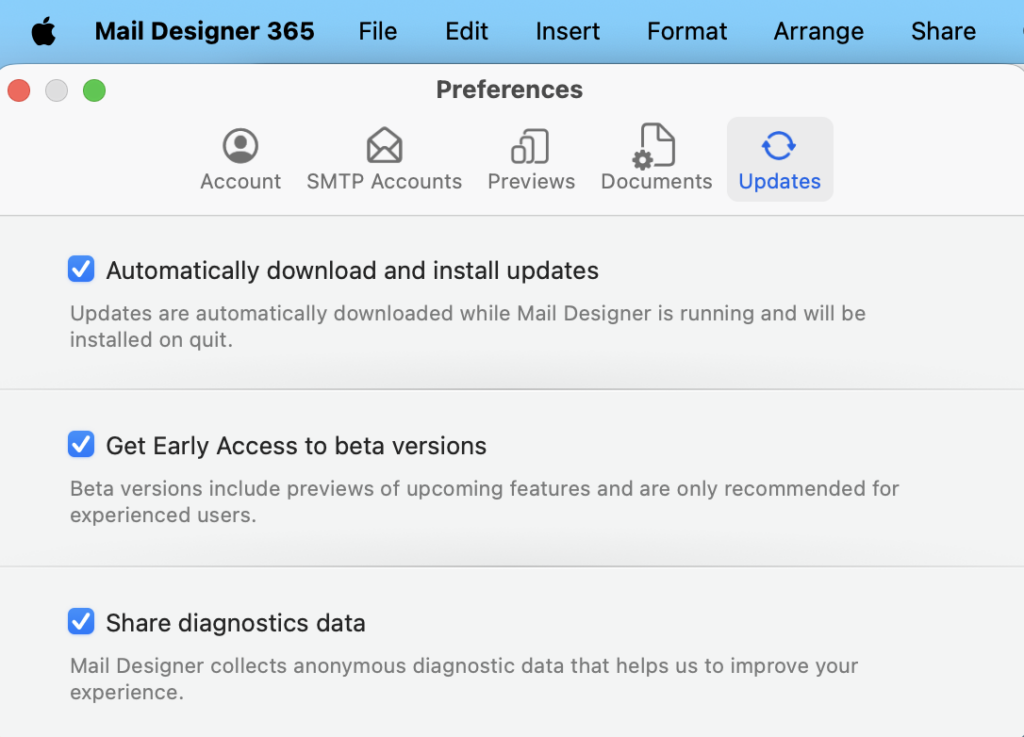
Check your update settings to receive automatic updates
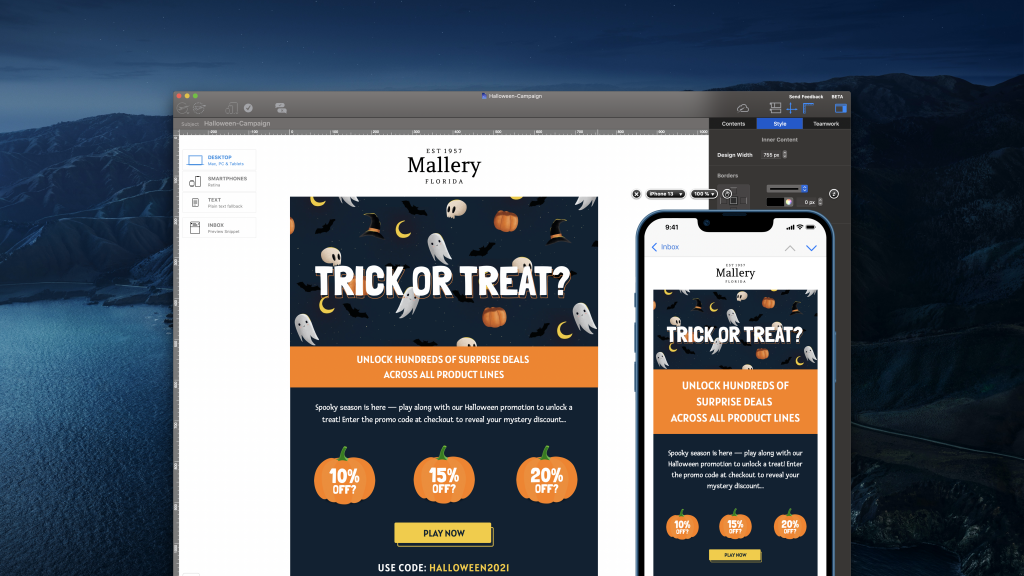
export as a png via the app menu

PNG Export, Preflight-Checks and More: Mail Designer 365 5.4

By Team equinux Unkategorisiert

The latest Mail Designer 365 version focuses on giving you more flexibility with your designs and a smoother workflow on the latest macOS. Here is a look at what’s new in Mail Designer 365.

New: Direct PNG Export

This update brings a handy PNG export option to Mail Designer 365, allowing you to export either the mobile or desktop version of your email designs directly as high-resolution PNG files.

This is a game-changer for anyone looking to repurpose their email layouts for:

  • Social media posts (Instagram, LinkedIn, etc.)
  • Website banners and blog headers
  • High-quality printouts for internal meetings

Find it under File > Export > PNG:

export as a png via the app menu

Select File > Export to export as a PNG

Exporting your designs for socials and more: Read the full guide →

Improved: Better Design Intelligence

The Preflight Check tool is your copilot for successful email design. Before you hit send, the Preflight Check will run, making sure you've covered all bases.

Preflight Check icon in Mail Designer

Click the check icon in the App toolbar to open the Preflight Check

This update brings two useful updates to the Preflight Check to give you even more peace of mind before sending:

  1. Smarter Preflight for Mobile: Our Preflight Check now automatically alerts you if there are "detached" layout blocks in your mobile view. This ensures your responsive design stays perfectly aligned on every smartphone:

    The Preflight Check provides a hint if you have separate mobile and desktop blocks

  2. Instant Image Optimization: If your email contains large images, Preflight Check now offers a direct shortcut to the image optimization tool, so you can crunch those kilobytes in one click:

Fixed: Further Improvements in this Version

As well as the new features added in this version, we’ve also been working hard under the hood to ensure Mail Designer is running smoothly:

  • macOS 26 Tahoe Support: We fixed an issue where some images couldn't be imported via Drag & Drop on the newest macOS version. Drag away!
  • Reliable Alt-Texts: Updates to image Alt-Texts are now saved instantly and reliably, ensuring your emails remain accessible.
  • Perfect Spacing: We’ve corrected a bug that caused incorrect margins in some exported designs. Your final result will now match your editor view pixel-for-pixel.
  • Team Organization: The sorting order of Team Documents now stays exactly as you left it, even after refreshing the list.

As always, this update includes general stability improvements and small bug fixes to keep your creative process as smooth as possible.

Ready to try the new PNG export? Head to the App Store or use the in-app update tool to download the latest version of Mail Designer 365 today.

Start using Mail Designer 365 5.4 today

This is a completely free update for all existing Mail Designer 365 customers. To start using version 5.4, simply open the app and go to Mail Designer 365 > Check for updates.

Tip: Activate automatic updates in your app preferences to make sure you never miss a new version of Mail Designer 365:

Check your update settings to receive automatic updates
export as a png via the app menu

PNG Export, Preflight-Checks and More: Mail Designer 365 5.4

By Team equinux Unkategorisiert

The latest Mail Designer 365 version focuses on giving you more flexibility with your designs and a smoother workflow on the latest macOS. Here is a look at what’s new in Mail Designer 365.

New: Direct PNG Export

This update brings a handy PNG export option to Mail Designer 365, allowing you to export either the mobile or desktop version of your email designs directly as high-resolution PNG files.

This is a game-changer for anyone looking to repurpose their email layouts for:

  • Social media posts (Instagram, LinkedIn, etc.)
  • Website banners and blog headers
  • High-quality printouts for internal meetings

Find it under File > Export > PNG:

export as a png via the app menu

Select File > Export to export as a PNG

Exporting your designs for socials and more: Read the full guide →

Improved: Better Design Intelligence

The Preflight Check tool is your copilot for successful email design. Before you hit send, the Preflight Check will run, making sure you've covered all bases.

Preflight Check icon in Mail Designer

Click the check icon in the App toolbar to open the Preflight Check

This update brings two useful updates to the Preflight Check to give you even more peace of mind before sending:

  1. Smarter Preflight for Mobile: Our Preflight Check now automatically alerts you if there are "detached" layout blocks in your mobile view. This ensures your responsive design stays perfectly aligned on every smartphone:

    The Preflight Check provides a hint if you have separate mobile and desktop blocks

  2. Instant Image Optimization: If your email contains large images, Preflight Check now offers a direct shortcut to the image optimization tool, so you can crunch those kilobytes in one click:

Fixed: Further Improvements in this Version

As well as the new features added in this version, we’ve also been working hard under the hood to ensure Mail Designer is running smoothly:

  • macOS 26 Tahoe Support: We fixed an issue where some images couldn't be imported via Drag & Drop on the newest macOS version. Drag away!
  • Reliable Alt-Texts: Updates to image Alt-Texts are now saved instantly and reliably, ensuring your emails remain accessible.
  • Perfect Spacing: We’ve corrected a bug that caused incorrect margins in some exported designs. Your final result will now match your editor view pixel-for-pixel.
  • Team Organization: The sorting order of Team Documents now stays exactly as you left it, even after refreshing the list.

As always, this update includes general stability improvements and small bug fixes to keep your creative process as smooth as possible.

Ready to try the new PNG export? Head to the App Store or use the in-app update tool to download the latest version of Mail Designer 365 today.

Start using Mail Designer 365 5.4 today

This is a completely free update for all existing Mail Designer 365 customers. To start using version 5.4, simply open the app and go to Mail Designer 365 > Check for updates.

Tip: Activate automatic updates in your app preferences to make sure you never miss a new version of Mail Designer 365:

Check your update settings to receive automatic updates

E-Mails für Apple AI Zusammenfassen optimieren – 5 Tipps für Designer

By Team equinux Mail Designer 365 Newsletter Academy, Newsletter

Die Funktion Apple AI Zusammenfassen auf macOS und iOS verändert die Art und Weise, wie Menschen E-Mails konsumieren. Für E-Mail-Marketer und Designer ist das mehr als nur ein Trend oder eine technische Spielerei. Es ist ein klares Signal dafür, dass E-Mail-Design und Text härter arbeiten müssen, um wahrgenommen zu werden.
E-Mail ist nach wie vor ein wirkungsvoller Marketingkanal, doch die Spielregeln entwickeln sich ständig weiter. KI-basierte E-Mail-Zusammenfassungen belohnen Klarheit, Struktur und gute Lesbarkeit und bestrafen überladene Inhalte sowie rein visuelle Designs. Dieses Umdenken zu verstehen, ist für E-Mail-Marketer entscheidend.

Was ist Apple AI Zusammenfassen?

Apple AI Zusammenfassen ist eine Apple-Intelligence-Funktion, die E-Mails automatisch zu kurzen, leicht verständlichen Übersichten verdichtet. Anstatt eine komplette Nachricht zu lesen, können Nutzer jetzt einfach klicken oder auf iOS tippen, um eine kurze Zusammenfassung mit den wichtigsten Punkten zu sehen:

apple AI Zusammenfassen email feature in Mail

Nutzer können auf das Symbol „Zusammenfassen“ klicken, um eine kurze Zusammenfassung der E-Mail zu erhalten

Warum das für E-Mail-Marketing wichtig ist:

  • Schnelleres Lesen: Nutzer erfassen die Kernaussage, ohne die eigentliche E-Mail zu öffnen.
  • Neue erste Eindrücke: Die Zusammenfassung wird oft zur primären Art, wie Ihre E-Mail konsumiert wird. Vergleichbar mit der Betreffzeile, aber mit weniger Raum für Neugier.
  • Auswirkungen auf das Design: Schlecht strukturierte E-Mails laufen Gefahr, falsch interpretiert zu werden oder ihre Kernbotschaft zu verlieren.

Kurz gesagt: Apple AI Zusammenfassen macht E-Mail-Design und Copywriting wichtiger denn je.

Welche anderen E-Mail-Clients nutzen AI Zusammenfassen?

Derzeit treiben vor allem zwei große E-Mail-Clients die Entwicklung von KI-Zusammenfassungen voran:

Apple Mail

  • Bietet eine integrierte Funktion „AI Zusammenfassen“ auf macOS 15.1 oder neuer (Apple-M-Chips) sowie ab iOS 18.1 (iPhone 15 Pro, 15 Pro Max und iPhone 16/7).
  • Zusammenfassungen erscheinen direkt im Posteingang und geben Empfängern einen schnellen Überblick.
  • Fördert ein „auf einen Blick erfassbares“ E-Mail-Design, bei dem Hierarchie und Klarheit entscheidend sind.

Apple AI Zusammenfassen Tool in der Mail App auf macOS

Gmail

  • Die Gemini-Seitenleiste in Gmail nutzt KI, um E-Mails zusammenzufassen, einschließlich langer Threads und komplexer Konversationen.
  • Erstellt verdichtete Übersichten zu Schlüsselpunkten, Entscheidungen und nächsten Schritten.
  • Belohnt prägnante und gut strukturierte Texte mit besseren Zusammenfassungen.

Gemini AI Zusammenfassen Tool in Gmail
Auch andere Clients wie Yahoo oder Canary Mail experimentieren mit ähnlichen Funktionen. Apple Mail und Gmail verfügen jedoch über die größte Nutzerbasis und die bislang klarste Umsetzung.

Wie Apple AI Zusammenfassen Ihre E-Mails und Empfänger beeinflusst

Die KI-Zusammenfassung fungiert als neue E-Mail-Vorschau. Wenn Leser hier nicht abgeholt werden, ist die Wahrscheinlichkeit gering, dass sie weiter nach unten scrollen und das eigentliche Design sehen. Das bedeutet: Viele Empfänger werden die vollständige E-Mail womöglich nie öffnen.
Was heißt das für Sie? Die Zusammenfassung muss effektiv sein, um Ihre Botschaft korrekt zu vermitteln und Leser dazu zu motivieren, weiterzuscrollen und auf Ihre CTA (Call-to-Action) zu klicken.

So gestalten Sie E-Mails für Apple AI Zusammenfassen

Damit KI-Zusammenfassung-Tools, wie z. B. Apple AI Zusammenfassen, korrekt und ansprechend ausfallen, müssen E-Mail-Marketer und Designer Struktur und Lesbarkeit ihrer E-Mails optimieren.
Hier sind 5 hilfreiche Tipps, um erfolgreich E-Mails für KI zu gestalten:

1. Beginnen Sie mit der Hauptaussage

Nutzenorientierte Botschaften funktionieren hier besonders gut. Machen Sie im ersten Absatz deutlich, warum Ihr Thema relevant ist, damit die Zusammenfassung dies sofort aufgreift.

2. Verwenden Sie echten Text

Bilder sorgen für visuelle Akzente, doch wichtiger denn je ist es, für alles Wesentliche echten Text zu verwenden. Überschriften, Zwischenüberschriften und Preise sollten immer als Text vorliegen und nicht in Bilder eingebettet sein.
Beispiel 1: Diese E-Mail-Promotion von character.com ist stark bildlastig. Dadurch kann Apple AI Zusammenfassen weder den zentralen Aufhänger noch die Angebotspreise in die Zusammenfassung aufnehmen:

bildlastige E-Mail

Bildlastige E-Mails funktionieren schlecht mit Apple AI Zusammenfassen

Apple AI Summarise in action for an email campaign from character.com
Beispiel 2: Im Gegensatz dazu nutzt diese E-Mail von Thorntons echten Text für den Hauptinhalt, einschließlich des Gutscheincodes. Dadurch konnte Apple AI Zusammenfassen den Code direkt in die Zusammenfassung aufnehmen und Empfängern eine zusätzliche Gelegenheit zur Einlösung bieten, selbst wenn sie nicht bis ganz nach unten scrollen.

Apple AI Zusammenfassen für eine

Diese Zusammenfassung funktioniert deutlich besser durch den Einsatz von echtem Text im Design

3. Setzen Sie auf Text-Buttons statt Bilder

Aus dem gleichen Grund empfiehlt es sich, für CTAs Text-Buttons zu verwenden. Das war schon immer eine Best Practice zur Vermeidung von Darstellungsproblemen und hilft nun zusätzlich dabei, dass die KI Ihren zentralen Call-to-Action in die Zusammenfassung aufnehmen kann.
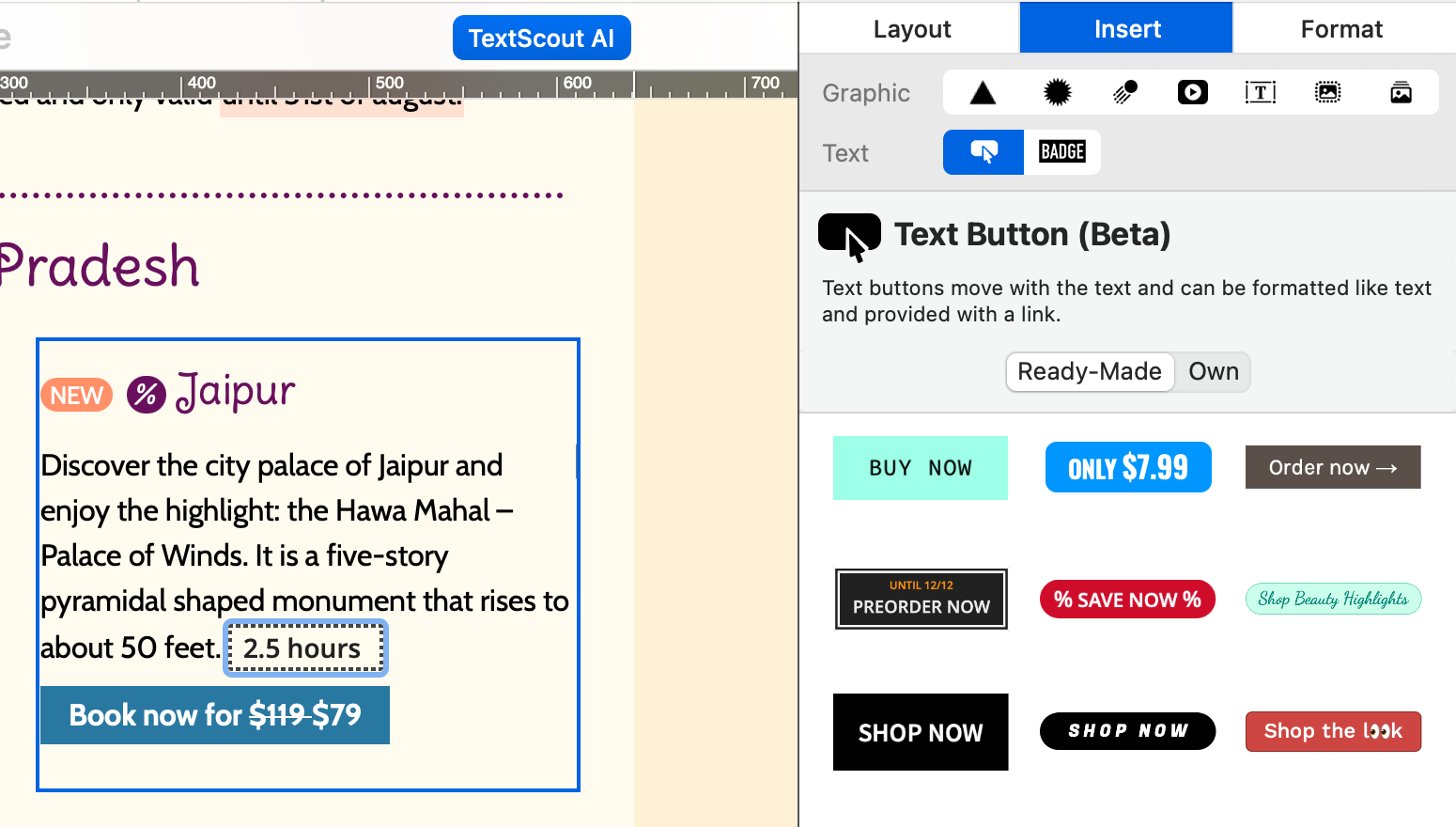
Um in Mail Designer 365 einen Text-Button einzufügen, markieren Sie einfach den gewünschten Text und wählen im App-Menü Einfügen > Text-Button. Anschließend können Sie aus vielen vordefinierten Stilen wählen oder einen eigenen erstellen:

Text-Buttons werden leichter von der KI, z. B. Apple AI Zusammenfassen, interpretiert

Apple AI Zusammenfassen kann Text-Buttons deutlich leichter interpretieren als Bilder

4. Schaffen Sie Hierarchie mit Textstilen

Nutzen Sie Überschriften, Zwischenüberschriften und Fließtext konsequent, um Lesern und der KI-Zusammenfassung zu zeigen, welche Inhalte in Ihrer Kampagne am wichtigsten sind.
Mail Designer 365 unterstützt standardisierte Textstile für alle E-Mail-Designs. Neue Layout-Blöcke werden automatisch als Überschrift oder Fließtext definiert und sorgen so für Konsistenz und eine klare Hierarchie innerhalb Ihrer E-Mail.

5. Verwenden Sie Alt-Text

Das ist nicht nur eine Best Practice für Barrierefreiheit, sondern auch wichtig für die KI-Zusammenfassung. Wenn Sie Bilder einsetzen, hilft Alt-Text der KI zu verstehen, was darauf zu sehen ist, etwa ein Sonderangebot, ein neues Produkt oder wichtige Neuigkeiten. Ohne Alt-Text können relevante visuelle Elemente Ihrer Newsletter in der Zusammenfassung fehlen.

Optimieren Sie Ihre E-Mails für Apple AI Zusammenfassen mit Mail Designer

KI-Zusammenfassungen in Clients wie Apple Mail und Gmail sind keine Bedrohung. Im Gegenteil: Sie sind ein deutliches Signal, den Fokus noch stärker auf Klarheit, Hierarchie und Lesbarkeit zu legen. Strukturierte, prägnante und gut scannbare E-Mails funktionieren sowohl für KI als auch für menschliche Leser besser.
Sie suchen ein Design-Tool für KI-freundliche E-Mails? Mit Mail Designer lassen sich Best Practices für KI mühelos in Ihre E-Mail-Designs integrieren, ohne Kompromisse bei Stil oder Branding einzugehen.

Mail Designer 365 gratis testen

E-Mail-Design ohne Code – 7 Tage gratis auf deinem Mac.
Kompatibel ab macOS 10.13
Privacy Settings / Datenschutz-Einstellungen