
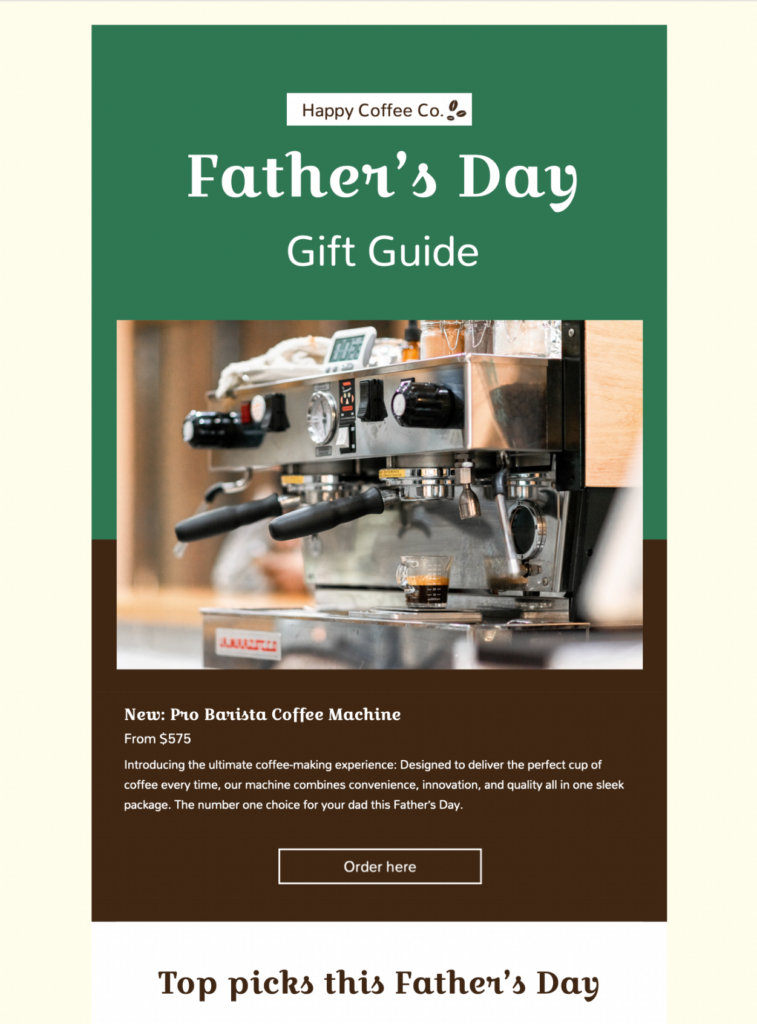
Father's Day Email Campaign: 7 Helpful Gift-Guide Checks
This Father's Day email campaign turns a seasonal gift guide into a clear, responsive campaign for selected products or experiences. Customize the message, imagery, dates, and call to action in Mail Designer 365, then test the finished design for your audience and sending platform.
Father's Day email campaign workflow
- Replace the sample products, prices, dates, and button destination.
- Customize the palette and typography for your brand.
- Preview the responsive desktop and mobile layouts.
- Send directly or export for a compatible email service.
- Test links, personalization, tracking, and footer details.
- Archive an approved copy and a reusable undated master.
Works with:







1. Build the gift guide around one audience
Choose the recipients and campaign goal before selecting products. A general customer guide, loyalty offer, experience campaign, last-minute delivery message, and employee benefit need different content. Avoid assuming that every reader celebrates the occasion or has the same family relationship. Keep language inclusive and give subscribers a normal way to manage preferences when your sending policy supports occasion-based opt-outs.
2. Verify every product and offer detail
For each gift, confirm the name, price, currency, stock, variants, delivery region, shipping cutoff, returns policy, and destination URL. If the Father's Day email campaign includes a discount, state eligibility, exclusions, start and end dates, and time zone. The landing page must repeat the same promise. For information that may change after delivery, link to a maintained product or terms page rather than relying on copied text.
3. Keep the gift-guide design accessible
Use consistent product crops and attach each description, price, and button to the correct image. Keep essential information as live text rather than embedding it only in artwork. Check text and button contrast against the W3C contrast guidance. Write concise alt text that identifies the useful product or experience, and test the Father's Day email campaign with images blocked.
4. Pair the subject line and preview text
Use the subject line to explain the guide or offer and preview text to add a deadline, delivery cutoff, or audience detail. Avoid pressure that could feel insensitive, and do not promise guaranteed delivery unless operations support it. Segment only when purchase history, location, delivery eligibility, or stated interests make the selection more useful. Retain a general version for readers who do not fit a reliable segment.
5. Review the Father's Day email campaign on mobile
Preview wide and narrow layouts. Confirm that the opening explains the guide before the products, that columns stack in the intended order, and that each image, price, description, and button stays together. Use descriptive labels such as “View this gift” instead of repeated generic buttons. Keep tap targets separated and make delivery deadlines easy to find without interpreting decorative artwork.
6. Test links, inboxes, tracking, and checkout
Send tests to representative desktop and mobile inboxes. Open every product, terms, delivery, contact, social, and unsubscribe link; confirm that redirects preserve intended campaign parameters. Where appropriate, place a test order to verify price, inventory, discounts, and delivery rules at checkout. Review personalization fallbacks, sender and reply addresses, footer and consent text, plus the plain-text alternative.
7. Archive an approved campaign and clean master
Save a dated approval copy with its audience, subject, preview text, products, offers, links, and tracking values. Keep a reusable master without expired dates, prices, or stock. Before next year's send, repeat the product, delivery, accessibility, inbox, checkout, and landing-page checks. Browse more Mail Designer 365 Design Ideas if another layout better matches the audience or gift range.