
Spring Email Template: 7 Fresh Campaign Checks
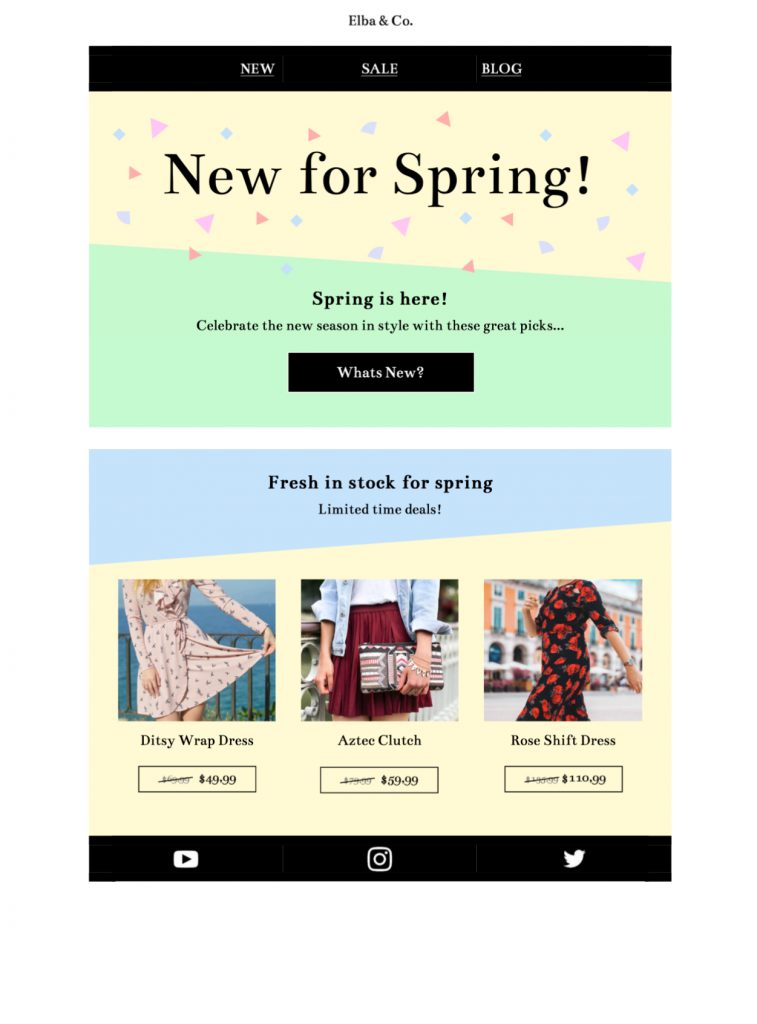
This spring email template pairs abstract shapes with a bright seasonal palette for a new collection, limited-time offer, event, or customer update. Adapt the message, imagery, colors, and call to action in Mail Designer 365, then test the finished campaign for your audience and sending platform.


Already a Mail Designer 365 user? Open the Design Idea here.
Template workflow:
- Replace the sample offer, products, dates, and button destination.
- Customize the palette and typography for your brand.
- Preview the responsive desktop and mobile layouts.
- Send directly or export for a compatible email service.
- Test links, personalization, tracking, and footer details.
- Keep an approved copy for the next seasonal campaign.
Works with:







1. Match the spring design to one campaign goal
Choose one primary purpose before editing: announce a seasonal collection, promote an event, share a service update, or present a limited offer. A single goal keeps the headline, hero image, supporting copy, and button working together. Use a specific action such as “Explore the spring collection” or “Reserve your place” instead of a vague “Learn more.” If the campaign includes a discount, state the currency, eligibility, end date, delivery limits, and exclusions beside the offer or on a maintained landing page.
2. Adapt the color palette without losing contrast
The template combines energetic spring colors with abstract shapes. When adapting this spring email template, replace colors selectively so the layout still has a clear visual hierarchy. Keep body copy on quiet backgrounds and make the primary button easy to distinguish from decorative elements. Check text and button contrast against the W3C contrast guidance. Do not place essential prices, dates, or instructions only inside an image; repeat them as live text so the message remains understandable when images are blocked.
3. Customize images, copy, and accessibility text
Customize the spring email template with product or event imagery that uses a consistent crop and leaves enough space around the headline. Write concise alt text for meaningful images that describes their purpose in this email. Decorative shapes can use empty alt text when the sending workflow supports it. Keep the opening focused on the reader’s benefit, then use short sections for supporting details. Check names, dates, locations, time zones, inventory, opening hours, and any weather-dependent information shortly before sending.
4. Plan the subject line and preview text together
Pair the spring email template with a subject line and preview text that work as one message. The subject should identify the seasonal value without implying an offer that the email cannot support; the preview can add the deadline or next step. Avoid relying on spring emoji alone to communicate meaning. For segmented sends, vary the message only when location, climate, purchase history, or event eligibility makes the content more relevant, and retain a general version for everyone else.
5. Review the spring email template on mobile
Preview the spring email template at narrow and wide widths. Confirm that the headline appears before supporting details, buttons have descriptive labels, and important content is not hidden in a multi-column arrangement. Keep tap targets separated and check that the main action remains visible without requiring a reader to interpret the artwork. If you replace the hero image, verify the crop on both layouts rather than assuming the desktop composition will scale cleanly.
6. Test links, inboxes, and offer details
Send test emails to representative desktop and mobile inboxes. Open every product, policy, contact, social, and unsubscribe link; confirm that redirects preserve the intended campaign parameters. Test with images blocked and review the plain-text alternative. Verify the sender name, reply address, personalization fallbacks, footer, consent language, and landing-page consistency. A landing page should repeat the same price, availability, date, and promise shown in the email.
7. Archive a reusable seasonal master
After approval, save a dated campaign copy with its audience, subject line, preview text, offer, links, and tracking values. Keep a separate reusable master without expired dates or prices. When the design returns next spring, recheck every operational detail instead of copying last year’s campaign unchanged. Browse more Mail Designer 365 Design Ideas when another layout better matches the audience or goal.