
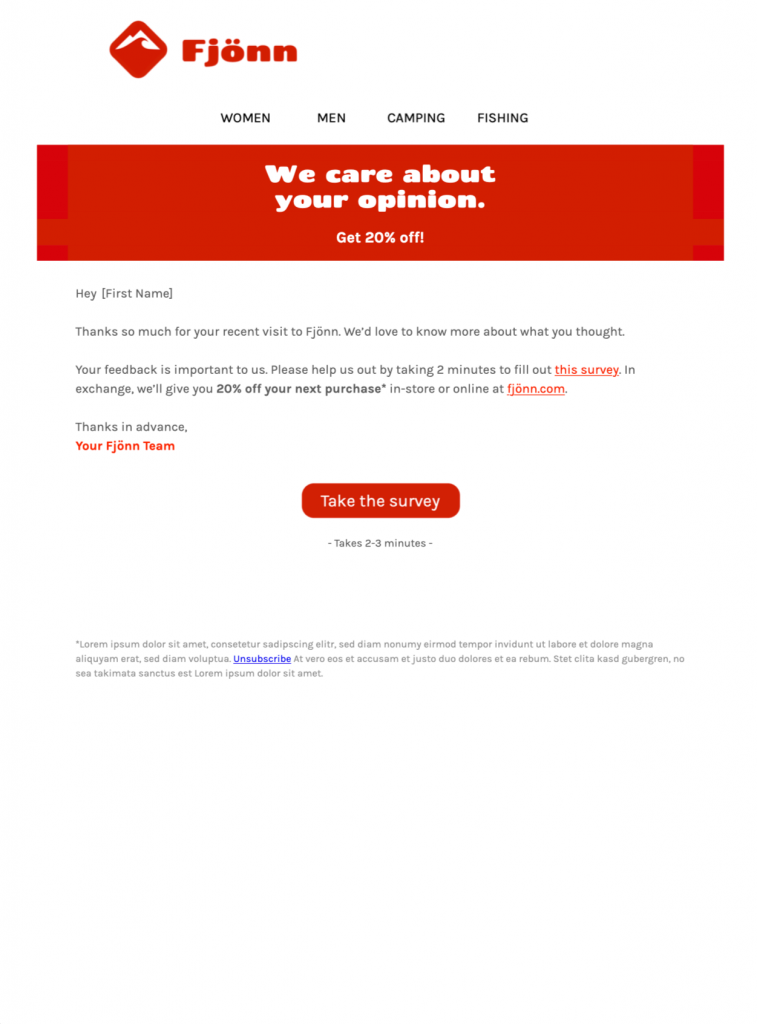
Start using this HTML email template today in Mail Designer 365
Exclusively available in Mail Designer 365! Find out what your customers really think with this friendly customer survey email. Sign up free today to get started with this template.


Already a Mail Designer 365 user? Open the Design Idea here.
Key Features:
- Transactional & Automated
- Customise for your business
- Mobile responsive
- Send via your ESP
- Send via your own email address
- Export as HTML
Ready to send?
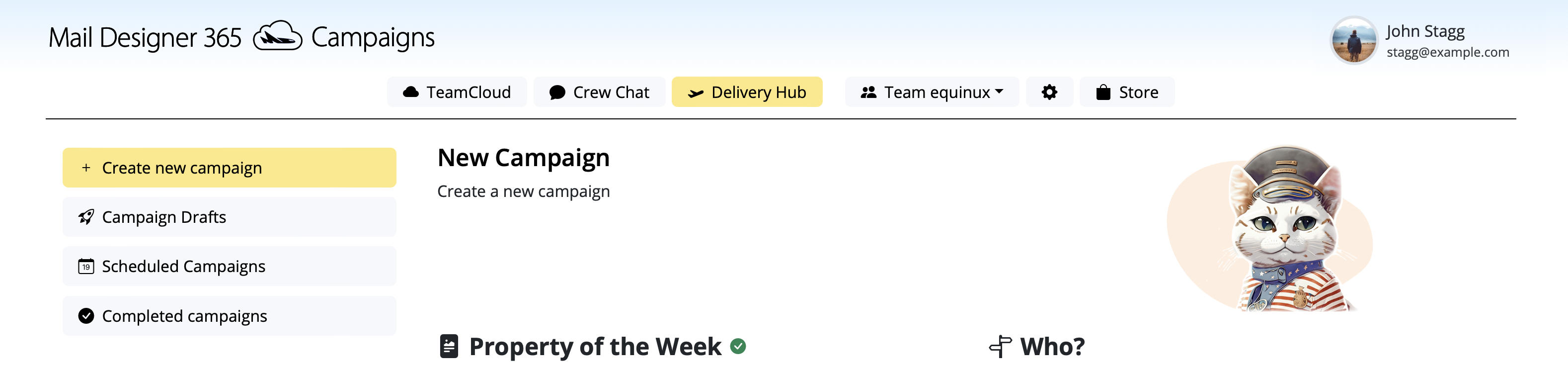
You've got your email template, now it's time to send! Schedule and send emails in Delivery Hub.
Customer Survey Email Template for Useful Feedback
This customer survey email design gives you a friendly starting point for asking customers about a recent experience. The template uses a clear introduction, a prominent survey action, and a simple visual hierarchy that keeps the request easy to understand.
Customize the wording so recipients know why you are asking, how long the survey is likely to take, and how their feedback will be used. Avoid promising a specific outcome unless your organization can deliver it.
What to Customize
Survey Purpose
Replace the sample copy with a specific reason for the request, such as feedback about an order, appointment, event, support interaction, or onboarding experience. A focused question is more useful than a generic request to “tell us everything.”
Brand and Visual Style
Adjust colors, fonts, logo placement, and imagery in Mail Designer 365 so the message is recognizable. Preserve strong contrast around the primary button and make sure the survey invitation remains readable on mobile.
Call to Action
Use a direct button label such as “Take the survey” or “Share feedback.” Link it to the correct published survey rather than a draft or account-management page. Send a test and click the button from the received email.
Sender and Timing
Use a sender name recipients will recognize and send the request while the experience is still fresh. For automated follow-up, confirm that the trigger and delay match the event being reviewed.
Customer Survey Email Checklist
- Explain what the survey covers.
- Set an honest expectation about the time required.
- Use one clear primary survey button.
- Check that the destination is public and correct.
- Review desktop and mobile versions.
- Send a test before scheduling or activating automation.
- Include required sender and unsubscribe information.
Keep the Request Respectful
Send the survey only to an appropriate audience and avoid repeatedly contacting people who have already responded or opted out. Do not place sensitive personal information in the email or prefill a public survey link with data that should remain private.
If you offer an incentive, state the conditions clearly. Keep the email focused on the survey rather than surrounding the request with unrelated promotions.
Use the Template in Mail Designer 365
Open the design idea from this page or start with the preview as a reference. Replace the sample content, connect the button to your survey, and adapt the desktop and mobile layouts. Export through your chosen service or use the available sending workflow, then verify the final delivered message.
The strongest customer survey email is brief, specific, easy to act on, and honest about why the feedback matters.