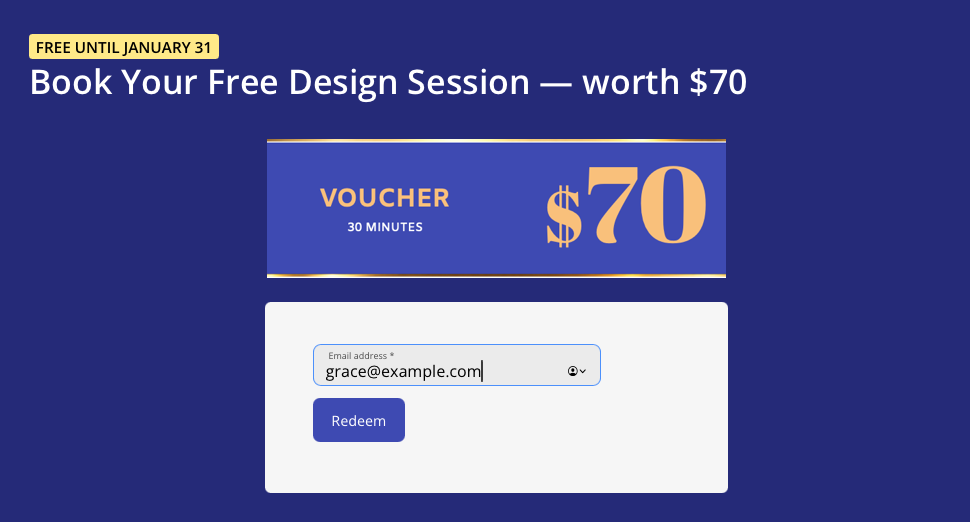
Pre-filling an email address in a URL is a simple but powerful technique for improving user experience and increasing conversions. In this guide, we’ll show you how to include the email parameter in a URL, and how to pass email placeholders from your email builder for highly-personalised email campaigns.
What Does It Mean to Pre-Fill Email Address in a URL?
Pre-filling an email address means automatically inserting an email into a form field when they land on a page. This is usually done by adding a query parameter to a URL, such as ?email=example@email.com.
When the page loads, the form reads this parameter and populates the email field for the user, removing friction and saving time.
Why Pre-Filled Email Links Increase Conversions
1. Fewer Steps for the User
Every additional field a user has to type is a chance for them to abandon the page. Pre-filling an email address removes one small but meaningful hurdle.
2. Better Experience on Mobile
Typing on mobile devices is slower and more error-prone. Automatically inserting the email address makes sign-ups and requests much smoother on smaller screens.
3. Higher Accuracy, Fewer Typos
Passing the email address directly from your email campaign ensures the address is entered exactly as intended, avoiding misspellings or formatting issues.
4. Ideal for Sign-Up Pages and Lead Forms
This technique works especially well when linking from newsletters, onboarding emails, webinar invitations, or gated content pages where the user is already known.
Suggestion: Building signup forms in Mail Designer 365 →
Common Use Cases for Pre-Filled Email URLs
- Newsletter sign-up pages
- Webinar or event registration forms
- Free trial or demo request pages
- Account activation or onboarding flows
- Feedback and survey form
How the ?email= URL Parameter Works
At its simplest, a pre-filled email URL looks like this:
https://www.example.com/signup?email=example@email.com
The email parameter is read by the landing page and mapped to the email input field. Most modern form builders and marketing tools support this behavior out of the box.
So far, so good.
However, when sending campaigns to large groups, you won't be able to manually personalise each link. Instead, you need a placeholder that gets replaced for each recipient when you hit send.
Using Email Placeholders in Your Email Campaigns
Email placeholders allow you to dynamically insert recipient data, such as email addresses, into links. When the campaign is sent, each recipient receives a personalized URL.
The exact placeholder syntax depends on your email builder. In Mail Designer 365, placeholders are handled directly inside the editor and automatically populated during sending.
Step-by-Step Guide: Pre-Filling Email Addresses with Mail Designer 365
Here is a step-by-step walkthrough showing how to insert an email placeholder into a URL using Mail Designer 365. This ensures each recipient’s email address is passed correctly to your landing page.
We will use one of our recent campaigns as an example.
- Enter the main part of your landing page URL, including the email parameter, for example: https://maildesigner365.com/free-mail-designer-365-consultation?email=
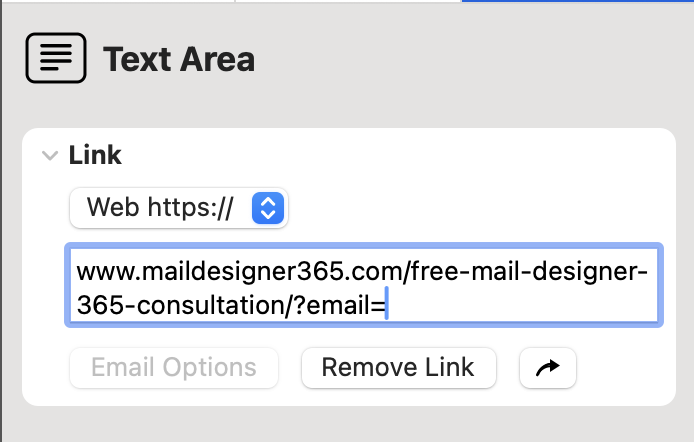
- Right click after the = symbol and select Insert Placeholder > Mail Designer Standard Placeholders
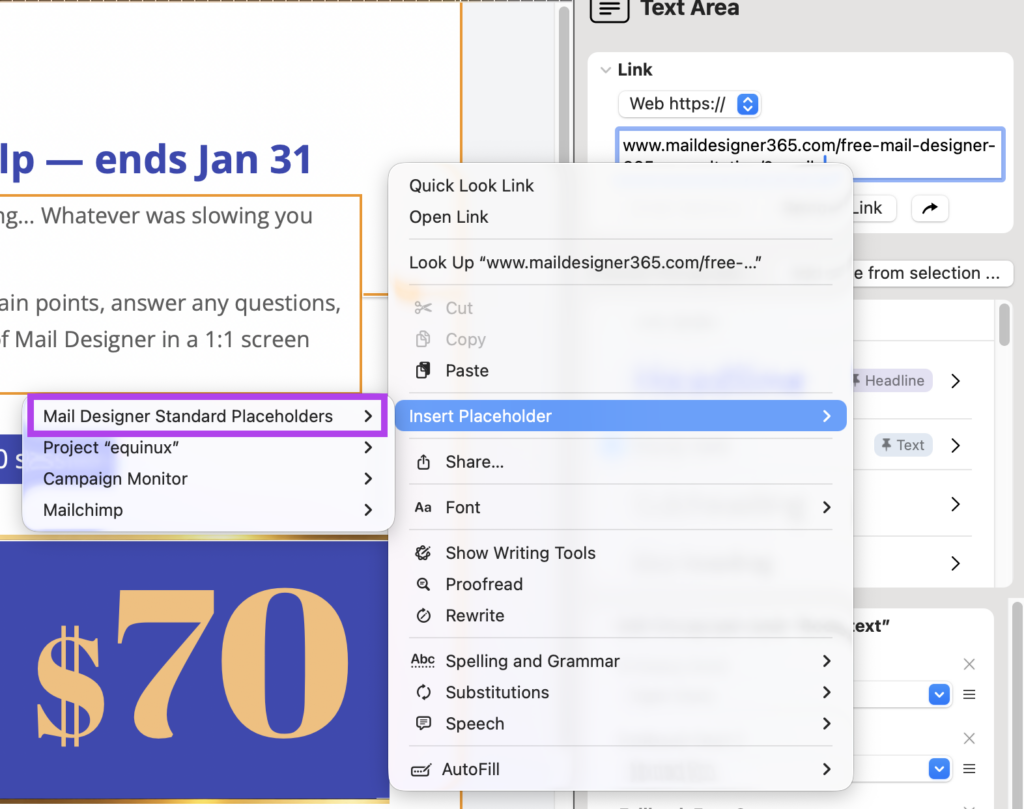
- Select Email from the list. The placeholder will now appear in the link field.
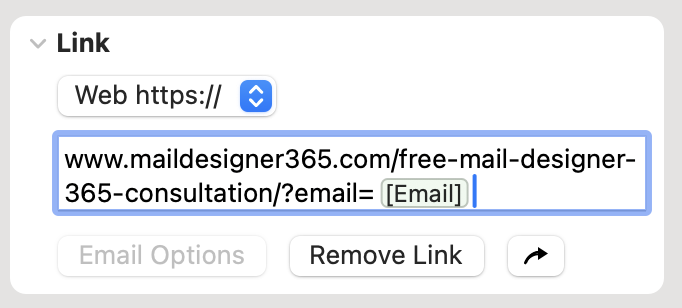
- When you send your email, the placeholder is automatically replaced with the recipient’s email address. The form on your landing page will already be filled in, so the user only needs to click once.