
If you want to set up Google Postmaster Tools for your email domain, a few minutes in your DNS settings can give you a much clearer view of how Gmail sees your messages. The free dashboards help you monitor spam complaints, domain reputation, authentication, and delivery errors so you can investigate warning signs before they become bigger deliverability problems.
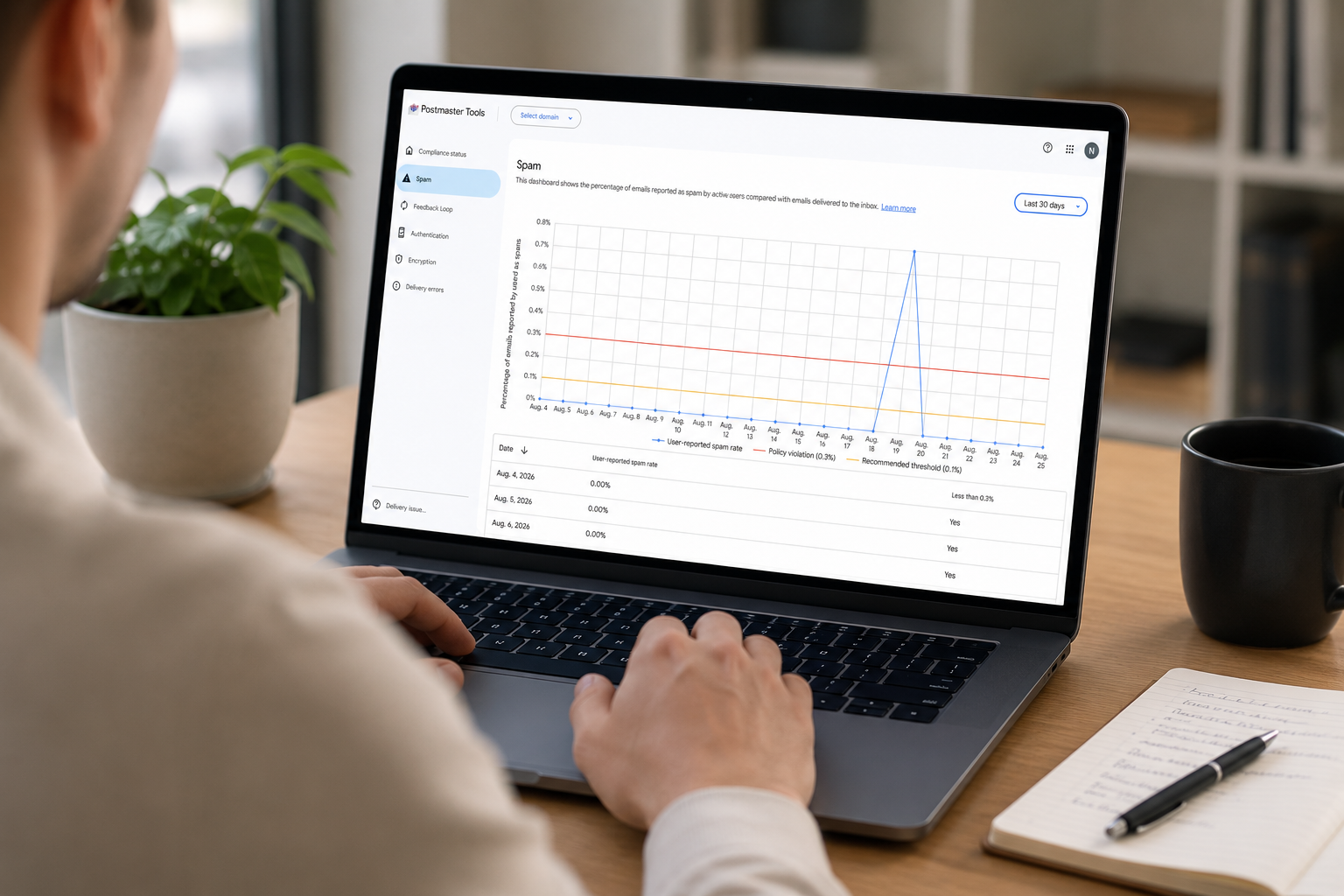
Google Postmaster Tools is a way to monitor potential spam and deliverability issues before they become a problem for your business
Postmaster Tools works as an early-warning system for emails sent from your domain to personal Gmail addresses.
- What is Google Postmaster Tools?
- How does it help with my spam rating?
- What you need before you start
- How to set up Google Postmaster Tools
- Which dashboards should I monitor?
- What should I do if my domain health drops?
- Make domain monitoring a routine
What is Google Postmaster Tools?
Google Postmaster Tools is a free service for senders who deliver email to personal Gmail accounts ending in @gmail.com or @googlemail.com. Once you prove that you control your sending domain, Google provides dashboards covering user-reported spam, domain and IP reputation, SPF, DKIM and DMARC authentication, encryption, compliance, and delivery errors.
The data describes how your authenticated mail performs at Gmail. It is not a complete report for Outlook, Yahoo, business Google Workspace inboxes, or every recipient on your list. You should read it alongside the campaign reports and bounce information from your sending provider.
How does it help with my spam rating?
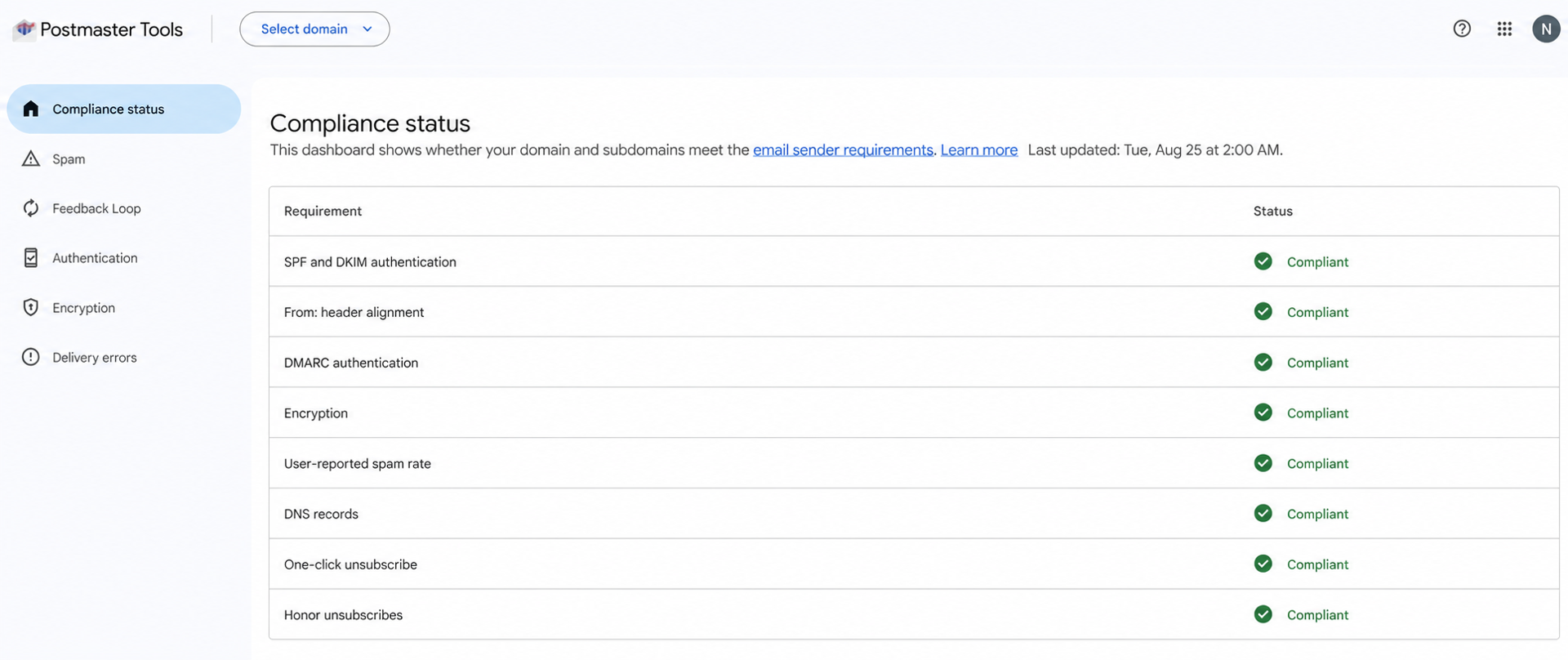
Recipients who mark your messages as spam send a strong negative signal. Repeated complaints can damage your domain reputation, which makes future campaigns more likely to be filtered or rejected. The Spam Rate dashboard shows the percentage of your DKIM-authenticated messages that Gmail users manually marked as spam.
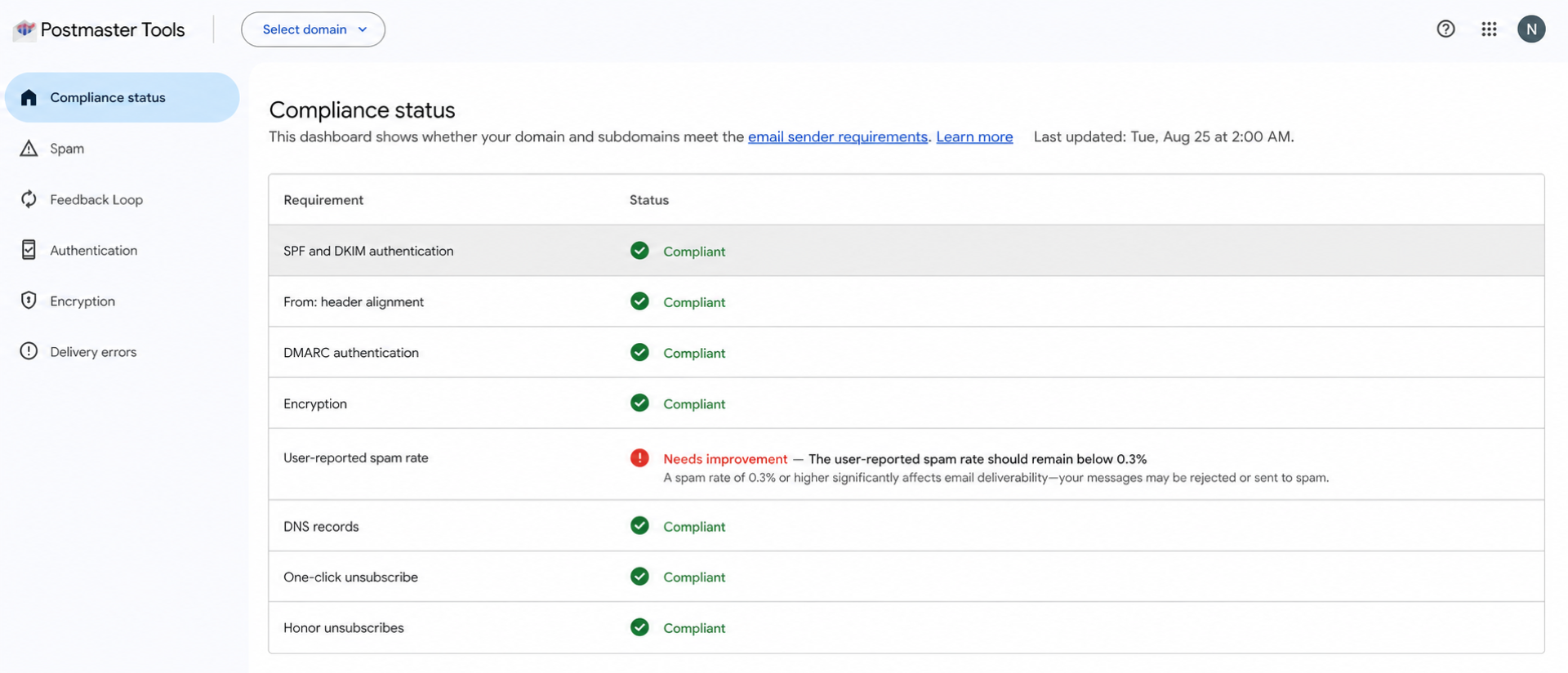
Google requires senders to keep the spam rate reported in Postmaster Tools below 0.3%. Treat that as a ceiling, not a target: a healthy permission-based list should stay as close to zero as possible. Check trends over several sends instead of reacting to one isolated point, particularly when your Gmail volume is small.
Postmaster Tools also helps you look beyond the complaint number. A falling reputation score, authentication failures, or a rise in delivery errors can point to a technical or audience-quality problem. It shows you where to investigate; the improvement comes from fixing the cause.
Tip: For a broader action plan covering authentication, list hygiene, unsubscribe options, campaign design, and testing, use our recently updated guide on how to stop emails going to spam in 2026.
What you need before you start
You need a Google or Google Workspace account, access to the DNS settings at your domain provider, and the name of the domain that authenticates your outgoing email. This may be the domain visible in your From address, but it is important to check rather than guess.
Google asks you to add either the domain used in your DKIM signature, shown after d=, or the SPF Return-Path domain. Your email service provider or domain administrator can confirm the correct value. If you use a dedicated subdomain such as email.example.com for campaigns, you can add it separately after verifying the primary domain to view more specific data.
This setup adds a Google ownership-verification record. Do not delete or replace your existing SPF, DKIM, DMARC, MX, or other DNS records.
Mail Designer 365 users can find the authentication records for their sending domain in the domain setup screen. The Google ownership record is added separately at the same DNS provider.
How to set up Google Postmaster Tools for your email domain
- Open Google Postmaster Tools on a computer and sign in with the Google account that should manage the domain.
- On the Manage Domains page, select Add new domain.
- Enter the DKIM signing domain or SPF Return-Path domain used for your outgoing mail, then select Create.
- Open the options beside the new domain and select Verify domain.
- Copy the TXT or CNAME record supplied by Google exactly as shown.
- Open the DNS management page at your domain provider and add that record. Pay close attention to the record type, host or name, and value.
- Return to Postmaster Tools and select Verify.
Verification is often immediate, but Google says the status can take up to ten minutes to update. DNS changes can sometimes take longer at the provider level. If verification fails, compare every character in the record and check whether your provider automatically adds the domain name to the host field.
After verification, you can use Manage users to give colleagues access. Each person needs a Google account, and Postmaster Tools does not automatically notify them when access is added.
Which dashboards should I monitor?
Start with the dashboards that reveal the clearest risks:
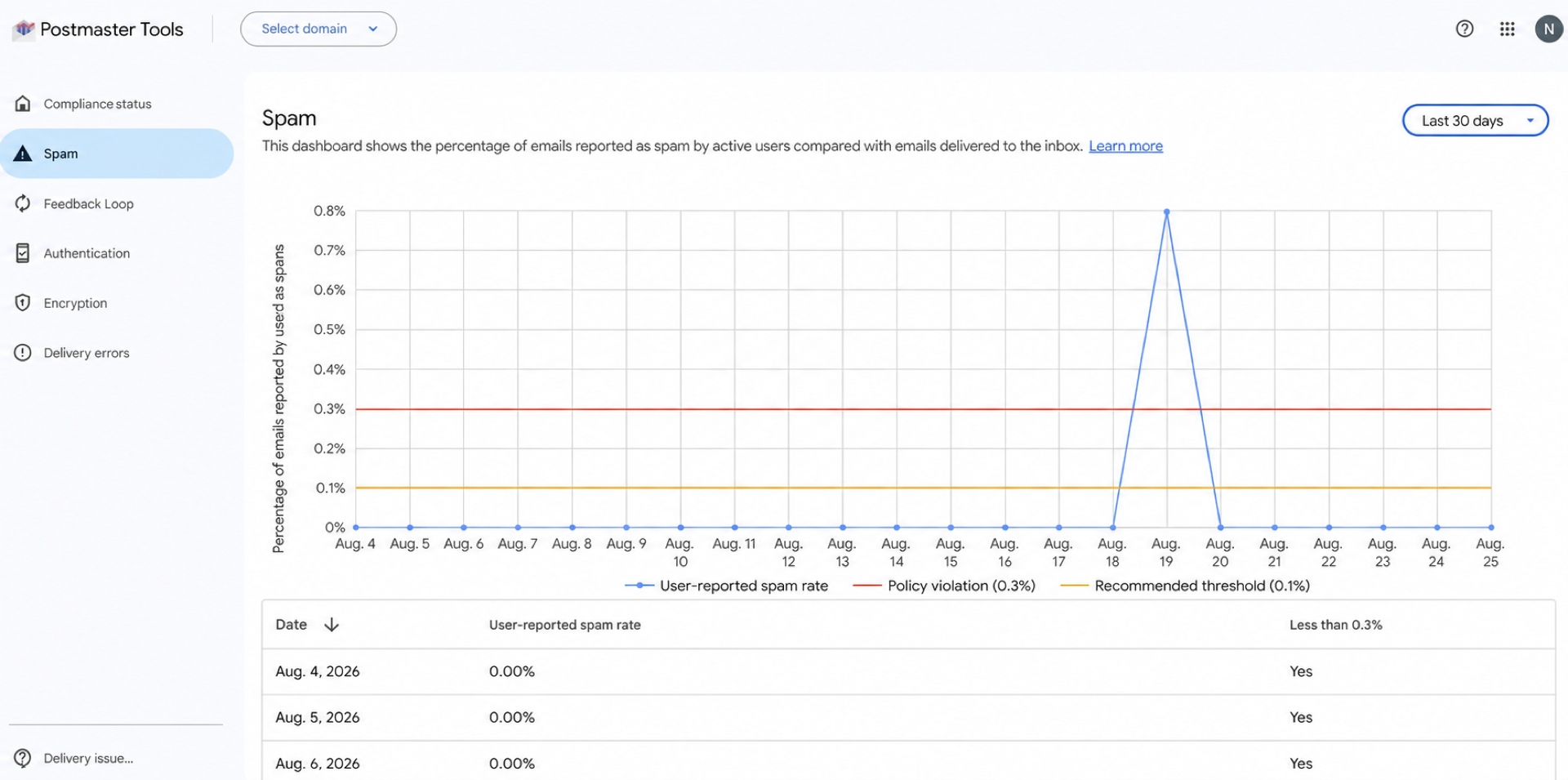
- Compliance status: shows whether your mail meets Gmail sender requirements, including authentication, encryption, message formatting, and user-reported spam. Extra requirements apply to bulk senders.
- Spam Rate: shows the percentage of messages Gmail users manually marked as spam.
- Domain Reputation: gives Google’s quality rating for your sending domain. Look for direction over time rather than treating one label as a permanent verdict.
- Authentication: shows how much of your mail passes SPF, DKIM, and DMARC checks. A sudden drop needs prompt investigation.
- Delivery Errors: highlights authenticated messages that Gmail rejected or temporarily failed, together with the reasons.
- IP Reputation: is useful when you control a dedicated sending IP. On a shared IP, ask your provider how they monitor and protect the shared reputation.
Dashboard data is not real time. Google says it is typically updated within 24 hours, although it can take longer. Some dashboards may also be empty on low-volume days because Google withholds data to protect user privacy. An empty chart is therefore not proof that everything is healthy or broken.
What should I do if my domain health drops?
First, identify what changed. Compare the date of the warning with recent campaigns, audience imports, sending-volume increases, new forms, domain authentication changes, and switches between sending services.
- Pause sudden volume increases and continue with your most engaged, clearly opted-in recipients.
- Confirm that SPF, DKIM, and DMARC are passing for every service allowed to send from the domain.
- Remove hard bounces and stop sending to addresses that never confirmed or no longer engage.
- Make the sender identity and message purpose immediately recognizable.
- Keep the unsubscribe link easy to find and verify that one-click unsubscribe works where required.
- Review delivery-error details before retrying rejected or deferred mail.
Avoid trying to repair reputation by sending more email. If complaints or failures are rising, additional volume usually amplifies the problem. Fix the source, resume gradually, and allow time for the dashboards to reflect the new traffic.
Make domain monitoring a routine
Check Postmaster Tools after important campaigns and at least once a week during regular sending. Record your spam rate, domain reputation, authentication rate, and delivery errors so that small changes are easier to spot. Review the dashboards more often when you increase volume, move to a new sending platform, or change authentication.
Google Postmaster Tools gives you a useful Gmail-specific view of domain health. Combine it with clean permission practices, reliable authentication, consistent sending, and careful campaign reporting to protect the reputation you have built.
Related reading
- How to stop emails going to spam in 2026
- How to set up DKIM for your email address
- The disadvantages of SMTP sending
Ready to Protect Your Email Domain Health?
Create clear, professional email campaigns with Mail Designer 365.
Enjoyed this post?
Get more inspirational tips, tricks, and best practice examples in the Mail Designer 365 Newsletter Academy -
your one stop hub for all things email marketing strategy and newsletter design.