Send custom made HTML email templates using the FreshMail marketing automation platform.


How to export your HTML email to FreshMail
- Build your HTML email design in Mail Designer 365 and select "Share” > “Website / HTML…
- Enter the image URL prefix for the online server where you will be hosting your images. You will need this later on so that your images can be located and displayed accurately in your design. (Learn more about this step here.)
- Following export, select the images in the folder and upload them to the server from the previous step.
- Sign in to your FreshMail account and create a new campaign.
- Give your campaign a subject and choose your recipients.
- Click on "New message" and choose "CKeditor."
- Click on "HTML code" in the top right corner.
- Locate the content.html file in the HTML export folder. Right click the file, and open it with a text editor. Copy the entire code and paste it into the code editor to upload your newsletter.
- You can now use your Mail Designer 365 HTML design with the automation tools provided in the FreshMail platform.
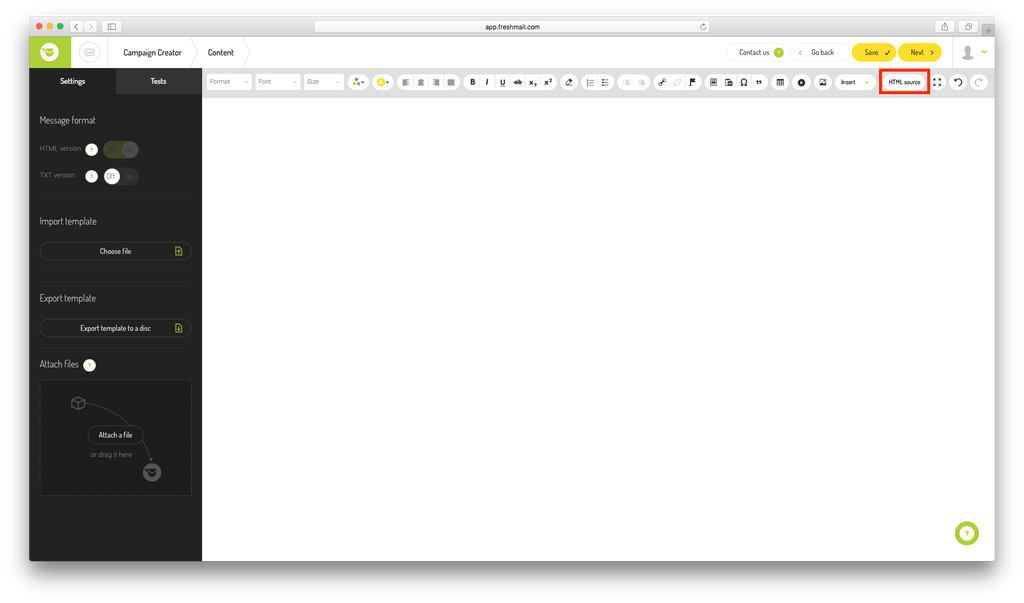
Use your HTML email design with the FreshMail platform.
Need support?
Our team is always on hand ready to give you support. If you have specific questions regarding HTML export to FreshMail, or just need some extra help getting set up, get in touch!
That's not all!
Mail Designer 365 works seamlessly with all leading email marketing services. You can check out our full range of integrations and compatible platforms on our integrations page.
Start using Mail Designer 365 with FreshMail...
Mail Designer 365 helps you create stylish, professional HTML emails on your Mac to use with FreshMail. Sign up for free to see what you can achieve.