
Frequently Asked Questions
How do I change the background of a text area in Mail Designer 365?
There are two main ways to change the background of a text area in Mail Designer 365:
Use Layout Blocks with Backgrounds
Mail Designer 365 offers layout blocks that come with built-in background colors for text areas:
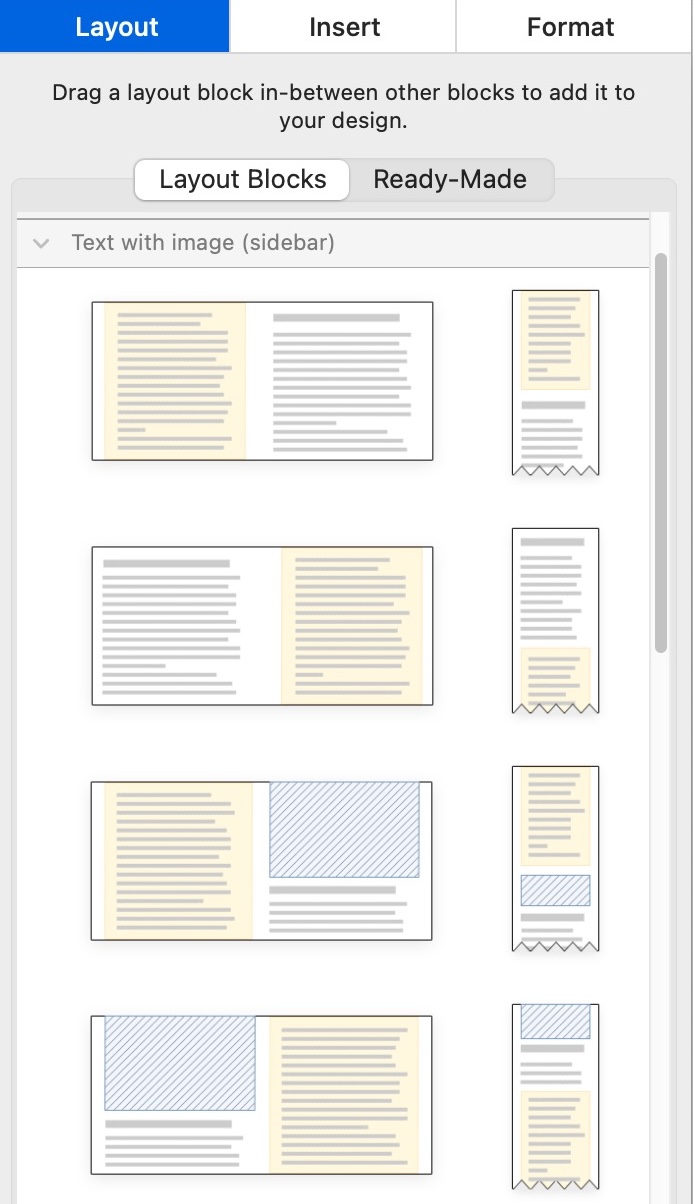
- Go to the sidebar and select the Layout tab.
- Scroll down to the Text with image (sidebar) section.
- Here you will find several layout blocks where the text areas have a colored background (shown as yellow in the preview).
- Simply drag the desired block into your design to add text areas with backgrounds.
Add and Customize a Badge
If you want to add a background to specific parts of your existing text, you can use the Badge feature:
- Click inside your text area where you want to add the background.
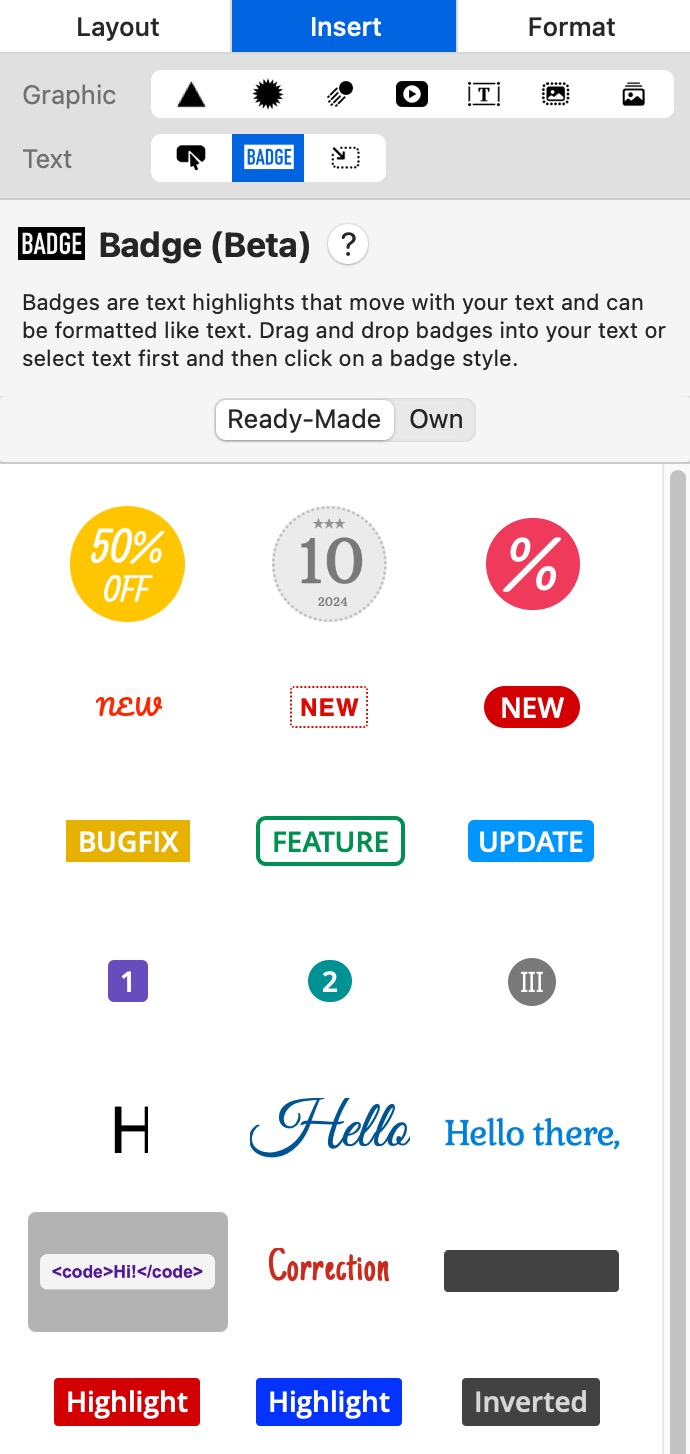
- In the sidebar, select the Insert tab, then choose Badge.
- Browse the badge styles and select one to apply it.
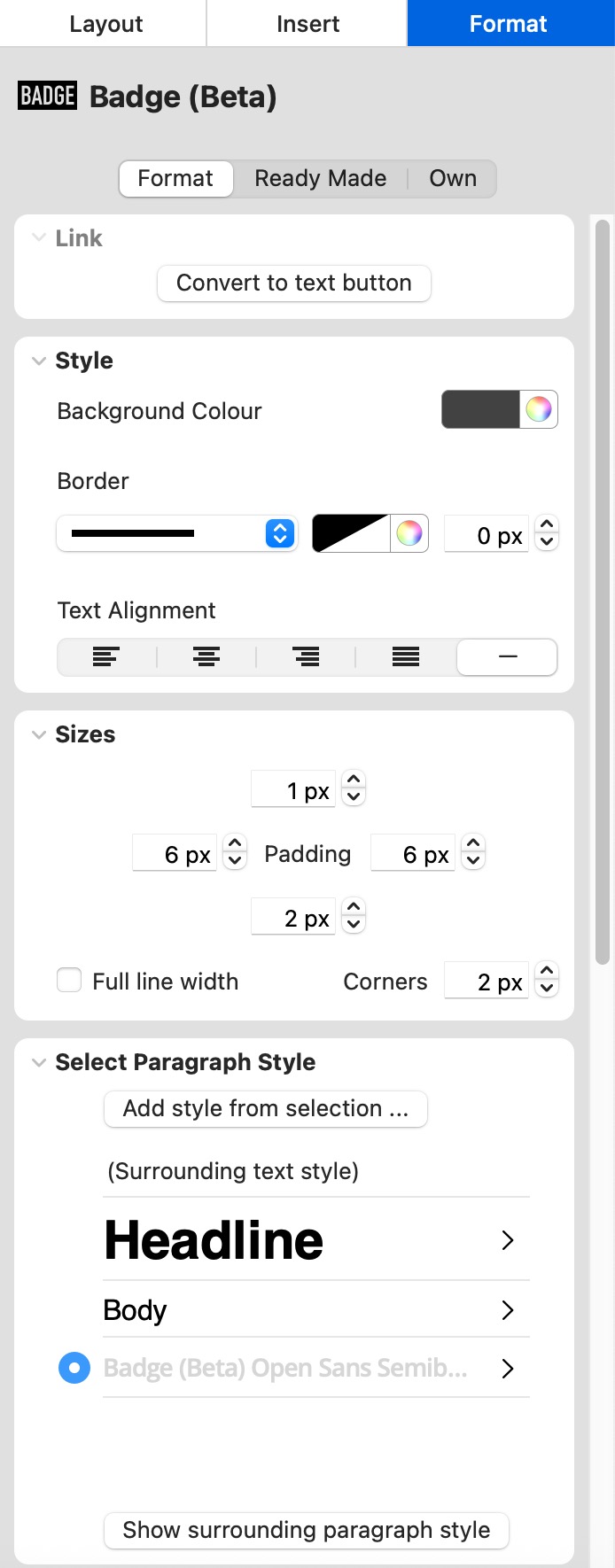
- Once inserted, you can customize the badge’s background color, font style, border, padding, and more under the Format tab.
- Paste or type your text inside the badge and adjust the design to your liking.
Both methods let you create visually distinct text areas with backgrounds to enhance your email design.