
Frequently Asked Questions
How do I resize an image in Mail Designer?
You can resize an image in two easy ways:
Option 1: Resize directly in the design
- Click on the image you want to resize.
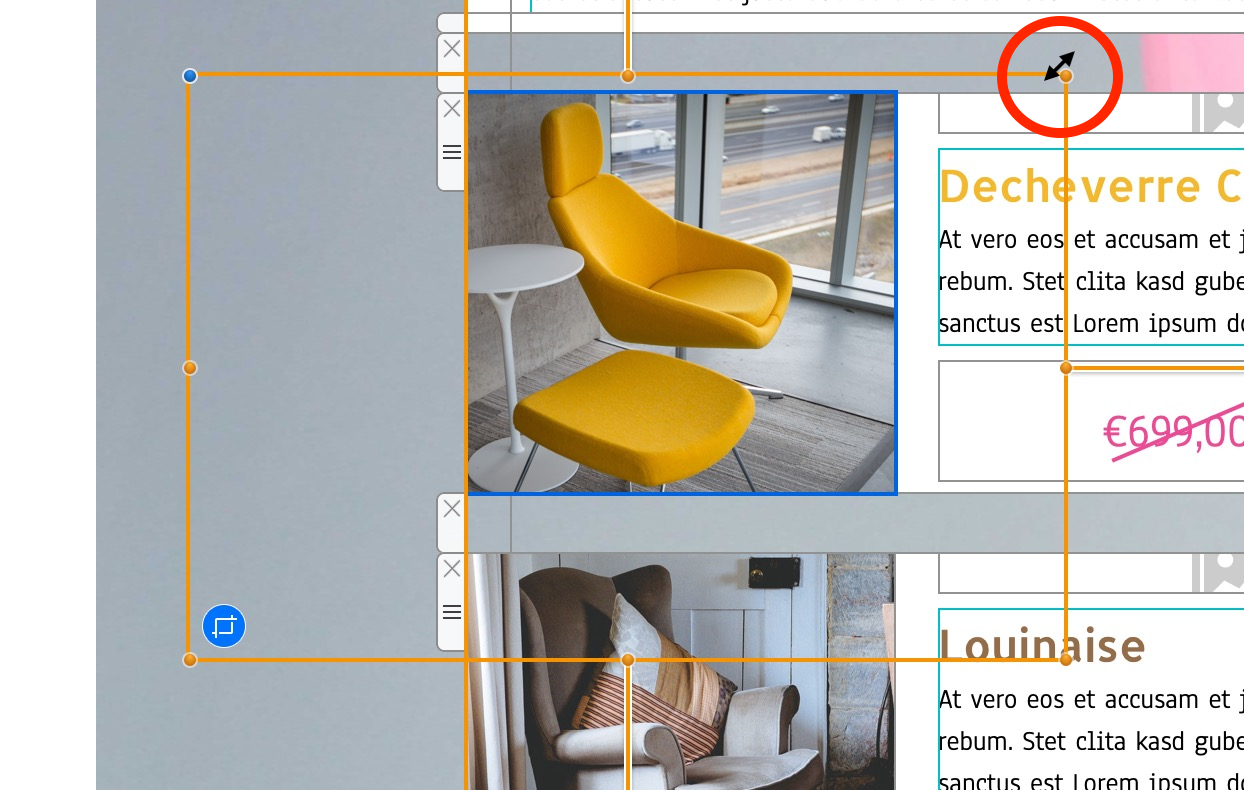
- Drag one of the orange corner handles to adjust the size manually.
Tip: Hold Command (Cmd) while dragging to freely scale without keeping proportions (if desired).
Note: The blue handle in the top-left corner adjusts the corner radius of the image, allowing you to create rounded corners.
Option 2: Use the Size settings in the sidebar
- Select the image in your design.
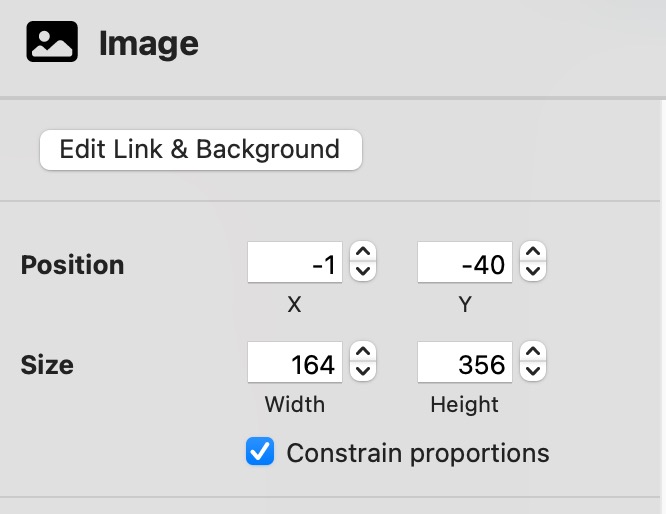
- In the right-hand Image panel, under Size, enter a specific Width and Height in pixels.
- Make sure “Constrain proportions” is checked if you want to keep the image’s original aspect ratio.
Want to crop your image instead? Check out our guide on how to crop images in Mail Designer.