
Frequently Asked Questions
Can columns be adjusted in Mail Designer 365?
You can adjust the width of individual columns, if you have multiple text areas within a single layout block. You can also adjust the width of individual columns, if you have multiple image areas within a single layout block.
However, when working with columns, you cannot adjust the number of columns within a layout block. You will need to select the appropriate layout block with the specific number of columns that you want (either 2 or 3 columns for text areas).
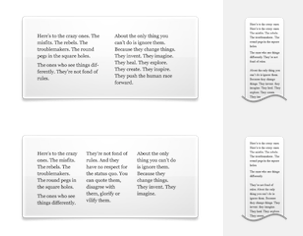 You cannot switch automatically from 2 columns to 3 columns or vice versa. However, you can just add another layout block with the correct number of columns. Afterwards, just copy the text from your original layout block and then paste the text onto the new layout block.
If you want more than 3 columns for text areas, you will need to work with a single text area and space your message accordingly. In this scenario, you will basically be simulating your own table with multiple columns.
Compared to layout blocks with text areas, you have more options when it comes to layout blocks with image areas. You can use a layout block with up to 6 image areas in a column style.
You cannot switch automatically from 2 columns to 3 columns or vice versa. However, you can just add another layout block with the correct number of columns. Afterwards, just copy the text from your original layout block and then paste the text onto the new layout block.
If you want more than 3 columns for text areas, you will need to work with a single text area and space your message accordingly. In this scenario, you will basically be simulating your own table with multiple columns.
Compared to layout blocks with text areas, you have more options when it comes to layout blocks with image areas. You can use a layout block with up to 6 image areas in a column style.
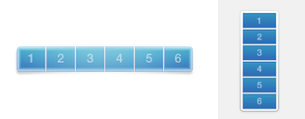 With this layout block, the image areas are displayed next to each other in the desktop view. However, please note that the image areas will be displayed on top of each other in the mobile view. This was designed so that recipients will easily be able to click on the images if they are linked to a landing page and so that the images are still clearly visible when the email is opened with a mobile device.
You cannot switch automatically from 2 columns to 3 columns or vice versa. However, you can just add another layout block with the correct number of columns. Afterwards, just copy the text from your original layout block and then paste the text onto the new layout block.
If you want more than 3 columns for text areas, you will need to work with a single text area and space your message accordingly. In this scenario, you will basically be simulating your own table with multiple columns.
Compared to layout blocks with text areas, you have more options when it comes to layout blocks with image areas. You can use a layout block with up to 6 image areas in a column style.
With this layout block, the image areas are displayed next to each other in the desktop view. However, please note that the image areas will be displayed on top of each other in the mobile view. This was designed so that recipients will easily be able to click on the images if they are linked to a landing page and so that the images are still clearly visible when the email is opened with a mobile device.