
Frequently Asked Questions
How can I adjust the radius of text box corners in order to make its corners rounded in Mail Designer 365?
Adding rounded corners to the background of a text area is not supported directly. However, to create this effect, drag a quadrilateral into an image area. You can find this shape under the "Basic Shapes" category.
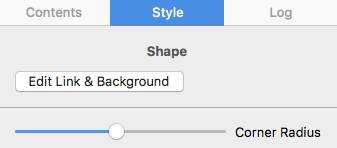
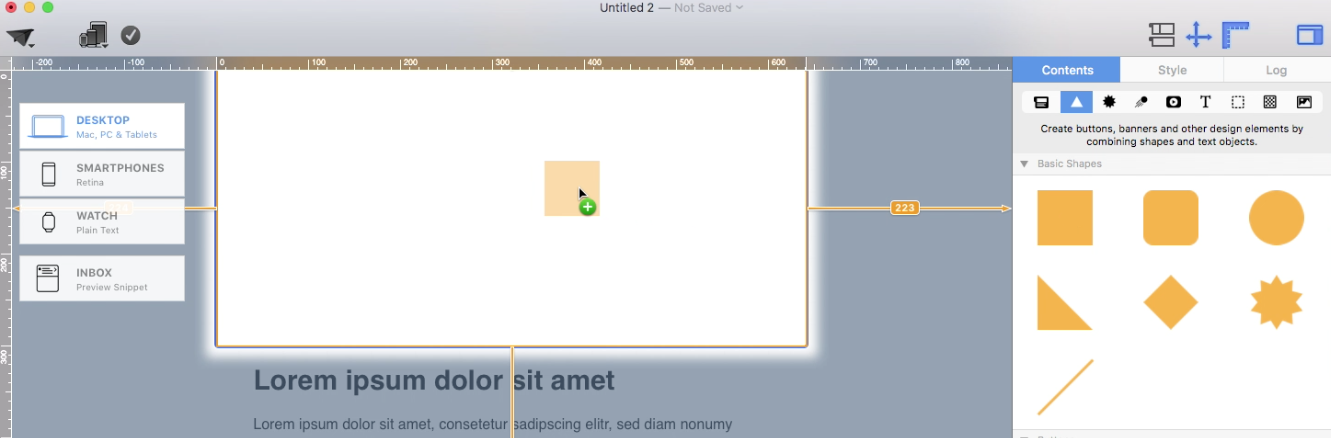 Adjust the size of the image area as well as the size of the shape to fit your needs. You can also change the color of the shape. On right side, you can adjust the corners by moving the corner radius slide.
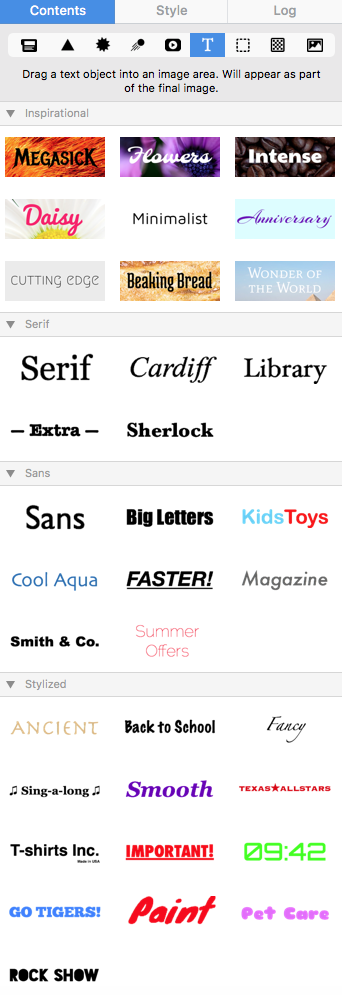
 Then, drag a text object into the image area to create a text box effect. You can find text objects under "T" icon within the "Contents" tab. Feel free to position the text box and change its font style, font weight, font size, font color, etc. to fit your needs.
 Please refer to the following page for further information on how to create the effect of having rounded text box corners:
Adjust the size of the image area as well as the size of the shape to fit your needs. You can also change the color of the shape. On right side, you can adjust the corners by moving the corner radius slide.
Then, drag a text object into the image area to create a text box effect. You can find text objects under "T" icon within the "Contents" tab. Feel free to position the text box and change its font style, font weight, font size, font color, etc. to fit your needs.
Please refer to the following page for further information on how to create the effect of having rounded text box corners: