
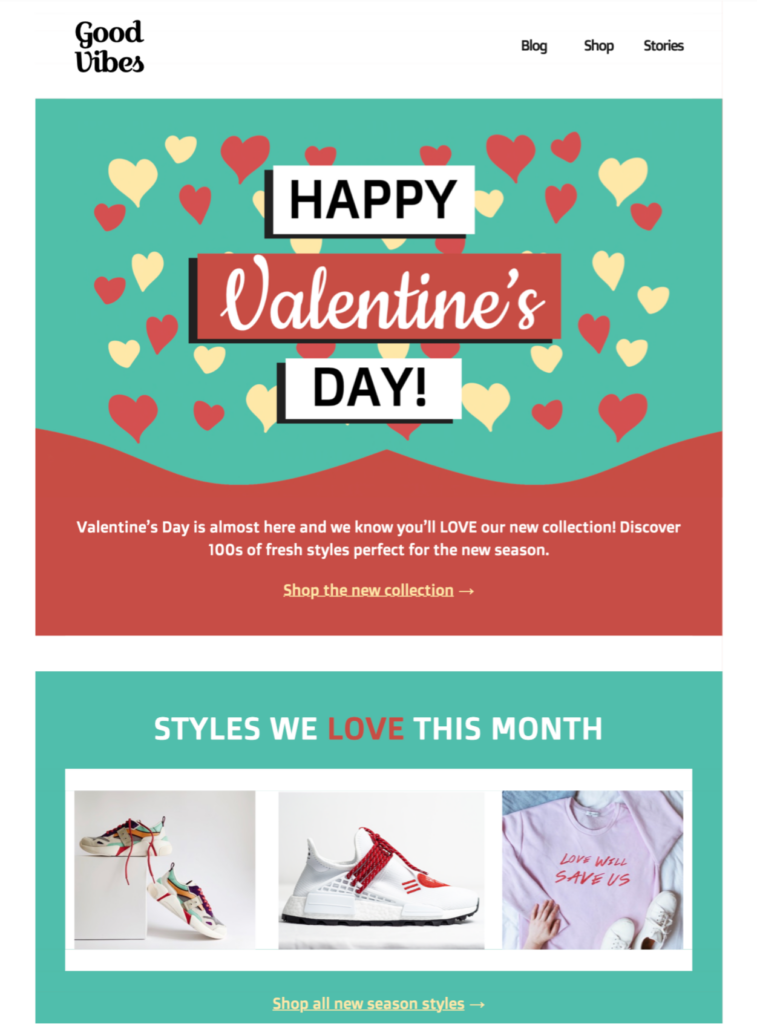
This Valentine's Day style HTML email template gives an online shop or small business a colorful way to present a seasonal collection. Customize the hero, navigation, product gallery, and calls to action in Mail Designer 365 before sending.
Key Features:
- Customize the design on your Mac
- Seasonal collection template
- Customise for your business with drag-and-drop editor
- Mobile responsive design
- Send to your audience via Mail Designer 365
- Cross-platform collaboration with Crew Chat
Valentine's Day Style HTML Email Template for a Seasonal Collection
This Valentine's Day style HTML email template is designed for an online shop or fashion brand presenting several seasonal products. The preview combines a bold heart-patterned hero, collection links, a “styles we love” section, and a three-image product gallery. It gives the campaign more editorial depth than a single-offer promotion.
Use this page when the email introduces a collection or several related products. For one time-limited discount and redemption code, use the Valentine's Day promotion email template. For a non-commercial appreciation note, use the Happy Valentine's Day email template.
What to Customize in the Newsletter
Brand Header and Navigation
Replace the sample logo and navigation labels with your approved brand elements. The preview includes links for a blog, shop, and stories; keep only destinations that exist and are useful to this campaign. Test every header link in the delivered email, including links that may wrap differently on mobile.
Hero Message
The hero uses a teal background, red and cream hearts, a large Valentine's Day headline, and a short introduction to a new collection. Adapt the colors, wording, and collection link in Mail Designer 365 while preserving strong contrast. Replace broad claims such as “hundreds of styles” unless the linked collection actually supports them.
Product Gallery
The second section presents multiple fashion images beneath a monthly-style headline. Replace each image with a current product or category visual, add concise descriptive alt text, and connect it to the correct destination. Keep image crops consistent so the row looks intentional on desktop, then check how the gallery stacks or scales on smaller screens.
Calls to Action
The example includes separate links for the featured collection and all new-season styles. Give each action a distinct purpose and avoid sending both links to the same generic homepage. Use direct labels such as “Shop the Valentine's collection” or “View new-season styles,” then confirm that products, prices, and availability match the linked page.
Valentine's Day Newsletter Checklist
- Replace the logo, navigation, hero copy, and product imagery.
- Verify collection names, quantities, prices, and availability.
- Use descriptive alt text for every product image.
- Check contrast for text and links on colored backgrounds.
- Confirm each CTA has a unique, correct destination.
- Review desktop and mobile gallery behavior.
- Send a delivered test and click every link.
- Include required sender and unsubscribe information.
Prepare the Campaign in Mail Designer 365
Open the design idea from this page and replace the demonstration brand, collection text, links, and product imagery. Remove any section that is not relevant rather than leaving an empty gallery or duplicate CTA. Keep the main message understandable even when images are blocked by including the collection name and key action in live text.
Before scheduling, compare the delivered Valentine's Day newsletter with the linked shop pages. Product names, offer wording, categories, images, and availability should agree. If the campaign reaches Gmail recipients, also review Google's official email sender guidelines before launch. A focused collection newsletter helps readers browse, while the separate promotion and greeting templates retain their own distinct search and campaign purposes.