
Frequently Asked Questions
How can I get email pictures to show in Outlook?
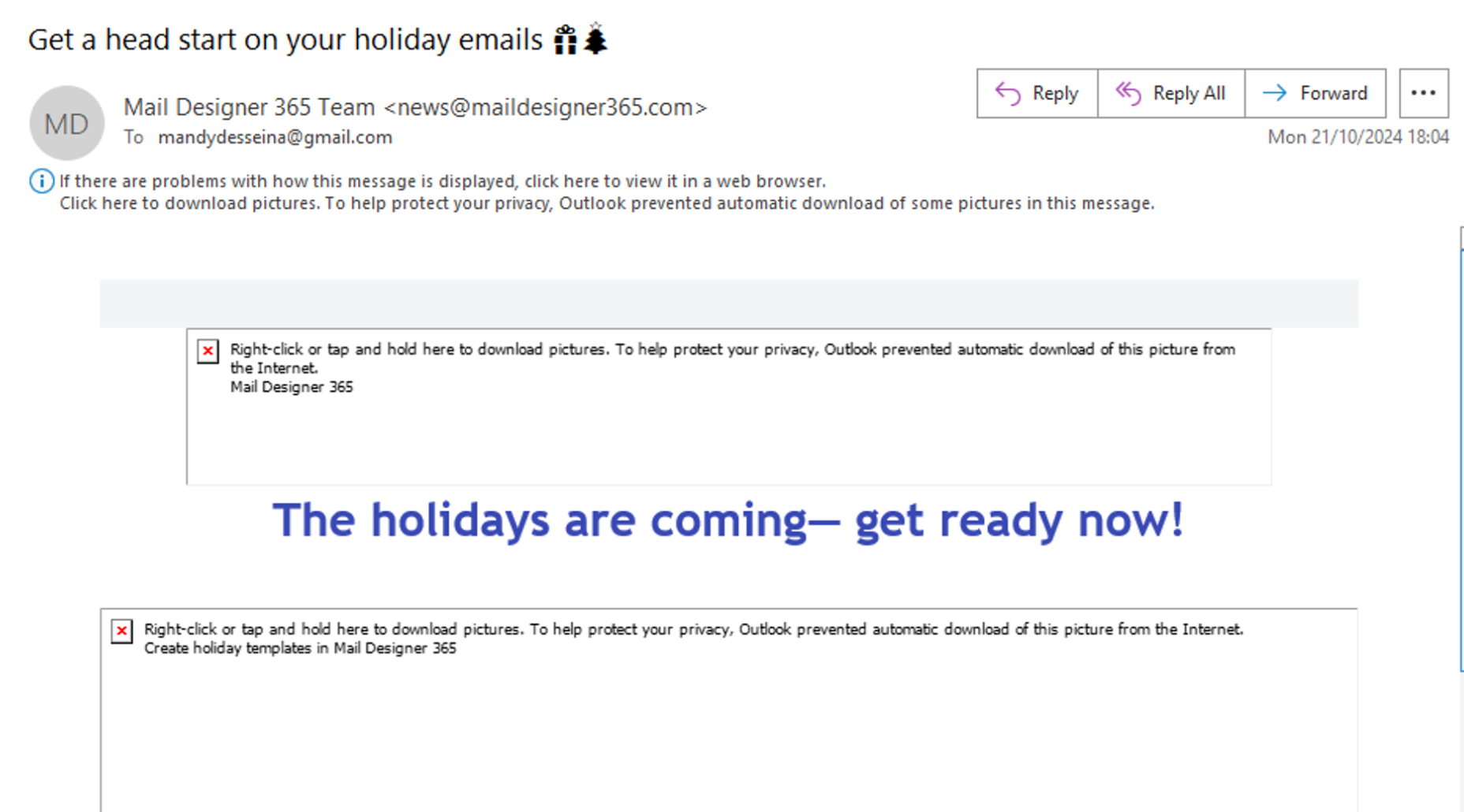
If you’re seeing broken images or red X placeholders in your email, Outlook has blocked the content to protect your privacy. Here’s how the email might look with images blocked:
You can allow Outlook to show images in three ways:
Option 1: Show pictures for this email only
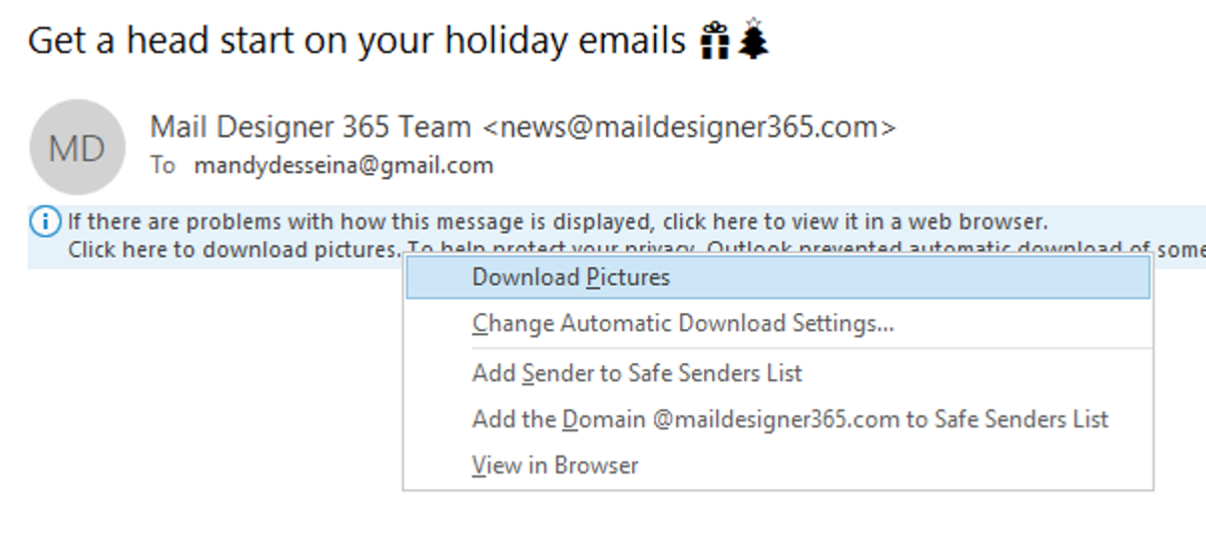
- Right-click the message banner at the top of the email.
- Select “Download Pictures”.
Option 2: Always allow images from this sender
- Right-click the banner.
- Select “Add Sender to Safe Senders List”.
Option 3: Enable image downloads for all emails
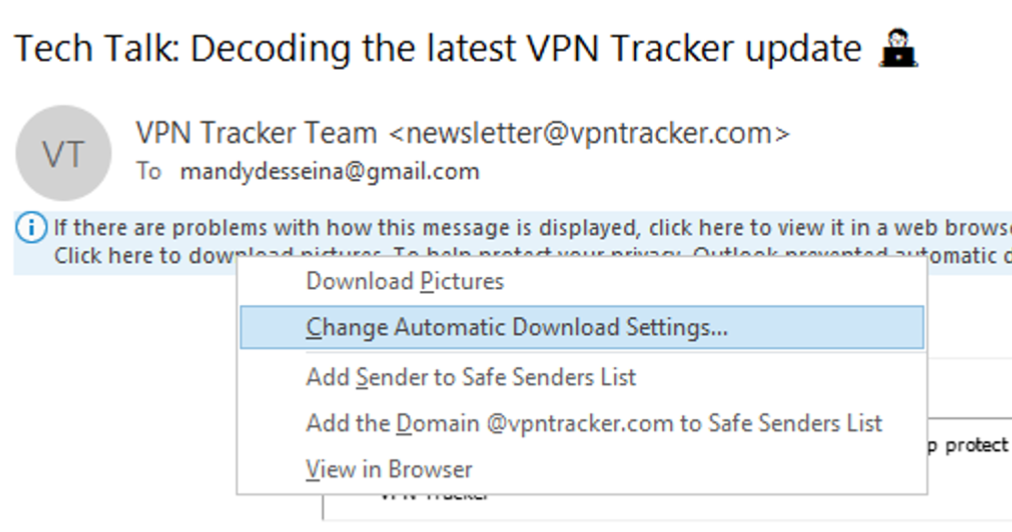
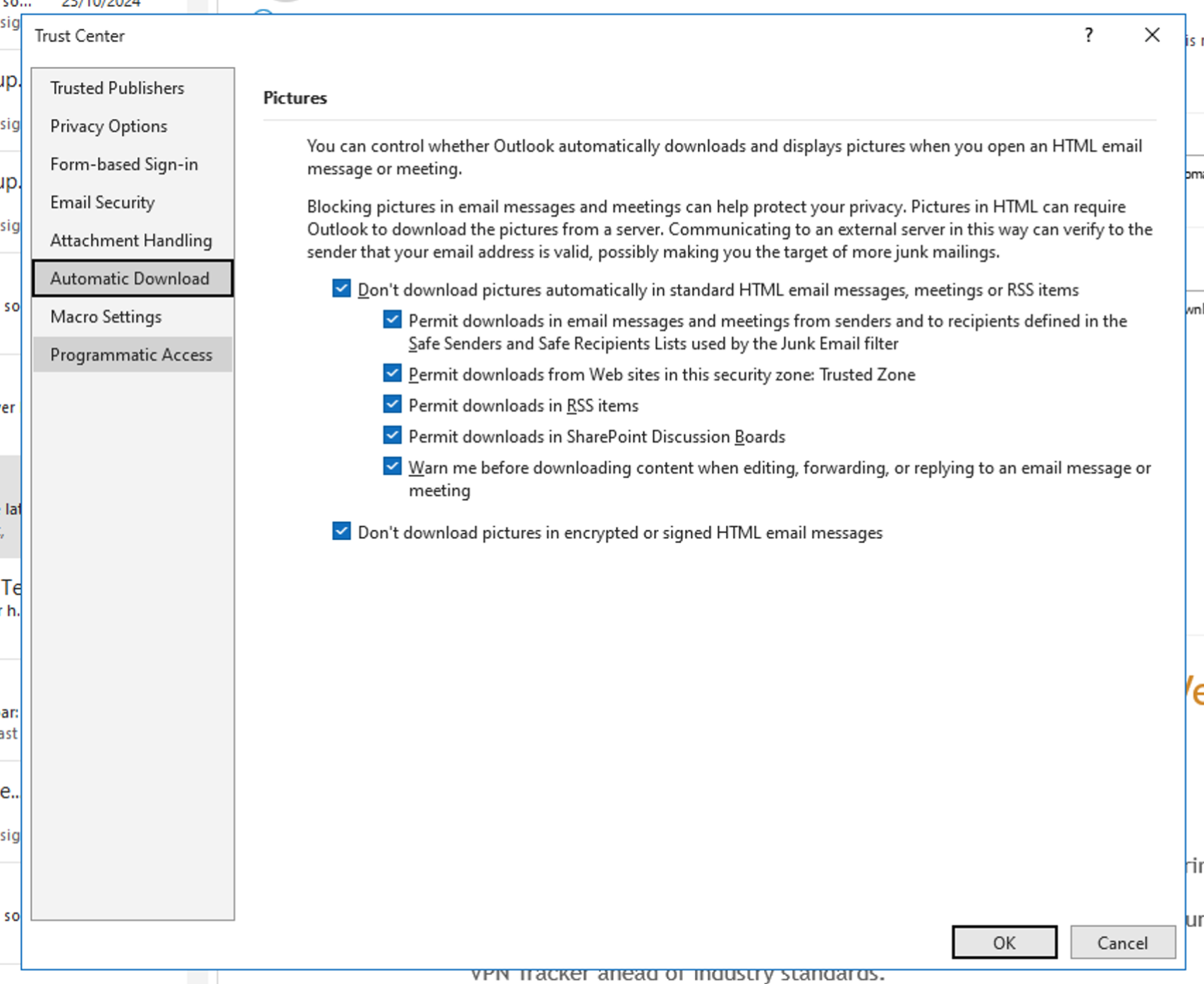
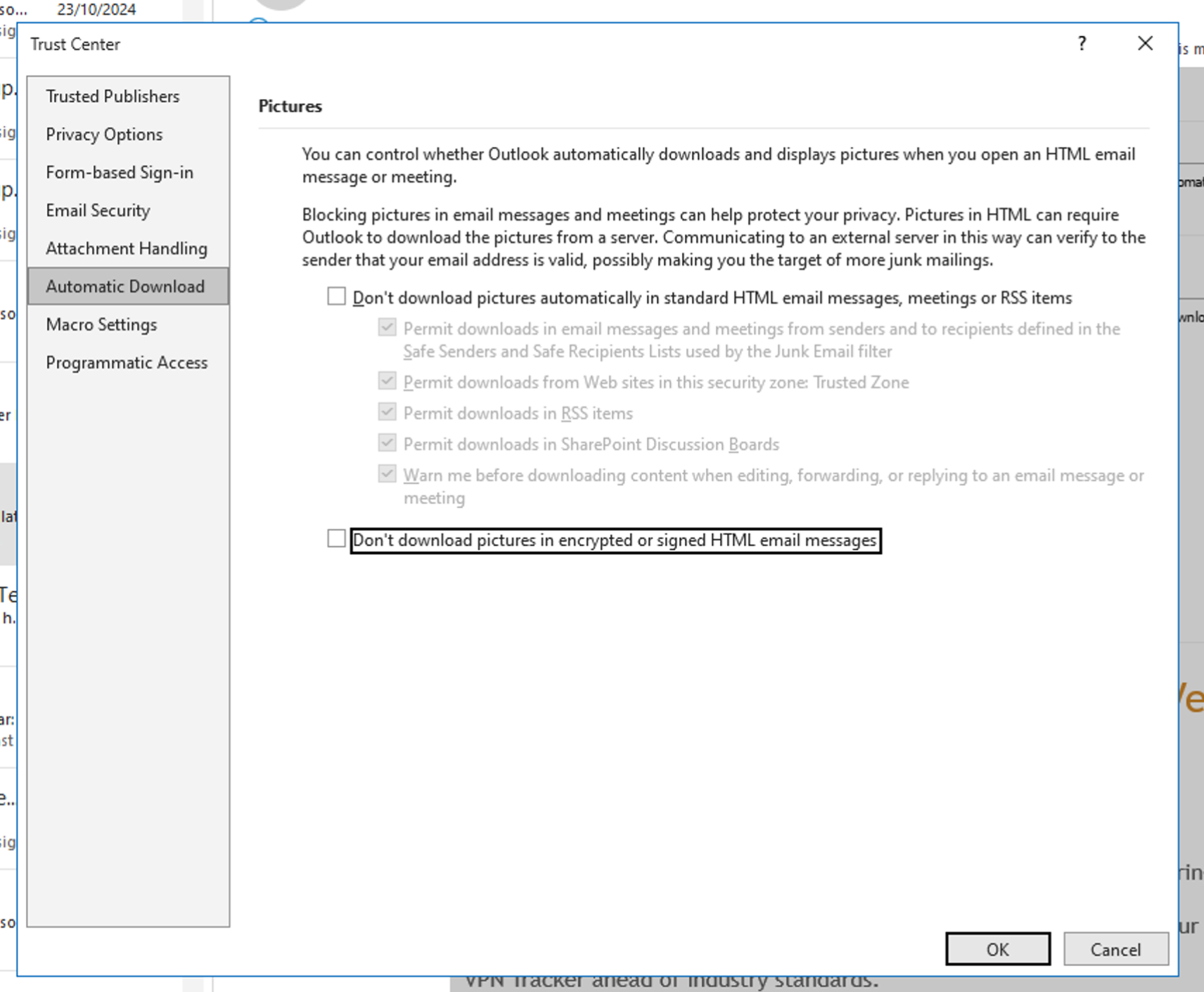
- Go to File > Options > Trust Center.
- Click “Trust Center Settings…”.
- Choose “Automatic Download”.
- Uncheck: “Don’t download pictures automatically in standard HTML email messages…”
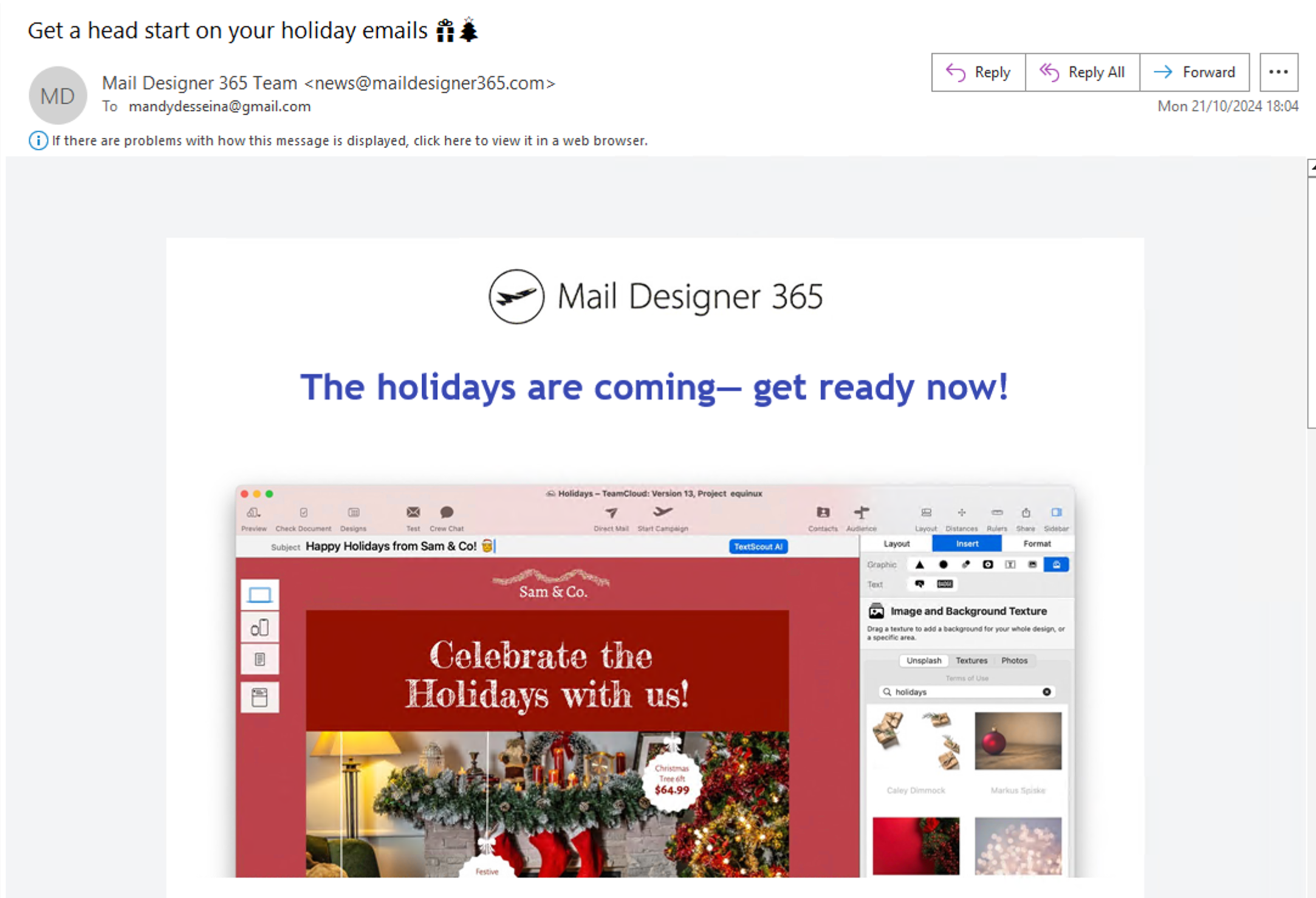
Once enabled, your email will display images correctly, like this:
Tip: Even if recipients don't allow images, your email can still include effective call-to-actions. Use styled text buttons in Mail Designer to create clickable buttons that always appear — even when images are blocked.