
Frequently Asked Questions
Accessing connections on iOS
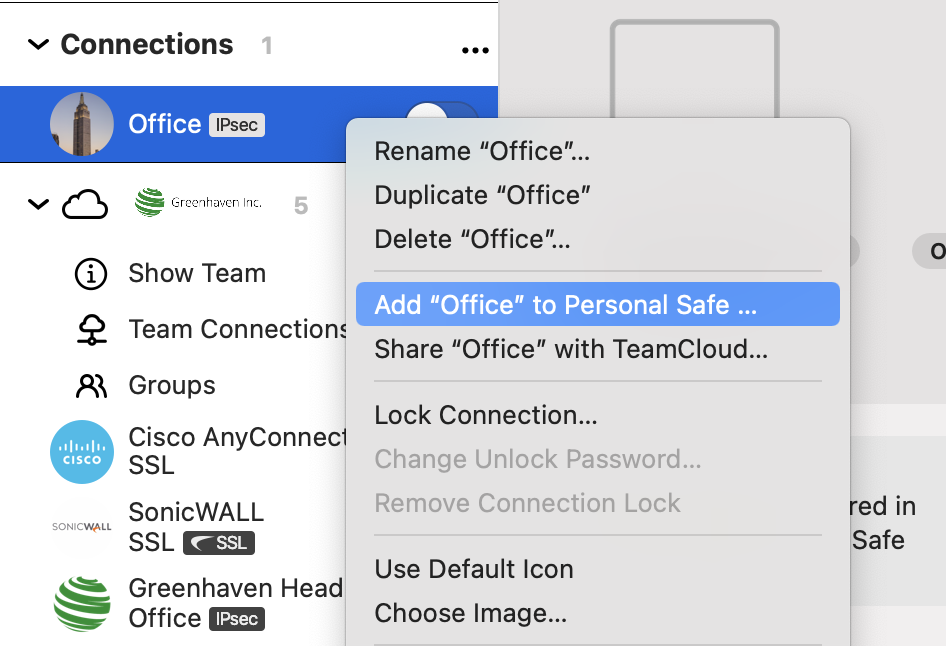
When you sign in to VPN Tracker for iOS with your equinux ID and password, your Personal Safe and TeamCloud connections will show up in the app. Use the filter in the top left corner of the app to only see TeamCloud connections from your team or personal connections from Personal Safe.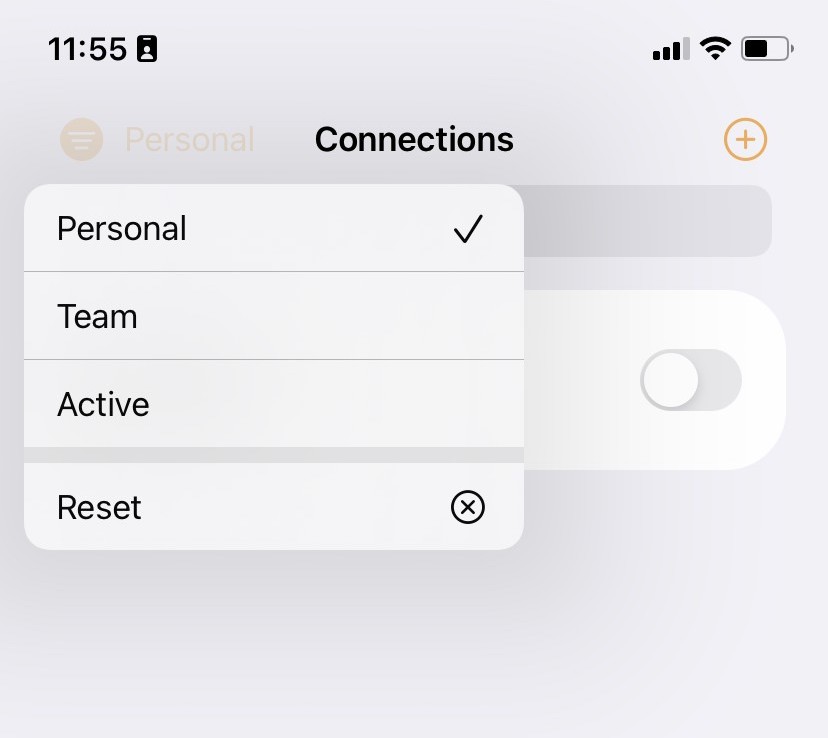 Important: If you have connections which you have only saved locally on your Mac, these will not be available on your other devices. To get those connections onto your iPhone or iPad, right click the connection and choose "Add to Personal Safe" or "Share with TeamCloud".
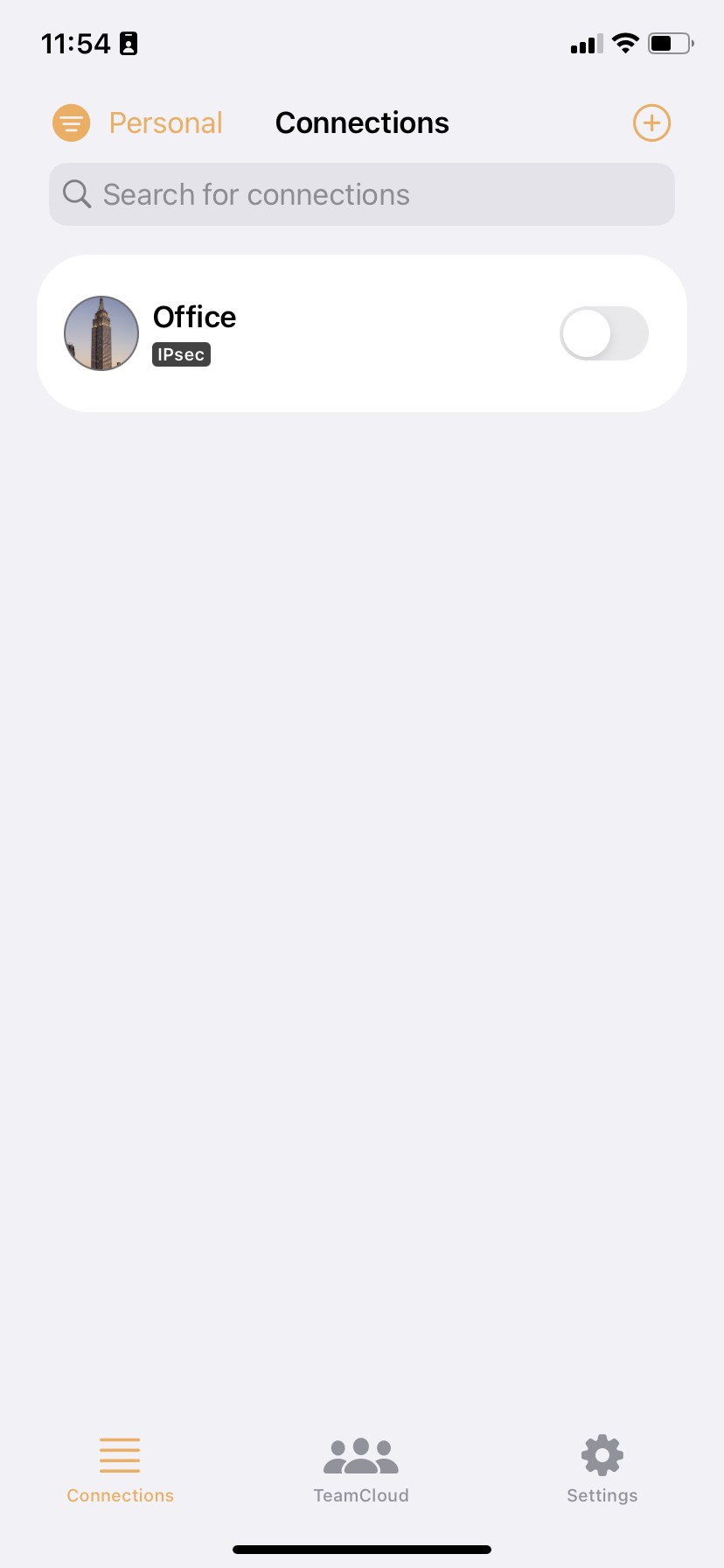
 Those connections will show up on your iPhone or iPad.
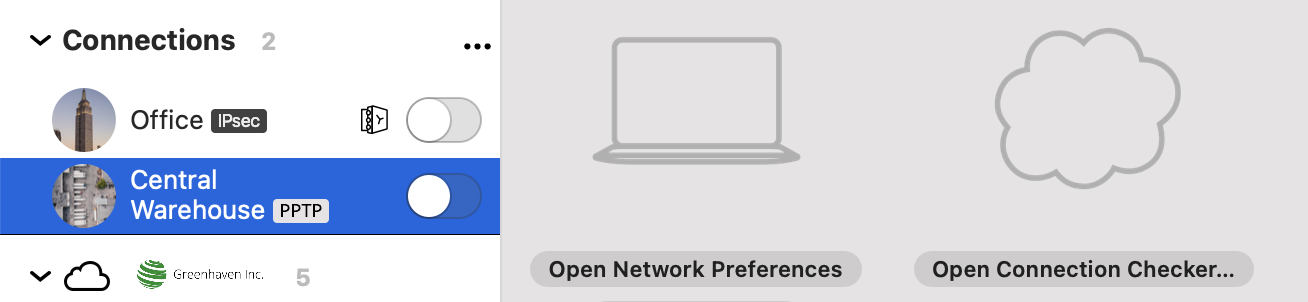
The following VPN protocols are currently not supported by VPN Tracker for iPhone / iPad:
- L2TP
- PPTP
Workarounds
Many VPN gateways support more than one VPN standard. Check your VPN gateway or ask your network administrator and see if a compatible protocol can be enabled instead.
Tip: Hide Unsupported Protocols
Inside VPN Tracker, go to Settings → Connection Settings to hide unsupported connections from your list.
- Tap the connection. The connection card appears.
- Tap on “Feedback”
- Provide a short description of the connection problem
- Tap on Send
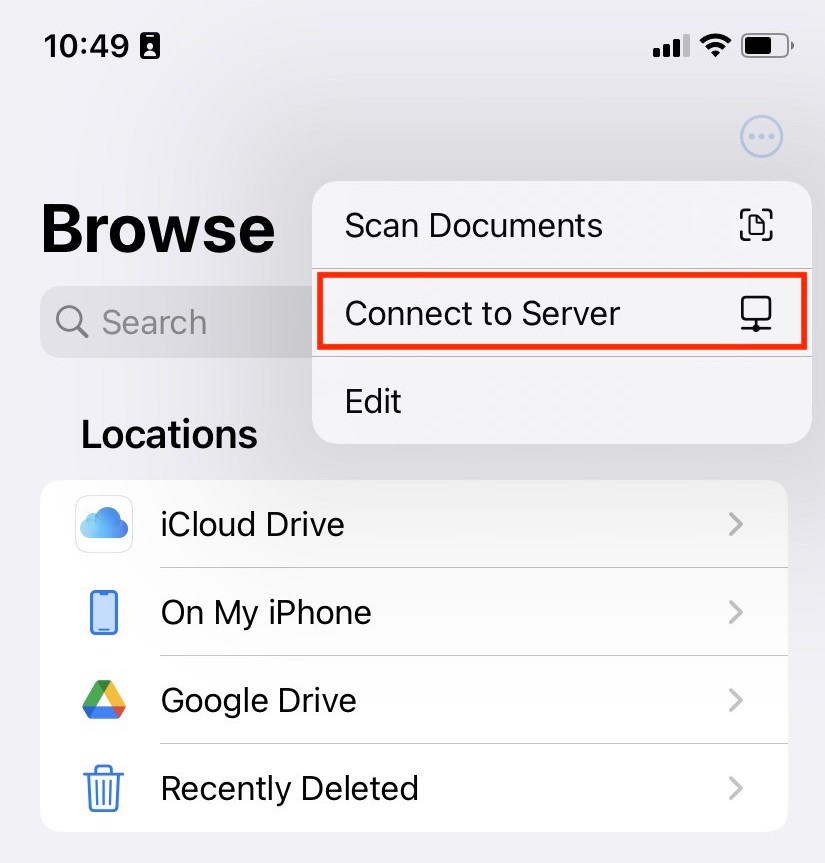
You can access files on your network file storage on your iPhone or iPad using the Files app. Here's how it works:
- Open the Files app
- Tap the ··· option button and choose "Connect to Server" (or hit ⌘+k on your iPad keyboard
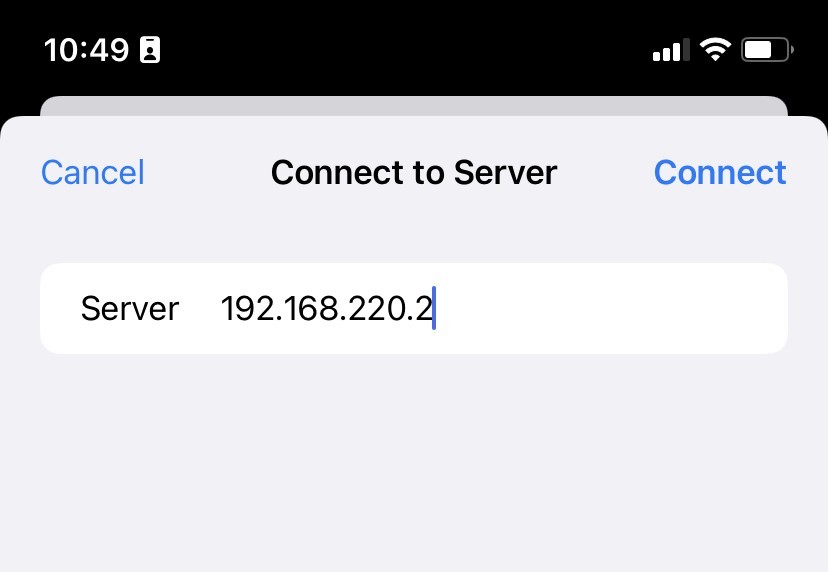
- Enter your file server's IP address or hostname
- Enter your username and password when prompted
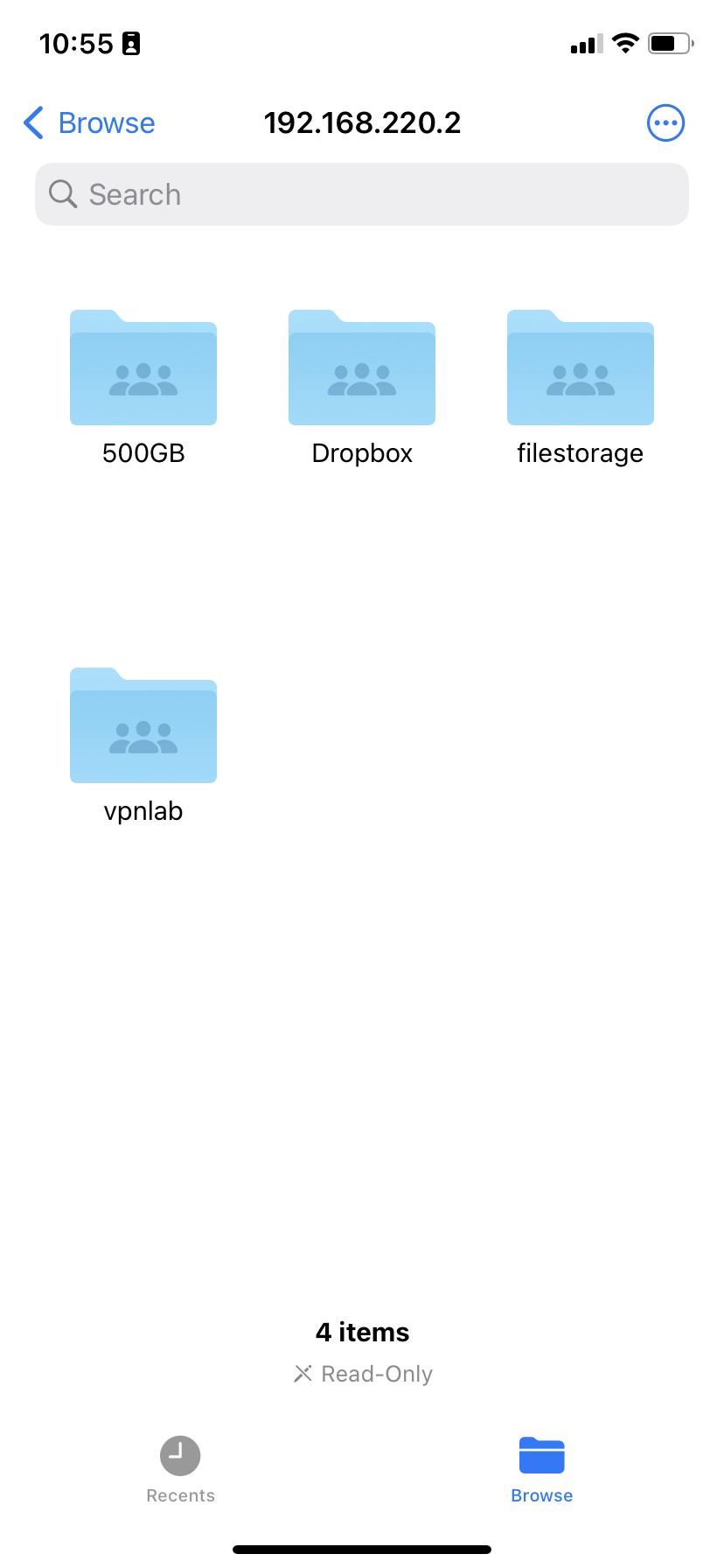
Can't see your file shares?
If you just see an empty directory instead of shares, you may need to add the share you're trying to access to the path.
For example: If you are trying to access the file share work on the server 192.168.50.2, enter the server address as smb://192.168.50.2/work
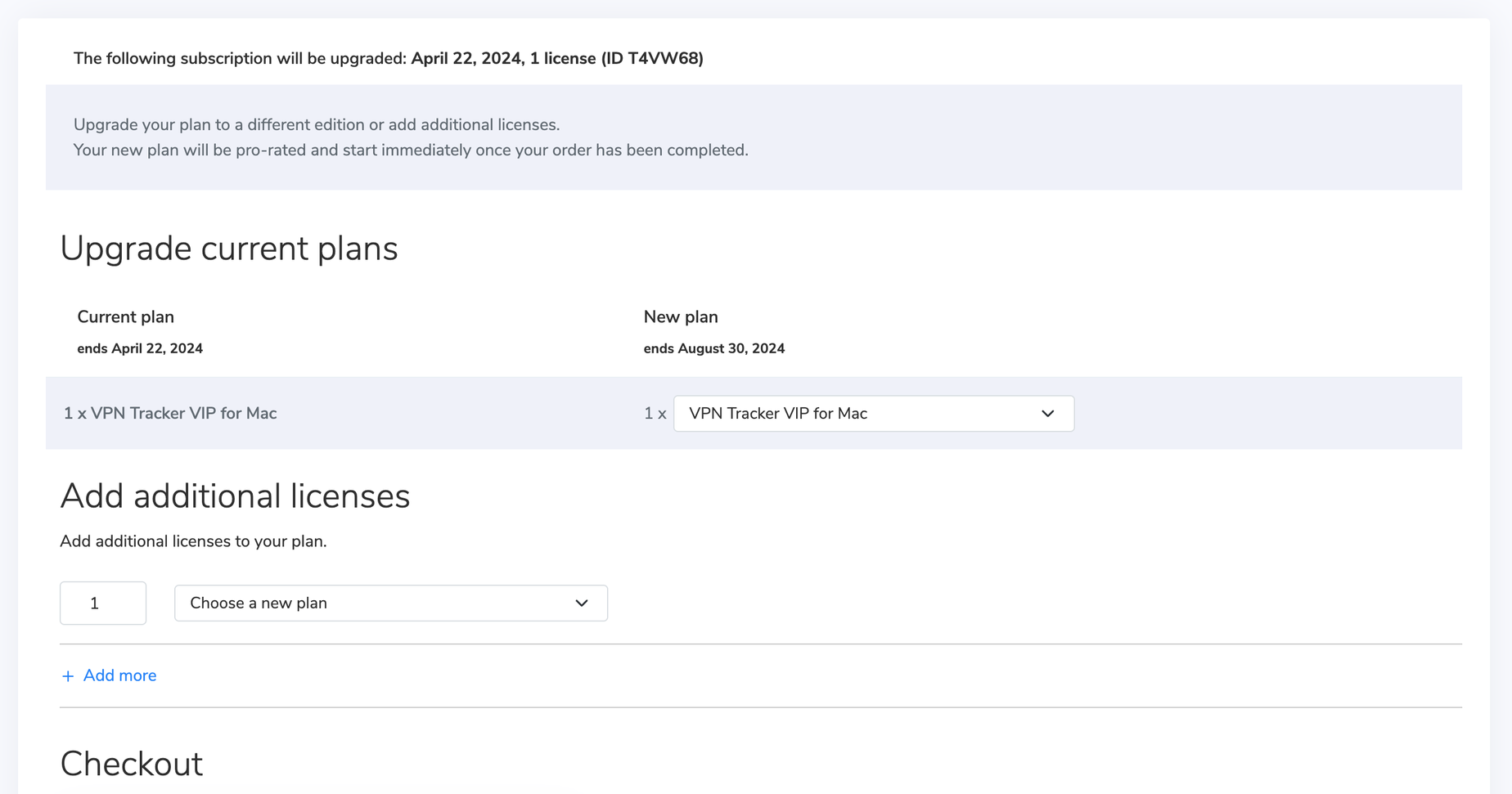 The remaining value of your current plan will be credited toward your new plan.
Alternatively, you can choose a new VPN Tracker plan that contains iOS support.
You can access file servers on your iPhone and iPad using VPN Tracker for iOS and the Files app:
- Connect to your VPN
- Open the Files app
- Tap the ··· icon in the top right corner
- Choose 'Connect to Server'
- Enter your file server hostname or IP address (e.g.
fileserver.internal.example.com) - Sign in with your company login credentials when prompted
You should now see your file server volumes as you do on macOS.
Troubleshooting tips
If you experience trouble listing your files, there are a few things to try:
- Enter the full volume path, not just the server hostname: e.g. if you are connecting to the share called
Marketingon your fileserver, enterfiles.internal.example.com/Marketing - Ask the person who manages the file server to enable SMBv2 as well as SMBv3 (iOS uses some v2 features to set up the connection)
- Try a 3rd party file server app from the App Store. Some of them offer better compatibility with certain file server configurations
- Visit the license transfer page and log into the account which holds the license you would like credit for
- Select the license you would like to exchange and confirm the license conversion. Your promo code for the remaining durations will be sent to your account’s email address. Go to my.vpntracker.com portal and log in with the account you would like to add the license to.
- Click on “Buy additional licenses or upgrades” and add an additional license. Additional information on adding licenses can be found here:
- Apply the promo code to your order at the bottom of the page, check the Terms and Conditions and click "Pay now"
- PPTP VPN connections are not supported, as iOS and Android do not support PPTP passthrough
- For IPsec VPN connections, it's possible you may have to adjust your settings for NAT-T.
You can create and edit connections right inside my.vpntracker.com using any browser. Thanks to advanced engineering, this works with the same data security you know from VPN Tracker on the Mac.
It works like this
- Choose your device brand and model
- Enter your connection details
To save your new connection:
- You enter your equinux ID password
- Your encrypted secure master key is fetched from my.vpntracker
Now a program is run locally on your device through your browser that handles encryption:
- The local encryption program decrypts the master key on your device
- Then it uses your master key to encrypt the new connection data
- The fully encrypted connection is then uploaded to your Personal Safe or TeamCloud on my.vpntracker
- Your Mac, iPhone or iPad can then fetch the encrypted connection, ready for you to connect
So there you have it. Integrated connection editing on my.vpntracker with the full security and end-to-end encryption you know from VPN Tracker for Mac.
- Multiprotocol VPN support
- High speed connections
- Zero-config VPN - thanks to TeamCloud & Personal Safe technology
- You'll need to be a Manager or Organizer in your team – multi-admin support is currently rolling out to teams – reach out if you'd like this enabled for your Team right away.
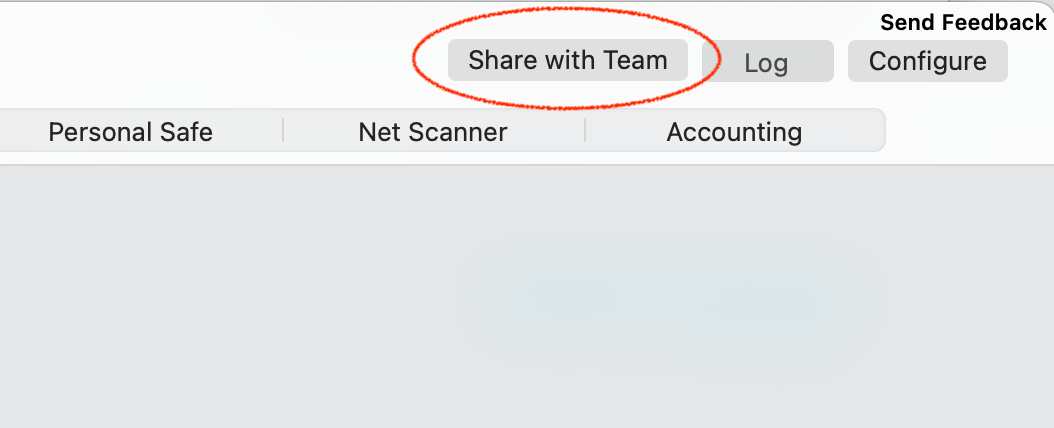
- Select a connection in VPN Tracker and choose the 'Share with Team' option from the Status or Configure views
A note on new users
The person receiving the connection needs to be a member of your VPN Tracker team and has to have set up their TeamCloud encryption keys.
This happens automatically when they open VPN Tracker and other Team members are online. If another team member is not available, their TeamCloud setup can also be confirmed by a Team manager under my.vpntracker.com.
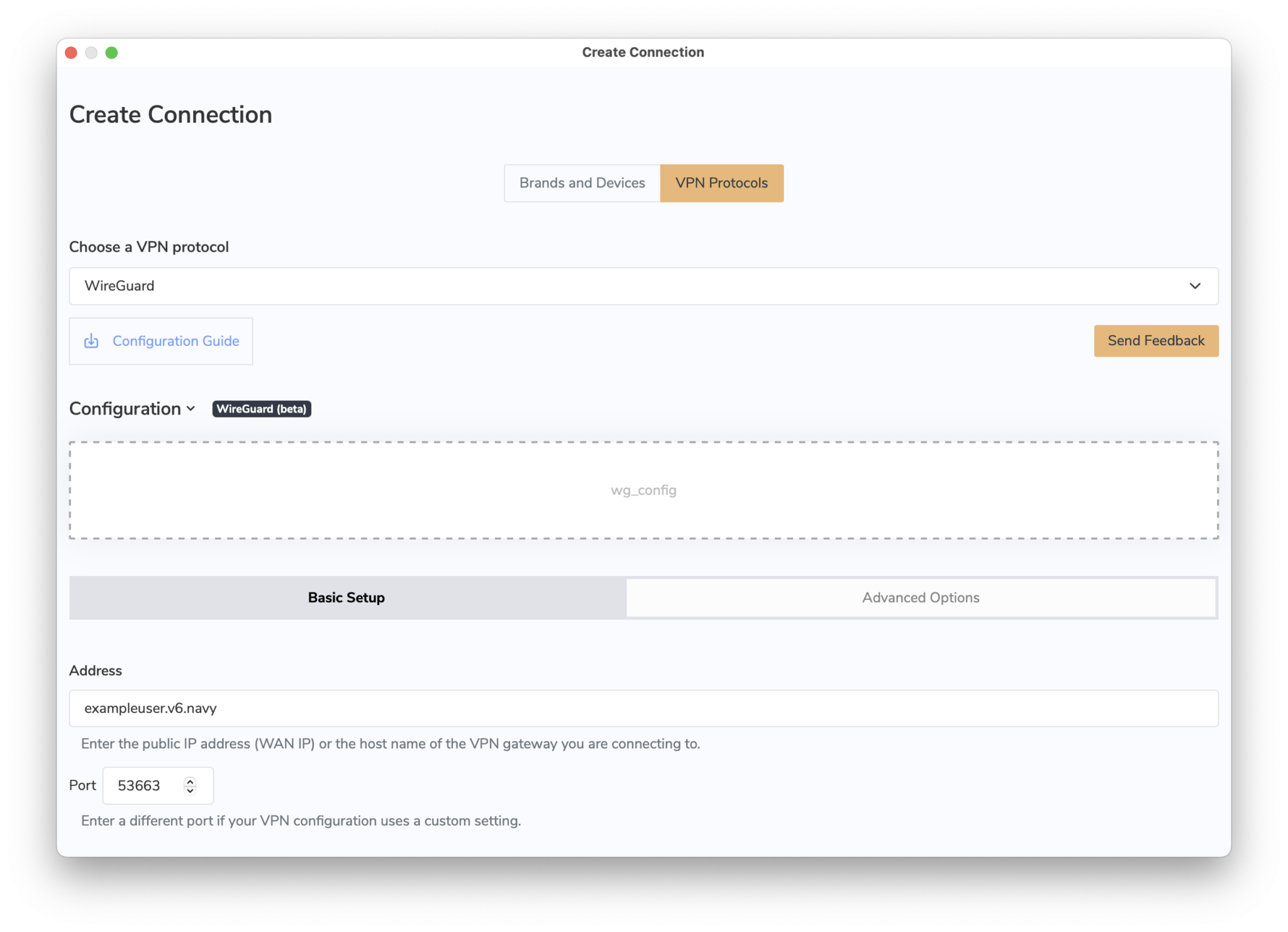
- Open VPN Tracker and add a new WireGuard® connection
- Upload your WireGuard® configuration file or scan your QR code
- Save your connection to your account using secure end-to-end encryption
 You can now connect to your WireGuard® VPN server on Mac, iPhone or iPad.
→ More information on connecting to WireGuard® VPN in VPN Tracker
WireGuard® is a registered trademark of Jason A. Donenfeld.
You can now connect to your WireGuard® VPN server on Mac, iPhone or iPad.
→ More information on connecting to WireGuard® VPN in VPN Tracker
WireGuard® is a registered trademark of Jason A. Donenfeld.
Dynamic DNS (DynDNS or DDNS) is a service that assigns a fixed domain name (like yourname.dnsprovider.com) to your home internet connection. This is especially useful when your internet provider assigns you a dynamic IP address – meaning your address can change at any time, such as after a router reboot or every 24 hours.
Why does this matter for remote access?
If you’re trying to connect to your home network remotely (via VPN, remote desktop, file server, etc.), these changing IP addresses can make it difficult to reach your router reliably. DynDNS solves this problem by keeping track of your current IP and automatically updating your domain name to match.
In simple terms
Think of DynDNS like a postal forwarding service when you move — instead of sending your VPN request to an outdated address, it always forwards it to your current one. That way, you can connect to your home network even if your IP has changed, without needing to check or reconfigure anything manually.
What happens when using Dynamic DNS?
- You connect using the same hostname every time (e.g.
yourname.dnsprovider.com) - Your current IP address is updated automatically in the background
- You avoid connection issues caused by changing IPs
- Remote access becomes stable and hassle-free
When connecting via SonicWall SCP or SonicWall IKEv1 with DHCP, VPN Tracker 365 for Mac requests an IP address from the SonicWall gateway using the DHCP protocol. For this request, VPN Tracker 365 modifies the MAC address slightly, making it different from the actual MAC address of your device. This allows administrators to assign a fixed IP address when your Mac is connected via LAN or WiFi and a different IP when it’s connected through VPN.
This modification sets a specific bit in the MAC address, marking it as a self-assigned address rather than a factory-assigned one.
Example:
Original MAC address: 00:1B:63:B7:42:23
VPN Tracker MAC address: 02:1B:63:B7:42:23
Starting with macOS 15 Sequoia, Apple defaults to using a rotating MAC address for WiFi connections, labeled as a “Private Wi-Fi Address” in System Settings. To prevent connectivity issues related to this feature, VPN Tracker 365 reports the actual hardware address (with the minor modification described above) instead of the one used in “Rotating” or “Fixed” modes.
On iOS, VPN Tracker cannot retrieve a MAC address directly. Instead, it generates a random value once and stores it for future use. VPN Tracker for iOS then uses this stored value as the MAC address.
This link will directly take you to your profile administration:
https://apple.co/2Th4vqI
You will find all running subscriptions under "Subscriptions." You can also disable the automatic extension of your subscriptions.
- Log in to your my.vpntracker.com account
- Select your team in the top left corner
- On the left side choose "Team Cloud"
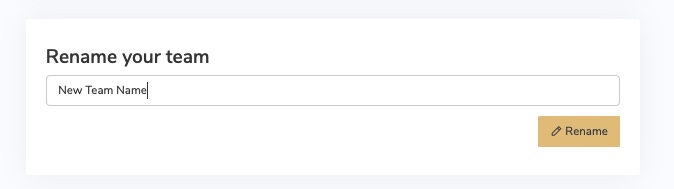
- Scroll down to the section "Rename your team"
- Enter your new Team Name and press "Rename"
- Log in to your my.vpntracker.com account
- Select your team in the top left corner
- On the left side choose "Team Cloud"
- In the Invite section at the top, enter your new Team Member's name and company email address, then click "Send invitation".
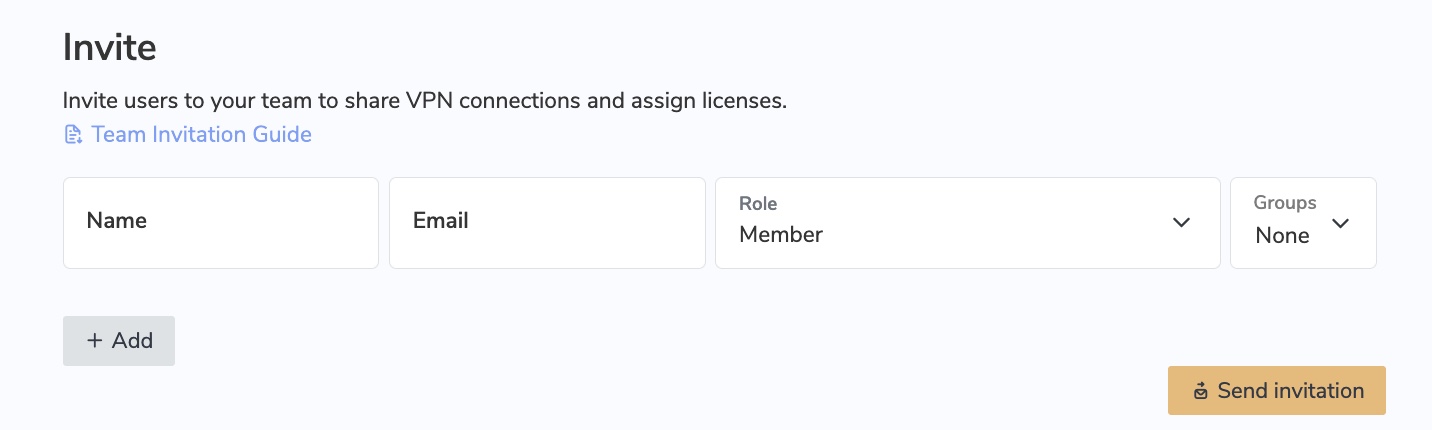
- The invited team member will then receive an automatic email invitation with a personalised link to click on and join your team.
- Tip: Each VPN Tracker 365 user needs their own, personal equinux ID. After the user receives a team invitation from you and clicks the invite link, they can either create a new equinux ID or log in using their existing account.
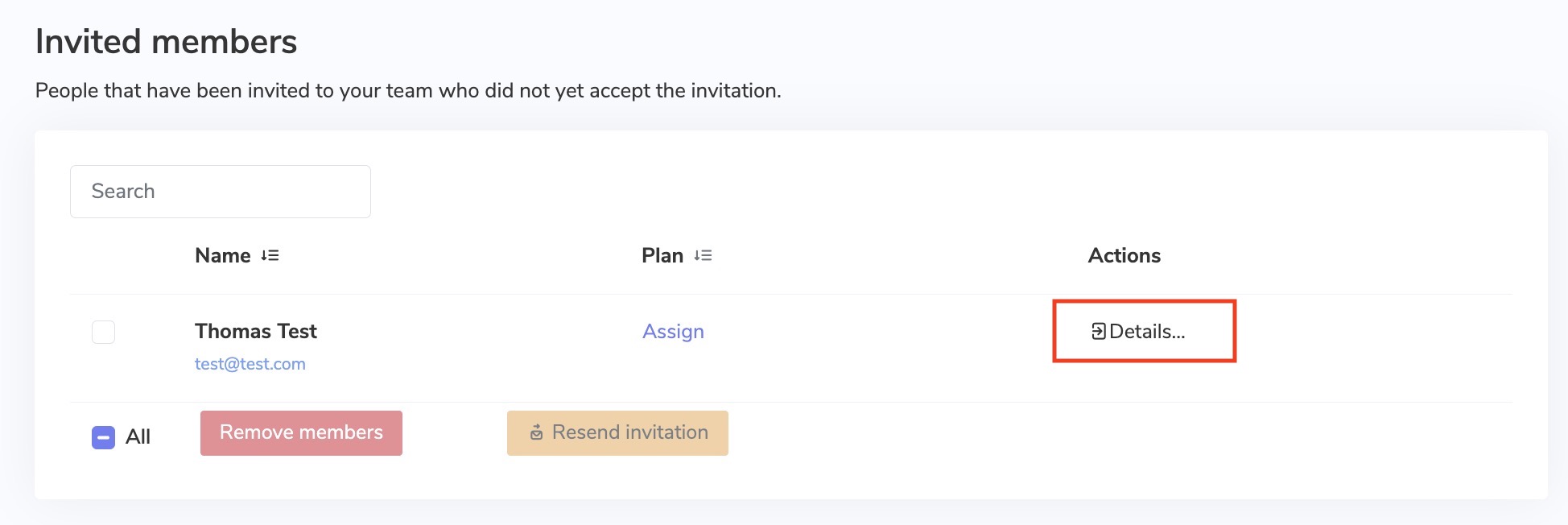
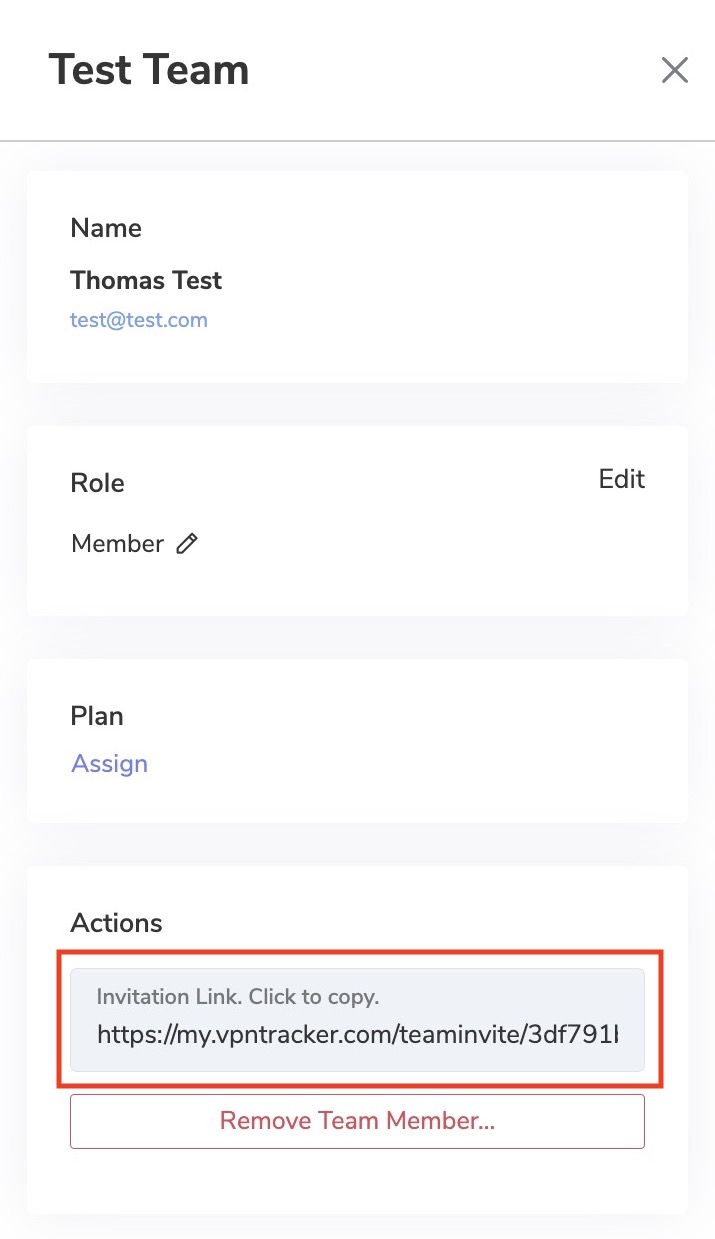
- In case the user does not receive the invitation email, you can access the invitation link by clicking on "Details" next to the user name
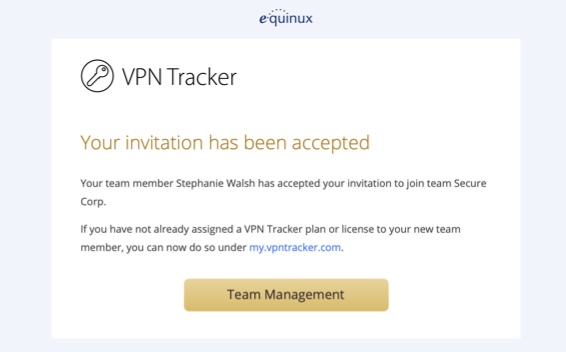
- Once a team member has accepted your email invitation, you will be notified via email
If you have already purchased a VPN Tracker license but would like to change to a different product, you have two options:
1. Purchase an upgrade
In most cases you can upgrade your existing plan. The VPN Tracker store will automatically pro-rate your purchase based on the remaining value of your current product.
Go to your my.vpntracker upgrade page to see your upgrade options.
2. Convert your product to store credit If you purchased with a different account or want to swap to a different product line altogether, you can convert your existing license to store credit and put that towards your new purchase:
- Visit our store promocode transfer page and follow the steps to receive your promocode
- Choose your new product on the my.vpntracker store
- Enter your promocode during checkout
What does this mean?
When DoH is enabled, it bypasses your DNS server and instead, domains you enter into your browser are sent via a DoH-compatible DNS server using an encrypted HTTPS connection.This is intended as a security measure to prevent others (e.g. your ISP) from seeing the websites you are trying to access. However, if you're using a DNS server provided by your VPN gateway, it allows DNS queries to run outside the VPN tunnel. Moreover, if the VPN specifies a DNS server that resolves internal host names, these are either not resolved at all or resolved incorrectly when DoH is enabled.
How to disable DNS over HTTPS in Firefox
To ensure all your DNS queries run via your VPN's DNS, you will need to disable DoH in Firefox. To do so, open your Firefox browser, go to Firefox > Preferences > Network Settings and deselect the checkbox by "Enable DNS over HTTPS":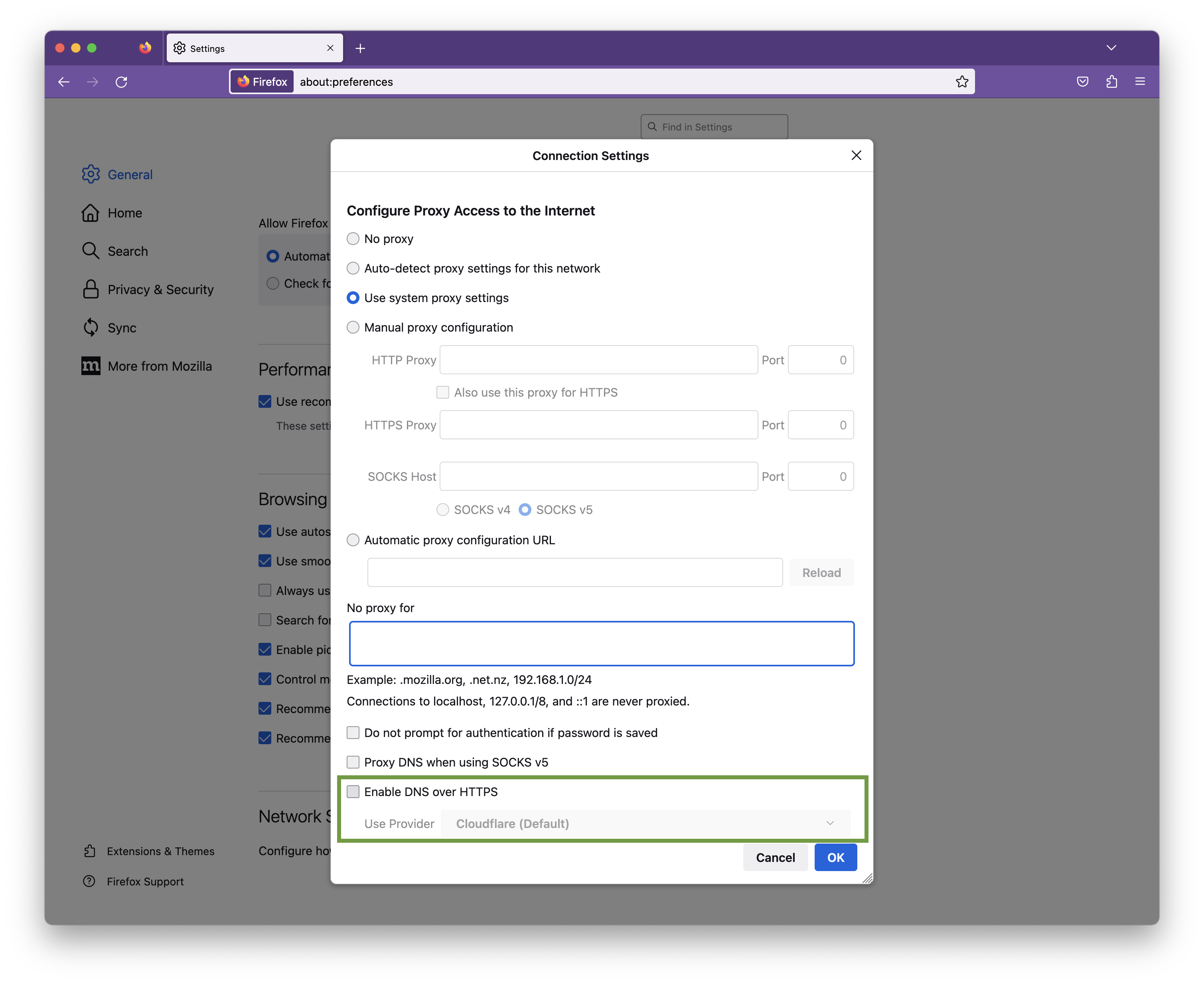
Click OK to save your changes.
If your VPN connection is configured to be Host to Everywhere, all non-local network traffic is sent over the VPN tunnel once the connection has been established. All non-local traffic includes traffic to public Internet services, as those are non-local, too. Those services will only be reachable if your VPN gateway has been configured to forward Internet traffic sent over VPN to the public Internet and to forward replies back over VPN, otherwise Internet access will stop working.
A possible workaround is to configure a Host to Network connection instead, where only traffic to configured remote networks will be sent over VPN, whereas all other traffic is sent out like it is when there is no VPN tunnel established at all. In case the remote network are automatically provisioned by the VPN gateway, this has to be configured on the VPN gateway, automatic provisioning has to be disable in VPN Tracker (not possible for all VPN protocols), or the Traffic Control setting has to be used to override the network configuration as provided by the gateway (Traffic Control is currently not available on iOS).
A Host to Everywhere setup may be desirable for reasons of anonymity or to pretend to be in a different physical location (e.g. a different country), since all your requests will arrive at their final destination with the public IP address of the VPN gateway instead of your own one. Also that way you can benefit from any maleware filters or ad blockers running on the VPN gateway, yet it also means that the gateway can filter what services you have access to in the first place. If Host to Everywhere is desired but not working, this has to be fixed on at the remote site, since what happens to public Internet traffic after being sent over the VPN is beyond VPN Tracker's control.
If the connection is configured to use remote DNS servers without any restrictions, all your DNS queries will be sent over the VPN. Before any Internet service can be contacted, its DNS name must be resolved to an IP address first and if that isn't possible, as the remote DNS server is not working correctly or unable to resolve public Internet domains, the resolving process will fail and this quite often has the same effect in software as if the Internet service is unreachable.
A possible workaround is to either disable remote DNS altogether, if not required for VPN usage, or to configure it manually, in which case it can be limited to specific domains only ("Search Domains"). By entering a search domain of example.com, only DNS names ending with example.com (such as www.example.com) would be resolved by the remote DNS servers, for all other domains the standard DNS servers will be used as configured in the system network preferences.
Using a remote DNS server may be desirable to filter out malicious domains, to circumvent DNS blocking of an Internet provider, to hide DNS queries from local DNS operators (since DNS is typically unencrypted), or to allow access to internal remote domains that a public DNS server cannot resolve, as they are not public. For the last case, configuring the internal domains as search domains is sufficient. For all other cases, the issue must be fixed at the remote site, since what happens to DNS queries after being sent over the VPN is beyond VPN Tracker's control.
- Edit your connection.
- Navigate to the “Advanced Options” section.
- In “Additional Settings”, change the setting “Connect using IPv4 or IPv6” to “Use IPv4”.
- Save your connection and start your connection.
sudo networksetup -setv6off Wi-Fi
Note: If your Wi-Fi interface has a different name (e.g., `en0`), replace "Wi-Fi" with the correct name. You can check the name of the interface using this command:
networksetup -listallnetworkservices
3. After entering the command, you'll be prompted to enter your admin password.
This will completely disable IPv6 for your Wi-Fi connection.
- Protocol Explanation:
- Point-to-Point Tunneling Protocol (PPTP): PPTP is a protocol that facilitates the secure transfer of data between a user's device and a VPN server. It creates a tunnel through which data is encapsulated, providing a secure connection.
- Encryption and Security:
- Encryption: PPTP employs various encryption methods to secure the data transmitted through the tunnel, making it difficult for unauthorized parties to intercept or decipher.
- Ease of Setup:
- User-Friendly Setup: PPTP is known for its simplicity and ease of setup. It's often the preferred choice for users who prioritize a straightforward configuration process.
- Compatibility:
- Widespread Compatibility: PPTP is compatible with a wide range of devices and operating systems, including Windows, macOS, Linux, iOS, and Android, making it accessible for users across different platforms.
- Speed and Performance:
- Performance Considerations: PPTP is recognized for its relatively fast connection speeds, making it suitable for activities like streaming and online gaming.
- Considerations for Security-Conscious Users:
- Security Concerns: While PPTP offers a convenient solution for many users, it's important to note that some security experts have raised concerns about its vulnerability to certain types of attacks. Users with high-security requirements may want to explore alternative VPN protocols like OpenVPN or L2TP/IPsec.
- Choosing the Right VPN Protocol:
- Consider Your Needs: When selecting a VPN protocol, it's essential to consider your specific requirements, including the balance between ease of use and the level of security needed for your online activities.
'Your Sonicwall' is either currently unreachable or is not a valid SonicWall appliance. Would you like to save this connection anyway?
When starting the connection, the following appears:
Connection Error
'Your Sonicwall' is not a SonicWall SSL VPN server.
In such cases, we recommend switching to VPN Tracker. VPN Tracker is available for both Mac and iOS. An added advantage is that once a connection is set up, it’s immediately available on both devices, as VPN Tracker securely syncs the settings through the Personal Safe.
Update September 2024: SonicWall has introduced another update with SonicOS 6.5.4.15-116n, which has rendered SSL VPN functionality non-operational for many SonicWall devices.
Update November 2024: This issue seems to be addressed by the SonicOS 6.5.4.15-117n update. For more information, please visit:
https://www.sonicwall.com/support/knowledge-base/mobile-connect-breaks-after-upgrade-to-sonicos-6-5-4-15/240903132324983
- VPN Tracker for Mac BASIC - 1 Connection
- VPN Tracker for Mac PERSONAL - 10 Connections
- VPN Tracker Mac & iOS EXECUTIVE - 15 Connections
- VPN Tracker Mac & iOS PRO - 50 Connections
- VPN Tracker Mac & iOS VIP - 100 Connections
- VPN Tracker Mac & iOS CONSULTANT - 400 Connections
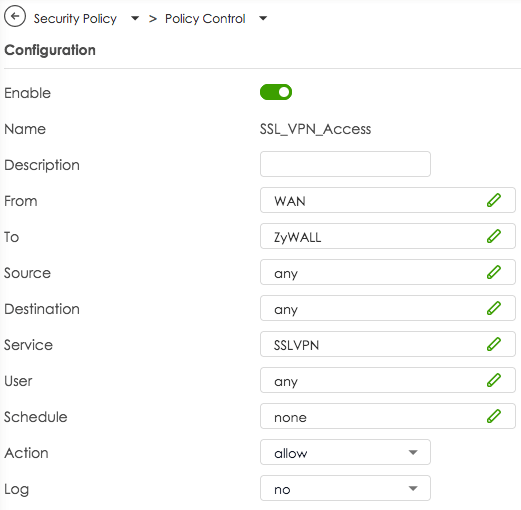
By default Zyxel creates firewall policies to allow traffic to flow from SSL VPN to LAN zone and from LAN to SSL VPN zone. Those rules are required to allow VPN traffic flow once the connection has been established. But there is no policy that actually allows VPN management traffic at the WAN port, client requests arriving at the WAN port are discarded by the firewall.
To allow an OpenVPN connection on the WAN port, you first have to create an own policy. In the main navigation, select Security Policy > Policy Control, click on the + Add button and create a policy that allows traffic for the service SSLVPN to flow from WAN to ZyWALL. Please see screenshot below.
If your OpenVPN connection drops after a while, it may be due to the rekeying period. Test whether extending the period can solve the problem.
Proceed as follows:
- Edit your OpenVPN connection in VPN Tracker
- Navigate to "Advanced Settings > Phase 2"
- Change the Lifetime value to 28800 (which corresponds to a period of 8 hours)
If this doesn't resolve your issues, may also want to check your interoperability keep-alive, activity, and dead peer detection settings.
If you continue to have problems with your VPN connection, please send us a TSR report.
Convert Your Products into Store Credit
If you wish to change the number of your licenses, you have the option to convert your existing license into store credit. You can then use this credit for your next purchase:
- Visit our Store Promo Code Transfer Page and follow the instructions to receive your promo code.
- Select your new products in the my.vpntracker Store.
- Enter your promo code during the checkout process.
Note: If the remaining value of your old product exceeds the amount for the new product, you will receive an additional promo code for the remaining value.
LCP: PPP peer accepted proposal but also modified it which isn't allowed.Please update your Sonicwall to at least SonicOS 6.5.4.15-117n to fix this problem. For more information, please visit: https://www.sonicwall.com/support/knowledge-base/mobile-connect-breaks-after-upgrade-to-sonicos-6-5-4-15/240903132324983
 Our experience also shows that IPsec connections are significantly more performant, so we likewise recommend using IPsec.
- Send keep-alive ping every
This option controls whether and how often VPN Tracker sends keep-alive pings. A keep-alive ping is not a normal ping, and is not considered tunnel traffic by the VPN gateway, so it does not keep the connection alive at the gateway. The sole purpose of these pings is to keep the connection alive through firewalls and NAT routers between VPN Tracker and the gateway when no other tunnel traffic is being sent.
- Disconnect if inactive for
This option controls if and after how long VPN Tracker will disconnect due to inactivity. Only tunnel traffic is considered activity, keep-alive pings sent from either side and protocol management traffic are not considered tunnel traffic.
- Consider the peer dead if no sign of liveliness for
This option controls if and after what time VPN Tracker will disconnect due to no sign of life. Any traffic from the gateway is considered a sign of life, regardless of whether it is tunnel traffic, keep alive ping, or protocol management traffic.
This option has no effect if the gateway is not configured to send pings (
--pingoption orpingin the server configuration file), because without pings enabled, there may be no tunnel or management traffic for quite some time, but this is not proof that the gateway is no longer alive, since it won't send anything if there is nothing to send. With ping enabled, the gateway would at least send keep-alive pings in such a situation, and if those don't arrive either, the gateway has most likely dropped the connection or gone offline.
Yes, you can print to your home printer while connected to VPN Tracker away from home. To ensure a seamless remote printing experience, follow these steps:
1. Assign a Static IP Address to Your Printer
- Access your router’s web interface by entering its IP address in a web browser (e.g., 192.168.1.1 or 192.168.0.1).
- Navigate to the LAN or DHCP settings.
- Assign a static IP address to your printer (e.g., 192.168.50.100) so it remains consistent.
2. Configure Your Mac for Remote Printing
- Connect to your > Printers & Scanners on your Mac.
- Click "+" to add a new printer.
- Select the IP tab and enter the static IP address assigned to your printer.
- Choose the correct printer driver to ensure compatibility.
3. Avoid Bonjour for Remote Printing
Apple’s Bonjour service helps detect devices on local networks but does not work reliably over VPN due to its reliance on multicast DNS (mDNS). Instead, always connect to your printer using its static IP address.
4. Check Firewall & Network Settings
- Ensure that your firewall allows print traffic over VPN.
- Verify that the printer and VPN settings do not block remote connections.
By setting up a static IP address, avoiding Bonjour, and ensuring proper firewall rules, you can print documents remotely via VPN Tracker without issues.
The WireGuard protocol itself does not support 2-Factor Authentication (2FA) for VPN connections. However, when using WireGuard connections with VPN Tracker, you can enhance your overall security by enabling 2FA for your VPN Tracker account.
This means your VPN configuration and access are protected with an additional layer of security, while your WireGuard connections remain end-to-end encrypted for maximum protection.
Using VPN Tracker is the best way to benefit from the performance and security of WireGuard, along with modern account-level protections like 2FA.
Yes, this is possible. You can migrate an existing TheGreenBow IKEv1 connection to VPN Tracker by exporting the relevant connection data and manually entering it into VPN Tracker.
How to extract the required information:
- Open TheGreenBow and select the desired connection.
- Open the configuration menu and choose “Export”.
- In the next dialog, enable “Do not protect exported VPN configuration” to export the data in plain text.
- Save the file to a location of your choice.
Key information needed in VPN Tracker:
1. Gateway Address
The IP address or hostname of your VPN endpoint. In TheGreenBow, this is listed as “Remote VPN Gateway”.
2. Remote Networks
In VPN Tracker, you must define which networks should be reachable through the VPN tunnel. These are called Remote Networks or Target Networks, and correspond to:
Phase 2 > Network ConfigurationRemote LAN / Remote Network
Typical entries include:
192.168.1.0/24– a full subnet10.0.0.0/16– a larger network range172.16.0.10/32– a single host
Enter these under the “Remote Networks” or “Target Networks” section in VPN Tracker. Ensure these match the configuration on the VPN gateway, otherwise traffic might not be routed correctly.
Tip: If you're unsure, use 0.0.0.0/0 as a temporary setting. This allows access to all remote networks (if permitted). You can restrict this later as needed.
3. Preshared Key (PSK)
If you don’t already have the PSK, you can find it in the exported file under the “Authentication” section.
4. XAuth Credentials
Username and password for extended authentication (if used).
5. Local ID and Remote ID
These values define the identities of both VPN peers during the IKE handshake. They are especially important if:
- the VPN gateway doesn’t identify by IP address (e.g. due to NAT or dynamic IPs),
- certificates or advanced authentication profiles are used,
- the gateway expects a specific identity (e.g. FQDN or custom ID).
In the exported file, these are typically found under “ID Type”, “Local ID”, and “Remote ID”.
Enter them in VPN Tracker under “Identifiers” > Local / Remote, and use the correct format (e.g. FQDN, email address, Key ID, or IP address).
6. Encryption and Authentication Settings
Pay close attention to the algorithms used for Encryption, Authentication, and Hashing, and replicate them in VPN Tracker under Phase 1 and Phase 2 settings.
- Log in at my.vpntracker.com.
- Navigate to your desired team → Members → Add Members.
- Enter the email address support@equinux.com in the Email field, set the name to equinux Support, and assign the role Admin.
- Click on Send Invitation.
- You can view the invitation you just sent under the Invitations tab.
If the Remove button is missing on my.vpntracker.com, the team member most likely still has an Administrator or Manager role. Managers can change roles, manage subscriptions, and invite or remove team members, so your team should always have at least one active Manager.
Before you demote or remove the current admin/Manager, first assign the Manager role to another trusted team member. Otherwise, no one may be able to manage team roles or subscriptions afterwards.
- Sign in to my.vpntracker.com and open your team members.
- Choose another team member who should manage the team going forward and assign them the Manager role.
- Save the change.
- Edit the member you want to remove and change their role to Member.
- Save again, open the member once more, and click Remove.
For a full overview of team role permissions, see What do the different roles in my.vpntracker do?. For a broader walkthrough of team management, see our VPN Tracker Team Setup guide.
You should see a SonicWall login page. If the page loads but you still cannot connect using VPN Tracker, please contact our support.
If the page does not load, here are some common issues and possible solutions:
- Check whether you have a firewall or endpoint security solution installed, such as Little Snitch or Symantec Endpoint Protection. Temporarily disable these tools or add an exception for your VPN gateway address.
- Try connecting using a different internet connection. For example, enable Hotspot mode on your iPhone and attempt to connect through your hotspot. If this works, the issue is likely related to your internet router or internet service provider.
- If you cannot reach the VPN gateway even with a different internet connection, contact your VPN administrator to verify that the gateway is running.
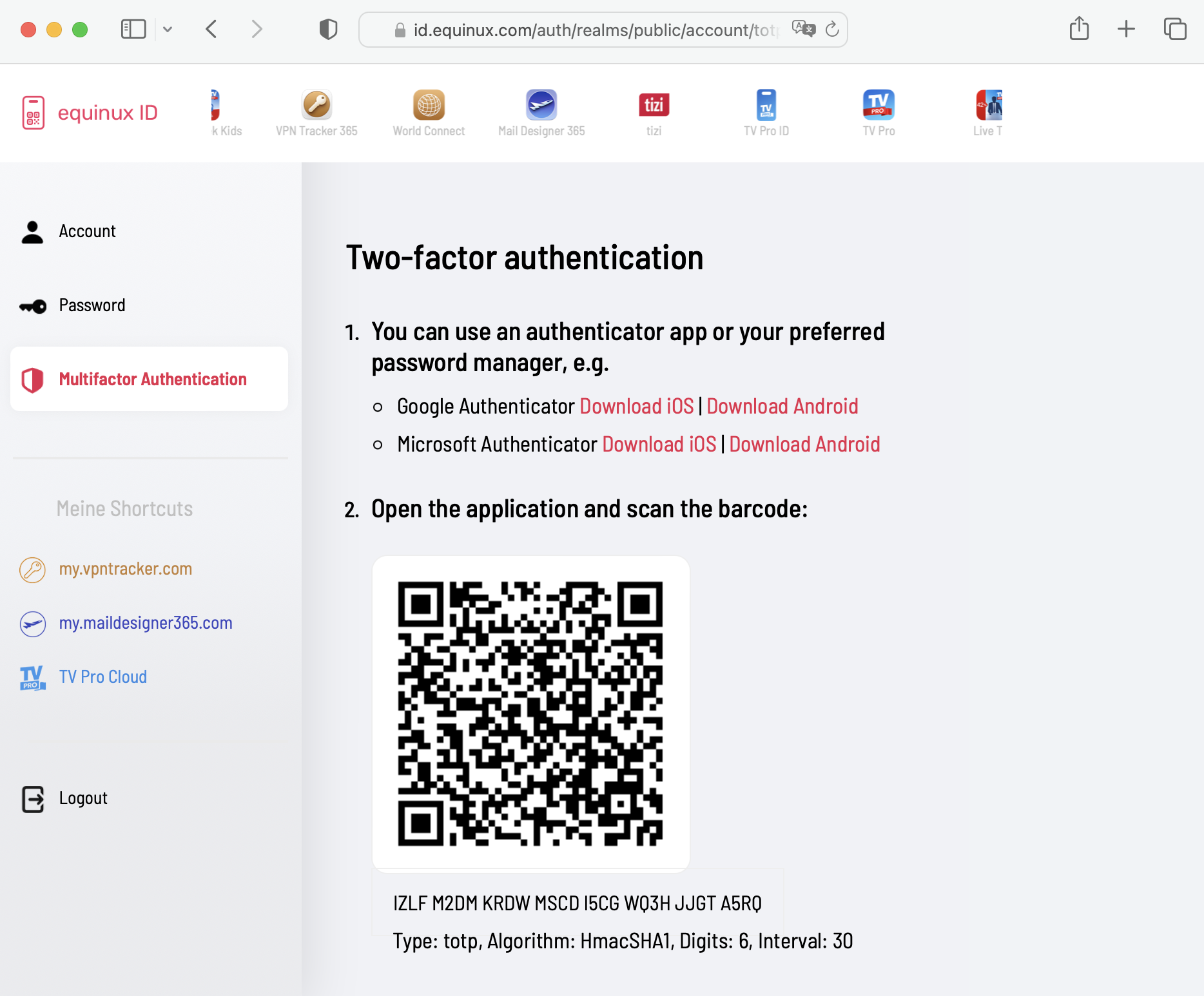
equinux 2FA supports all major authentication and password apps, including:
- Google Authenticator
- Microsoft Authenticator
- Twilio Authy
- 1Password
- FreeOTP
- Bitwarden
-
What are connection drops during rekeying?
Connection drops during rekeying occur when the VPN connection is interrupted during the key update (rekeying). This causes traffic to not be processed for a short period, which is particularly problematic for stable connections such as video conferences.
-
Why does the problem occur during rekeying?
The problem arises because, when using TCP with OpenVPN, the firewall does not accept any traffic during the rekeying process. This leads to an interruption of the traffic.
-
What impact do connection drops have on a video conference?
During a video conference, connection drops during rekeying can result in a complete interruption of the traffic. This causes the connection to break, disrupting or even ending the video conference.
-
Why is TCP susceptible to this problem?
According to OpenVPN, TCP is problematic for VPN connections because it is more sensitive to traffic congestion during network disruptions or the rekeying process. OpenVPN therefore recommends using UDP instead, as it can better handle rekeying processes.
-
What solution does VPN Tracker provide for the problem?
VPN Tracker offers a particularly user-friendly solution: when establishing a connection, VPN Tracker automatically sets the rekeying timer to 24 hours. This significantly minimizes connection drops due to rekeying processes, keeping the connection especially stable. Additionally, VPN Tracker supports switching to UDP, which allows for an even more reliable connection.
-
Why should the rekeying timer be set to 24 hours?
A longer rekeying cycle reduces the frequency of connection drops. By setting the timer to 24 hours— as VPN Tracker does by default— the likelihood of the rekeying process being triggered during a critical phase, such as a video conference, is decreased.
-
What advantages does VPN Tracker have when using UDP over TCP?
VPN Tracker makes it easy to configure UDP, which offers faster connections and less sensitivity to packet loss. UDP is more efficient and resilient to interruptions during the rekeying process, which is particularly beneficial for bandwidth-intensive applications like video conferencing or streaming.
-
What recommendations does VPN Tracker provide for companies to optimize their VPN connections?
For companies relying on stable connections, VPN Tracker offers simple and effective solutions:
- By default, the rekeying timer is set to 24 hours to minimize connection drops.
- It is recommended to use UDP instead of TCP whenever possible to further enhance performance.
If VPN Tracker fails to install its system components – for example, with an OSSystemExtensionErrorDomain error 10 – this is often caused by blocked system extensions or third-party security software on macOS. Here's how to resolve the issue:
Check macOS system settings (security warning)
Go to System Settings > Privacy & Security and scroll down. If you see a message like “System software from ‘equinux’ was blocked”, click “Allow”. Then restart your Mac.
Check for interfering network extensions (e.g. Bitdefender)
Some apps like Bitdefender install their own network components that may block VPN Tracker:
- Open System Settings > General > Login Items & Extensions
- Click the icon next to “Network Extensions”
- Uncheck securitynetworkinstallerapp.app and any other suspicious extensions
- Restart your Mac
Check System Integrity Protection (SIP)
If SIP has been disabled or modified – usually only in developer setups – macOS may block system extensions. SIP should normally remain enabled for VPN Tracker to function properly.
Reinstall VPN Tracker
Fully remove VPN Tracker from your Mac, restart the device, and reinstall the app. Important: When launching the app for the first time, click “Allow” when prompted by macOS to approve the system extension – do not dismiss or ignore it.
Still having trouble? VPN Tracker Support will be happy to assist you further.
To enable VPN Tracker to load its required system extensions via your MDM system, follow these steps:
1. Add a System Extension Policy
Create or edit a System Extension Policy payload in your MDM system.
Required values:
- Team Identifier: CPXNXN488S
- Allowed System Extension Types: Depending on your configuration, you can choose to allow all or specify only
Network Extensions.
2. Apply the Team Identifier Rule
The Team Identifier CPXNXN488S should be added under the allowed team identifiers. This setting ensures that all system extensions signed by the VPN Tracker team are trusted.
Important: The Team Identifier rule takes precedence over global "Allow All" settings. If a Team Identifier is present, the system will only allow extensions signed by listed identifiers—even if "Allow All" is enabled.
3. Push the Configuration
Save and deploy the updated configuration profile to your target Macs. After installation, VPN Tracker should be able to load its system extensions without requiring user approval.
To update your password, login first to my.vpntracker.com/user/settings and then click on Manage Password… near the bottom of the page.
The client IP range must be outside of the target or remote network. Adjust the client IP range accordingly.
When this happens, you may notice slower VPN performance or occasional connection drops. VPN Tracker includes safeguards to help prevent disconnections for many VPN protocols, but performance effects cannot be fully corrected in software.
If your TP-Link model offers an option to disable hardware offloading, switching it off will resolve the issue. Note that doing so may occasionally reduce Internet performance when the router is under heavy load, as the router must process all traffic without hardware acceleration. This setting is usually available on business-class TP-Link models, while most consumer models do not include it but still use hardware acceleration.
Symptoms:
The OpenVPN client gets stuck during connection setup and eventually runs into a timeout before a TLS connection is established.
A typical message is “Waiting for RESET”.
Cause:
The TLS handshake is not completed successfully because the required UDP packets do not reliably reach the server.
Common reasons include:
- Restrictions or filtering on firewall, router, or ISP level
- Overly aggressive UDP timeouts on NAT gateways
- MTU or fragmentation issues (e.g. PPPoE, DS-Lite, mobile networks, IPv6/IPv4 translation)
- Network devices or providers that prioritize, throttle, or block UDP traffic
Because UDP is connectionless, these issues often occur without any meaningful error message.
Resolution:
Switch the OpenVPN transport protocol from UDP to TCP.
TCP is significantly more robust than UDP:
- TCP maintains a real connection state
- Lost packets are automatically retransmitted
- Firewalls and NAT devices usually handle TCP traffic more favorably
- MTU-related issues are less critical
This allows the TLS handshake to complete successfully and restores a stable VPN connection.
Symptoms:
The VPN connection setup fails or gets stuck during startup. The server is reachable, but the tunnel is not established.
Cause:
Jumbo frames may be enabled on the client's network. The resulting increased MTU was not fully supported across the network path, causing VPN packets to be lost.
Solution:
Disable jumbo frames on the client's network or configure a standard MTU. After disabling jumbo frames, processes that determine and apply the correct path MTU can work properly, allowing the tunnel to be established.
SecuExtender is commonly used with Zyxel VPN gateways. For Mac users, the key question is which VPN settings your school IT team can provide, such as the gateway address, username, password, VPN protocol, identifiers, and possibly a configuration file.
VPN Tracker supports many common VPN gateways and protocols, including IKEv2 and IPsec. If your school uses a Zyxel VPN setup, VPN Tracker can therefore be a suitable macOS solution.
For more background on VPN use on macOS, start with our Mac VPN Client overview. If your school uses a Zyxel gateway, the guide to set up Zyxel VPN on Mac and iOS can help with the required settings. For IKEv2 connections, see our instructions to connect to IKEv2 VPN on Mac, iPhone, and iPad.
If a colleague already has the VPN connection working in VPN Tracker, the easiest option may be to share that working connection through VPN Tracker Team. This avoids manually recreating technical VPN settings. The guide to share VPN connections with VPN Tracker Team explains the process step by step.
For many Zyxel devices, setup can be easier if your IT team exports a .mobileconfig file. According to the VPN Tracker guide, Zyxel ATP, USG Flex, and Nebula devices can export VPN configuration profiles as mobileconfig files. VPN Tracker can import these via Apple Configuration Profile import and extract compatible VPN settings automatically. This helps avoid typos and is especially useful when the same VPN setup needs to be rolled out to multiple teachers or team members. More details are available in Zyxel Mobileconfig: How to Export and Use Your VPN Profile.
If your school uses a Zyxel ATP gateway, the VPN setup can also be prepared with the Zyxel Connection Wizard. The article set up Zyxel VPN on Mac and iOS describes IKEv2 IPSec, Split Tunnel, a dedicated IP address pool for VPN clients, and VPN users created in the wizard. Make sure you save the Pre-Shared Key, as you will need it later in VPN Tracker.
If no mobileconfig file is available, enter the settings manually in VPN Tracker. The important part is that the gateway address, authentication method, Pre-Shared Key, username, remote network, and identifiers match the Zyxel gateway configuration exactly. The general guide connect to IKEv2 VPN on Mac, iPhone, and iPad explains which information is required for IKEv2 connections and when local identifiers, DNS, remote networks, and Phase 1 / Phase 2 settings may be relevant.
In practice, the easiest option is often for the VPN gateway administrator to create and test the connection once in VPN Tracker, then share it with the relevant users through the team management features. This means individual teachers or team members do not have to recreate technical gateway, identifier, or Phase 1 / Phase 2 settings manually. The guide to share VPN connections with VPN Tracker Team explains how to share a verified connection with the team.
If you do not manage the VPN gateway yourself, ask your IT team for a mobileconfig file or, alternatively, for the gateway address, VPN protocol, authentication method, username, password, Pre-Shared Key, remote network, identifier type, and any Phase 1 / Phase 2 requirements.
The article connect to IKEv2 VPN on Mac, iPhone, and iPad explains that IKEv2 connections may require more than just a hostname and authentication details. Depending on the gateway, local identifiers, remote networks, DNS settings, and encryption parameters may also be relevant. If one of these values does not exactly match the gateway configuration, the connection can fail even if most settings appear to be correct.
A common issue is an incorrect identifier type. Some gateways expect an IP address, while others expect a domain name, email address, or specific group identifier. If the VPN negotiation almost completes but the gateway stops responding at the end, check whether the remote or local identifier in VPN Tracker matches what the gateway expects.
If the issue started right after a macOS update, the macOS version may also be involved. The article IKEv2 VPN not working on macOS 26 Tahoe explains that macOS 26 Tahoe no longer accepts older algorithms such as 3DES, SHA1, or Diffie-Hellman groups below 14 in the built-in VPN client. Typical symptoms include "IKEv2 negotiation failed," "No acceptable proposal found," or "VPN server did not respond."
If you do not manage the VPN configuration yourself, ask your IT team for the exact IKEv2 settings used on the gateway. The most useful details are the gateway address, authentication method, Pre-Shared Key, username, identifier type, remote network, and Phase 1 / Phase 2 requirements. In many cases, the easiest option is for the administrator to create and test the connection once in VPN Tracker, then share it with users through the team management features.
You can always contact our support team if you need help analyzing your VPN connection. The easiest way is directly in VPN Tracker via Help > Contact Support, because this makes it easier to include relevant connection and diagnostic information.
In VPN Tracker, a working connection can be shared through the team features. This gives other team members the same verified configuration, so they do not have to guess the gateway address, VPN protocol, Pre-Shared Key, identifiers, remote network, or Phase 1 / Phase 2 settings. The guide share VPN connections with VPN Tracker Team explains how to share VPN connections with VPN Tracker Team.
As a first step, the colleague whose VPN connection already works should select the connection in VPN Tracker and share it with the team. The administrator or support team can then review the setup and make it available to other users. If your organization uses VPN Tracker Team, this is usually the cleanest way to roll out a working school or company VPN configuration to multiple Mac users.
If you still run into issues, you can always contact our support team. The easiest way is directly in VPN Tracker via Help > Contact Support, because this makes it easier to include relevant connection and diagnostic information.
The guide connect to IKEv2 VPN on Mac, iPhone, and iPad explains which details are required for IKEv2 in VPN Tracker. In addition to the hostname and login details, local identifiers, remote networks, DNS servers, and Phase 1 / Phase 2 settings may also be relevant. If the connection used to work and stopped after a macOS update, also check IKEv2 VPN not working on macOS 26 Tahoe for information about older algorithms and macOS compatibility.
If you do not manage the gateway configuration yourself, ask your IT team for the full IKEv2 settings or for a tested VPN Tracker connection. You can also contact our support team directly in VPN Tracker via Help > Contact Support, because this makes it easier to include relevant diagnostic information.
The article What is IKEv2 VPN? explains the differences between IKEv1 and IKEv2 and why both protocols have their own requirements. If your VPN Tracker connection is configured as IKEv2 but the gateway now expects IKEv1, the negotiation cannot complete successfully.
Ask your IT team or VPN administrator which protocol is currently enabled on the gateway and which credentials apply. In many cases, not only the protocol changes, but also the Pre-Shared Key, group name, identifiers, remote network, and Phase 1 / Phase 2 parameters.
In IKEv2, identifiers help both sides match the correct peer during VPN negotiation. The guide connect to IKEv2 VPN on Mac, iPhone, and iPad explains that identifiers may need to be adjusted depending on the gateway configuration. If the type or value does not match, the connection can fail at the end even if the address, login details, and Pre-Shared Key are correct.
Ask your IT team for the expected identifier type and value. Common options include Domain Name (FQDN), IP Address, Email (User FQDN), or a vendor-specific group identifier. If you are unsure, contact our support team directly in VPN Tracker via Help > Contact Support.
This setting can help if the IKEv2 negotiation almost completes but the gateway stops responding at the end. In these cases, the identifier type may not match the gateway configuration. The guide connect to IKEv2 VPN on Mac, iPhone, and iPad explains which IKEv2 details may be relevant in VPN Tracker.
Only change the type to Domain Name (FQDN) if the gateway expects this identifier type. The identifier value itself should exactly match the value provided by your IT team. If you are unsure, send a support request directly from VPN Tracker via Help > Contact Support.
For Mac users, every technical value needs to match the gateway configuration exactly. The article Mac VPN Client gives an overview of VPN Tracker as a Mac VPN client. If your school uses a Zyxel gateway, set up Zyxel VPN on Mac and iOS can help with typical settings.
If a colleague already has the connection working in VPN Tracker, the fastest route is often to share the verified connection through VPN Tracker Team. The guide share VPN connections with VPN Tracker Team explains how to share a working connection.
With IKEv2, the connection depends on the Mac and the VPN gateway using matching values. The guide connect to IKEv2 VPN on Mac, iPhone, and iPad shows which details are required. Incorrect identifiers, a different protocol on the gateway, or mismatched Phase 1 / Phase 2 settings are more common causes than licensing.
If you are unsure whether your plan or trial covers your specific use case, contact our support team directly in VPN Tracker via Help > Contact Support. For technical connection issues, this is especially useful because diagnostic information can be included.
This is especially useful if a connection works for one colleague but not another, or if a school or company VPN connection needs to be prepared for multiple Mac users. For more about sharing connections, see share VPN connections with VPN Tracker Team.
For regular support requests, the easiest route is directly in VPN Tracker via Help > Contact Support. This makes it easier to include relevant connection and diagnostic information.
Ask your school IT team for the gateway address, VPN protocol, username, password, Pre-Shared Key or certificate, remote network, DNS settings, and identifiers. The article Mac VPN Client explains VPN Tracker as a Mac VPN client; for IKEv2 connections, connect to IKEv2 VPN on Mac, iPhone, and iPad is also useful.
If a connection already works for a colleague, your school IT team or colleague should share the verified connection through VPN Tracker Team. The guide share VPN connections with VPN Tracker Team explains how this works.
For Zyxel setups, a .mobileconfig file can make setup easier. The article import a Zyxel mobileconfig profile explains how VPN profiles from Zyxel ATP, USG Flex, and Nebula can be imported. For manual Zyxel configuration, set up Zyxel VPN on Mac and iOS is helpful.
Windows instructions for SecuExtender cannot always be transferred to macOS one-to-one. The important details are gateway address, protocol, authentication method, Pre-Shared Key, username, remote network, and identifiers. For an overview of VPN Tracker as a Mac VPN client, see Mac VPN Client.
The guide connect to IKEv2 VPN on Mac, iPhone, and iPad shows that IKEv2 connections may also require local identifiers, remote networks, and specific encryption parameters depending on the gateway. If the school uses Zyxel, a mobileconfig file can help; see import a Zyxel mobileconfig profile.
The easiest option is for the school IT team to create and test the connection once in VPN Tracker, then share it with the relevant teachers through VPN Tracker Team. This avoids users having to transfer technical values manually.
The underlying technical details usually stay the same: gateway address, protocol, username, password, Pre-Shared Key or certificate, remote network, DNS, and identifiers. The article Mac VPN Client explains VPN Tracker as a Mac VPN client. For IKEv2 connections, connect to IKEv2 VPN on Mac, iPhone, and iPad shows which fields may be relevant on Mac.
If you only have a Windows guide, ask your IT team for the underlying VPN values instead of only screenshots from SecuExtender. Even better, ask for a tested VPN Tracker connection that can be shared through the team.
The key question is which VPN gateway and protocol your organization uses. SecuExtender is commonly used with Zyxel gateways. The article set up Zyxel VPN on Mac and iOS shows how to set up Zyxel VPN on Mac and iOS. For a general overview of VPN Tracker as a Mac VPN client, see Mac VPN Client.
Ask your IT team not only for the name of the Windows client, but for the technical VPN settings or an exported configuration. This makes it much easier to check whether VPN Tracker can create the matching connection on Mac.
VPN Tracker is especially useful when multiple gateway types need to be supported, when IKEv2 or IPsec needs to be configured on macOS, or when connections should be distributed to a team. The article Mac VPN Client gives an overview of VPN Tracker for Mac. For Zyxel environments, set up Zyxel VPN on Mac and iOS is relevant.
One practical difference is the ability to share verified connections. With VPN Tracker Team, an administrator can prepare a working connection and distribute it to users. Learn more at share VPN connections with VPN Tracker Team.
A Windows client may hide the technical details in the background. On Mac, you often need to choose these values more explicitly. The article What is IKEv2 VPN? explains what IKEv2 is and how it differs from IKEv1. For practical IKEv2 setup, see connect to IKEv2 VPN on Mac, iPhone, and iPad.
Ask not only for SecuExtender, but for the VPN protocol and the matching parameters. Important details include gateway address, IKEv1 or IKEv2, authentication method, Pre-Shared Key or certificate, username, remote network, identifiers, and any Phase 1 / Phase 2 settings.
With VPN Tracker, choose the VPN protocol your Linux server uses, such as WireGuard, OpenVPN, IKEv2 IPsec, L2TP over IPsec, or SoftEther, then import the configuration file or enter the server settings manually. For Linux-specific setup guidance, see the VPN Tracker guides for Debian VPN on Mac and CentOS Stream VPN on Mac.
For modern Linux servers, WireGuard and OpenVPN are common choices. IKEv2 IPsec is also widely used with strongSwan or LibreSwan. If your Linux server provides an .ovpn file, a WireGuard .conf file, certificates, or manual IKEv2 IPsec or L2TP over IPsec settings, you can use these details to create the connection in VPN Tracker.
For protocol-specific setup steps, see the VPN Tracker guides for IKEv2 VPN on Mac and L2TP VPN on Mac.
This is often the fastest setup method because the server address, certificates, keys, ports, and routing settings are already included in the file. VPN Tracker also supports Linux admin workflows where multiple WireGuard or OpenVPN configurations need to be imported and managed for users.
For import workflows, see the VPN Tracker guide to OpenVPN on Mac or the guide to importing and rolling out WireGuard connections.
If you are not sure which protocol your Linux server uses, ask your administrator whether the VPN is based on WireGuard, OpenVPN, IKEv2 IPsec, L2TP over IPsec, or SoftEther before creating the connection in VPN Tracker. The VPN Tracker L2TP VPN setup checklist is a useful example of the type of gateway details you should collect before setup.
This is useful if the errors were caused by a temporary issue, such as server downtime, and are no longer relevant.
Open the affected VPN connection in VPN Tracker or in your VPN Tracker web account.
Click the red error indicator, for example "17 Errors".
This opens the error details view.
Below the title, click "Acknowledge all".
After acknowledging the errors, they will be muted and will no longer be highlighted as active red alerts. This helps keep your connection overview focused on current issues.
If the "Acknowledge all" option does not appear in the Mac app, restart VPN Tracker and check again. Also make sure you opened the error list using the red error indicator.
To change a role:
1. Sign in to https://my.vpntracker.com.
2. Open your team and go to the team members overview.
3. Select the team member you want to update.
4. Open their settings and choose the new role.
5. Save the change.
Choose the role based on what the person needs to do. For example, a Manager can change roles, manage subscriptions, and invite or remove team members. An Organizer can help manage team members and TeamCloud connections, while a Member can use assigned VPN Tracker resources. The Billing role is intended for invoice and billing access.
Before removing Manager permissions from someone, make sure at least one other trusted team member still has the Manager role. Otherwise, your team may no longer have anyone who can manage roles or subscriptions.
For a full overview of available roles, see: https://www.vpntracker.com/us/faq/1972/168/what-do-the-different-roles-in-myvpntracker-do/KH1972?identifier=vpntracker.com
For a broader team setup walkthrough, see: https://blog.vpntracker.com/vpn-tracker-team-setup/
You need to be a Manager yourself to assign the Manager role to another team member.
To make someone a Manager:
1. Sign in to https://my.vpntracker.com.
2. Open your team and go to the team members overview.
3. Select the team member who should become an administrator/Manager.
4. Open their settings and change their role to Manager.
5. Save the change.
Only give the Manager role to people who should be able to manage the team. Managers can change other members' roles, manage subscriptions, and invite or remove team members.
If you are transferring administration from one person to another, assign the new Manager first. After that, you can remove the Manager role from the previous admin if they no longer need it.
For a full overview of what each team role can do, see: https://www.vpntracker.com/us/faq/1972/168/what-do-the-different-roles-in-myvpntracker-do/KH1972?identifier=vpntracker.com
For more information about setting up a VPN Tracker team, see: https://blog.vpntracker.com/vpn-tracker-team-setup/
Important: Before you remove the Manager role from a user, make sure at least one other trusted team member already has the Manager role. A team needs an active Manager to change roles, manage subscriptions, and invite or remove members.
To remove the administrator/Manager role:
1. Sign in to https://my.vpntracker.com.
2. Open your team and go to the team members overview.
3. Check that another trusted team member already has the Manager role. If not, assign the Manager role to that person first.
4. Select the team member whose administrator permissions you want to remove.
5. Open their settings and change their role from Manager to the appropriate new role.
6. Save the change.
If you also want to remove the user from the team afterwards, first save the role change, then open the member again and click Remove.
If the Remove button is missing, see: https://www.vpntracker.com/us/faq/2289/225/i-cant-remove-a-member-from-my-team/KH2289?identifier=vpntracker.com
For a full overview of role permissions, see: https://www.vpntracker.com/us/faq/1972/168/what-do-the-different-roles-in-myvpntracker-do/KH1972?identifier=vpntracker.com