
Apple Mail dark mode arrived with macOS Mojave and changed how some text and HTML messages appeared when the system used a dark appearance. This article documents our original Mojave-era tests and explains the behavior we observed.
Historical note: Email-client behavior has continued to evolve since 2018. Use these findings as background, and test important campaigns in the current Apple Mail versions your audience uses.
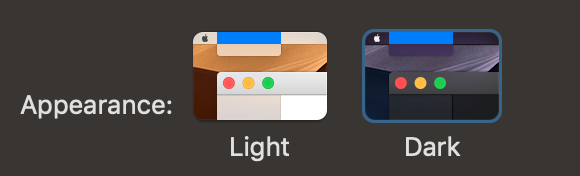
As you may have heard, Mail Designer 365, our email newsletter design tool for macOS, will also sport a fresh Dark Mode UI in our upcoming update for macOS Mojave.
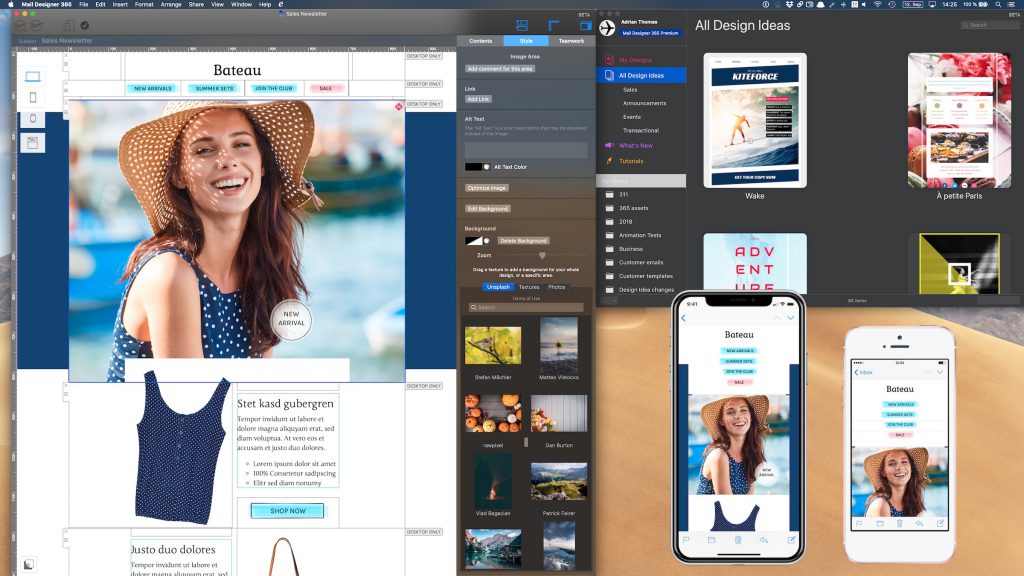
But what does this mean for your emails? We decided to find out…
Apple Mail Dark Mode for Text Emails
Regular plain-text emails and rich text emails will automatically be shown in “Dark mode” – e.g. with light text on a dark background – even if you include an image.
Apple Mail automatically adjusts font colors, so white text becomes black and vice versa:
Apple Mail Dark Mode for HTML Emails
Most HTML email newsletters will default to being displayed in “light mode”, i.e. without any changes:
However, it turns out that even with a HTML newsletter, it’s possible to get Apple Mail to switch to a dark mode variant:
So when does Apple Mail show a message in Dark Mode?
It turns out that Apple Mail will auto-convert HTML emails to dark mode, if they do not contain any images. Even adding open tracking via a pixel will cause Apple Mail to show the light version.
What happens to colors?
As mentioned above, Apple Mail applies some adjustments to make sure text remains readable, even on a dark background. We did some digging and found the code snippet that Apple Mail injects into the message to adjust its colors:
prefers-dark-interface) {
body { -apple-color-filter: invert(0.8235) hue-rotate(180deg) saturate(300%); -apple-color-filter: apple-invert-lightness(); }
@media (prefers-dark-interface) { body { background-color: white !important; -apple-color-filter: none;} }
So the colors are inverted (but not quite fully) and the hue and saturation values are also adjusted.
What does this mean for your newsletter created with Mail Designer 365?
All Mail Designer 365 newsletters are currently built using some images for compatibility purposes. So, as a default, your newsletter will be displayed in “light mode”.
This means your design will look great and your colors and images will be displayed just as you intended.
We may explore other options for Dark Mode-compatible designs going forward though – stay tuned!
Important to remember: One known external issue comes from certain email clients attempting to "auto optimize" emails for dark mode by simply inverting colors.
While this may work in some cases, the majority of designs will run into problems with this. Here are two options you could consider:
- Choose a color combination which will also look good when inverted.
- Add a visible "view in browser" link to ensure recipients can still view your email design on the web.
About Mail Designer 365
Mail Designer 365 is a unique email newsletter design tool, built from the ground up for macOS. With an easy-to-use drag and drop design interface, creating a stunning mobile-optimized newsletter is simple.
Try Mail Designer 365 free today