
Frequently Asked Questions
How to edit a link in an email after sending
Mail Designer Link Rescue provides you with a convenient solution for editing links, even after your email has already been sent.
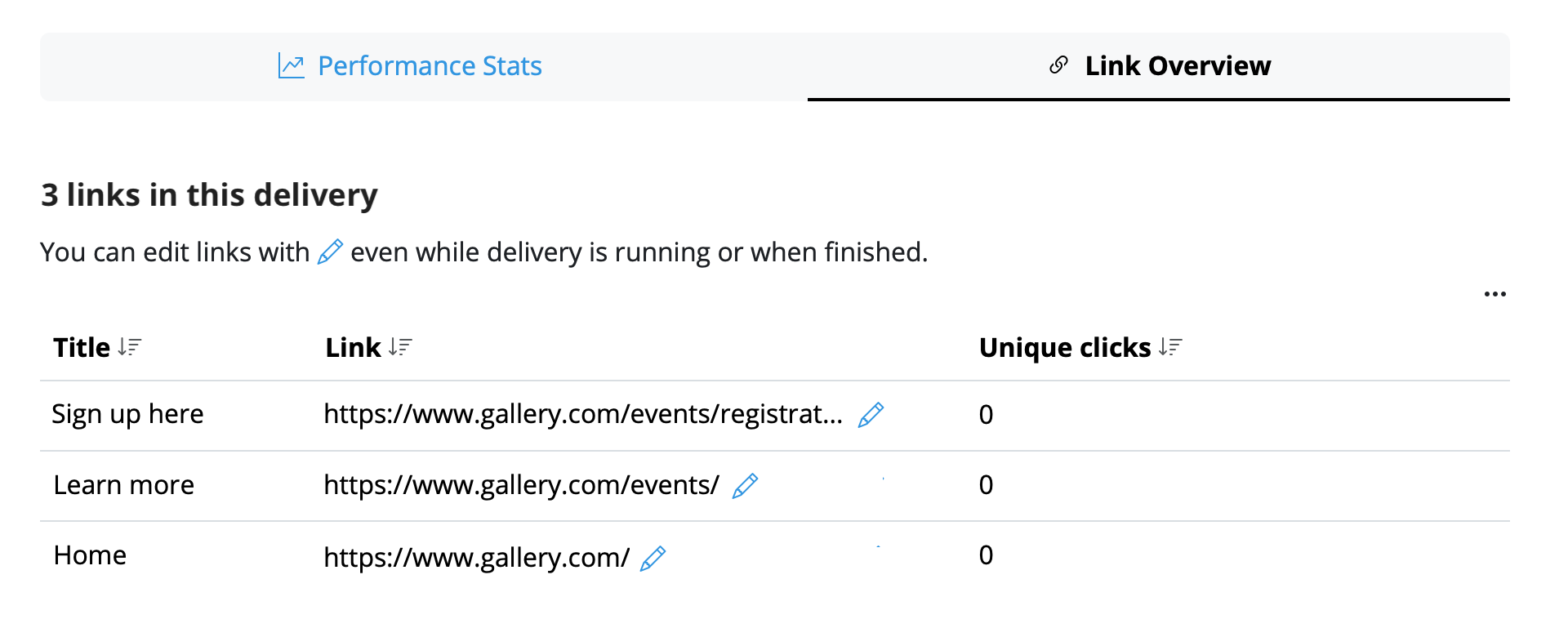 Here you can select any link and edit it at any time. Once you have replaced any given link, click Save to update the change for all recipients – including those who have already opened the email!
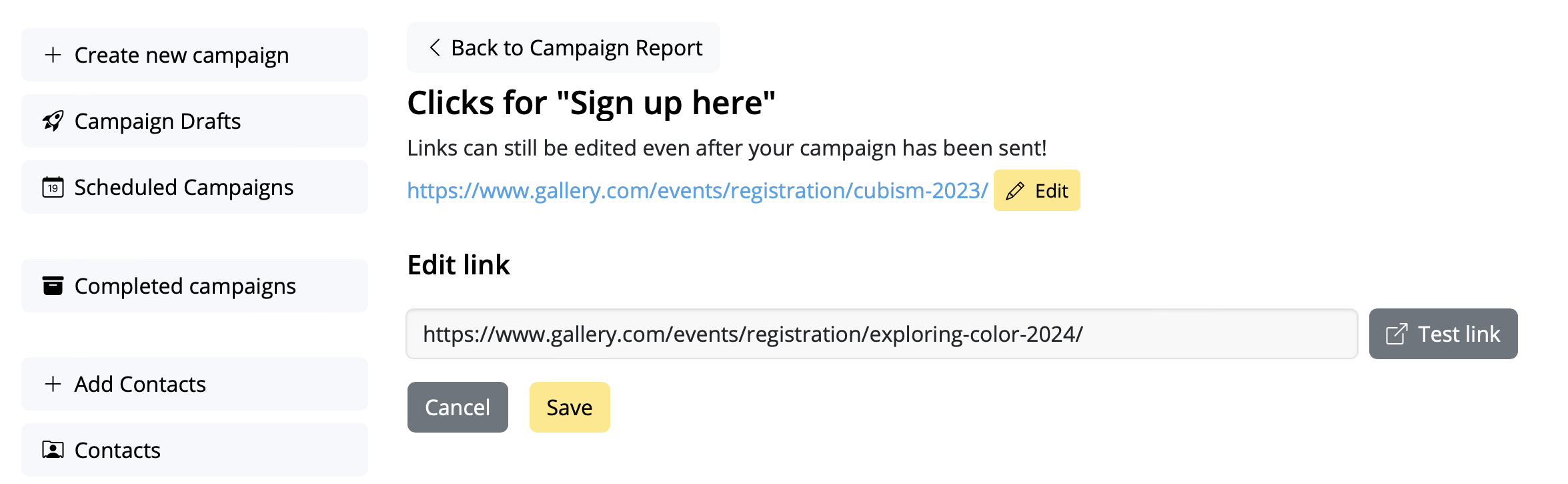 Your changes will be synced immediately, giving you ultimate peace of mind.
Important:
Mail Designer 365 Link Rescue is available to Mail Designer Campaigns users with a Seoul plan or higher. View all plan tiers here →
Your changes will be synced immediately, giving you ultimate peace of mind.
Important:
Mail Designer 365 Link Rescue is available to Mail Designer Campaigns users with a Seoul plan or higher. View all plan tiers here →
When would I need to edit links post sending?
- You accidentally entered the wrong link
- You forgot to change a link because you duplicated a design
- You want to change a link because the old URL no longer exists (e.g. a limited time offer or live stream)
How to change a link in an email after sending
Mail Designer 365 Delivery Hub users can use Link Rescue to easily change email newsletter links after a campaign has been delivered. To get started, open the Analytics view for your chosen campaign and switch to the Link Overview tab:
Here you can select any link and edit it at any time. Once you have replaced any given link, click Save to update the change for all recipients – including those who have already opened the email!
Your changes will be synced immediately, giving you ultimate peace of mind.
Important:
Mail Designer 365 Link Rescue is available to Mail Designer Campaigns users with a Seoul plan or higher. View all plan tiers here →
Need support on email design issues in Mail Designer 365? Invite us and we'll help you troubleshoot!
I’m a FileMaker developer. How can I handle billing with my client? What does my client need to pay?