
Frequently Asked Questions
How can I create a border for my entire Mail Designer 365 email design document?
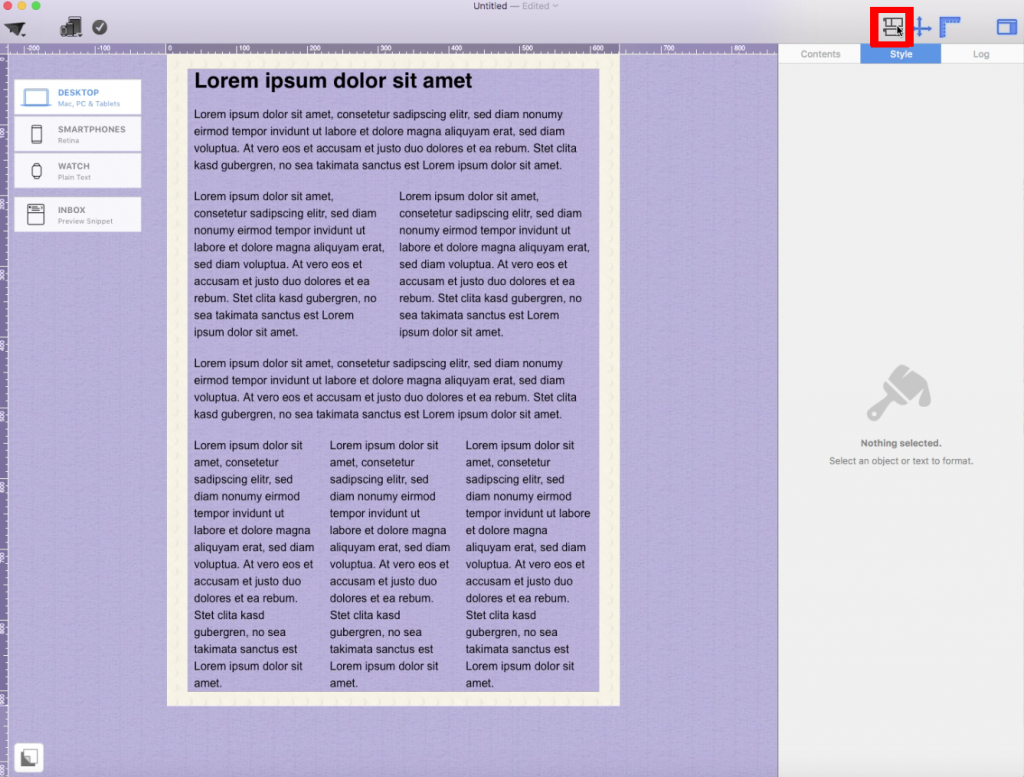
There you have it! A sandwich-like border effect:
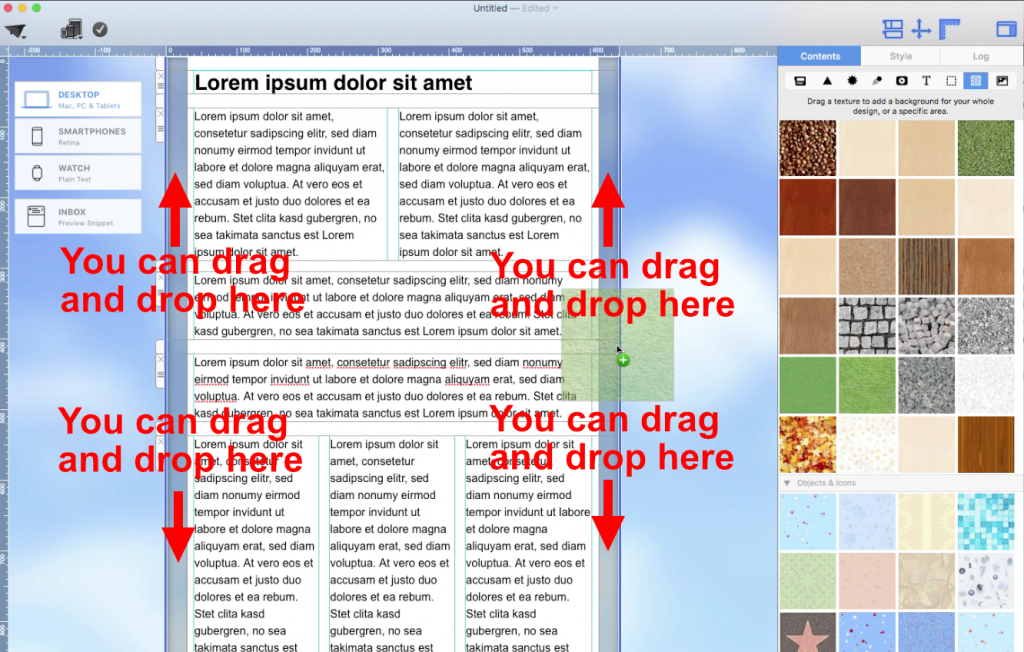
‣ You can drag and drop the image of your choice to the outer border of your contents. This will set the image as the background of the container of all of your layout blocks.‣ Click the Layout button to hide the layout block outlines in order to get a better view of your background.
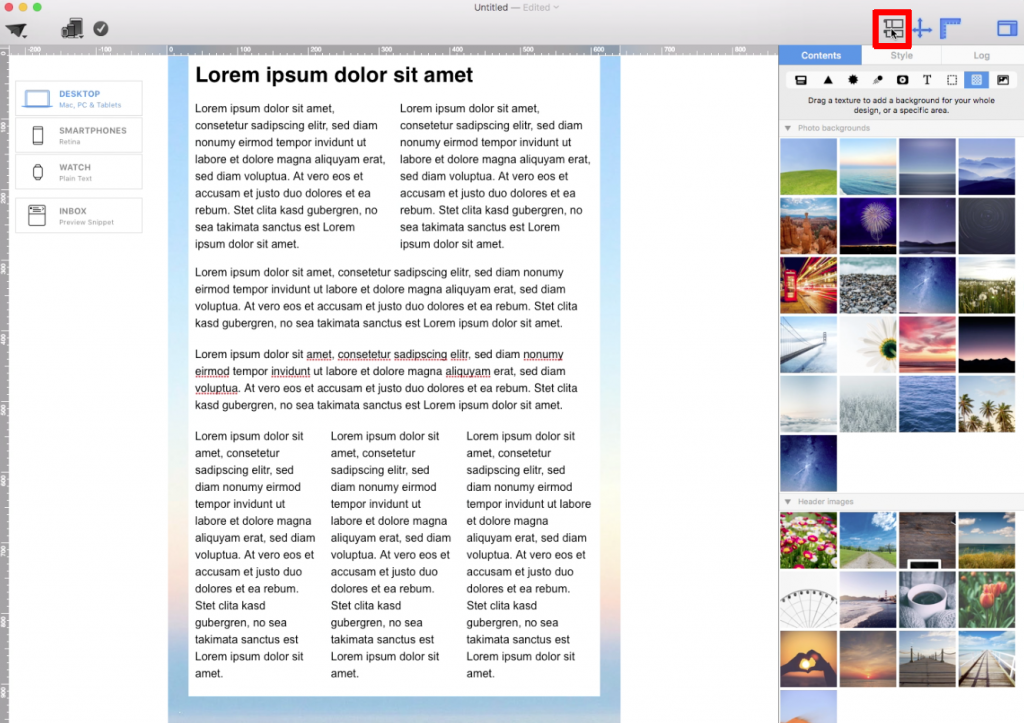
Let's say you want a main email background and a border:
‣ First, choose an image that you want to set as your main email background. ‣ Drag and drop this image into the outskirts of your email design. To show you the area where you can drag and drop your choice of image to set the main background of your email template, we colored the appropriate area in light red:‣ Then, choose an image that you want to set as your background for your border. ‣ Drag and drop the image of your choice into the outline of the container of all of your layout blocks, similar to this:
Did you want to add the same background image in your text areas and your main email background but want a different background effect in between the two? (Kind of like sandwich.)
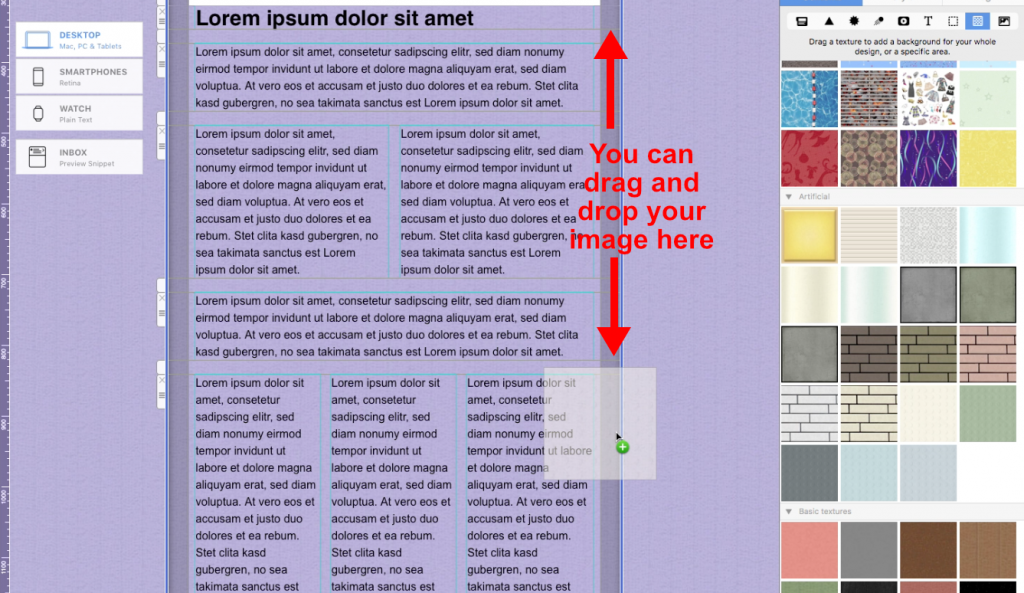
‣ Set the background of your text areas by dragging and dropping an image of your choice to the middle area of your layout blocks.‣ Make sure to repeat the process to all of your layout blocks:
‣ Set your main email background by dragging and dropping an image to the outskirts of your entire email design:
‣ Then, set a background for the border that is a different image/color/texture as the other two previous backgrounds you used. Make sure you drag and drop the new image within the bounds of the appropriate area (In this case, you want to drag it to the outline of the container of all of your layout blocks):
 Please refer to the following page for further information on how to create a border for my email design: