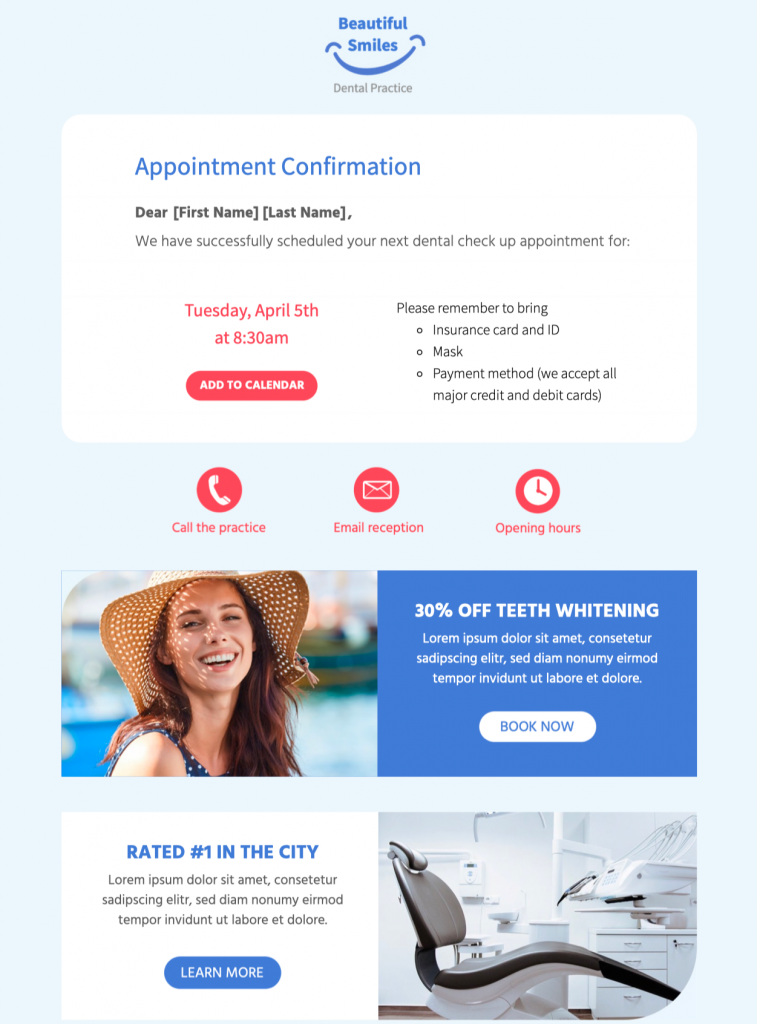
Build a useful appointment confirmation email template
This appointment confirmation email template is intended for consultants, salons, clinics, trainers, and service teams confirming a scheduled appointment with a customer. It provides a practical starting point in Mail Designer 365 while leaving the wording, branding, links, and campaign details under your control.
Essential information to include
Before sending, check the appointment date, local time and timezone where needed, location or meeting link, service name, preparation instructions, contact details, and accurate rescheduling or cancellation information. Keep the most important information near the beginning and make every date, condition, address, and destination specific to the recipient’s situation.
Design strengths for this campaign
The template uses a clear confirmation hierarchy that makes the scheduled time and next action easy to locate on desktop and mobile. Its responsive structure helps the core message remain readable across common screen sizes, while editable content areas make it suitable for a branded campaign.
Customize the template in Mail Designer 365
When customizing this appointment confirmation email template, use the drag-and-drop tools to replace the sample appointment details, apply your brand styles, add staff or location information, personalize the greeting, and connect buttons to the correct calendar, meeting, or rescheduling page. Preview the finished email on desktop and mobile, test every link, and send a proof before delivering the campaign to your audience.
Review the finished email before sending
Read the message once from the recipient’s perspective. Confirm that the sender name is recognizable, the subject and preview text match the content, personalization has a sensible fallback, and the main action leads to the intended page. Check spelling, dates, times, prices, offer conditions, and contact information. A test send should also confirm that the design remains readable when images are blocked and that important information is available as text.
Make the message easy to use
Use descriptive button text, readable type sizes, sufficient color contrast, and concise image alt text. Do not place essential dates, instructions, or offer conditions only inside an image. Keep the reading order logical and avoid several competing buttons. These choices help recipients understand the campaign quickly and make the template more resilient across different email apps and accessibility settings. Use the W3C image decision tree when choosing alternative text for appointment details and informative images.
Use this appointment confirmation email template as a focused starting point and keep the final version centered on one use case and one primary action. Clear information and a recognizable sender are more useful than adding unrelated sections simply to make the email longer.