
Frequently Asked Questions
Why doesn't „TV Pro Gold for iPhone/iPad“ work on Apple TV? I don't want to pay twice!
TV Pro Gold applies to iPhone / iPad and not to TV Pro Apple TV.
Background: we are developing two different apps. We do not cross-subsidize the platforms with each other. Many users only have one platform, otherwise everyone would ultimately have to pay more.
In addition, TV Pro is not a reach and advertising machine, according to the motto “you have to be everywhere to be attractive to advertisers and flood customers with advertising.”
We finance ourselves through our attractive features, for which you have to pay something annually, and are therefore not dependent on financing ourselves through “extortion advertising/advertising buy-out.”
My "TV Pro Gold for iPhone/iPad" is not recognized on Apple TV. Why?
"TV Pro Gold for iPhone/iPad" applies to iPhone/iPad. For Apple TV we have developed a separate app, "TV Pro for Apple TV". On this platform, a separate in-app package, "TV Pro for Apple TV", can be purchased.
Is there a shared subscription for TV Pro Gold (iPhone/iPad) and TV Pro for Apple TV?
Currently, TV Pro Gold and TV Pro for Apple TV are each available separately in the respective apps.
For which platforms is "TV Pro" (Digital TV Magazine) available and how do I purchase corresponding subscriptions?
Download TV Pro for these platforms:
iOS (iPhone/iPad)
https://itunes.apple.com/de/app/tv-programm-tv-pro/id773206309?mt=8
Mac (Macs mit Apple-Chips, ab 2020)
https://itunes.apple.com/de/app/tv-programm-tv-pro/id773206309?mt=8
tvOS (Apple TV)
https://itunes.apple.com/de/app/tv-programm-tv-pro/id773206309?mt=8
Get the Gold package that’s right for you and save with Gold MAX for Mac & iOS.
iOS (iPhone/iPad)
https://itunes.apple.com/de/app/tv-programm-tv-pro/id773206309?mt=8
Mac (Macs mit Apple-Chips, ab 2020)
https://itunes.apple.com/de/app/tv-programm-tv-pro/id773206309?mt=8
tvOS (Apple TV)
https://itunes.apple.com/de/app/tv-programm-tv-pro/id773206309?mt=8
Get the Gold package that’s right for you and save with Gold MAX for Mac & iOS.
I have forgotten the password for my TV Pro ID
If you have forgotten your TV Pro password, please follow these steps:
‣ Visit TV Pro Login.
‣ Click on "Forgot password" there.
‣ Follow the further steps.
► Watch tutorial
How do I log in with my TV Pro ID?
The TV Pro ID is the central account for the TV Pro app family:
- TV Pro
- Live TV
- TV Pro Mediathek
- Secure purchases
- Transfer purchases
- Use features like Sync etc.
TV Pro
TV Pro for iPhone / iPad Settings > Account ("Not logged in") > Login ► Watch tutorial TV Pro Classic for iPhone / iPad Gear (Settings) > TV Pro Gold > Login TV Pro for Apple TV Menu > Settings > View packages > Log in with TV Pro IDLive TV
Live TV for iPhone / iPad Store > Login or create user account Live TV for Mac Live TV > Log in with TV Pro ID ... Live TV for Apple TV Menu > Store > Log in with TV Pro IDTV Pro Mediathek
TV Pro Mediathek (also for Kids Edition) for iPhone / iPad More > Settings > TV Pro ID > Login TV Pro Mediathek for Mac TV Pro Mediathek > Log in with TV Pro ID ... TV Pro Mediathek for Apple TV Menu > Settings > View packages > Log in with TV Pro ID
Help! After updating to the latest tvOS version, Apple has installed an "Apple TV" app that will now start whenever I press the Home button. How do I turn it off?
Unfortunately, Apple has changed the behavior of all Apple TVs with a software update. If you now press the Home button of the Siri Remote, then the "Apple TV" app starts instead of returning to the home screen. You can argue about the benefits of the "Apple TV" app for a long time. The easiest way is to change the home button back to the old behavior.
To return to the old procedure (Home-Button = Home-Screen), proceed as follows:
Homescreen> Settings> Remote controls and devices> Home button
There you can assign the Home button again with the old function.
How can I view the terms of my subscriptions in my TV Pro ID?
You can save your current subscriptions from iTunes in your TV Pro ID. To view all saved subscriptions and terms, please log in:
http://livetvhq.livetvgmbh.de.
Where can I manage my subscription that I purchased in the TV Pro / Live TV Store?
Subscriptions to the products of Live TV GmbH can be purchased either in the App Stores or directly from Live TV GmbH („TV Pro / Live TV Store“).
To manage the subscription, such as viewing the term, turning automatic renewal on or off, concluding another product subscription, log in with the TV Pro ID at:
http://my.tvproapp.de
What is TV Pro GOLD ALL-IN-1?
With TV Pro GOLD ALL-IN-1 you can use all TV Pro Apps (TV Pro, Live TV, TV Pro Mediathek) on all available platforms. You can choose between a monthly and an annual package.
How can I update the address or email address of my equinux ID?
Your account details such as address and email can be edited in the account management using the following link:
Edit equinux ID
Is TV Pro an alternative to magazines like TV Spielfilm, Hörzu, TV Movie and TV Digital?
A clear yes! TV Pro is definitely a full alternative to the normal TV magazine. The completely digital TV Pro App not only combines all the advantages that a classic TV magazine also offers, but also dispenses with the disadvantages. This allows you to cancel your TV newspaper subscription without a guilty conscience.
Thanks to environmentally friendly, digital technology, the TV Pro App saves a lot of CO2, compared to conventional TV magazines. This means that no trees are felled, and no mountains of paper need to be elaborately printed, transported and ultimately disposed of. In terms of environmental protection, TV Pro is clearly the better alternative to TV Spielfilm & Co.
In addition, the program data is always up to date, unlike the TV magazine subscription. Nice side effect: The annual fee for the TV magazine alternative is also far below the price of a conventional TV newspaper subscription. Nothing stands in the way of canceling the TV magazine.
Are your apps compatible with "Airplay" and "Airplay 2"?
Yes, our apps are fully Airplay compatible. Live TV and TV Pro Mediathek also work excellently with Airplay 2.
With Airplay you can wirelessly transmit picture and sound from your Mac, iPhone or iPad to an Apple TV or speakers. With Airplay 2 you can even connect your iOS device with many supported Smart TVs and stream Live TV or the TV Pro Mediathek on your Smart TV, for example.
To do this, simply press the Airplay button in the corresponding app and select your desired television. Make sure that both devices are on the same Wi-Lan.
You can find more information in our blog: https://www.tvproapp.de/airplay-2-apps-streamen/
I purchased the TV Pro GOLD ALL-IN-1 package and am now having trouble using it in other apps. What can I do?
When purchasing the TV Pro GOLD ALL-IN-1 package, the following rule applies: always start with the app and on the device where you purchased the package. Then log in to other apps. For example, if you purchased the TV Pro GOLD ALL-IN-1 package in the TV Pro app on your iPad, then the starting point is the TV Pro app on your iPad:
‣ Create a TV Pro ID in the app and then select "Restore Purchases"
‣ Now open the other apps in the TV Pro GOLD ALL-IN-1 package and enter the same TV Pro ID there.
‣ Logging in with your TV Pro ID will automatically recognize the TV Pro GOLD ALL-IN-1 package.
If you have problems, please delete the app from all devices and start with the device where you initially purchased the TV Pro GOLD ALL-IN-1 package. Then follow the steps above.
Transfer subscription packages to a different TV Pro ID
Is the email address for your TV Pro ID old or no longer available? You can transfer your active AppStore subscriptions to another TV Pro ID.
Note: This will revoke your access with the "old" TV Pro ID, meaning you must log in everywhere with the new TV Pro ID afterwards.
Here's how:
- Create your new TV Pro ID
- Log in to the app you used to purchase your package with your new TV Pro ID
- Select "Restore Purchases"
- Confirm that you want to transfer the package to the new TV Pro ID
Does my app subscription renew automatically?
No. With your purchase by bank transfer, you acquire Live TV products once for your chosen period. If you would like to continue using the apps with all benefits even after the period expires, you must purchase the corresponding product or package again.
Why should I buy from the TV Pro Store?
There are several simple reasons for this:
1) In the TV Pro Store you are guaranteed to always get the best price for all your TV Pro Apps
2) You can easily manage all TV Pro products (TV Pro, Live TV, TV Pro Mediathek) with your TV Pro ID instead of in the App Store
3) This makes us your direct contact and we can always help you directly
How can I manage Apple AppStore or Google Playstore subscriptions?
If you want to view and manage your subscriptions on the Google Playstore, proceed as follows:
Cancel, pause or change subscriptions on Google Play
If you want to view and manage your subscriptions on the Apple AppStore, proceed as follows:
View or cancel subscriptions
Login failed - certificate expired
Recently, root certificates for "Let's Encrypt" expired. Apple has decided not to update root certificates for OS X versions older than macOS 10.12. This means that when apps or Safari on your Mac access websites using Let's Encrypt root certificates, they will not load correctly.
This can also cause problems when logging in to the app.
How to fix this issue- Open Safari, go to https://equinux.github.io and download the fix
- Open the profile in System Preferences and choose "Install"
- Re-launch the app and sign in again
Is it possible to activate Family Sharing for Live TV and TV Pro?
Apple Family sharing is not activated for our products.
Where can I find my TV Pro ID?
If you no longer know if you have a TV Pro ID or where you might find it, check out this ► Tutorial .
How to close and restart an app on Apple TV?
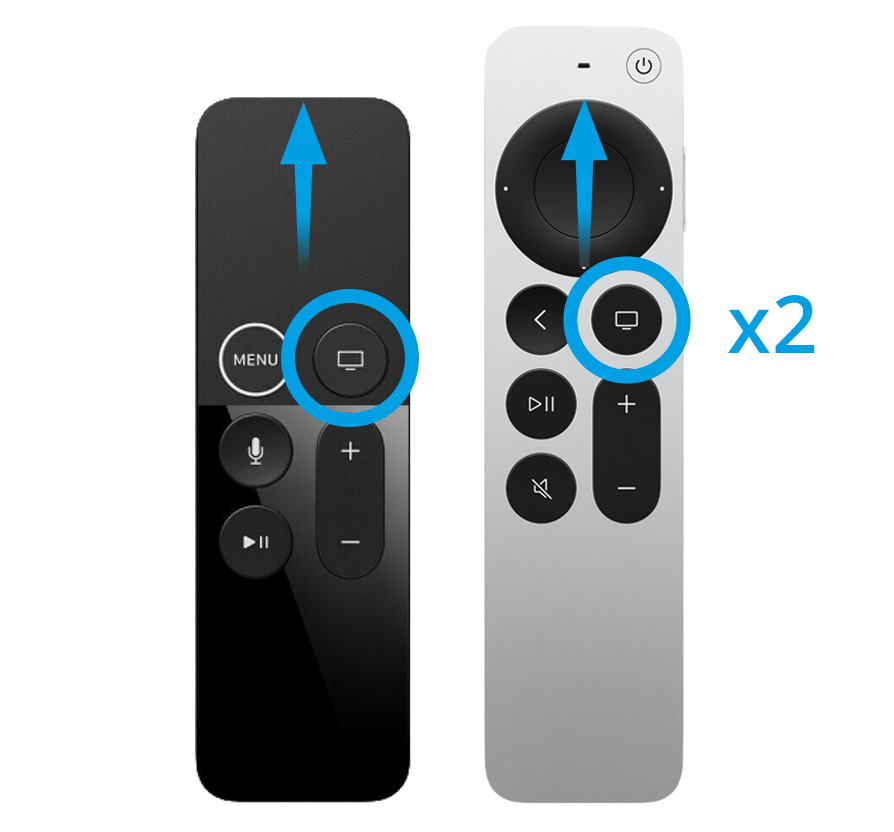
1. On your Apple TV remote, press the TV icon button twice quickly. This will take you to the app switcher.
2. If necessary, swipe left or right on the remote’s touchpad until the app you want to close is in the middle of your screen.
3. Then swipe up on the touchpad to make the app fly away. It is then closed.
Now swipe left until you return to your home screen, and restart the app.
Why is no program displayed for Sky Sport 1 and Sky Sport 2?
Some channels, such as Sky Sport 1 and Sky Sport 2, only show programs on certain days, for example, when special sports events are scheduled. On days when the channels do not show any program, the program column in the TV Pro app remains empty.
The list synchronization between iPhone/iPad and Apple TV is not working
The TV Pro App can currently only synchronize the watchlist between iOS devices. There is currently no synchronization with TV Pro Apple TV.
I can no longer log in to the TV Pro or Live TV App. What can I do?
If you can no longer log in to the TV Pro or Live TV app and do not receive an email to reset your password, the following may be the cause:
No account with this email address
- Password reset only works if an account actually exists with the entered email address.
- Check if you may have registered with a different email address.
Check old emails
- Search your email inbox for previous emails from @equinux.com.
- If you find such emails, your account was probably created with this email address.
- Try logging in with this address or performing the password reset for this email address.
If no emails are found
- If you do not find any emails from @equinux.com, you probably have not yet created an account.
- In this case, you can simply create a new account with your current email address.
I purchased a license – how do I get my access back?
If you have already made a purchase, but no account exists with your current email address, you can restore your purchases in the app: Create a new account - If you did not have an account before, create a new account in your TV Pro or Live TV app. Restore purchases - Open the app and navigate to the settings. - Select the “Restore Purchases” option. - Important: This must be done with the Apple ID with which you originally made the purchase. Use the correct app - Make sure you are using the correct version of the app. For example, if you made your purchase via the TV Pro Mediathek iOS app, you must use exactly this app to restore it. Check purchases in Apple ID - If you are unsure with which Apple ID you made the purchase, you can check this in the App Store under: Settings > Apple ID > Subscriptions. - Alternatively, you can check under Purchases in the App Store which apps are linked to your Apple ID.What to do if the restoration does not work?
If you continue to have problems: - Restart the app and try again. - Log out and log back in with your Apple ID in the App Store.
Is TV Pro an alternative to the TV apps from TV Spielfilm and TV Movie?
Yes, TV Pro is an excellent alternative to the TV apps from TV Spielfilm and TV Movie. The app offers a user-friendly interface that allows you to easily search the current TV program, use personalized program and reminder functions, and quickly find your favorite channels. Compared to the specialized apps from TV Spielfilm and TV Movie, TV Pro scores points with a comprehensive program overview and an intuitive operation. This makes TV Pro the ideal solution for anyone looking for a reliable and versatile TV program app to optimally plan their TV evenings. Discover the benefits of TV Pro now and always be well informed about the current TV program!